My activity
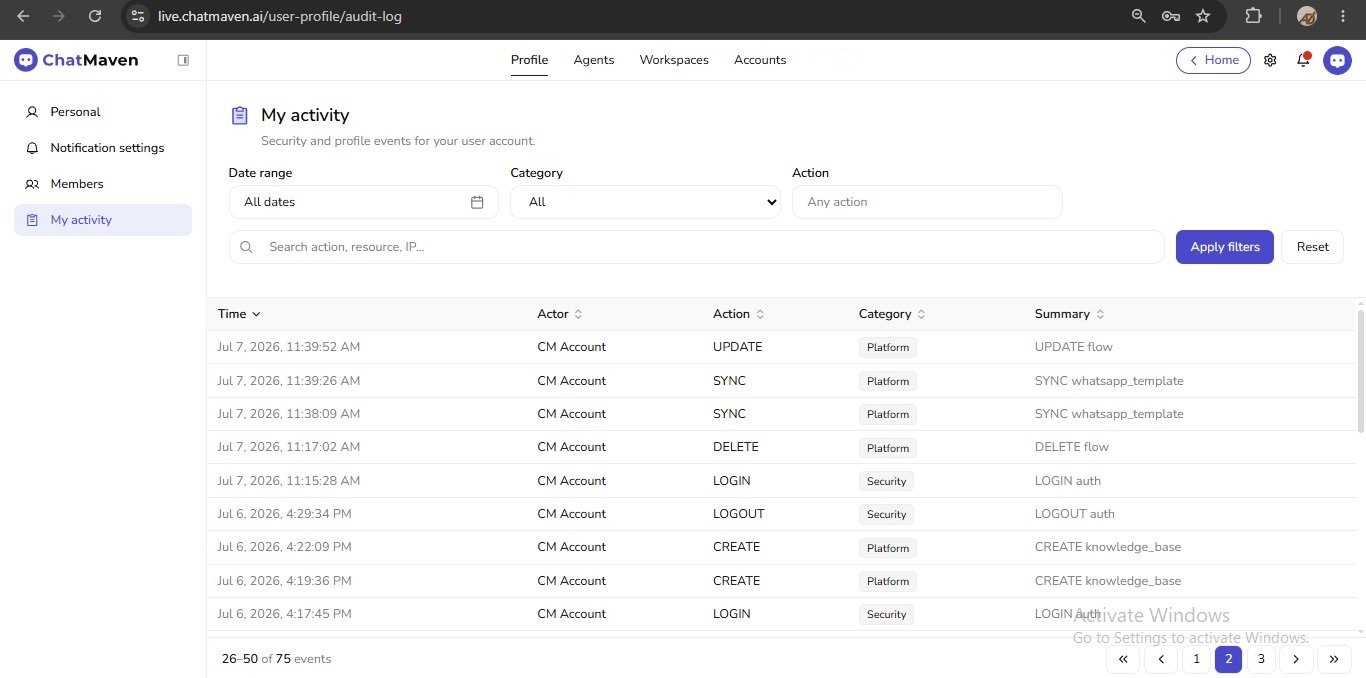
My activity is your personal audit log: a read-only history of security and profile events tied to your user account. Use it to review sign-ins and sign-outs, or platform changes you made (such as updating a flow or syncing templates).
In the hosted product, open this screen at https://live.chatmaven.ai/user-profile/audit-log (path /user-profile/audit-log).
Open My activity
- Sign in to ChatMaven.
- In the top navigation, click Profile (alongside Agents, Workspaces, and Accounts).
- In the Profile left sidebar, click My activity (highlighted when this page is active).
The page heading is My activity, with helper text: Security and profile events for your user account.
What you see on the page
Filters and search
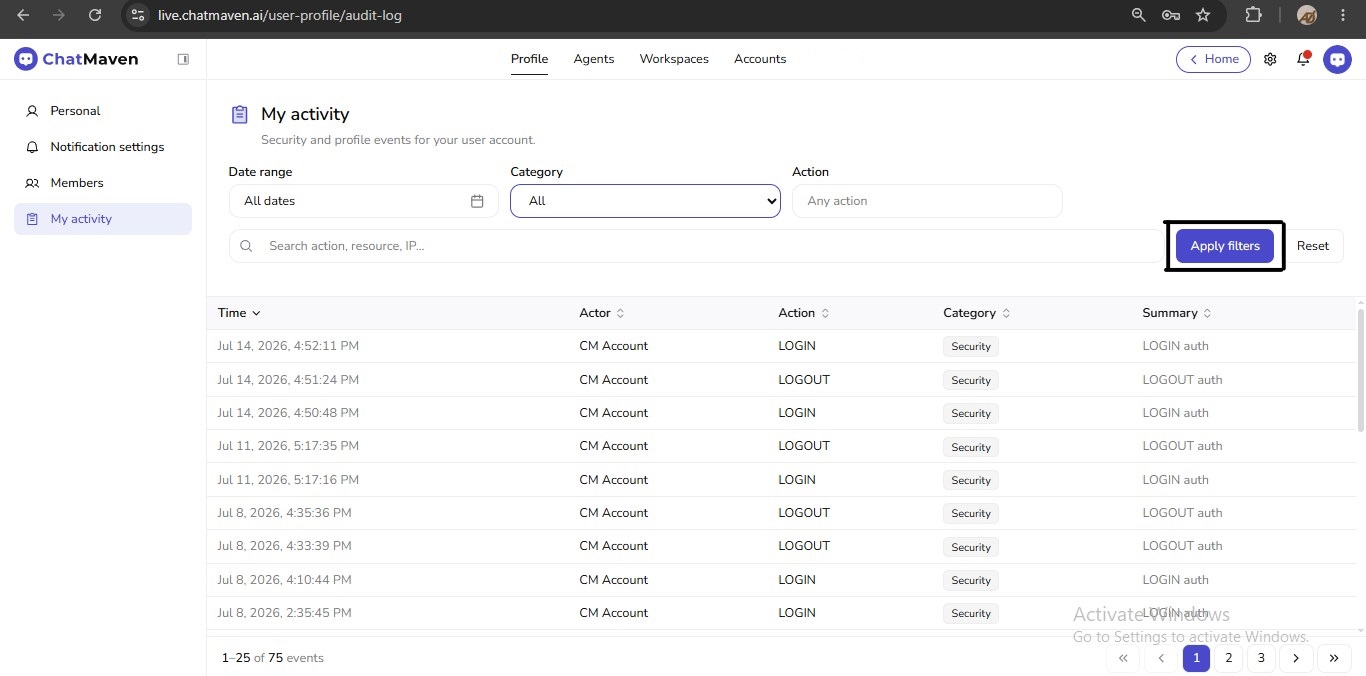
Above the table, use these controls to narrow the log. Changes apply after you click Apply filters.
| Control | What it does |
|---|---|
| Date range | Limits events to a time window. Default label is All dates. |
| Category | Filters by event type group (see Filter by category). Default is All. |
| Action | Free-text field (placeholder Any action). Enter an action name such as LOGIN, UPDATE, or CREATE to narrow rows. |
| Search | Searches across fields such as action, resource, and IP (placeholder: Search action, resource, IP…). |
| Apply filters | Runs the current filter and search values against the log. |
| Reset | Clears filters and returns to the default view. |
Activity table
The table lists events with sortable column headers:
| Column | Description |
|---|---|
| Time | When the event occurred (date and time). Newest events usually appear first. |
| Actor | Who or what performed the action (for example CM Account). |
| Action | The event verb, such as LOGIN, LOGOUT, CREATE, UPDATE, DELETE, or SYNC. |
| Category | Badge for the event group (for example Security or Platform). |
| Summary | Short description of what happened (for example LOGIN auth, UPDATE flow, SYNC whatsapp_template, CREATE knowledge_base). |
Pagination
Below the table, ChatMaven shows how many events you are viewing (for example 1–25 of 75 events) and page controls (First, Previous, numbered pages, Next, Last). Use these when the log spans more than one page.
Filter by date range
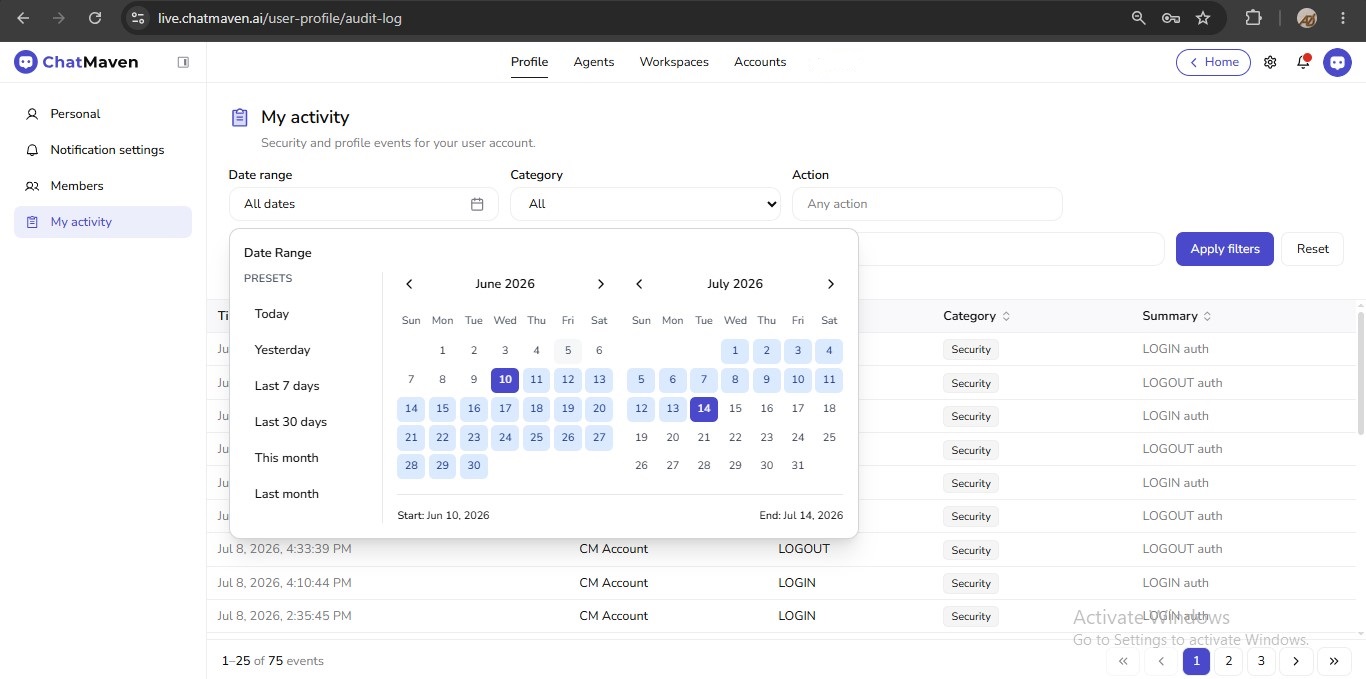
- Click the Date range control (shows All dates until you pick a range).
- In the Date Range popover, either:
- Choose a preset: Today, Yesterday, Last 7 days, Last 30 days, This month, or Last month; or
- Pick a custom start and end on the calendars (the footer shows Start and End as you select).
- Click Apply filters to update the table.
Filter by category
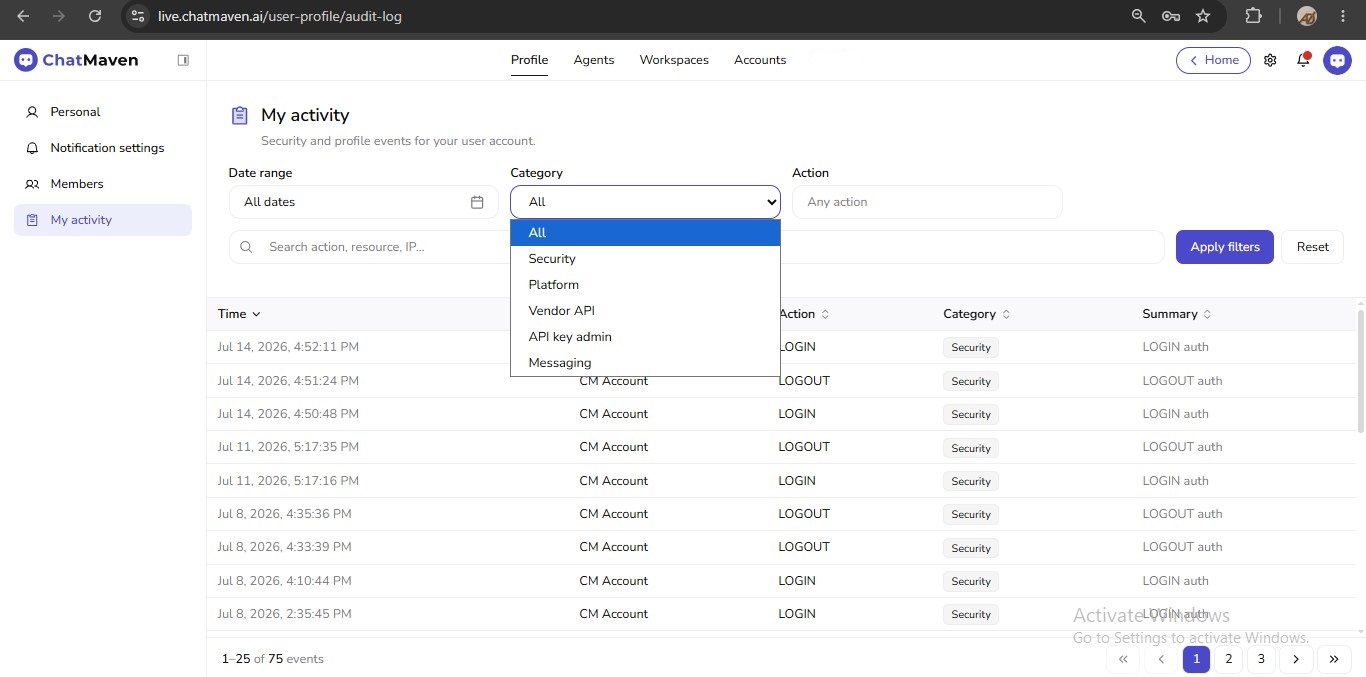
Open the Category dropdown and choose one of:
- All — Every category (default).
- Security — Authentication-related events such as LOGIN and LOGOUT.
- Platform — Product configuration and content changes (for example UPDATE flow, SYNC WhatsApp template, CREATE knowledge base, DELETE flow).
- Vendor API — Vendor API–related events.
- API key admin — API key administration events.
- Messaging — Messaging-related events.
Then click Apply filters.
Common ways to use the log
- Review recent sign-ins — Set Category to Security, or type
LOGINin Action, then Apply filters. - Find a change you made — Use Search for a resource keyword (for example
floworknowledge_base), or set Category to Platform. - Limit to a week — Open Date range, choose Last 7 days, then Apply filters.
- Start over — Click Reset to clear date, category, action, and search.
My activity is for review. You cannot edit or delete rows from this screen. It is scoped to your user account under Profile, not the full organization audit trail for every teammate.
FAQ and troubleshooting
I do not see My activity in the sidebar.
Confirm you are under Profile in the top navigation. If the item is still missing, your role or deployment may not expose the audit log—ask an account admin.
Filters did not change the table.
Set the controls, then click Apply filters. Navigating away without applying does not keep temporary selections. Use Reset if an old filter is still active.
I expected to see a teammate’s actions.
This page shows your account events. For organization-wide member administration, see Members.
Why do some rows show Platform and others Security?
Different product actions land in different categories. Sign-in and sign-out are typically Security; configuration changes (flows, templates, knowledge base, and similar) are typically Platform. Other categories appear when those areas generate events for your user.
See also
- User Profile — Personal information — Name, password, availability, and roles.
- Notification settings — How you receive alerts.
- Members — Invite and manage people on the account.
- Getting Started with Accounts — Account-level settings separate from your profile audit log.