Instagram Integration
Instagram is one of ChatMaven’s messaging channels. When you connect a professional Instagram account to an agent, ChatMaven can handle Instagram Direct Messages, optionally reply to comments, show account insights, and publish images or Reels — without leaving ChatMaven.
This page covers what the Instagram integration is, what you need before you start, what you can do after connecting, and the full connect flow with example images.
What is Instagram in ChatMaven?
In ChatMaven, Instagram appears as an integration card under Agents → Integrations. Connecting it links your Instagram professional account to the selected agent so that:
- Incoming Instagram DMs can be answered by your agent
- New top-level comments on your posts and Reels can receive a public AI reply (when you turn that option on)
- You can review Meta insights (reach, views, engagement, recent media) inside ChatMaven
- You can publish an image or Reel from the Instagram Overview tab
The connection uses Instagram’s OAuth flow through the app ChatMaven.ai | App-IG. After you allow access, ChatMaven shows the account as Connected and you can use the features on the Overview tab.
Instagram features at a glance
| Feature | Where in ChatMaven | What it does |
|---|---|---|
| DM auto-reply | Connected + enabled Instagram channel | Agent replies in Instagram Direct Message threads |
| Comment auto-reply | Overview → Comment auto-reply | Public AI replies under new top-level comments; comments also appear in Inbox |
| Instagram insights | Overview → Instagram insights | Read-only Meta metrics (testers): reach, views, accounts engaged, recent media |
| Publish to Instagram | Overview → Publish to Instagram | Post an image or Reel from ChatMaven (testers), within Meta publish limits |
Step-by-step guides for each feature:
Prerequisites
Before you connect Instagram in ChatMaven, make sure you have:
- A ChatMaven account and access to the agent you want to connect
- An Instagram username and password for the account you will link
- A professional Instagram account (Creator or Business) before you start the ChatMaven connection. If your account is still personal, complete the one-time conversion in Instagram first — see Converting to a Professional Account
- Permission to approve Instagram app access for ChatMaven.ai | App-IG
Keep your Instagram login ready. Convert a personal account to professional once, in Instagram itself, before you click Connect with Instagram in ChatMaven. You do not do this conversion inside ChatMaven.
Watch: convert to a professional account
If your Instagram account is still personal, watch the video below for the one-time conversion in Instagram. This is a prerequisite, not part of the ChatMaven connect steps. After the account is professional, continue with How to connect ChatMaven to Instagram.
Open the convert to professional account video on Google Drive in a new tab if the player above does not load.
Converting to a Professional Account
Instagram requires a professional account (Creator or Business) to connect to ChatMaven. Do this once, the first time, directly in Instagram — not in ChatMaven — before you attempt the ChatMaven connection.
How to start in Instagram
- Open your Instagram profile on the web.
- Open Settings and privacy (gear / settings menu).
- Go to Account type and tools.
- Click Switch to professional account.
Then follow the screens below (same Instagram UI after you start the switch).
If your account is already Creator or Business, skip this section and go to How to connect ChatMaven to Instagram.
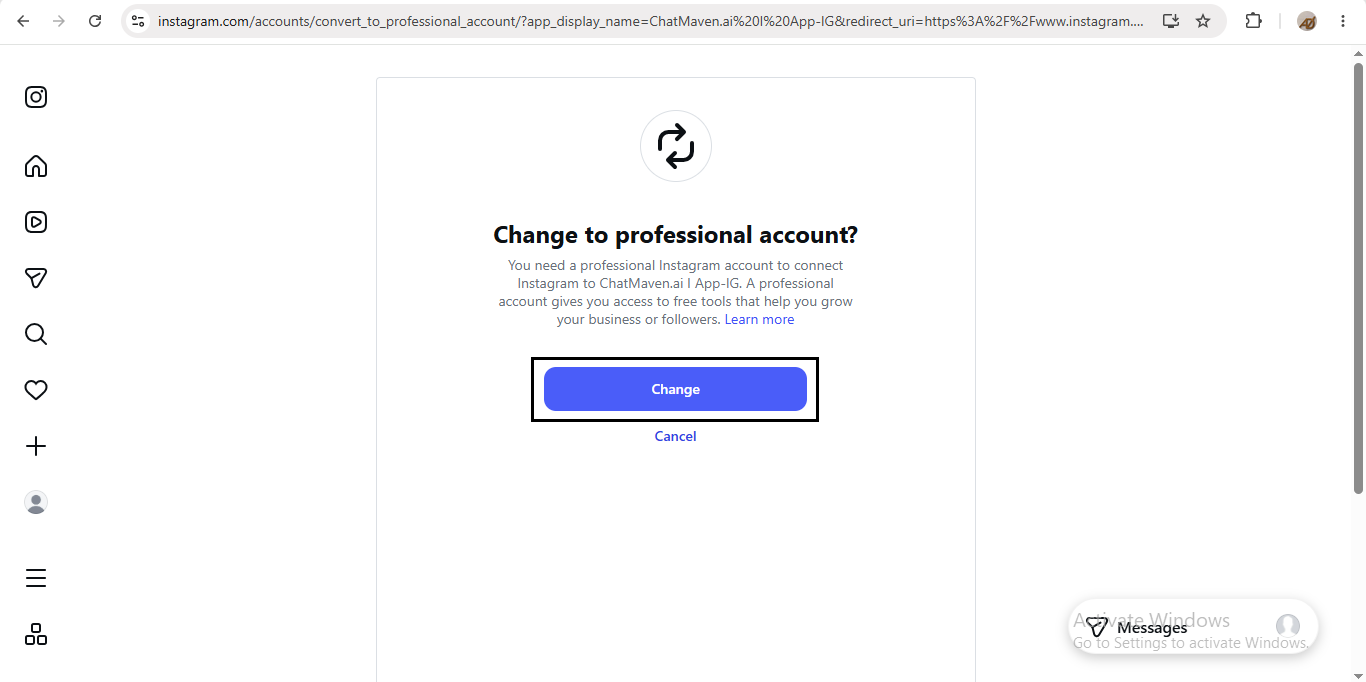
Change to professional account
Instagram may show Change to professional account? and explain that you need a professional account to connect Instagram to ChatMaven.ai | App-IG. Click Change to continue (or Cancel to stop). If you started from Account type and tools, you may go straight to the next screens after Switch to professional account.
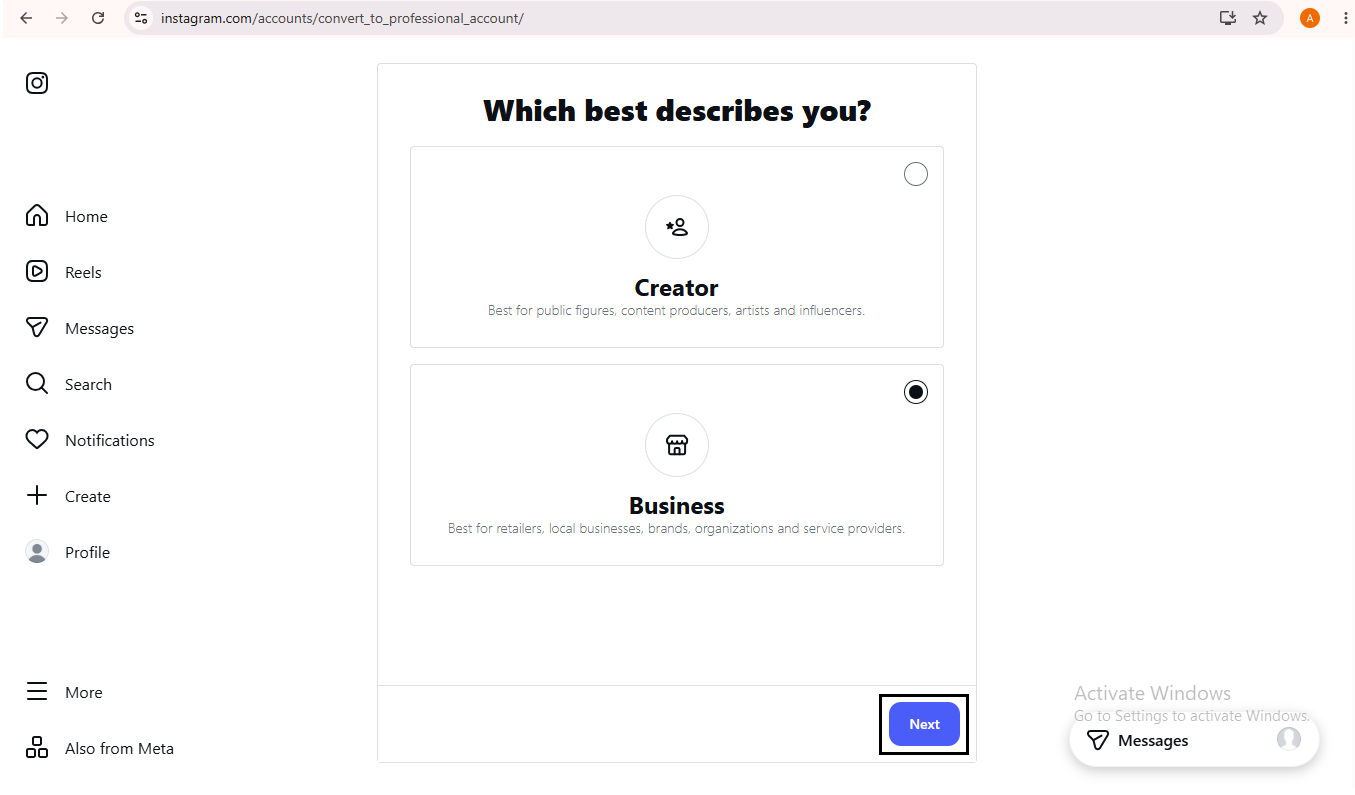
Choose how you are described
On Which best describes you?, select Creator or Business, then click Next.
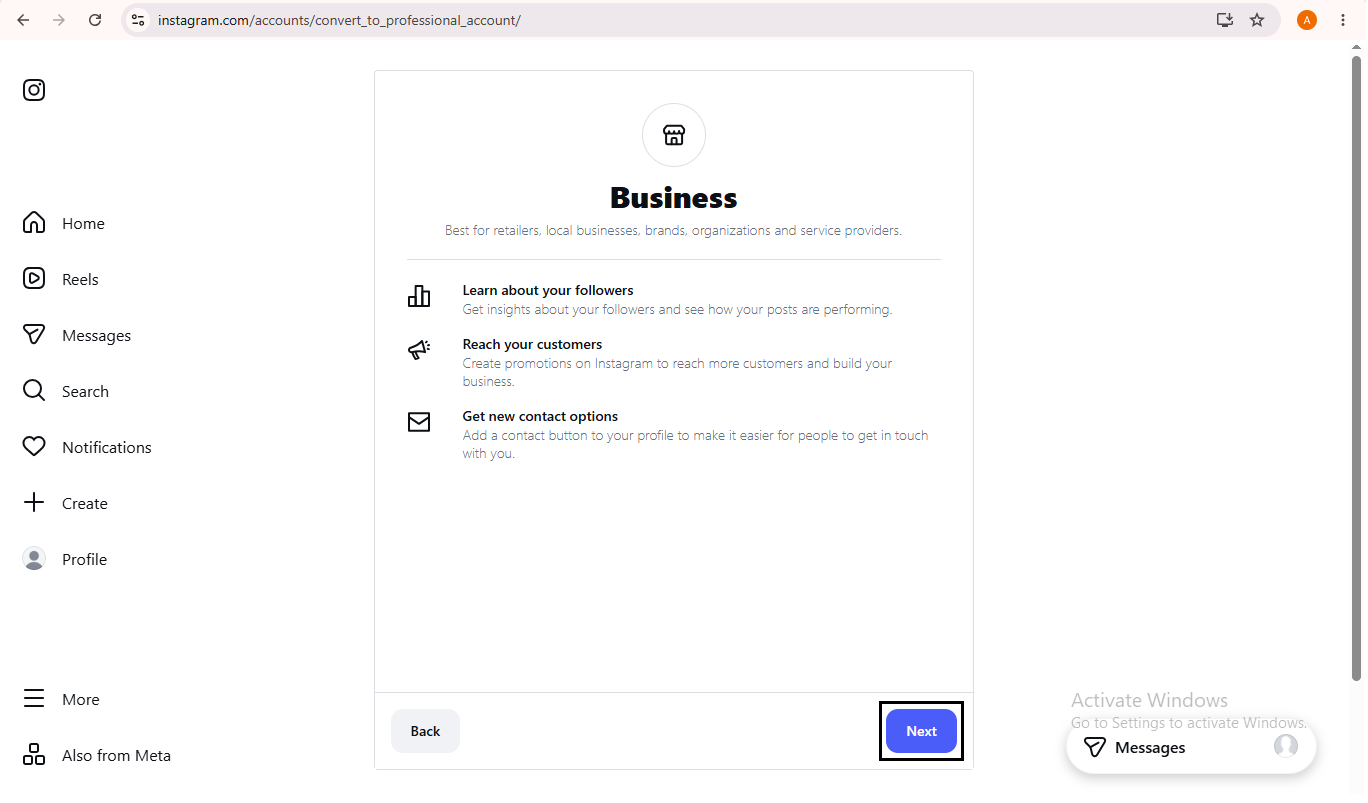
Review Business benefits (Business path)
If you chose Business, Instagram shows a Business benefits screen (insights, reach, contact options). Click Next (or Back).
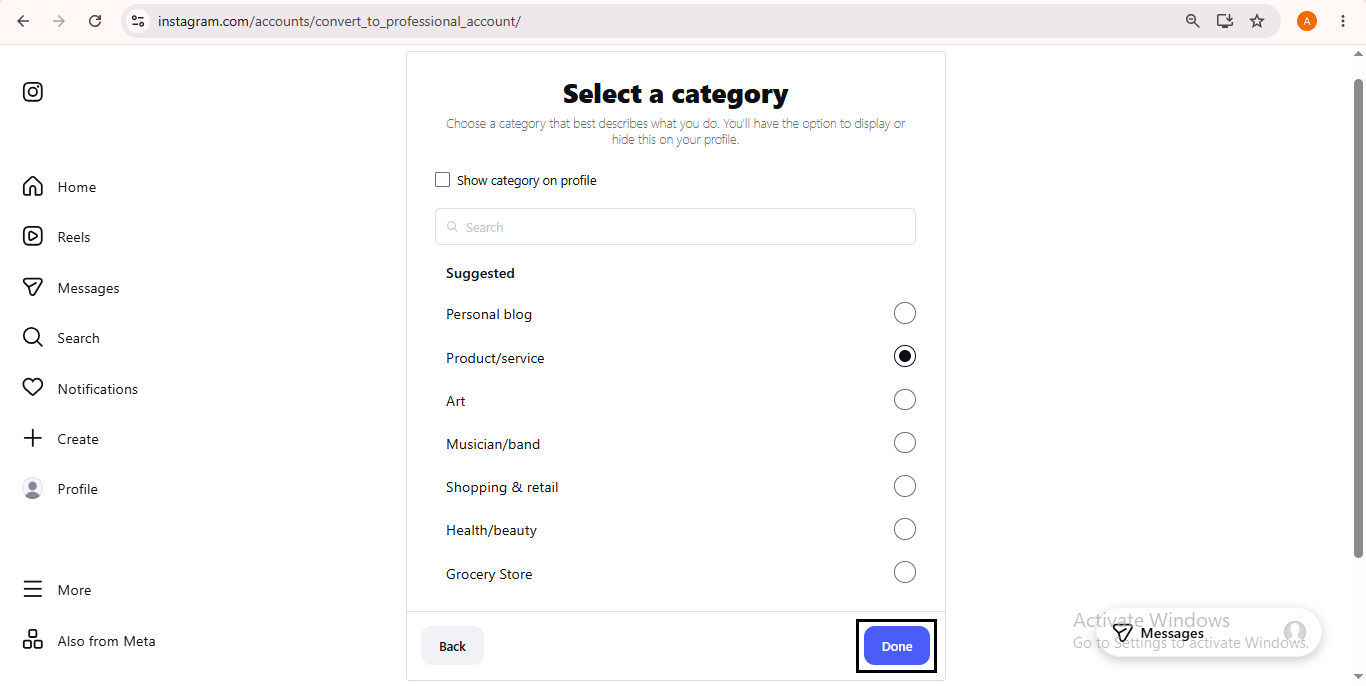
Select a category
On Select a category, pick the category that fits your account, then click Done.
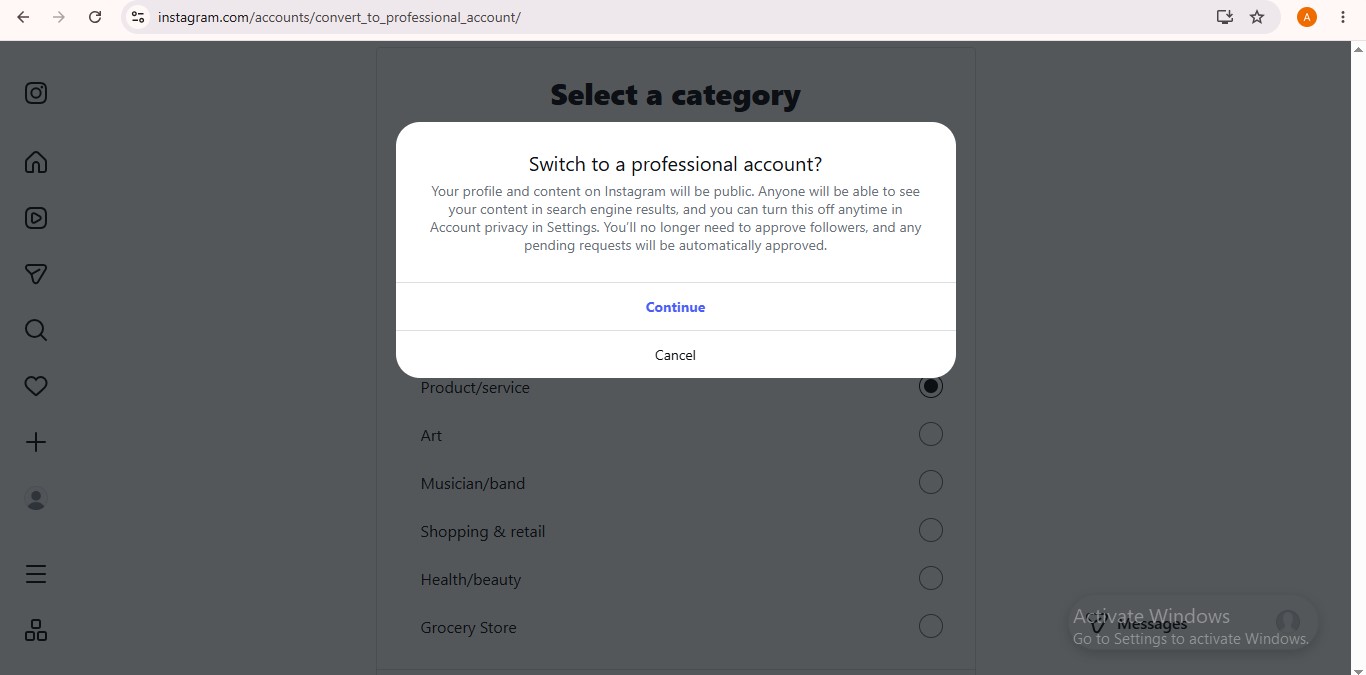
Confirm the switch
Instagram may ask Switch to a professional account? Click Continue.
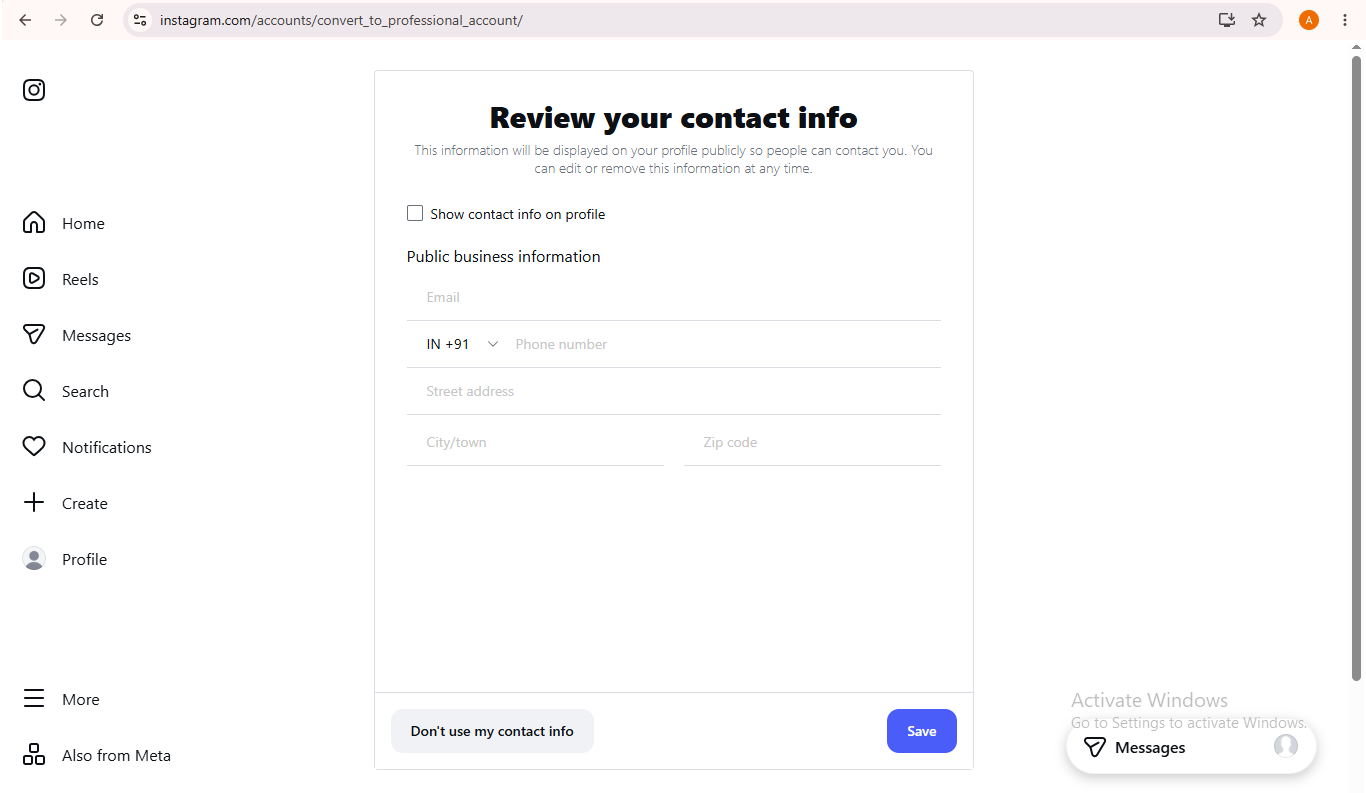
Review contact info
On Review your contact info, choose Save or Don't use my contact info.
Account ready
When Instagram shows Your Instagram business account is ready, click Done.
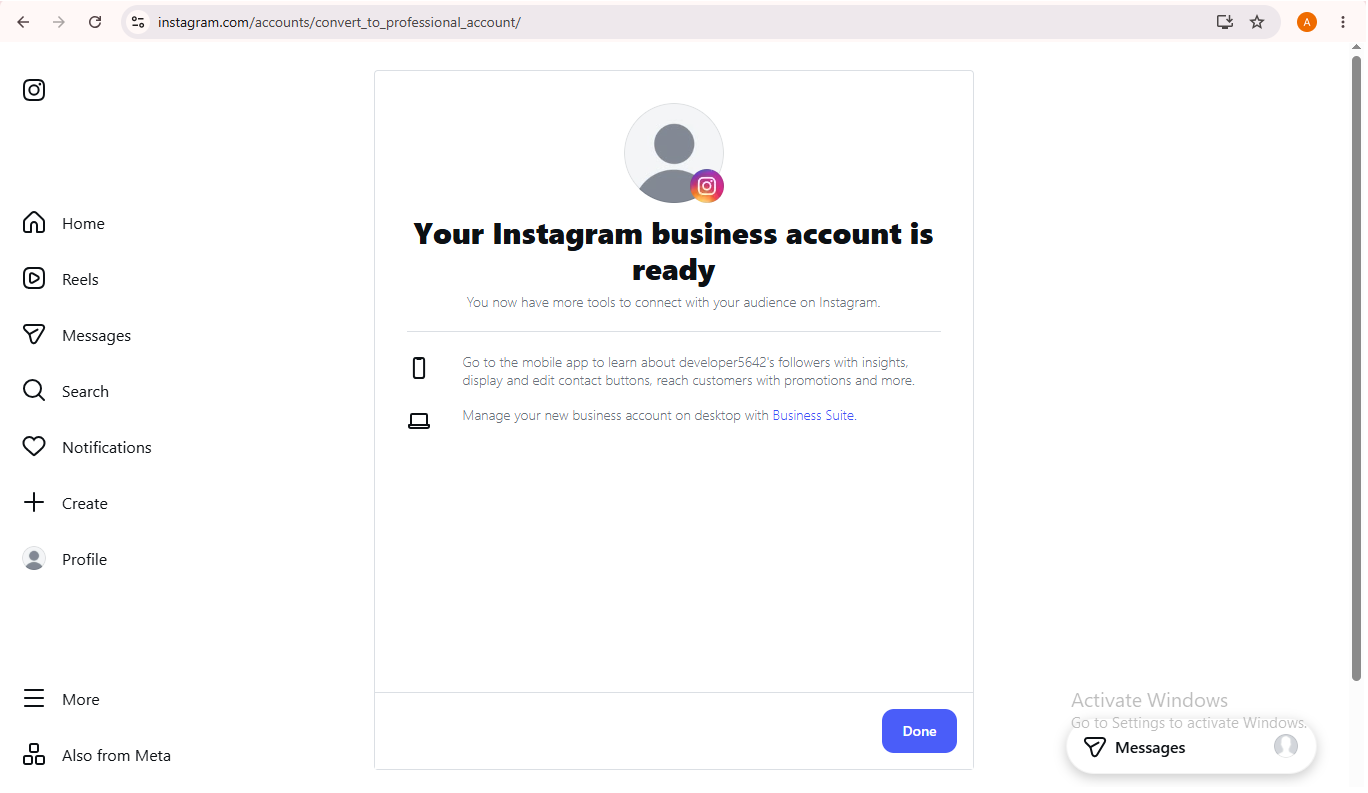
Your account is now professional. Continue with the ChatMaven connection steps below.
How to connect ChatMaven to Instagram
Use these steps after your Instagram account is already professional. The images below match the live ChatMaven and Instagram screens.
Watch the Instagram connection video
Watch the video below for a Walkthrough of connecting Instagram to ChatMaven. You can also follow the written steps in this guide.
Open the Instagram connection video on Google Drive in a new tab if the player above does not load.
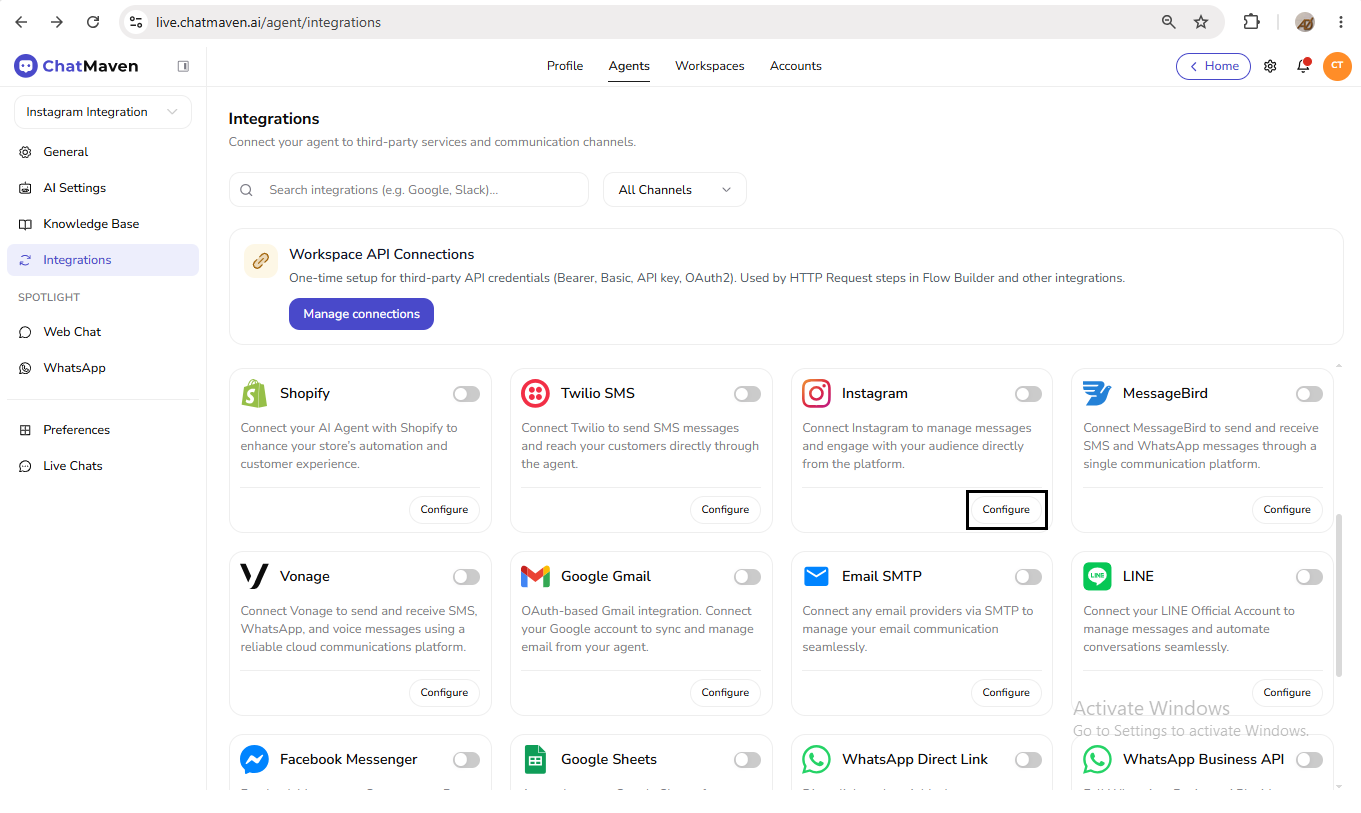
Step 1: Open Integrations and find Instagram
- In ChatMaven, open Agents.
- Select the agent you want to connect.
- Go to Integrations.
On the Integrations page you will see a grid of channel cards. Locate the Instagram card. Its description reads: Connect Instagram to manage messages and engage with your audience directly from the platform.
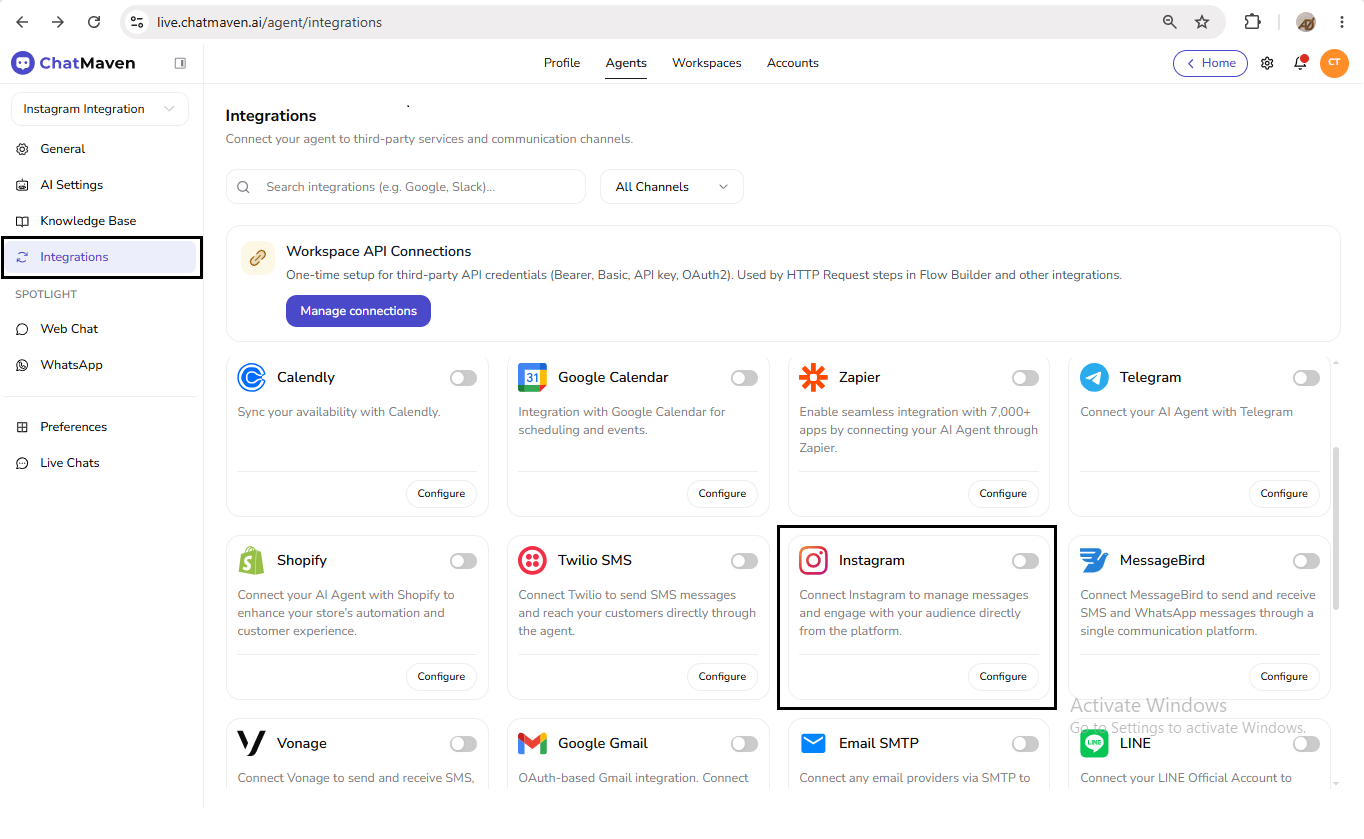
Step 2: Click Configure
On the Instagram card, click Configure to open the Instagram setup panel.
Step 3: Start Connect with Instagram
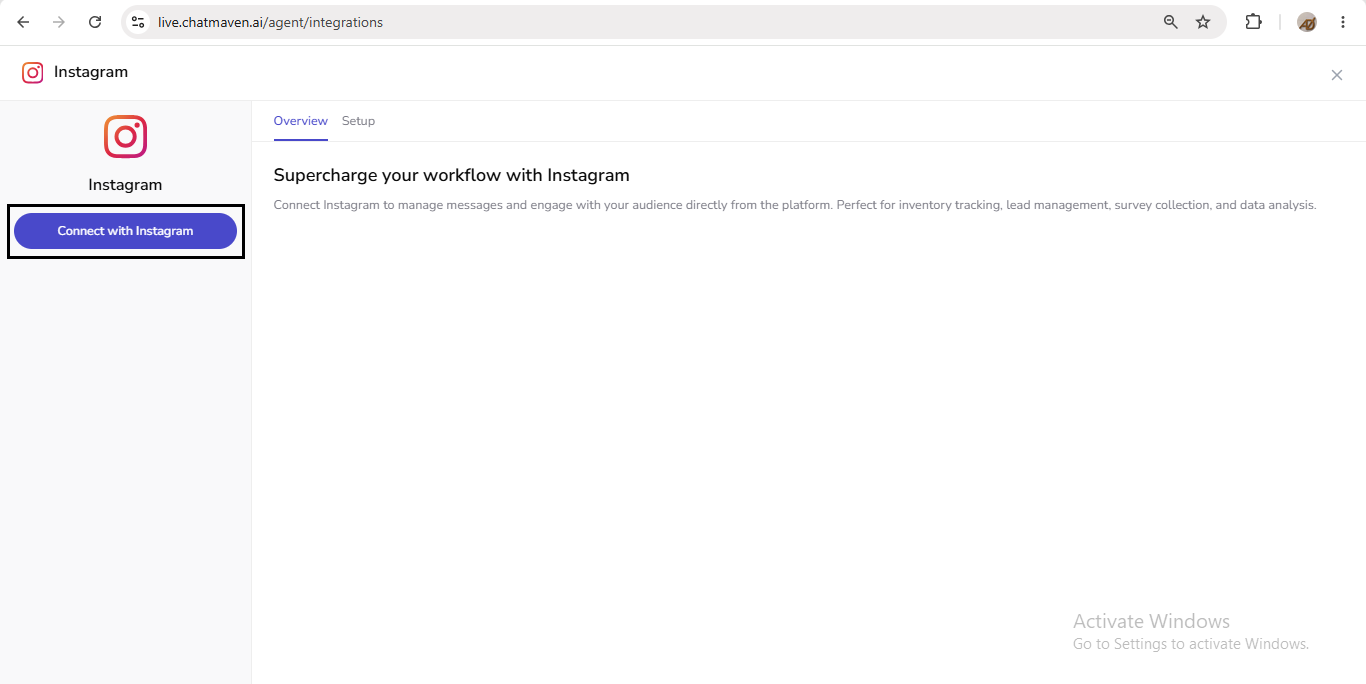
The Instagram panel has a left rail and an Overview / Setup area.
While the account is not connected yet:
- The left rail shows Connect with Instagram
- Overview shows the heading Supercharge your workflow with Instagram and a short description of what the channel is for
Click Connect with Instagram to start Instagram’s login and permission flow.
Step 4: Sign in to Instagram
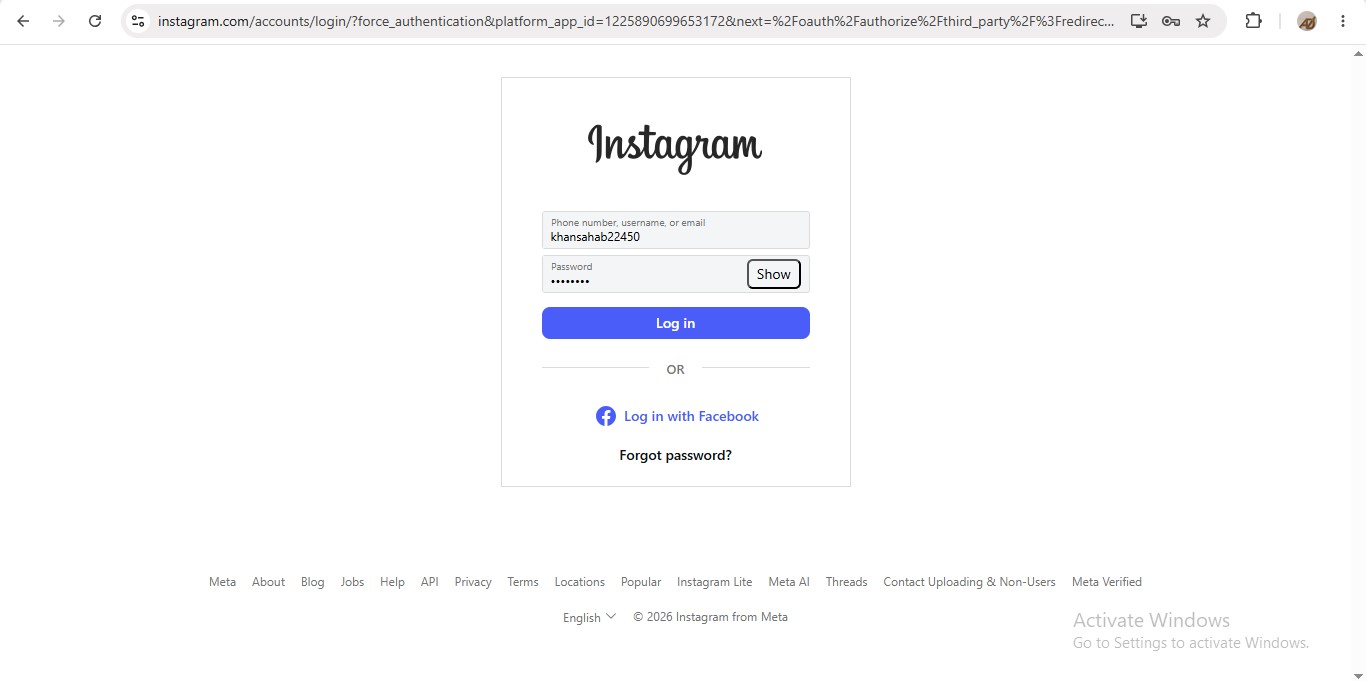
ChatMaven redirects you to Instagram’s login page. Enter the Instagram username (or email/phone) and password for the account you want to link, then click Log in.
Use the same Instagram account you intend to manage from ChatMaven. That account should already be professional — if it is still personal, finish Converting to a Professional Account first, then retry connect.
Step 5: Allow ChatMaven access
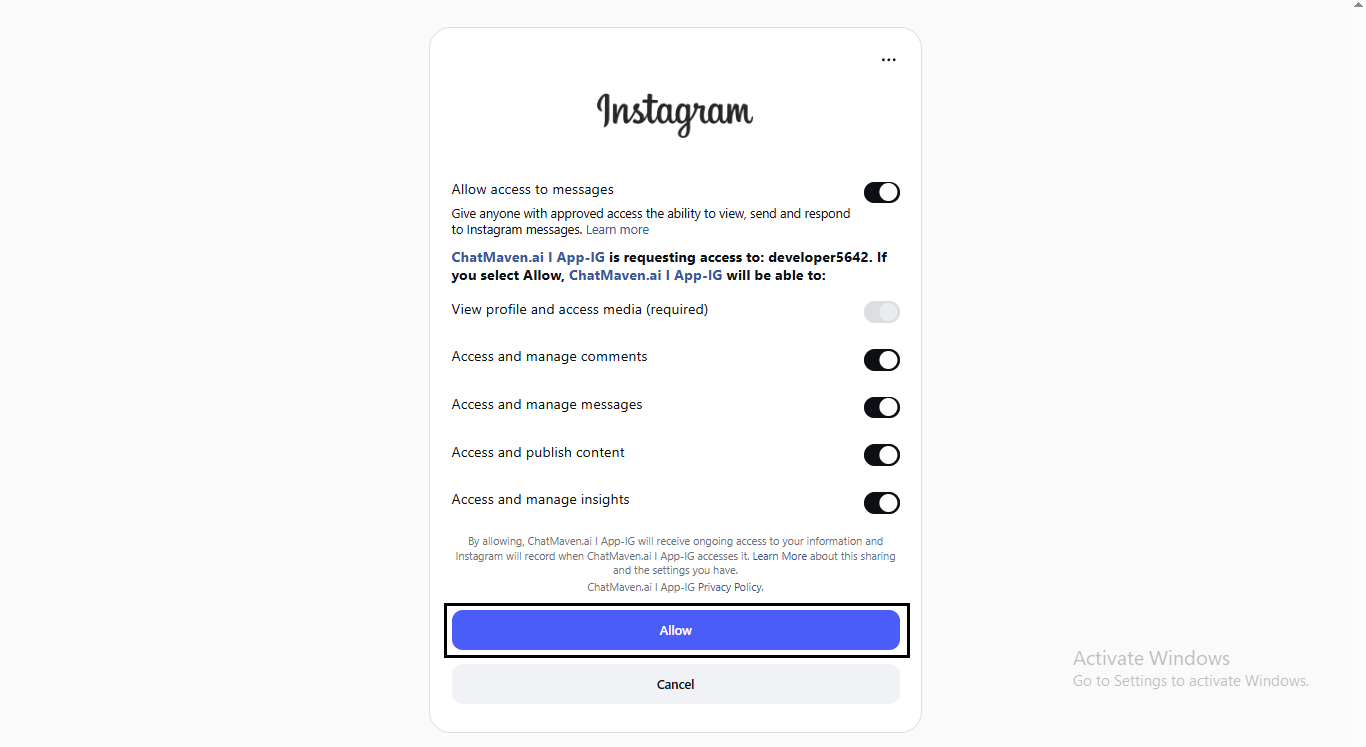
Instagram shows a permissions screen for ChatMaven.ai | App-IG, listing the access ChatMaven needs for the selected account (for example, view profile and media, comments, messages, publish content, and insights).
Review the permissions, leave the required access enabled (and keep optional toggles on if you want comments, messages, publish, and insights), then click Allow.
Step 6: Return to ChatMaven — Instagram toggle enabled
After you click Allow, Instagram redirects you back to ChatMaven Integrations.
When the connection succeeds, ChatMaven shows a green confirmation such as: Instagram connected. Send a test DM to confirm inbound messages. The Instagram card toggle is on (enabled). That means the Instagram account is linked and the channel is active for this agent.
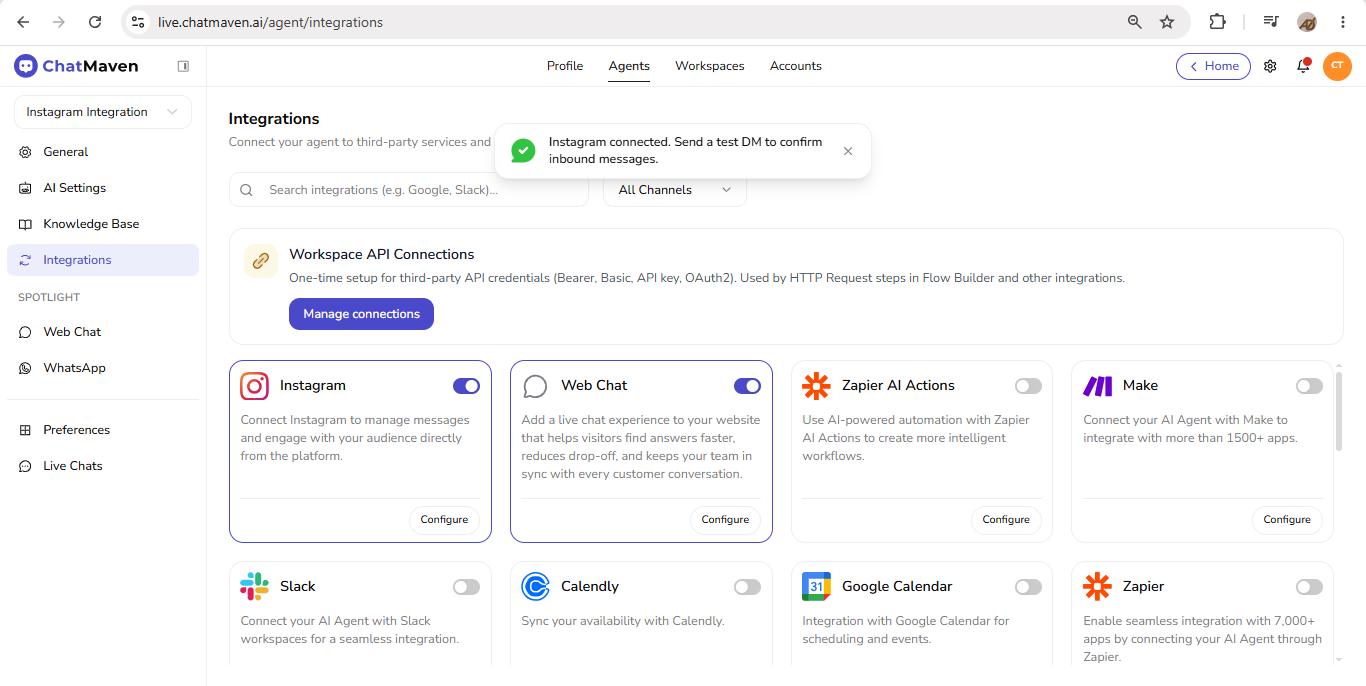
If the toggle is off after redirect, turn it on so the agent can use Instagram. Then open Configure (next step) to confirm Connected status and account details.
Step 7: Open Configure — Connected Overview
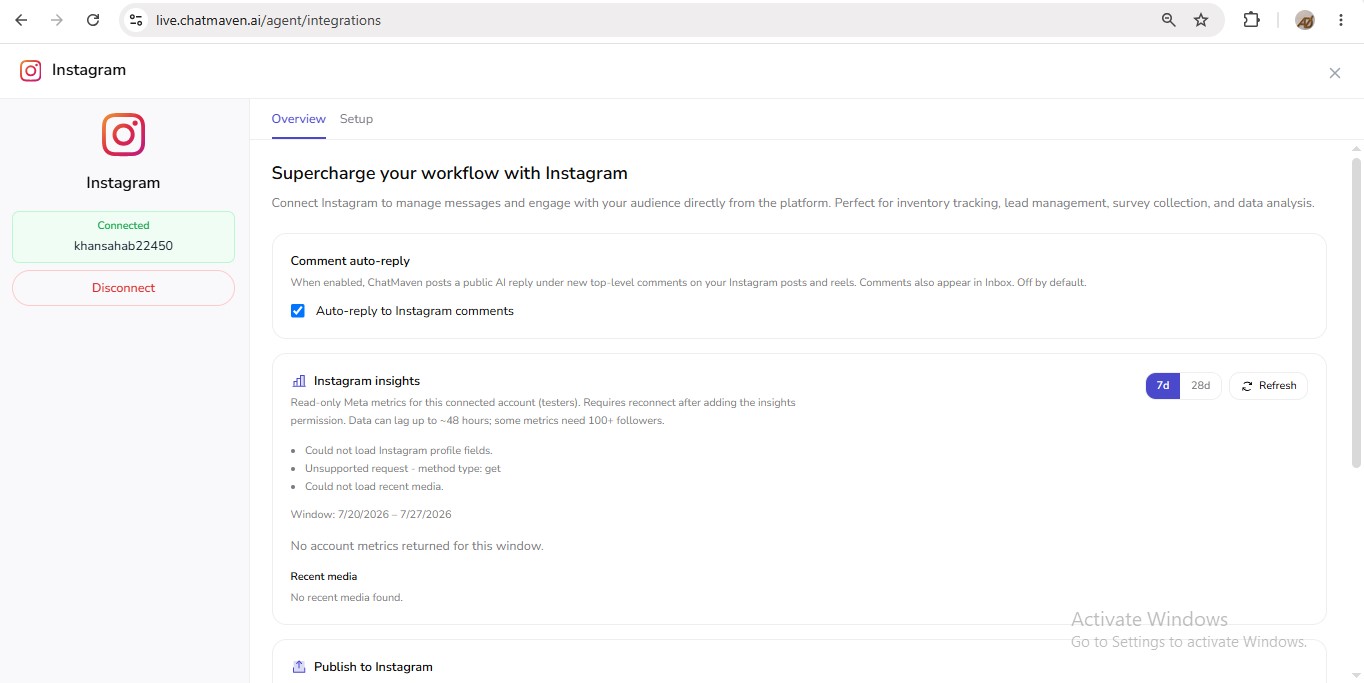
Click Configure again on the Instagram card. You should see:
Left rail
- Status badge: Connected
- Your Instagram account name (username)
- Disconnect (to remove the connection later)
Overview tab (main content)
- Intro: Supercharge your workflow with Instagram
- Comment auto-reply — checkbox Auto-reply to Instagram comments (turn this on when you want public comment replies; it is off by default until you enable it)
- Instagram insights — metrics, 7 d / 28 d, Refresh, and Recent media
- Publish to Instagram — Image / Reel, caption, file upload, and publish action
This Overview is your home for Instagram features after connect. Use it to enable comment auto-reply and to work with insights and publishing.
Recommended next steps
After Instagram shows Connected and the toggle is enabled:
- Turn on Auto-reply to Instagram comments if you want public comment replies — Instagram auto-reply
- Review Instagram insights on Overview — Instagram insights
- Try Publish to Instagram if you need to post an image or Reel — Publish to Instagram
- Send a test Instagram DM to your connected account and confirm the agent replies
Current status notes
On the connected Overview tab, Instagram insights and Publish to Instagram are labeled (testers) in the product. Insights may require reconnect after adding the insights permission. Publish may require reconnect after adding the content_publish permission. See the Insights and Publish guides for the full on-screen notices.
FAQ and troubleshooting
Why do I see a professional account prompt?
ChatMaven needs a professional Instagram account (Creator or Business). Complete the one-time conversion in Instagram Settings first — see Converting to a Professional Account. If Instagram still prompts you during connect, the account is not yet professional; finish that conversion, then retry Connect with Instagram.
I allowed access but Instagram still looks disconnected
Return to Integrations and check the Instagram toggle. After a successful Allow, the toggle should be on and you may see Instagram connected. Send a test DM to confirm inbound messages. Then open Configure and confirm the left rail shows Connected plus your Instagram username.
Instagram connected but the agent is not responding?
Confirm the Instagram card toggle is on, Configure shows Connected, and you are testing against the same agent and Instagram account you connected.
How do I disconnect?
Open Configure on the Instagram card and click Disconnect.