Preferences
Preferences are agent-level settings that sit next to the Knowledge Base: whether answers cite sources, whether visitors must accept AI terms, how file uploads and voice input work, when Web Chat forms open, and whether your team sees WhatsApp billing prompts.
Open Agents, select the agent, then click Preferences in the left sidebar (below SPOTLIGHT). The in-app path is live.chatmaven.ai/agent/preferences.
Click Save at the bottom after you change anything. Reset discards unsaved edits on the page.
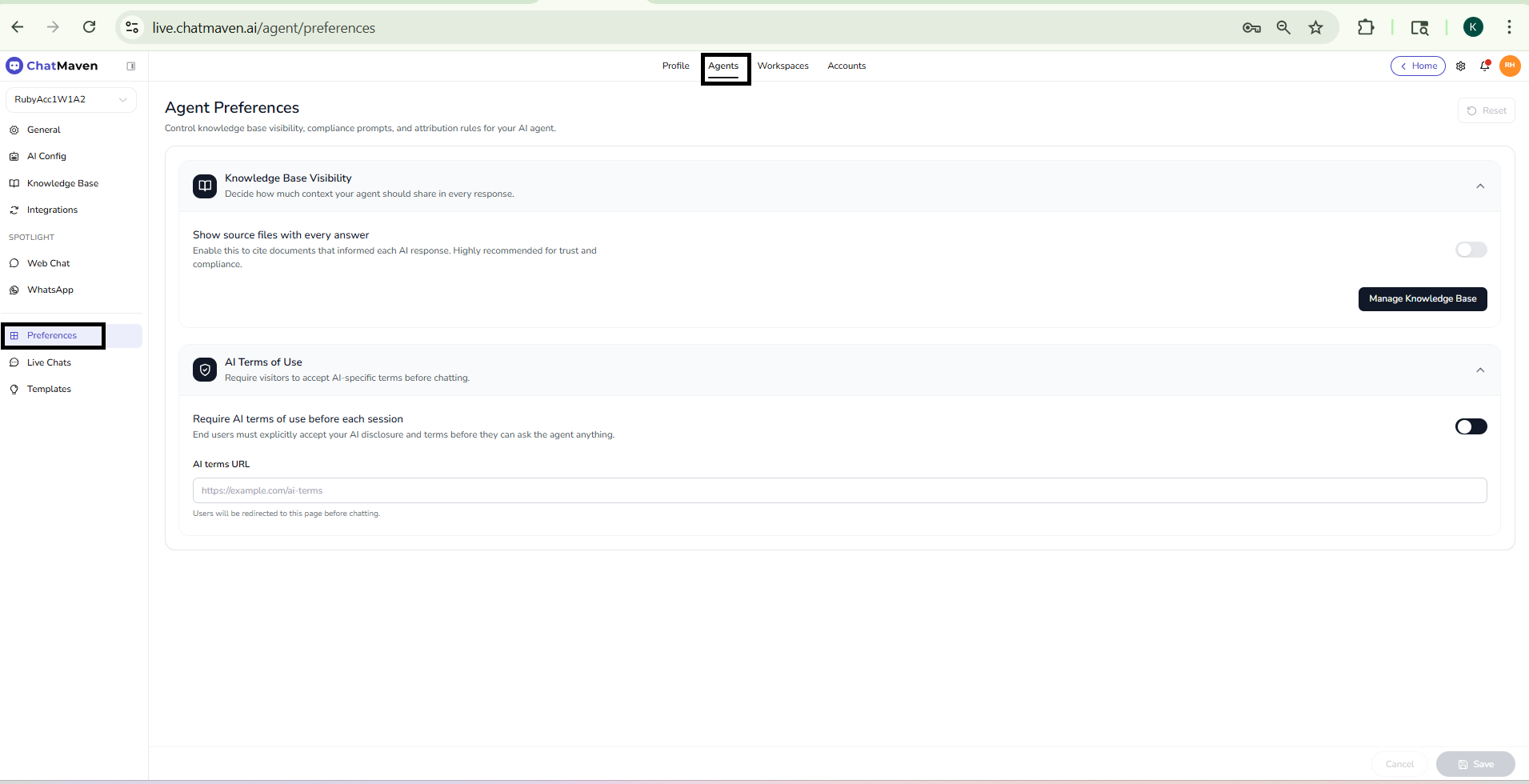
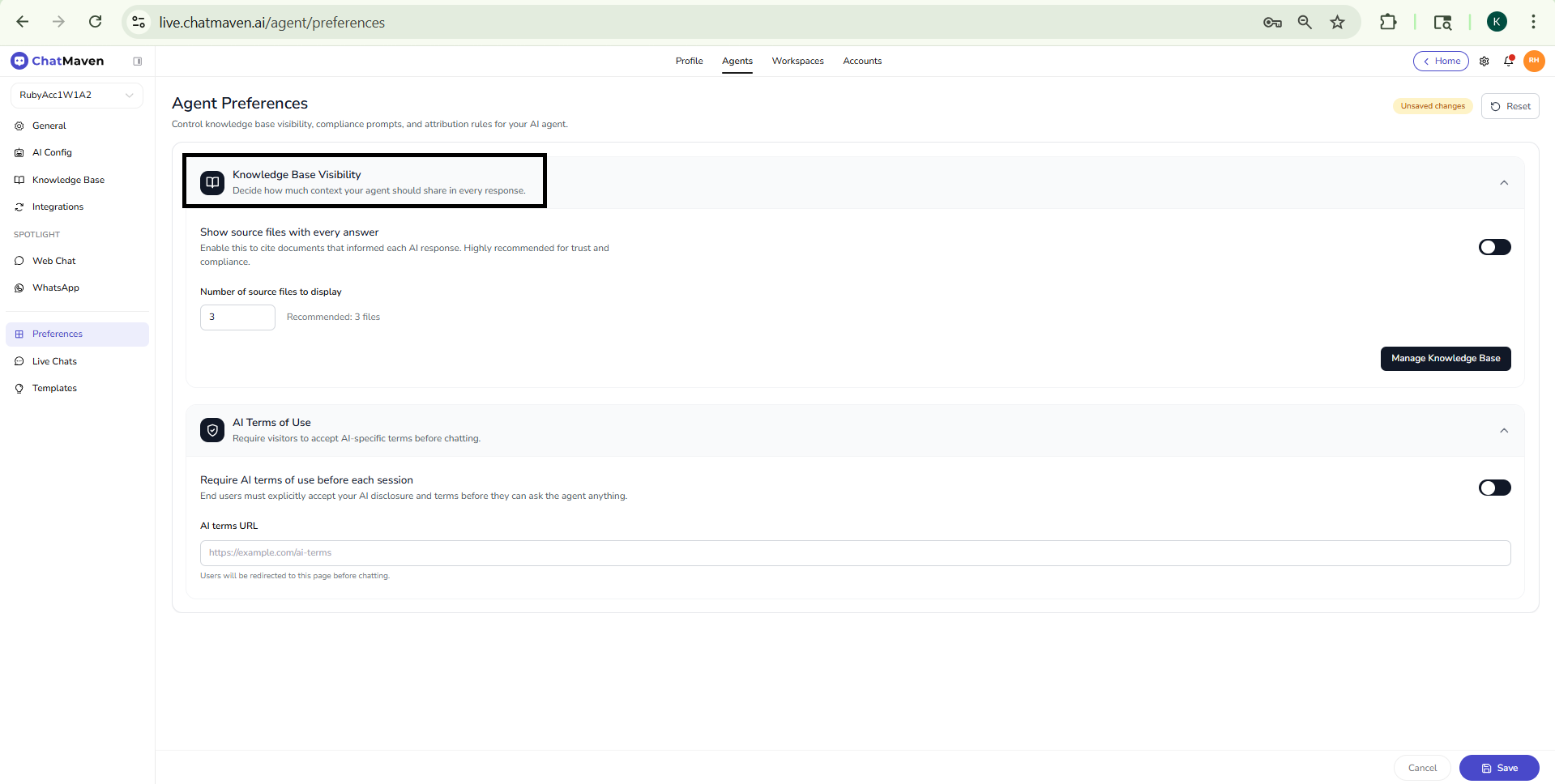
Knowledge Base Visibility
Use this section when you want visitors to see which documents informed an answer.
| Control | What you set |
|---|---|
| Show source files with every answer | When on, the agent can list the files that supported the reply. |
| Number of source files to display | How many sources to show. 3 is the recommended starting point. |
| Manage Knowledge Base | Opens this agent's Knowledge Base so you can add or update sources. |
Citations only appear for sources that have Show Sources (or Show sources to end users in File settings) turned on in the Knowledge Base. Preferences controls whether answers cite sources and how many; the Knowledge Base controls which sources exist and which of them may be cited.
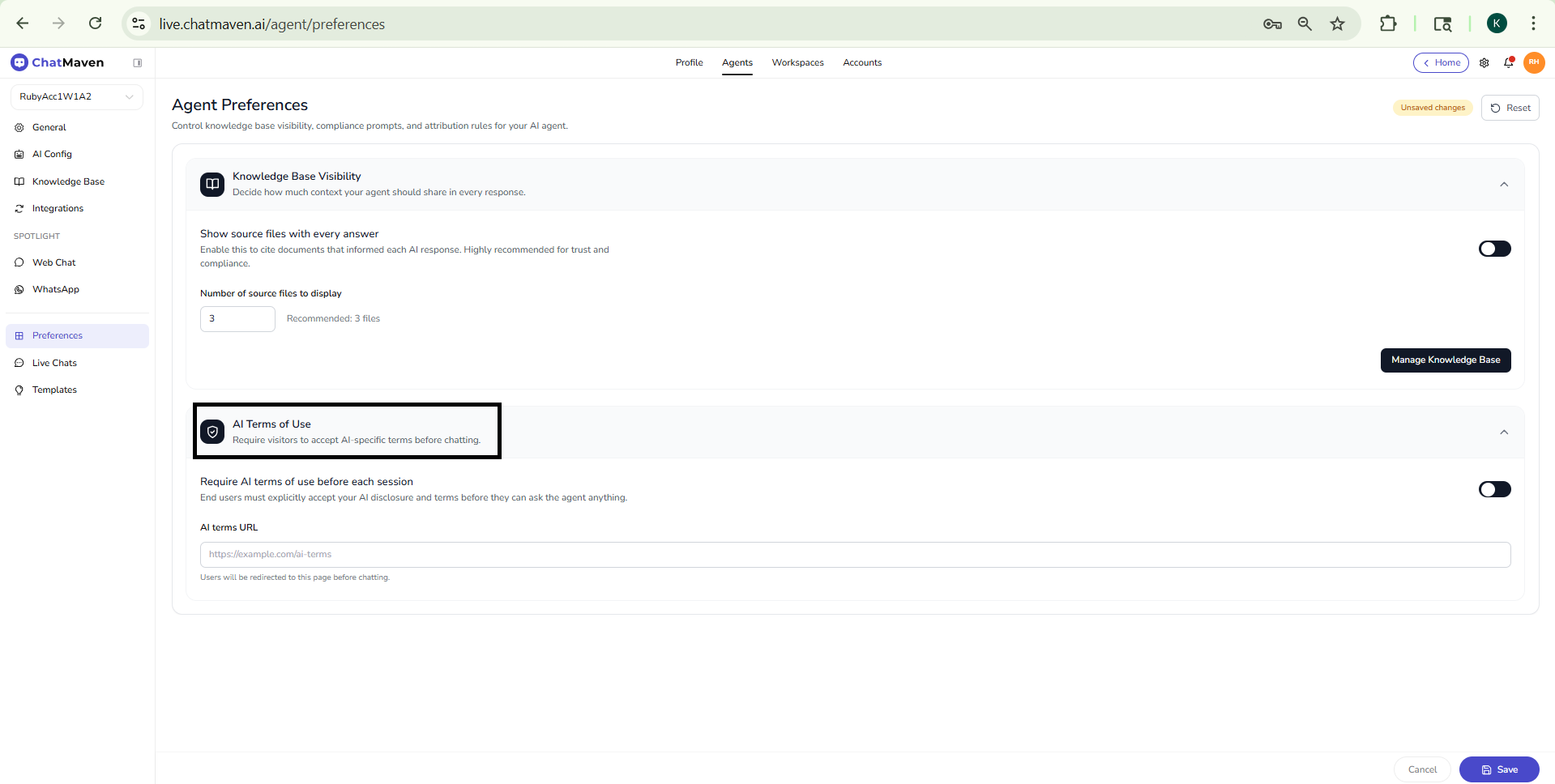
AI Terms of Use
Turn this on if visitors must accept your AI disclosure before they can chat.
| Control | What you set |
|---|---|
| Require AI terms of use before each session | When on, the visitor must accept your terms before the session continues. |
File uploads
These controls apply to files visitors attach in Web Chat and files your team attaches in Inbox. They do not replace the Knowledge Base Files tab, which trains the agent.
| Control | What you set |
|---|---|
| Voice input (dictation) | When on, visitors and teammates can use the microphone to dictate into the message box. |
| Allow end-user file uploads | When on, visitors can attach files in the website widget. When off, the attach control is hidden. |
| End-user max file size (MB) | Limit for the widget. Default 5 MB; maximum 100 MB. |
| App user max file size (MB) | Limit for Inbox attachments from your team. Default 5 MB; maximum 100 MB. |
| Allowed file types | Comma-separated extensions for both Web Chat and Inbox. |
| Reset to default list | Restores the standard allowed-types list. |
Some extensions stay blocked (for example scripts and other executable types) and cannot be enabled. Files are stored and opened in viewers; they are not run.
For how the widget looks, see Web Chat. For files your team reuses in Inbox, see Files Library.
Web chat forms
When a flow or AI Action shows a form in the widget, Delay before inline form opens waits after the chat message so the visitor can read it first.
Choose 0 (open immediately) through 5 seconds. The delay applies to companion text, the open message, or the message that appears before the form.
Build and assign the forms themselves under Forms. Connect them to the widget on Web Chat → Appearance → Forms.
WhatsApp Meta billing alerts
Show paid-message prompts before send warns your team before Inbox, Broadcast, or AI Action sends that may incur Meta WhatsApp Business charges (for example Marketing or Authentication templates). Confirmation is required before those sends go out. Meta bills the WhatsApp Business Account.
For template setup, see WhatsApp Templates.
FAQ and troubleshooting
I turned on citations but answers do not show sources.
On Knowledge Base, turn on Show Sources for the files you want cited. Then save Show source files with every answer here and set a count of at least 1.
Preference changes do not apply.
Click Save and confirm you edited the same agent that is live. Some options apply only after the next conversation.
Where do I add the documents the agent should cite?
Use Manage Knowledge Base, or open Knowledge Base in the agent sidebar.
Related topics
- Knowledge Base — Add sources and set Show Sources, Share Across Workspace, and Internal KB Only.
- Web Chat — Widget appearance, lead forms, and deploy.
- Forms — Workspace forms used with Web Chat and flows.
- WhatsApp Templates
- Getting started with AI agents — Agent name and ID on General.