Tickets
Tickets turn important Inbox conversations into structured follow-up work. Use them when a chat needs an owner, priority, status, attachments, and a clear history—without replacing the live conversation in Inbox.
Each ticket gets a public ID such as T-12. Linked chats keep a conversation ID such as C-367. Both IDs help your team and customers refer to the same case.
Getting here
Open Tickets from the top navigation (between Inbox and Contacts). You can also open a ticket from Inbox by selecting a linked T- ID in the chat header, or create one from the conversation (see below).
Who can use Tickets may depend on your workspace permissions (the same access used for Inbox). If you do not see Tickets, ask an administrator.
Tickets and Inbox
| Concept | Where you work | Public ID |
|---|---|---|
| Conversation | Inbox — live chat across channels | C-… (for example C-367) |
| Ticket | Tickets page — case tracking | T-… (for example T-12) |
A ticket can be linked to one or more conversations. Public replies and resolve messages can post into the linked chat so the customer stays informed in the same thread.
Create a ticket from Inbox
- Open Inbox and select a conversation.
- In the chat header, find the Create ticket control (ticket icon). New conversations may already show a conversation ID badge such as C-365.
- Select Create ticket (or use the keyboard shortcut T when you are not typing in an input field).
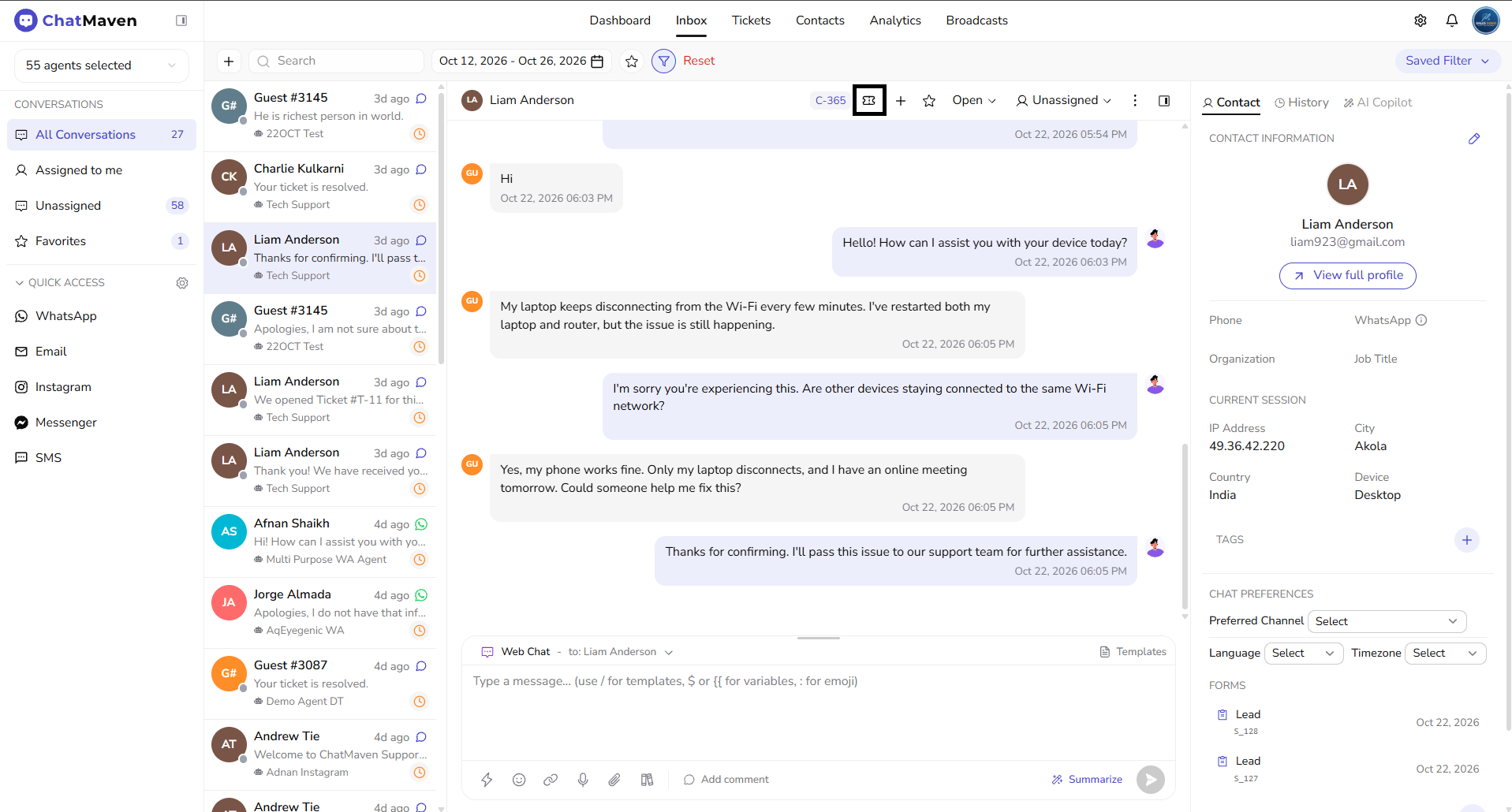
After creation:
- A toast confirms the new ticket (for example T-12).
- The chat often receives a bot message such as: We opened Ticket #T-12 for this chat. Your conversation ID is C-367.
- The header shows the linked T- ID next to the C- ID. Select T-… to open that ticket on the Tickets page.
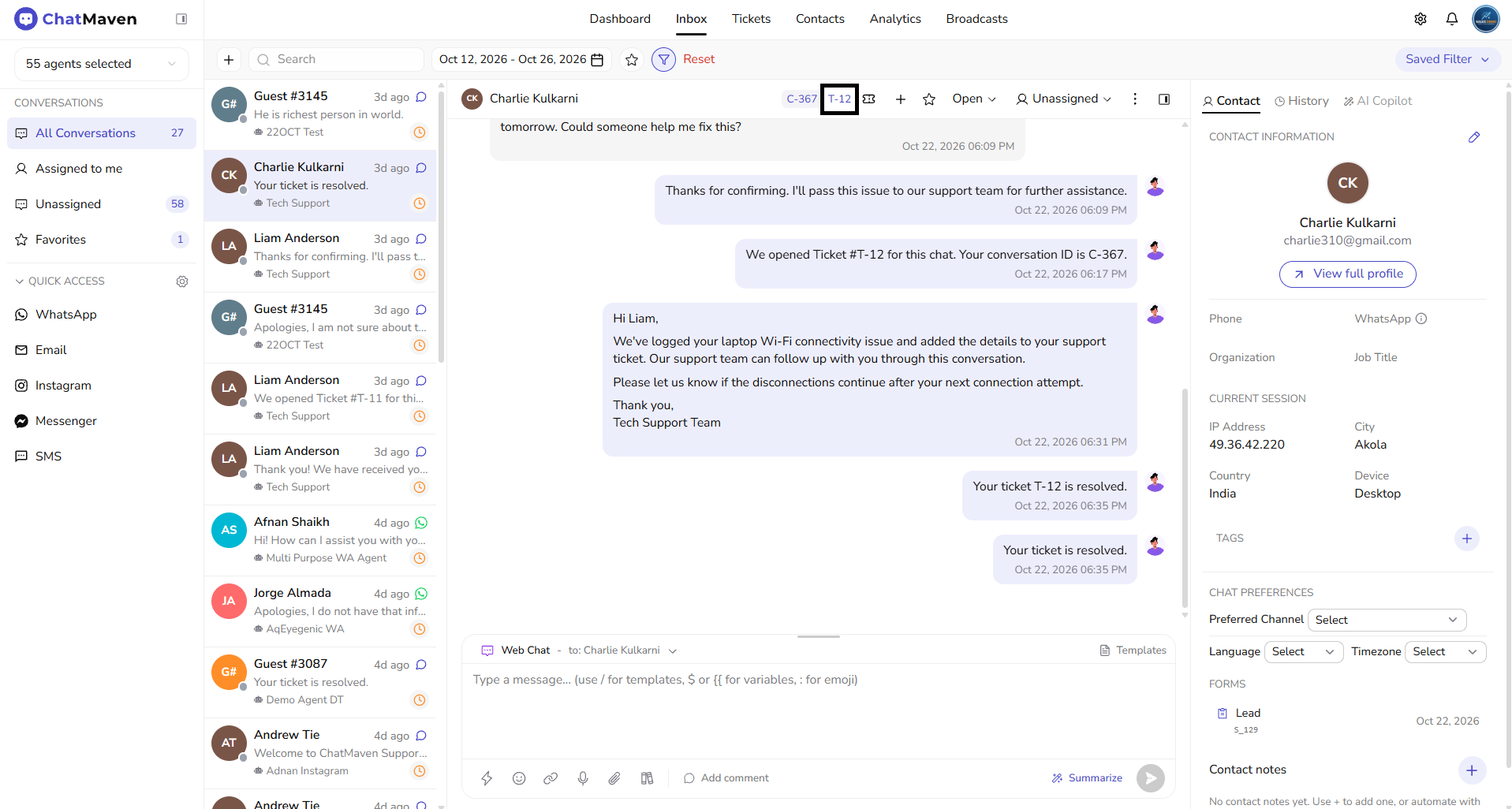
Tickets page overview
The Tickets workspace has two panels:
- Left: Agent filter, search, status and priority filters, Mine / Unassigned, quick create, and the ticket list.
- Right: Selected ticket details—subject, status, ownership, description, attachments, comments, and history.
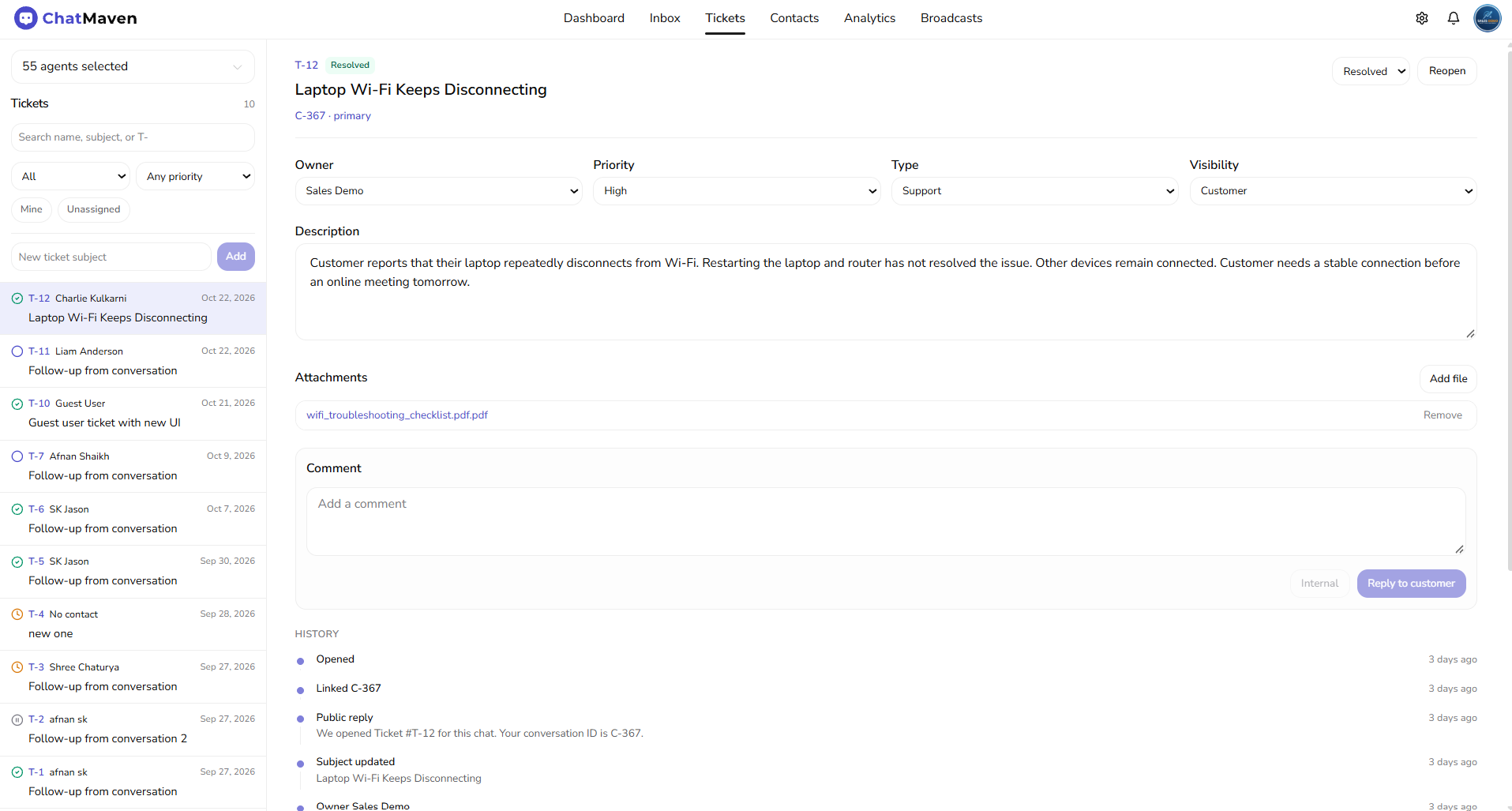
List and filters
| Control | What it does |
|---|---|
| Agent selector | Same multi-agent filter pattern as Inbox—limits which tickets appear. |
| Search | Find by contact name, subject, or public ID (T-). |
| Status | For example All, Open, Pending, On Hold, Resolved, Closed. |
| Priority | Any priority, or Low / Normal / High / Urgent. |
| Mine | Tickets assigned to you. |
| Unassigned | Tickets with no owner. |
| New ticket subject + Add | Create a blank ticket (not linked to a chat unless you link it later from detail or Inbox). |
Each list row shows status, T- ID, contact name (or “No contact”), subject, and date. The selected ticket is highlighted.
Ticket detail
With a ticket open you can:
- Edit the subject (saves when you leave the field).
- Change status from the dropdown, or use Resolve / Reopen when shown.
- Set Owner, Priority, Type (for example Support, Billing, Bug), and Visibility (Customer or Internal).
- Open the linked conversation via the C-… link (for example C-367 · primary) to return to Inbox.
- Add or edit the Description.
- Attachments — Add file to upload; open a file from its name; Remove to delete.
- Comment — write a note, then choose:
- Internal — private team note (not sent to the customer).
- Reply to customer — public reply posted to the linked conversation when visibility allows.
- Review History — timeline of opens, links, replies, field changes, attachments, and status updates.
Resolve and reopen
- Resolve (when the ticket is still open or in progress) marks the ticket resolved and can send a short customer message such as Your ticket is resolved into the linked chat.
- For a Resolved or Closed ticket, use Reopen (or change status in the dropdown) to bring it back to Open.
Tips
- Use Inbox for the live conversation; use Tickets when you need ownership, priority, and an auditable case history.
- Prefer creating from Inbox when the issue started in chat—so C- and T- stay linked automatically.
- Keep Visibility as Customer when public replies and resolve messages should reach the contact; use Internal for team-only cases.
- Search by T- ID when a customer quotes their ticket number.
FAQ and troubleshooting
Create ticket does nothing / I get an error.
Confirm a workspace is selected and you have Inbox access. Make sure you are not focused inside a text field if you use the T shortcut.
Reply to customer did not appear in the chat.
Confirm the ticket is linked to a conversation (C-… link on the detail page) and that Visibility / reply type is set for a public customer reply. Internal notes never go to the customer.
Where else can I find tickets for a contact?
Open the contact profile and use the Tickets tab when available, then open a row to jump to the Tickets page.
Related articles
- Getting Started with Inbox — Conversation header, assignment, and chat workflow.
- Managing conversations — Day-to-day Inbox operations.
- Contact details — Contact profile, including tickets when listed there.
- Dashboard — Workspace overview metrics.