Gmail SMTP
Connect ChatMaven to Gmail using SMTP (Simple Mail Transfer Protocol) so your agent can send emails through your Gmail account. This uses an App Password from Google instead of signing in with OAuth — ideal when you want to use "Connect Other Email Provider" in ChatMaven.
After this setup, your ChatMaven agent can send emails via your Gmail account using SMTP. You’ll use the Configure tab and connect with your Gmail address and a Google App Password.
Video Walkthrough
Watch the full setup flow here:
If the embedded video does not load, open it directly: Email SMTP video.
What you need
- A ChatMaven account
- A Gmail account with 2FA (two-factor authentication) enabled—required to create an app password
Part 1 — Open Gmail SMTP in ChatMaven
Step 1. Create an account on ChatMaven
If you don’t have one yet, sign up at ChatMaven and create your account.
Step 2. Open Gmail SMTP and click Configure
- In ChatMaven, go to Settings → Agents → Integrations.
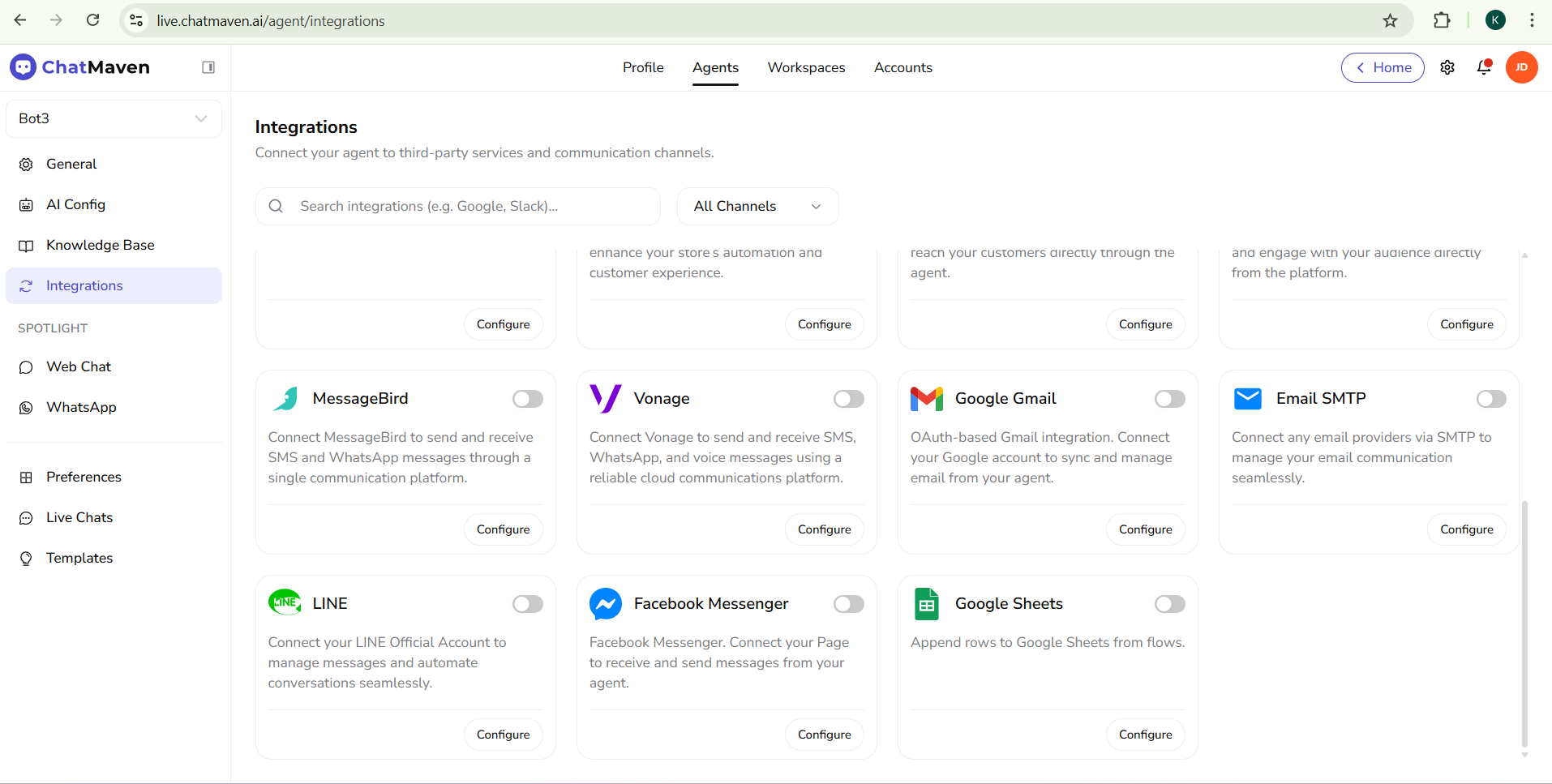
- Find Gmail SMTP and open it.
-
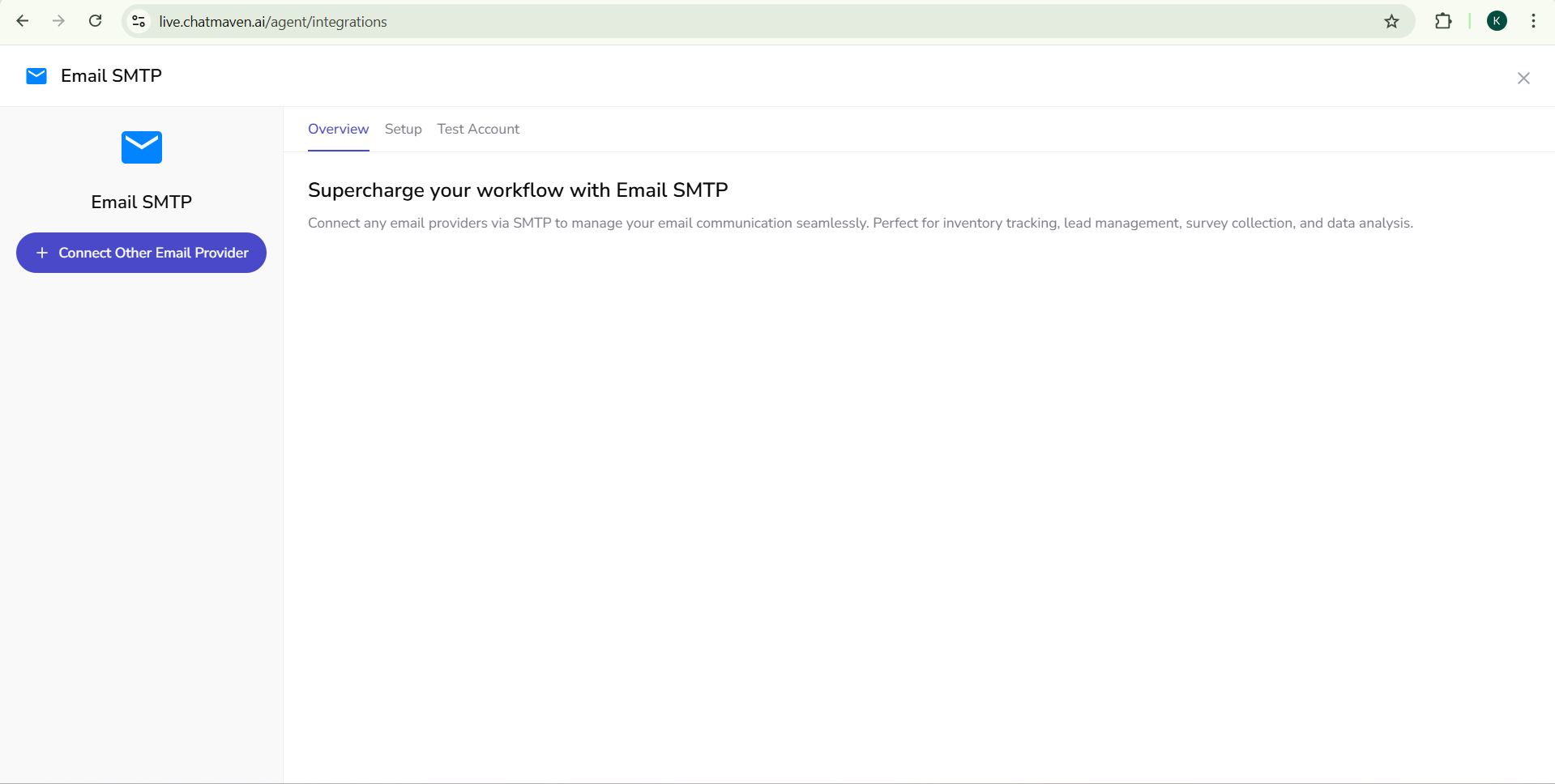
Click the Configure tab.
-
You’ll see Connect Other Email Provider—this is where you’ll enter your Gmail SMTP details.
Part 2 — Gmail: Get your app password
Step 3. Use a Gmail account with 2FA enabled
You need a Gmail account that has two-factor authentication (2FA) turned on. Google only allows app passwords when 2FA is enabled.
- If 2FA is not enabled: In Gmail/Google Account go to Security → 2-Step Verification and turn it on.
Step 4. Add your email in ChatMaven
- In ChatMaven, in the Gmail SMTP Configure / Connect Other Email Provider section, find Setup (or the main form).
- In the Email address box, enter the Gmail address you want to use for sending (the same account that has 2FA and for which you’ll create an app password).
Step 5. Create and copy an app password in Gmail
- In your Gmail/Google account, go to Manage your Google Account (or open myaccount.google.com).
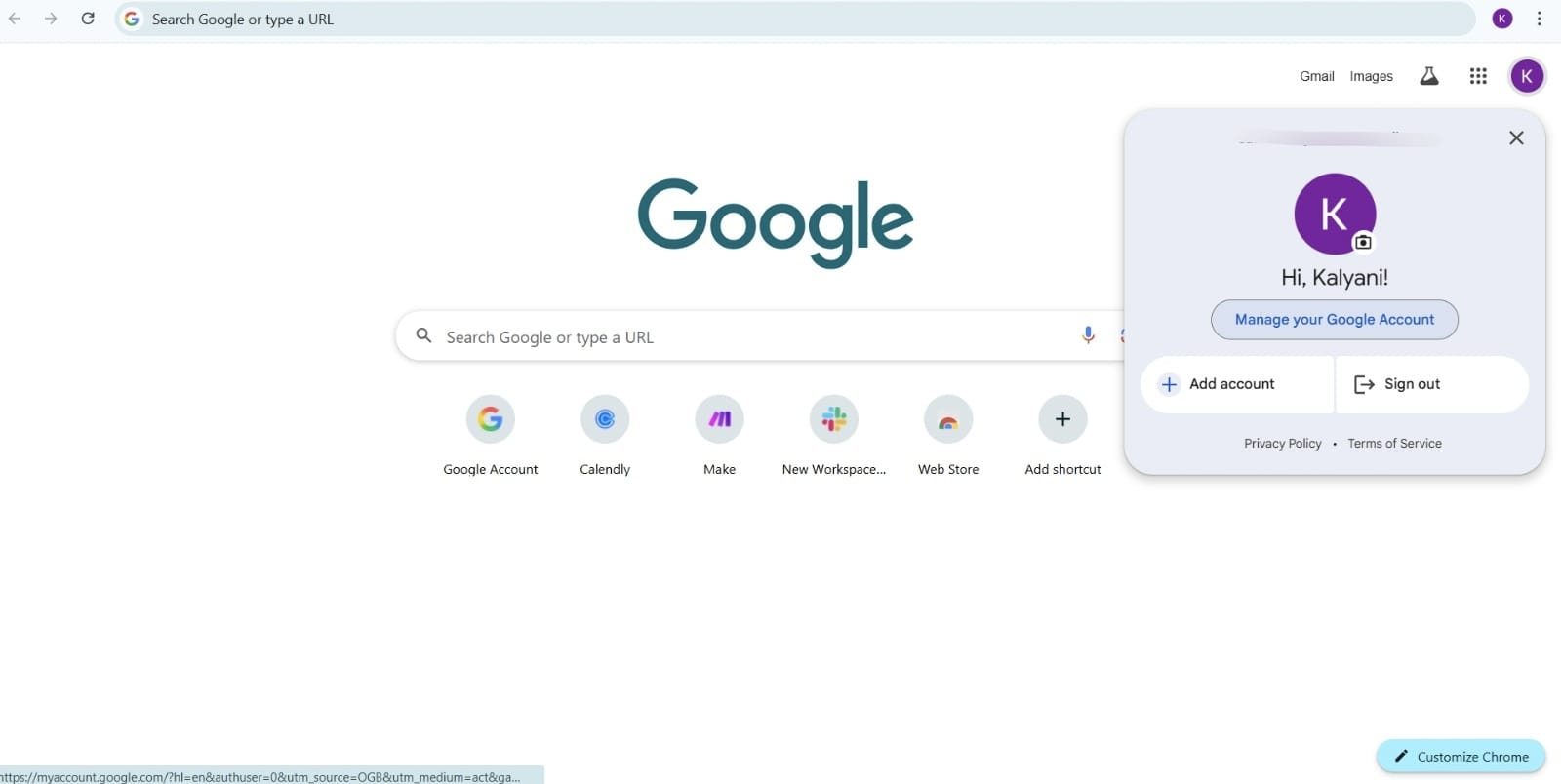
- Search for App passwords (or go to Security → App passwords).
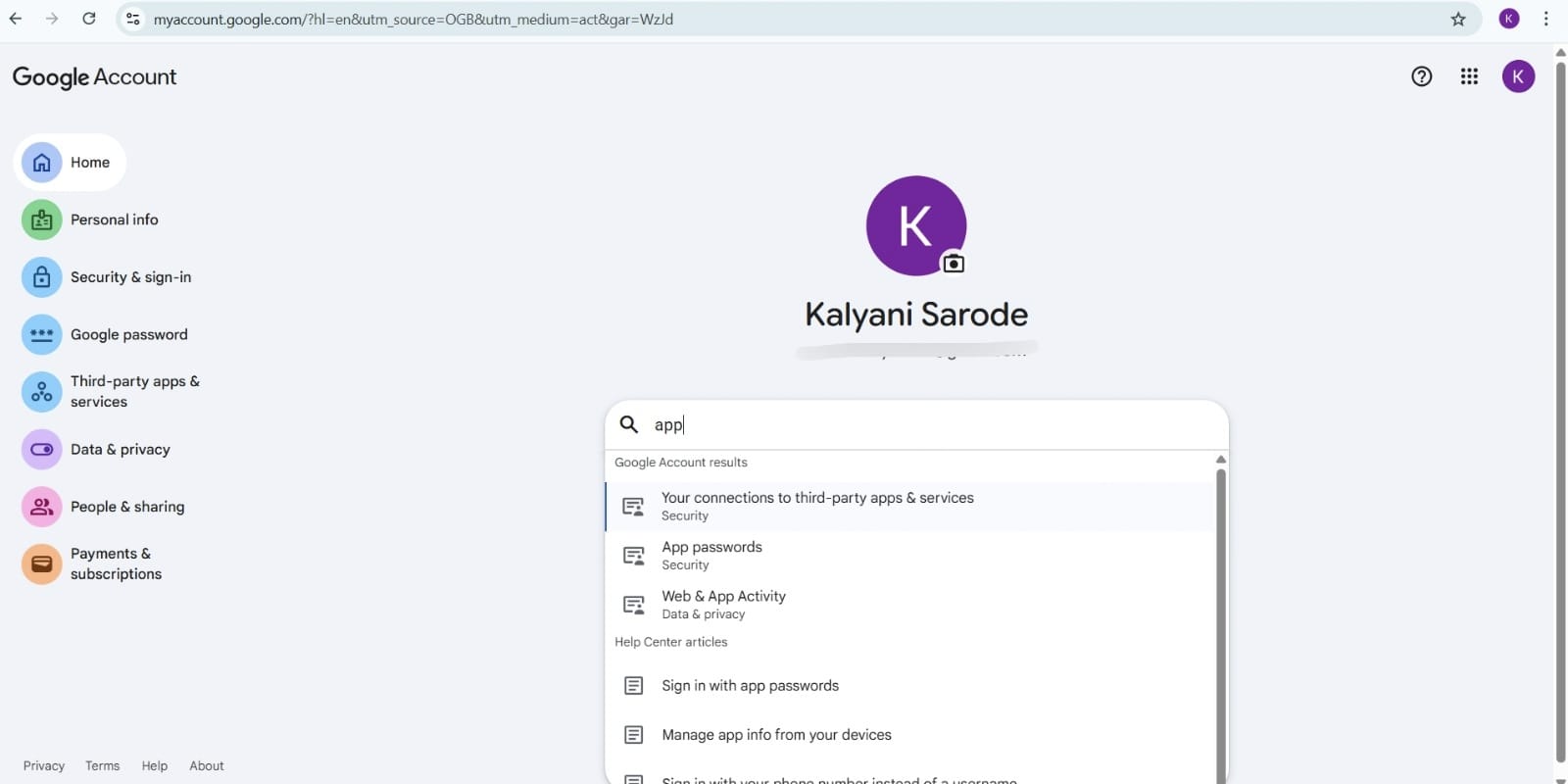
- Click App passwords.
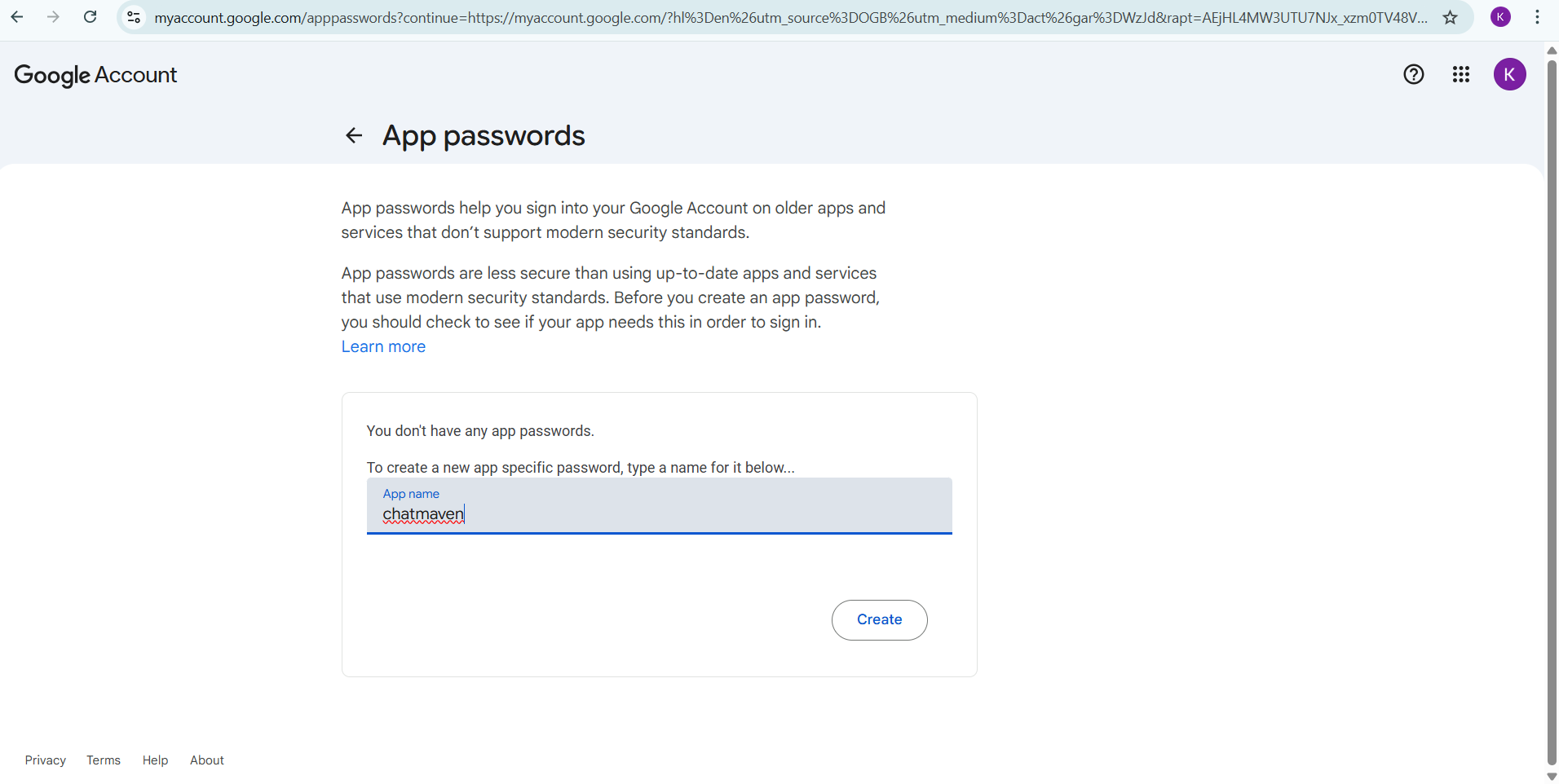
- You’ll see a box where you need to add a name (e.g. “ChatMaven”) and click Create.
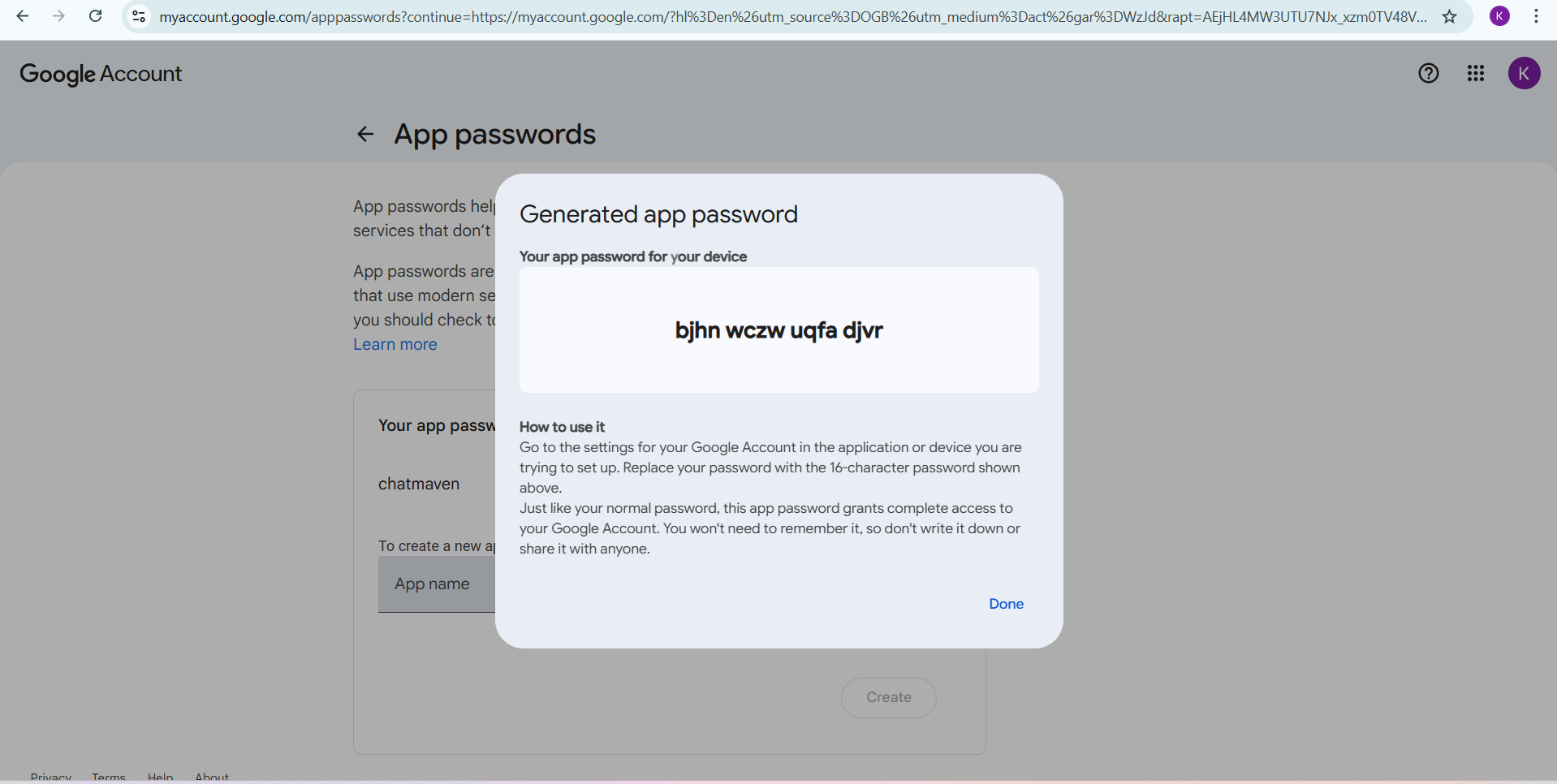
- Google will show a 16-character password on the screen. Copy this password—you’ll paste it into ChatMaven in the next step.
- You won’t see this password again, so copy it now.
Step 6. Paste the app password in ChatMaven
- Return to ChatMaven: Settings → Agents → Integrations → Gmail SMTP → Configure.
-
Find the Password box (in the Connect Other Email Provider form).
-
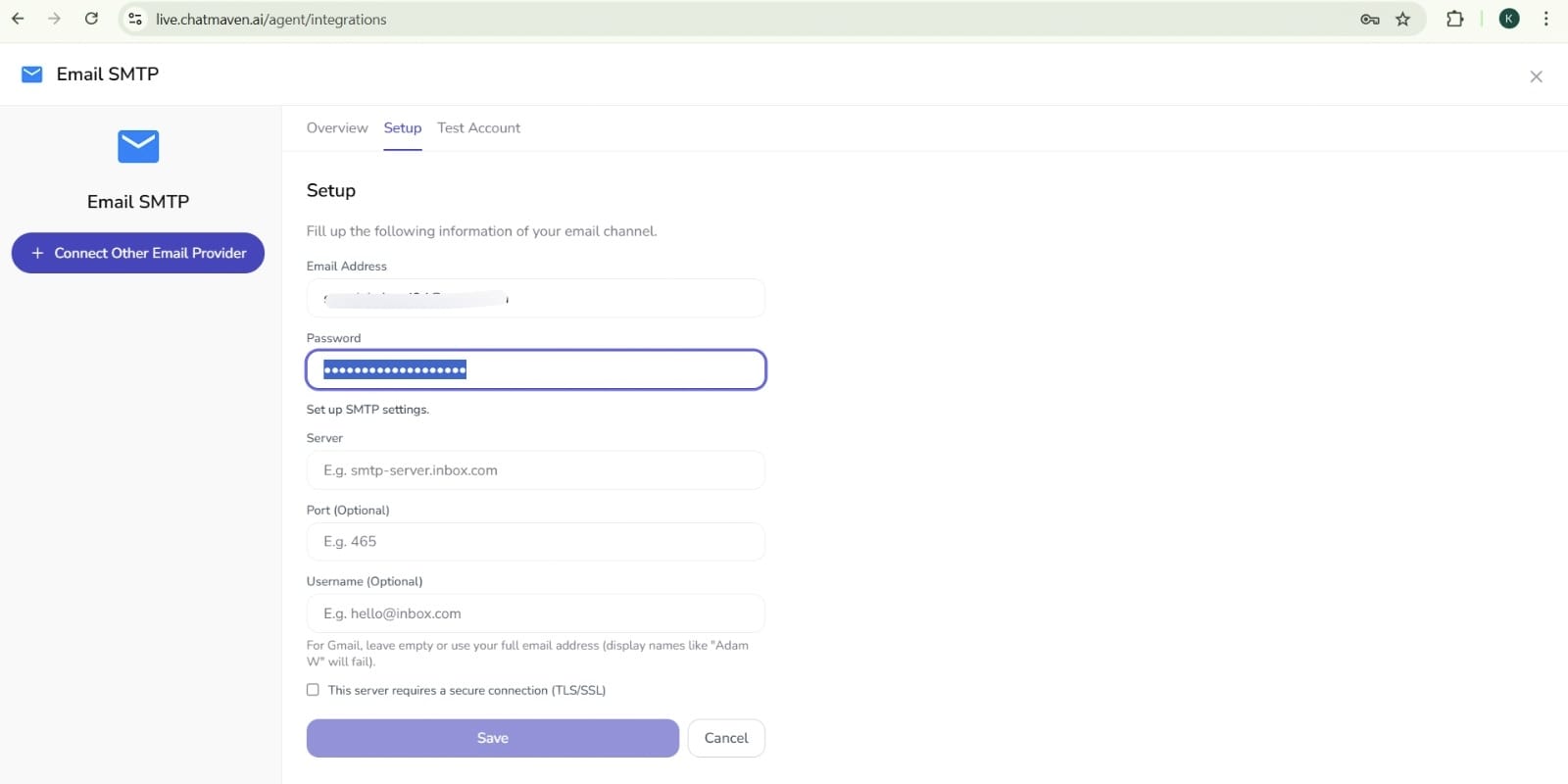
Paste the app password you copied from Google. Do not use your normal Gmail login password—only the app password.
Step 7. Enter the SMTP server
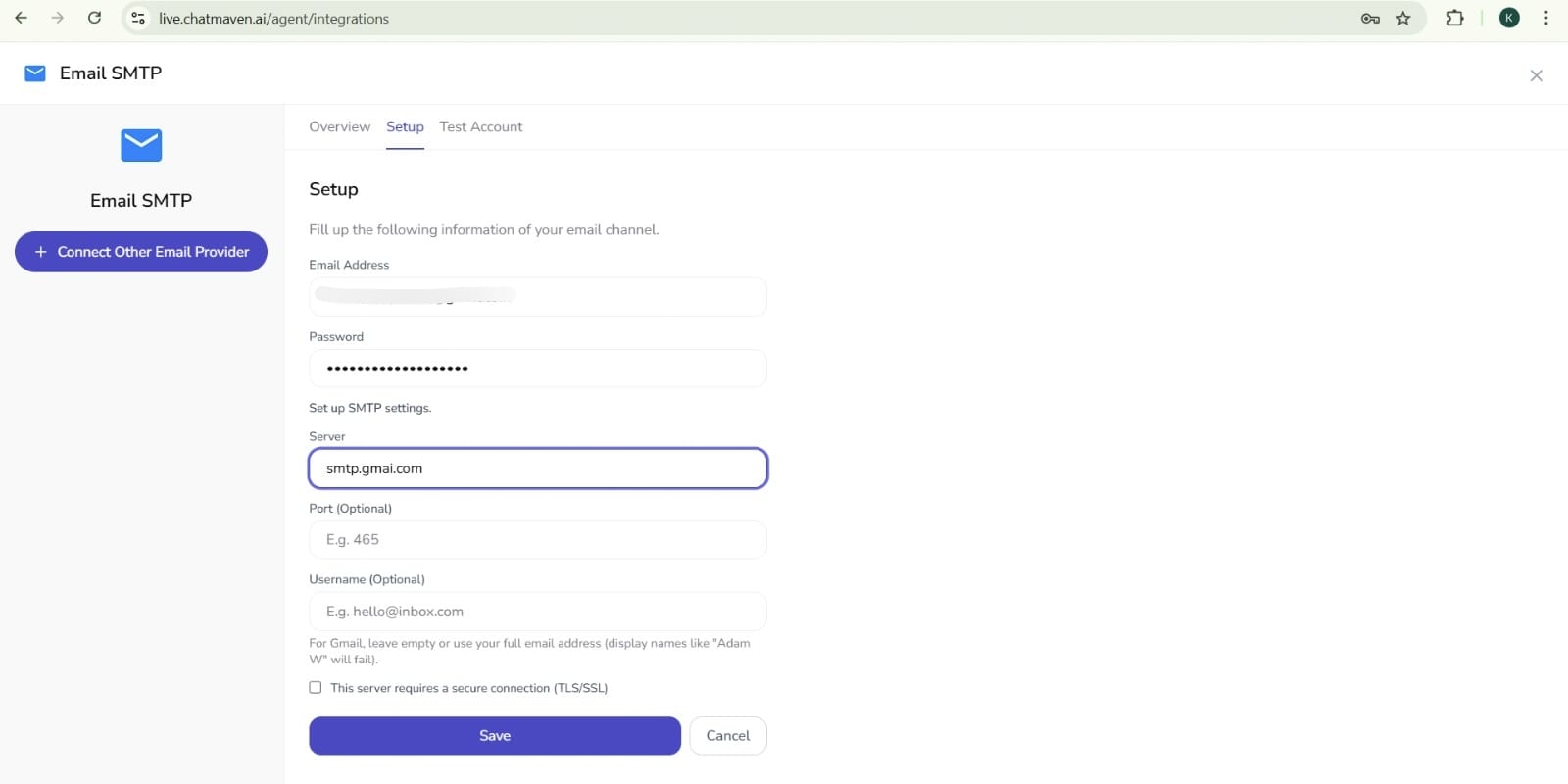
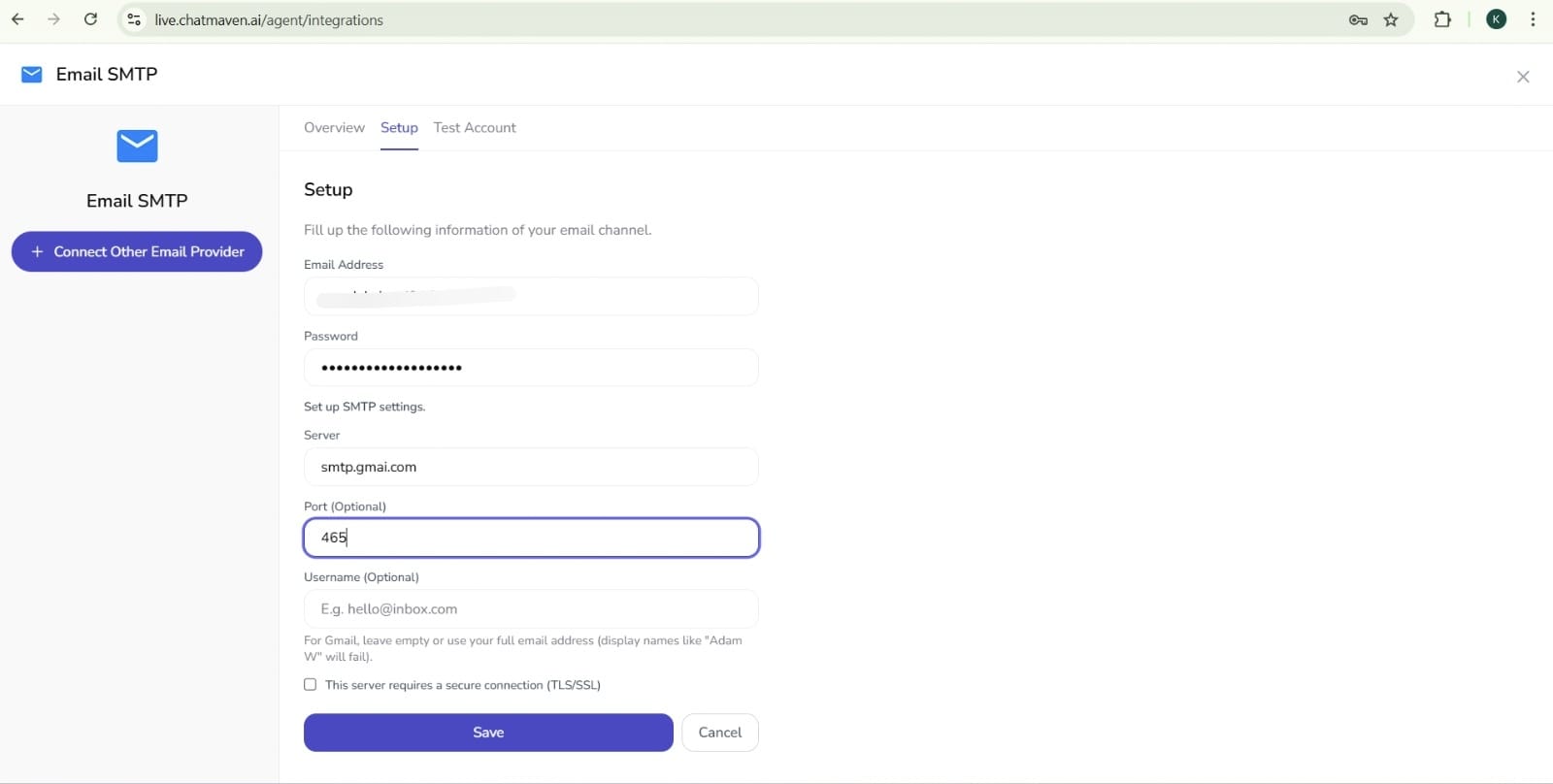
In the Server field, enter:
smtp.gmail.com
Step 8. Port (optional)
- The Port field is optional. You can leave it blank if you prefer.
- If you want to set it, use 465 (common for SMTP over SSL).
Step 9. Username (optional)
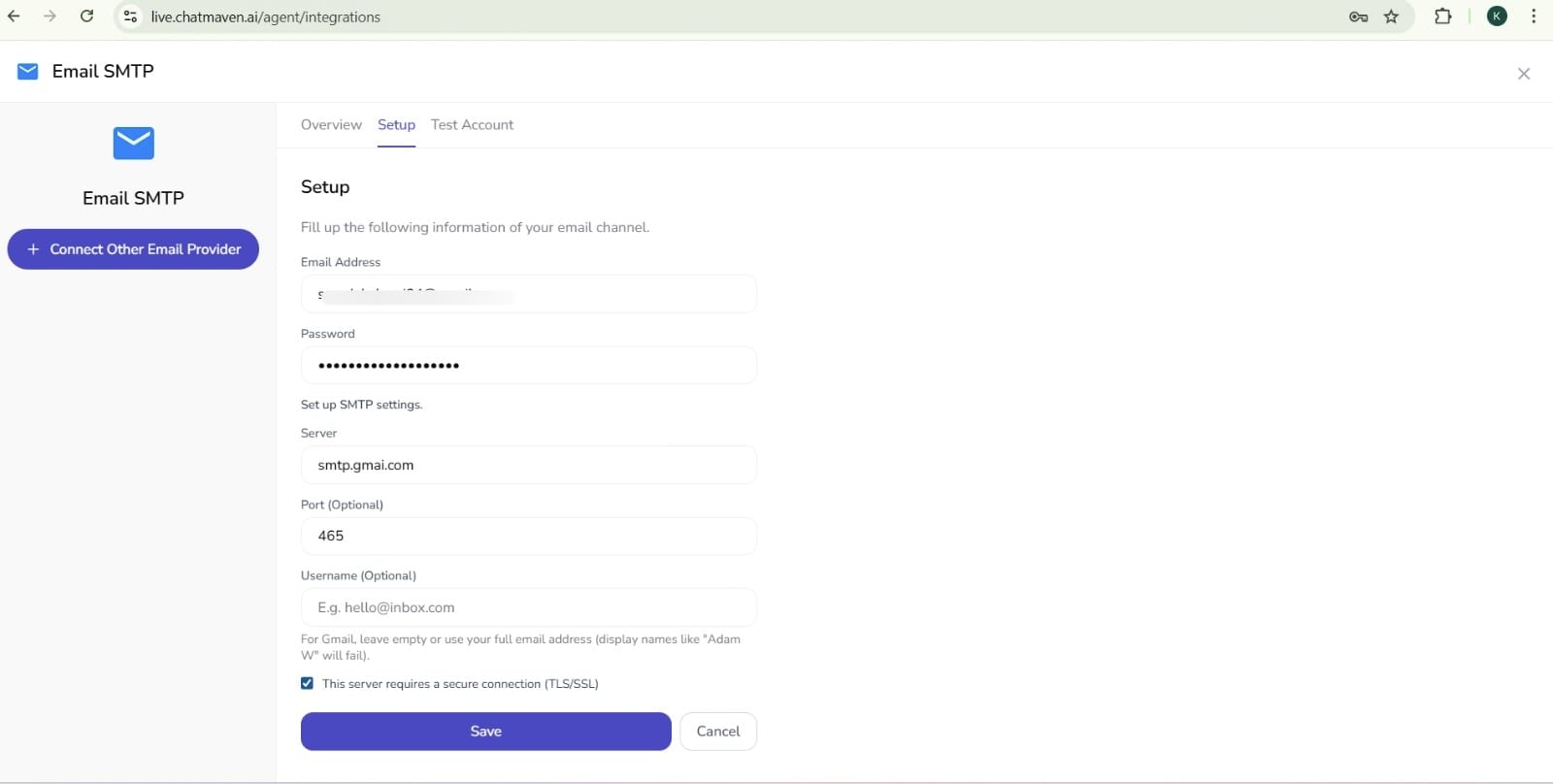
- The Username field is optional. You can leave it blank if your setup doesn’t require it.
- If your provider or ChatMaven expects it, you can enter the same Gmail address you used in Step 4.
Step 10. Save the connection
- Check the checkbox at the end of the form (e.g. “Use secure connection” or the final confirmation—check whatever applies on your screen).
- Click Save.
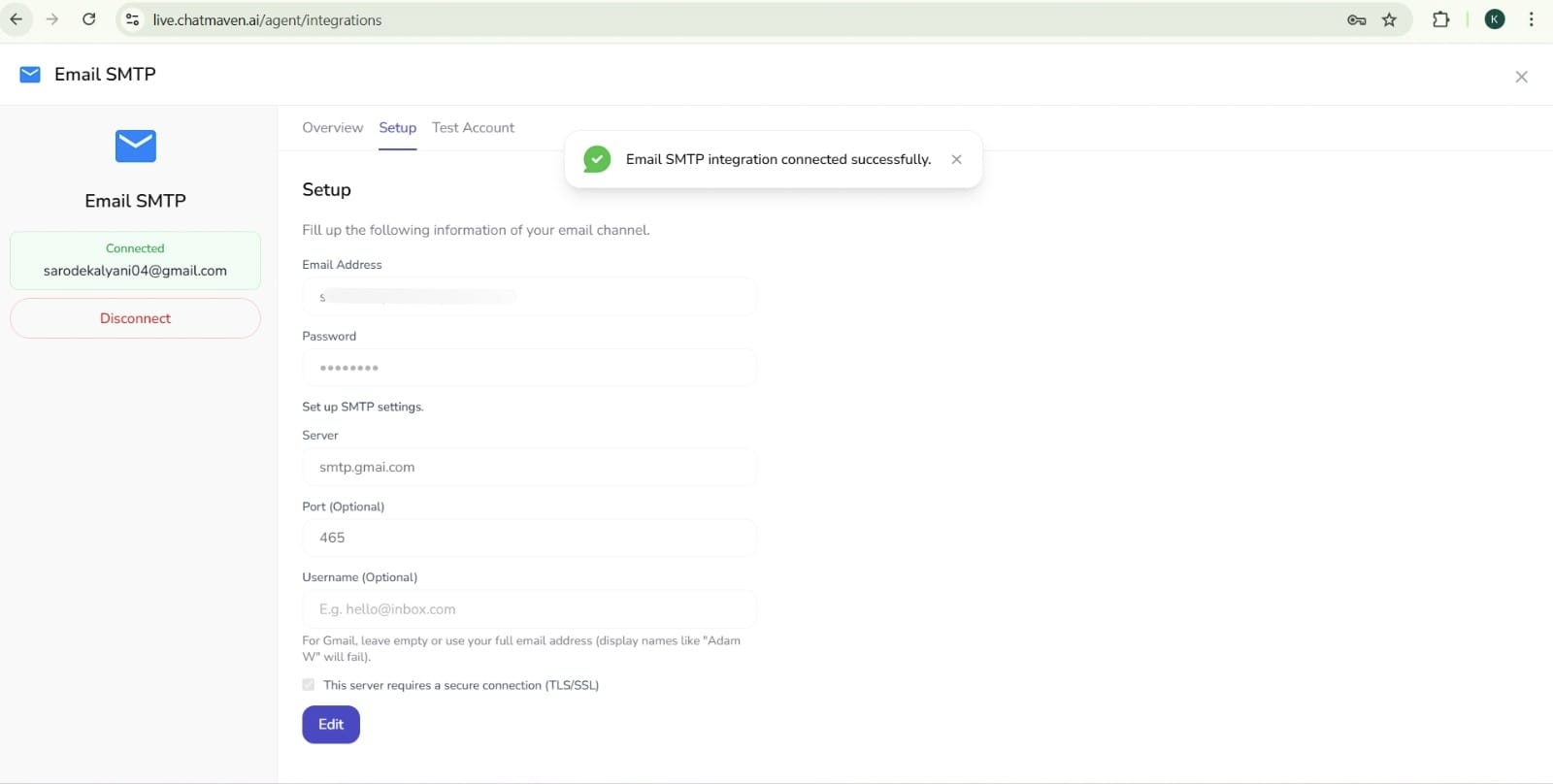
Step 11. You’re done
Your Gmail SMTP integration is now connected. Your agent can send emails through this Gmail account using the Connect Other Email Provider (SMTP) setup.
Quick recap
| Step | Where | What to do |
|---|---|---|
| 1 | ChatMaven | Create an account |
| 2 | ChatMaven | Settings → Agents → Integrations → Gmail SMTP → Configure → see Connect Other Email Provider |
| 3 | Gmail | Use an account with 2FA enabled |
| 4 | ChatMaven | Add your Gmail address in Setup → Email address |
| 5 | Google Account | Manage your account → App passwords → add name → Create → copy the password |
| 6 | ChatMaven | Paste the app password in the Password box |
| 7 | ChatMaven | In Server, enter smtp.gmail.com |
| 8 | ChatMaven | Port (optional): leave blank or use 465 |
| 9 | ChatMaven | Username (optional): leave blank or use your Gmail address |
| 10 | ChatMaven | Check the final checkbox and click Save |
| 11 | — | Gmail SMTP is connected |
Tips
- App password only: Always use the app password from Google, not your normal Gmail password.
- Port 465: Use 465 for SMTP over SSL if you’re asked for a port.
- One account per setup: The email address and app password should be for the same Gmail account.
Troubleshooting
- “Password not accepted” or login failed: Make sure you’re using the 16-character app password from Google (App passwords), not your regular Gmail password. Create a new app password if needed.
- 2FA required: If you don’t see App passwords in your Google Account, turn on 2-Step Verification first.
- Server/port: Confirm Server is
smtp.gmail.comand, if you use a port, 465 is common for Gmail SMTP.
Need help?
FAQ and troubleshooting
Email stops sending or I see authentication errors.
For Gmail, prefer an app password or OAuth where Google requires it; basic password auth is often blocked. Verify SMTP host, port, TLS, and that “less secure apps” is not relied on when Google disables it.
Messages land in spam.
Set up SPF, DKIM, and a aligned From domain with your DNS provider. Warm up sending volume and avoid spammy content; inbox placement is partly outside ChatMaven’s control.
Can I use a different From address than my login?
Your provider must allow that alias. If Gmail rejects it, send from the authenticated account or configure Send mail as in Google correctly.