AI Enhance in the Inbox
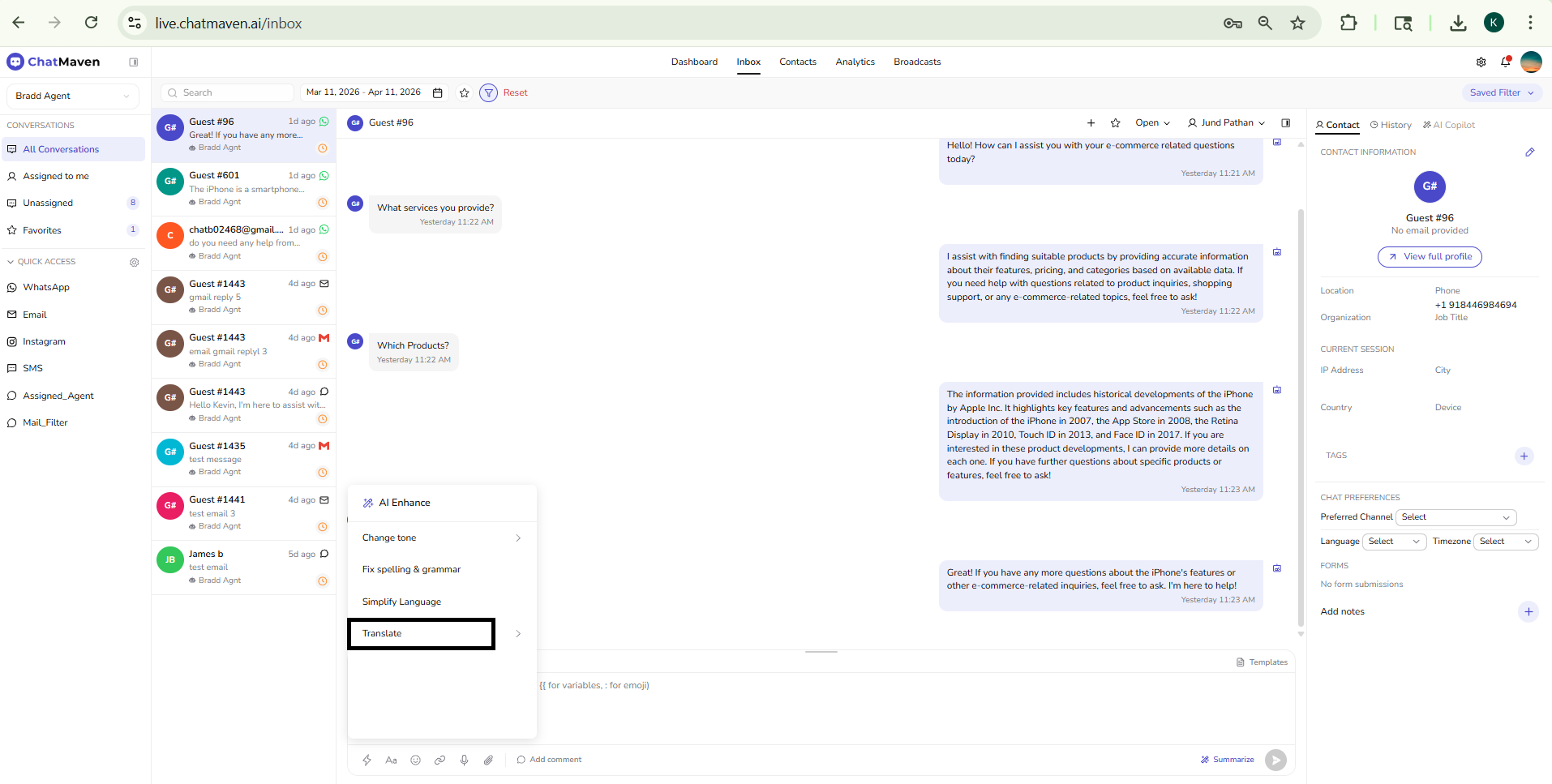
AI Enhance helps you polish the text in the message composer before you send it. Open a conversation in Inbox, type or paste a draft in the box at the bottom, then use the magic wand icon on the composer toolbar to open the AI Enhance menu.
This is separate from AI Copilot in the right sidebar, which drafts replies, summarizes the thread, or answers from your knowledge base. AI Enhance only rewrites what is already in the composer.
Open AI Enhance
- Go to Inbox and select a conversation.
- Click in the message composer and enter the text you want to improve (or start from an empty box if you are only using other composer tools).
- Click the magic wand icon on the left side of the composer toolbar (next to emoji, attachments, and related actions).
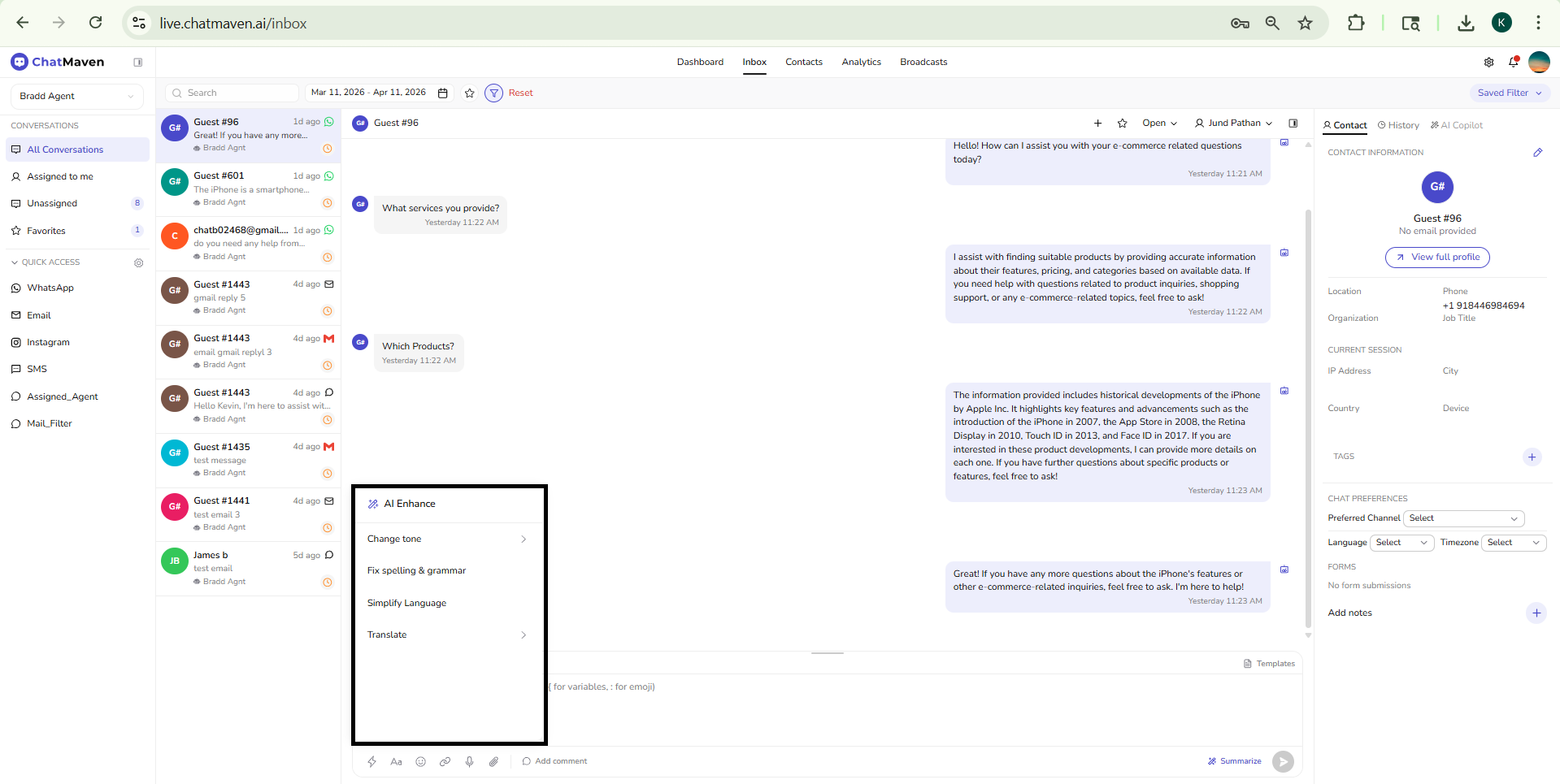
A panel titled AI Enhance lists the actions below.
Available actions
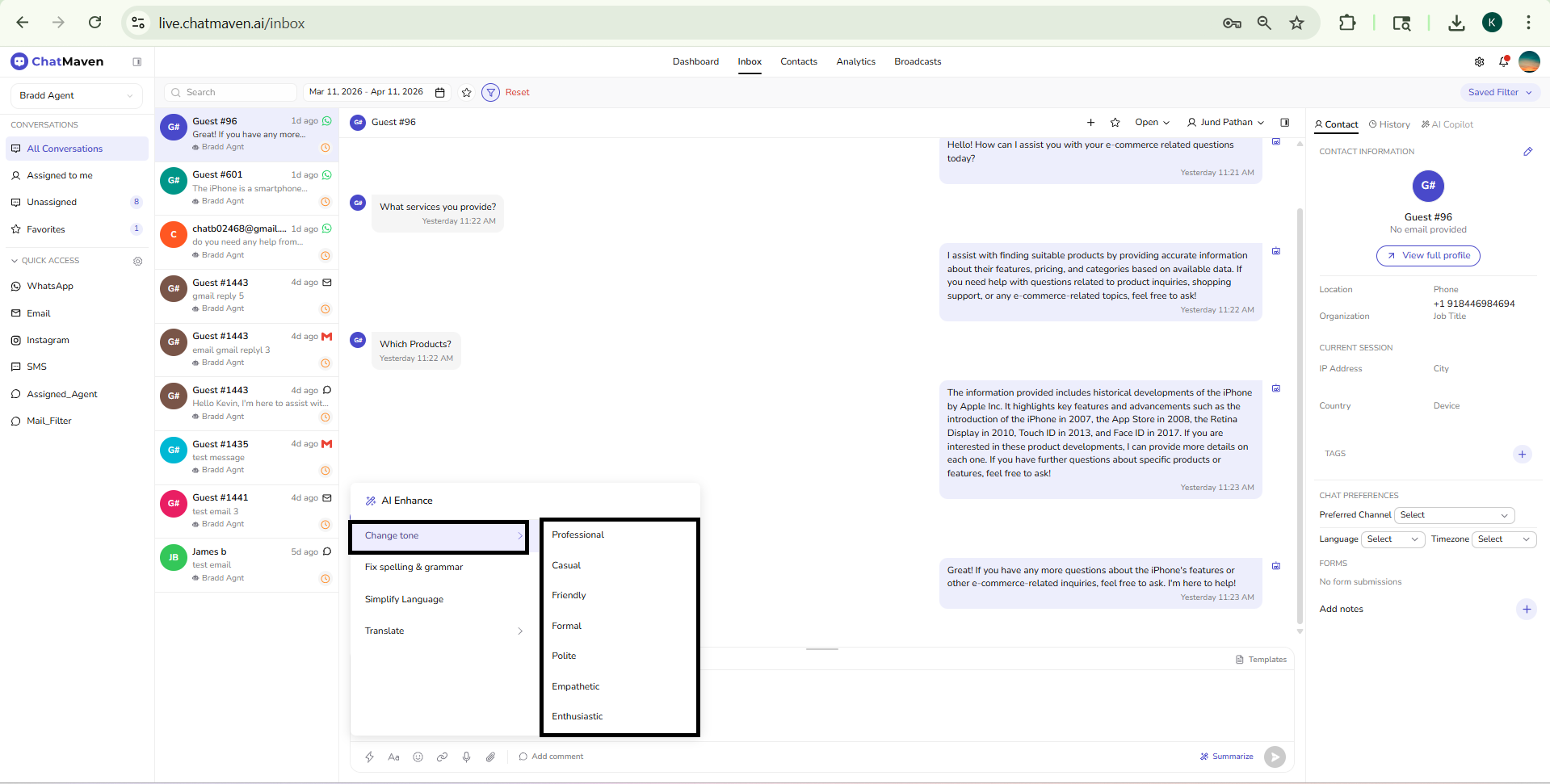
Change tone
Opens a second step where you pick how the message should sound—for example more formal, warmer, direct, or neutral depending on what your workspace offers. The model rewrites the composer text to match that tone.
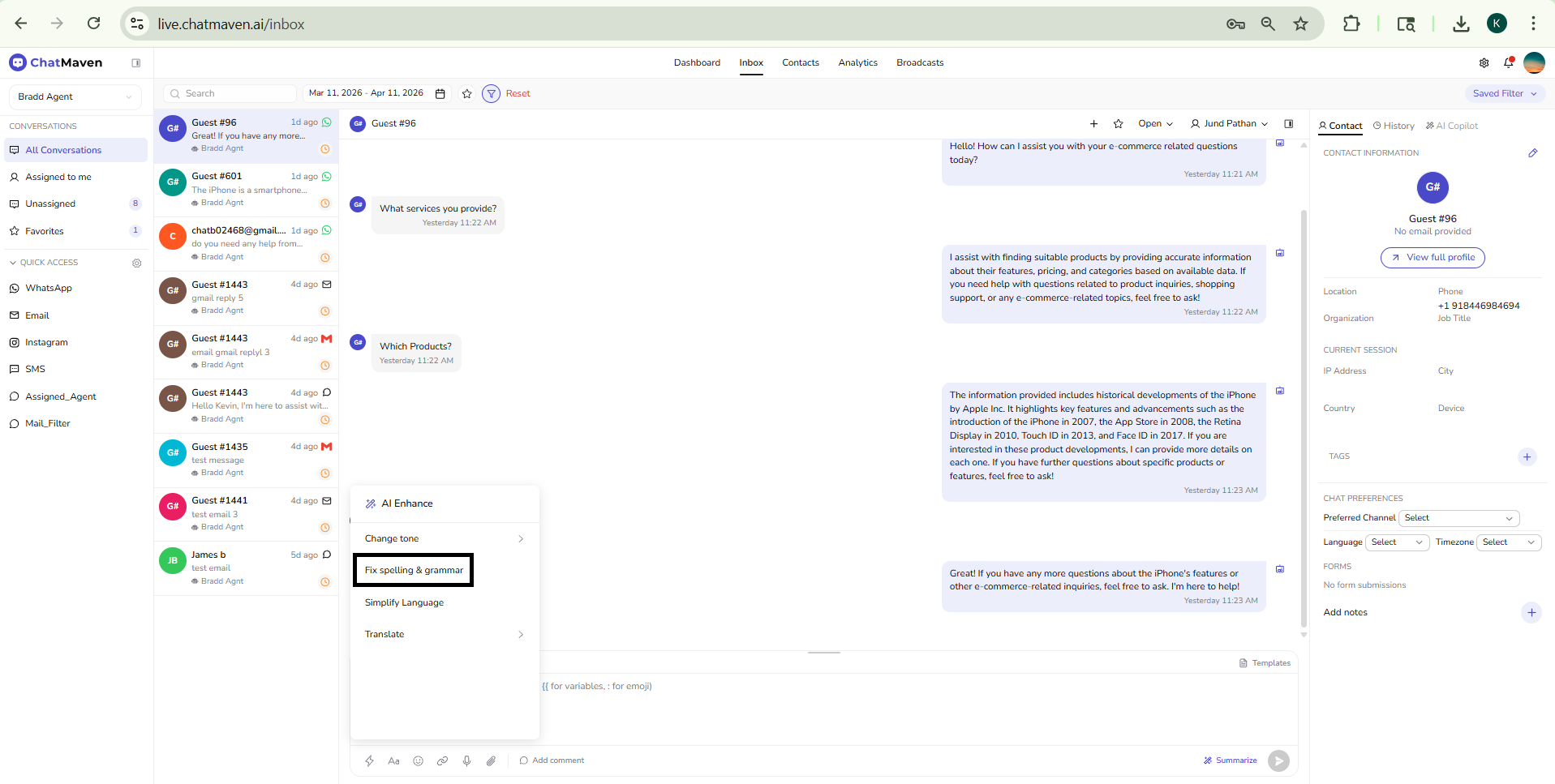
Fix spelling & grammar
Corrects typos, grammar, and basic punctuation while keeping your meaning and structure as close as practical.
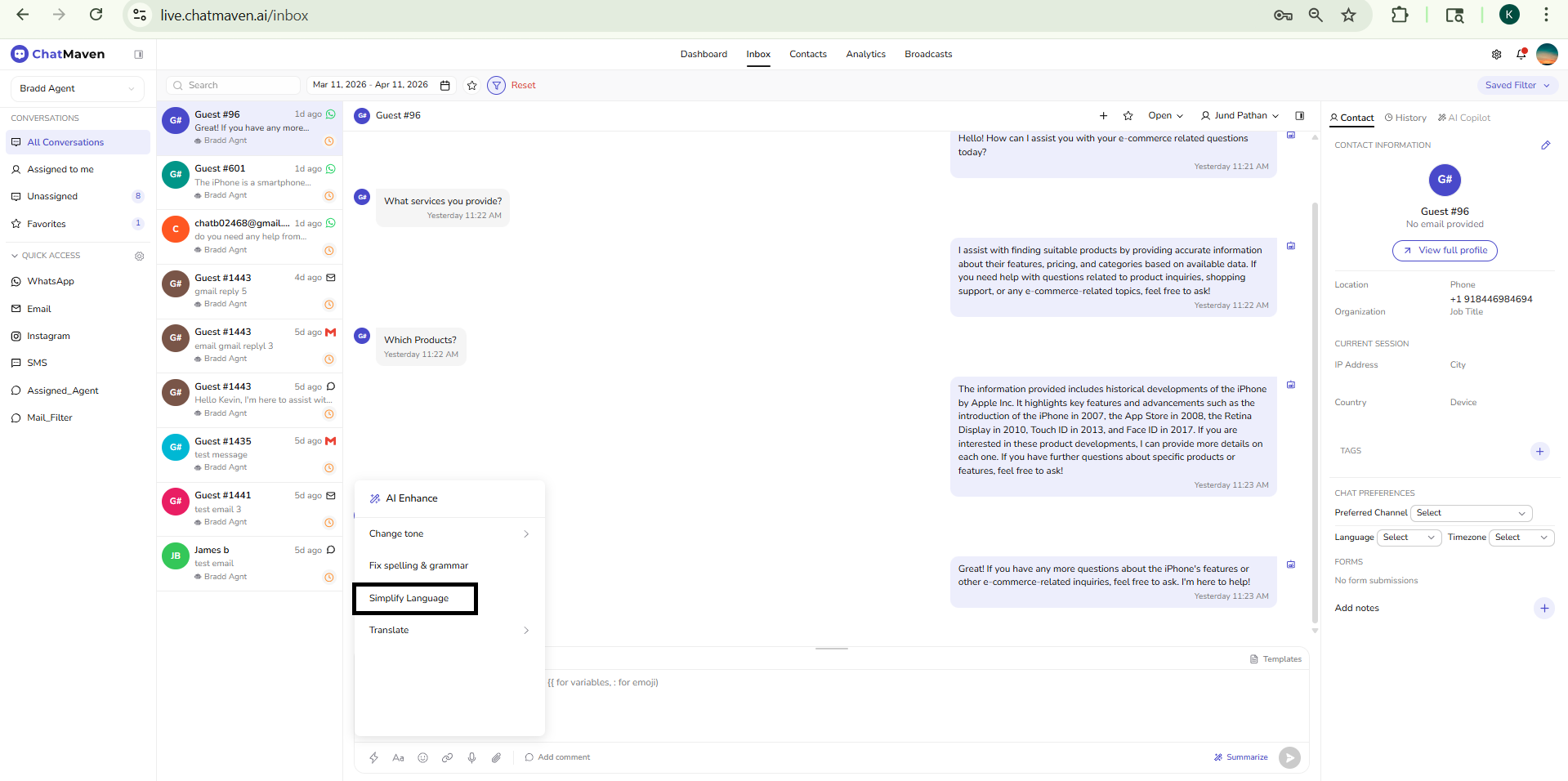
Simplify language
Shortens and clarifies the message so it is easier to read, without changing the core intent.
Translate
Opens a language choice, then replaces the composer text with a translation into the language you select. Useful when you wrote in one language and need to reply in another.
Composer shortcuts you may use together
- Summarize (on the right of the composer, with a wand icon) produces a summary of the conversation, not a rewrite of your draft. It is related to AI features but does a different job than AI Enhance.
- Templates (top of the composer area) inserts predefined message content; you can still run AI Enhance on the result after inserting a template.
- Turn on Add comment when you are writing an internal note for teammates instead of a customer-visible message. AI Enhance can still refine that text so handoffs stay clear and consistent.
After you run an action
The improved text replaces what was in the composer. Review it, edit manually if needed, then send—or run another AI Enhance option if you want a different result.
If the outcome is not what you wanted, use your browser or system undo (for example Ctrl+Z on Windows or ⌘+Z on macOS) to step back to the previous composer content where supported.
If something does not work
- Confirm there is text in the composer for the tool to work on (exact behavior for an empty field may vary).
- Check that your account or plan still has AI usage available; limits can block enhancement requests.
- For new replies from scratch or thread-level summaries, use AI Copilot instead of AI Enhance.
Related topics
FAQ and troubleshooting
Enhance suggestions are off-brand.
Tune agent instructions and knowledge; enhancement uses the same underlying model context. Provide examples of preferred phrasing.
Nothing happens when I click enhance.
Check permissions, network errors, and that the conversation is in a state that allows AI actions. Some channels restrict automated edits.
Can I undo an enhanced reply?
Use edit history or resend the previous draft if the product keeps versions; otherwise retype from your clipboard backup.