Integrations
Integrations is where you connect your agent to third-party services and communication channels. The page explains itself as: Connect your agent to third-party services and communication channels.
Use it after AI Settings and Knowledge Base when you are ready to turn on channels (for example Web Chat or WhatsApp) or tools such as calendars, email, and automation platforms.
Where to open it
- Sign in to ChatMaven.
- Click Agents in the top navigation.
- Choose the agent in the dropdown at the top of the left sidebar (for example your workspace or agent name).
- Click Integrations beside General, AI Settings, and Knowledge Base.
The in-app route matches live.chatmaven.ai/agent/integrations when you are signed in and that agent is selected.
During creating an AI agent, step 4 of the wizard is the same Integrations area—you can return here anytime to change what is connected.
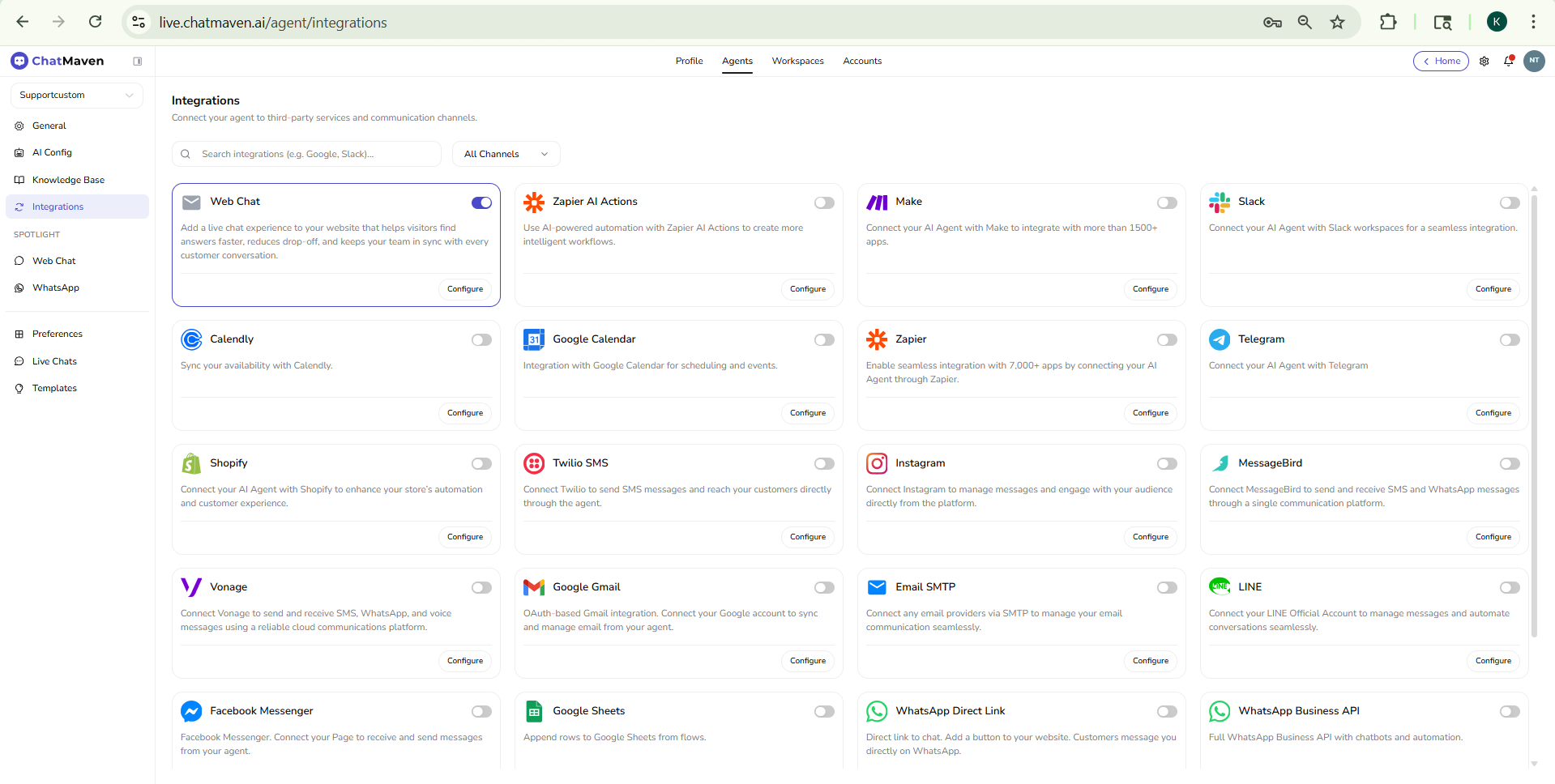
Page layout
Header
- Title: Integrations
- Description: Short line under the title explaining that you connect services and channels to this agent.
Search and filter
- Search integrations — Field with a search icon; placeholder text invites you to search by name (for example Google, Slack).
- All Channels — Dropdown to narrow the list by channel or category when your workspace exposes that filter.
Integration cards
Integrations appear as a grid of cards. Each card typically includes:
| Area | Purpose |
|---|---|
| Icon and name | Identifies the service (for example Slack, Calendly, Web Chat). |
| Toggle | Turns the integration on or off for this agent without leaving the grid. When on, the card may show a highlighted border (for example blue) so you can see active channels at a glance. |
| Description | One or two lines on what the integration does for your agent. |
| Configure | Opens setup for that integration (credentials, URLs, OAuth, or channel-specific options). |
Use Configure whenever you need to finish setup after enabling a toggle, or to edit connection details later.
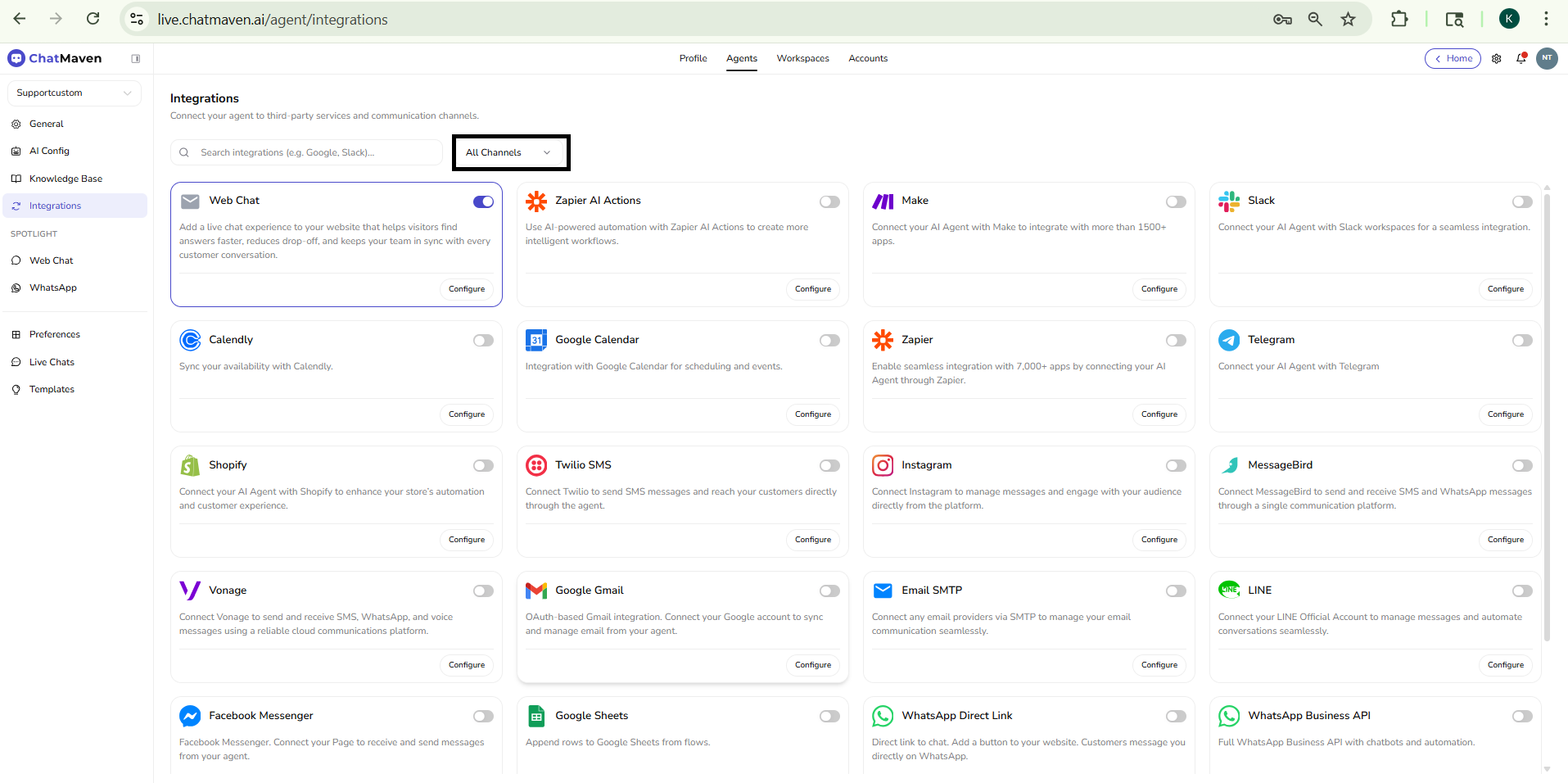
Examples of integrations you may see
Your workspace may show a subset of these or additional options as ChatMaven adds partners. Common examples include:
- Web Chat — Embeddable chat for your site; often enabled by default for new agents.
- WhatsApp, Telegram, LINE, Instagram — Messaging channels.
- Slack — Workspace mentions and DMs.
- Zapier, Zapier AI Actions, Make — Automation and AI actions.
- Calendly, Google Calendar — Scheduling and booking links.
- Shopify — Commerce-related workflows where supported.
- Twilio SMS, MessageBird, Vonage — SMS and messaging providers.
- Google Gmail, Email SMTP — Outbound or connected email.
Exact names and availability depend on your plan and region.
Tips
- Enable first, then configure — Turning a toggle on may be required before Configure saves a valid connection; if something fails, open Configure again and check for missing fields or expired auth.
- One agent, many channels — You can connect several channels to the same agent; keep naming consistent in General so your team knows which agent serves which surface.
- SPOTLIGHT shortcuts — The left sidebar may list Web Chat and WhatsApp under SPOTLIGHT for quick jumps to high-traffic channel setup.
FAQ and troubleshooting
Why is an integration missing from my grid?
Availability depends on your workspace, plan, and sometimes region. If you expect a partner app but do not see it, clear the Search field and set All Channels (or the broadest filter) so nothing is hidden. New integrations also roll out over time—check Integrations overview for what ChatMaven documents.
The toggle is on, but the channel still does not work. What should I check?
On only selects the integration for this agent; most services still need credentials or links. Open Configure on that card and complete every required field (OAuth sign-in, API keys, booking URL, phone number flow, and so on). Save or finish the provider’s flow, then test from the channel (for example send a test message to WhatsApp or open the web widget).
Do I need to enable the integration before clicking Configure?
In most flows, turning the toggle on first makes it obvious which channels are active and may be required before settings persist. If Configure seems disabled or changes do not save, enable the toggle, refresh the page if needed, and try Configure again.
Can one agent have several channels at once?
Yes. You can connect multiple integrations (for example Web Chat and WhatsApp) to the same agent so one knowledge base and AI config serve every connected surface. Use General to name the agent clearly so your team knows which entry points use it.
Can I connect the same third-party account to more than one agent?
Often yes, but it depends on the provider (for example one WhatsApp number is usually tied to one business setup). For OAuth apps (Google, Slack, and similar), you may connect the same account to different agents or use separate accounts per agent—follow the channel guide under Integrations overview for that product.
What happens if I turn an integration off?
The agent typically stops using that channel for new automation or routing as configured in the product; existing inbox history may remain for your team. Treat off as a production change: confirm with stakeholders before disabling customer-facing channels.
Where are the step-by-step setup guides?
This page describes the Integrations screen inside Agents. For connection Walkthroughs (Meta, Slack app, SMTP, Calendly, and so on), open the matching article in Integrations overview or the Integrations section of this documentation site.
Search does not find the integration I want
Check spelling and try a shorter keyword (for example Google instead of a long product name). If All Channels is set to a narrow category, switch it back to show the full list. Some names in the UI differ slightly from marketing names (for example Email SMTP vs. SMTP).
OAuth or login expired; how do I fix it?
Open Configure for that integration and reconnect or sign in again with the provider. Revoked tokens, password changes, and expired app passwords (common with SMTP) usually require a fresh connection—see the specific guide for that integration if errors persist.
Related topics
- Web Chat (Agents) — Appearance, home page widgets, bubble, forms, and deploy context for the website widget.
- Integrations overview — Full list of integration guides (step-by-step for each product).
- Creating an AI agent — Integrations as step 4 of the wizard.
- Getting started with AI agents — General tab, agent ID, and checklist before going live.