WhatsApp Deploy
Deploy video
Watch the Walkthrough video:
If the embedded player does not load, open it directly here: Deploy video.
Get your WhatsApp chat live on your website or let customers connect via QR code. The Deploy tab gives you everything you need: embed code for a chat widget or button, and a Scan to Chat on WhatsApp flow with a downloadable QR code.
WhatsApp Deploy only works when the WhatsApp API integration is connected. Once you connect the WhatsApp API integration, you can deploy the widget or QR code and start chatting with customers.
Complete the WhatsApp Integration setup and connect your WhatsApp API integration. Only then can you use Deploy and chat with customers. Optionally customize WhatsApp Appearance before deploying.
Where to find Deploy
- In ChatMaven, go to Agents and select your agent (e.g. WhatsApp API).
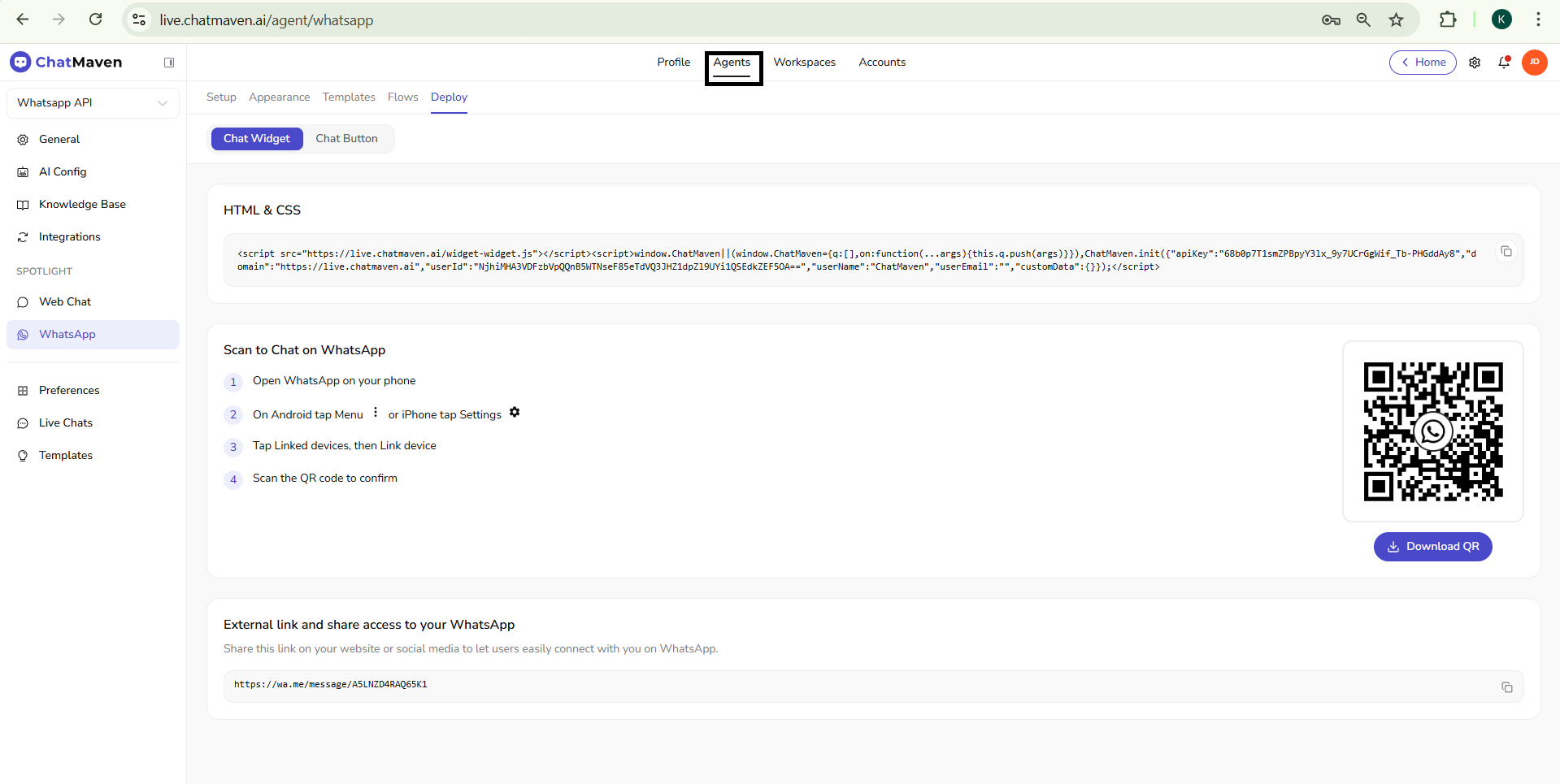
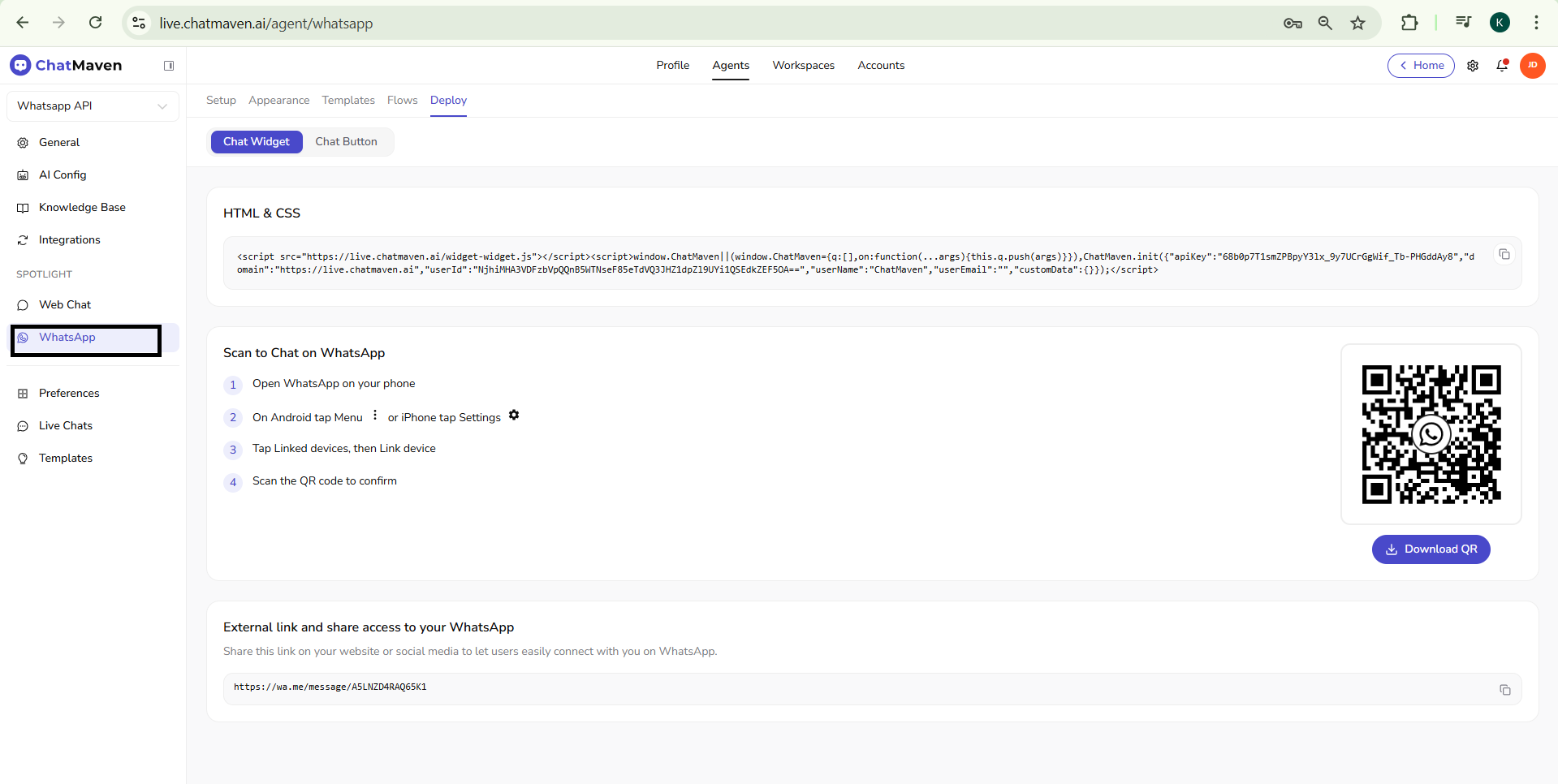
- In the left sidebar under SPOTLIGHT, click WhatsApp.
- At the top, open the Deploy tab.
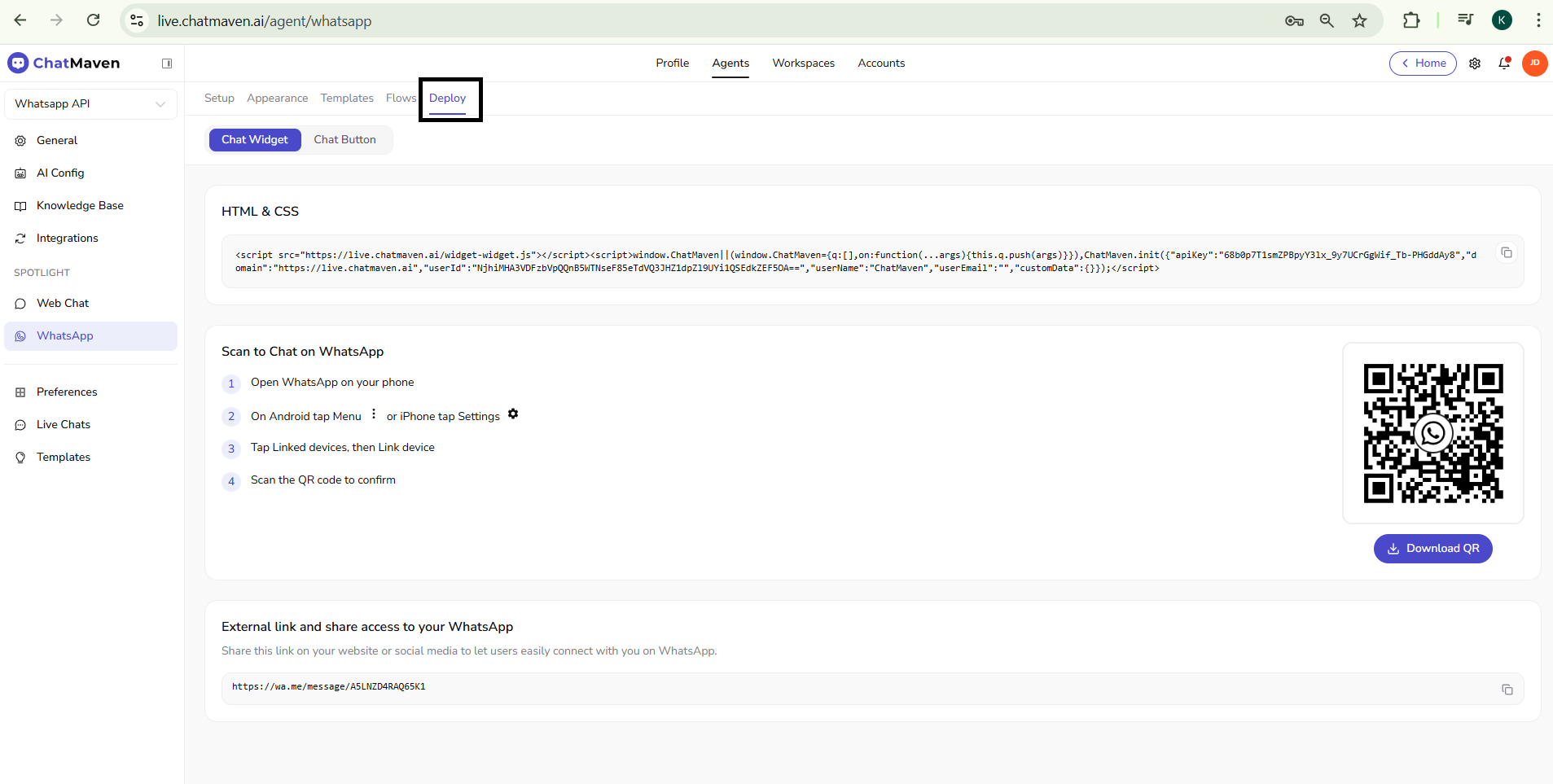
You’ll see two main deployment options: Chat Widget / Chat Button (embed code) and Scan to Chat on WhatsApp (QR code).
Choose how customers reach you
The Deploy page offers two ways for visitors to start a WhatsApp conversation:
| Option | Best for |
|---|---|
| Chat Widget | Full preview: logo, greeting, and “Chat on WhatsApp” button before they leave your site. |
| Chat Button | Minimal footprint: a small floating WhatsApp icon that opens WhatsApp when clicked. |
Use the Chat Widget and Chat Button tabs in the UI to switch between them. The embed code below works for both; the widget type is controlled by your Appearance settings.
Deploy with HTML & CSS (embed code)
Embed the ChatMaven WhatsApp widget or button on any website by adding a short script to your page.
Step 1: Copy the embed code
On the Deploy tab, in the HTML & CSS section, you’ll see a code block like this. Use the Copy button to copy it to your clipboard.
Step 2: Add the script to your site
Paste the code just before the closing </body> tag on every page where you want the WhatsApp widget or button to appear.
The script loads the ChatMaven widget and initializes it with your agent’s settings. Example structure:
<script src="https://live.chatmaven.ai/widget-widget.js"></script>
<script>
  window.ChatMaven || (window.ChatMaven = { q: [], on: function(...args) { this.q.push(args) } });
  ChatMaven.init({
    "apiKey": "YOUR_API_KEY",
    "domain": "https://live.chatmaven.ai",
    "userId": "YOUR_USER_ID",
    "userName": "Your Business Name",
    "userEmail": "",
    "customData": {}
  });
</script>

What each parameter does
| Parameter | Description |
|---|---|
| apiKey | Your agent’s public API key (shown in the Deploy tab). |
| domain | ChatMaven domain; keep as https://live.chatmaven.ai unless you use a custom domain. |
| userId | Encoded user/visitor identifier for the widget session. |
| userName | Optional display name (e.g. your business or “Support”). |
| userEmail | Optional email; leave empty if not needed. |
| customData | Optional object for passing extra context to your bot. |
Always use the exact code from the ChatMaven Deploy tab for your agent. It already contains your real apiKey, userId, and other values—never share these publicly beyond your own site.
Step 3: Check placement and behavior
- The widget or button will appear on the side of the page according to your Appearance settings (e.g. bottom right or bottom left).
- Test on desktop and mobile to ensure it doesn’t cover important content and that “Chat on WhatsApp” opens correctly.
Scan to Chat on WhatsApp (QR code)
Let customers open a chat with you by scanning a QR code with WhatsApp on their phone—no need to type your number or open a link.
How it works
- You download or display the QR code from the Deploy tab.
- Customers open WhatsApp on their phone and link a device or scan the code (steps below).
- Scanning the code opens a chat with your WhatsApp Business number so they can send a message immediately.
Steps for your customers
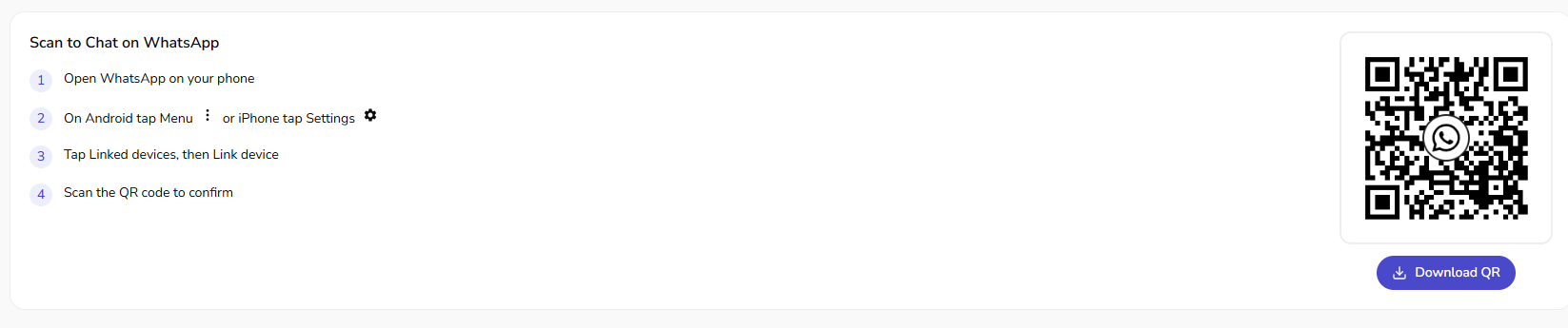
Share these instructions (or your own version) wherever you show the QR code (posters, receipts, in-store, website):
- Open WhatsApp on your phone.
- On Android: tap Menu (⋮) — On iPhone: tap Settings (⚙️).
- Tap Linked devices, then Link device.
- Scan the QR code shown on screen to connect and start the chat.
Use the Download QR button on the Deploy tab to save the QR image. You can then use it on flyers, packaging, emails, or any channel where you want to offer “Scan to chat on WhatsApp.”
Where to use the QR code
- Physical: Posters, counter cards, product packaging, receipts.
- Digital: Footer of your website, confirmation emails, social media, PDFs.
- In-person: Kiosks, tablets, or a dedicated “Chat with us” screen.
External link (share access to WhatsApp)
The Deploy page also includes an External link and share access to your WhatsApp field. This gives you a direct WhatsApp link that is best used on social media profiles, bio links, and other public places where customers can see and click to chat.
How to use the external link
- In Deploy, scroll to External link and share access to your WhatsApp.
- Copy the generated link from the input field.
- Paste it where customers can click it to start a chat.
Best places to use it
- Website buttons such as Chat on WhatsApp or Contact us
- Email signatures and support emails
- Social media bio links and post captions
- SMS campaigns and digital brochures
QR code vs external link
- QR code: Best for in-store, printed, or offline touchpoints.
- External link: Best for social media, bio links, and other clickable digital channels.
Using both together gives customers two easy paths to start a conversation.

Quick checklist
Before you go live:
- WhatsApp integration is connected and tested.
- Appearance is set (logo, greeting, button text, position).
- Embed code is pasted on the right pages (or via your CMS/tag manager).
- Widget or button is tested on desktop and mobile.
- If using QR: code is downloaded and placed where customers can scan it; instructions are clear.
- External link is copied from Deploy and placed in your digital channels.
Recommended next steps
- Test sending a message from your site (widget/button) and via the QR code to ensure both land in the same ChatMaven inbox.
- Combine the embed and QR code: use the widget on your website and the QR in print or in-person touchpoints for a consistent “Chat on WhatsApp” experience.
- Review Getting Ready for Inbound Conversations for conversation windows and templates.
Need help?
FAQ and troubleshooting
Webhook verification fails.
Ensure the callback URL and verify token in Meta match ChatMaven exactly. Your server must respond to the verification GET with the challenge. Firewalls and wrong HTTPS certificates are common causes.
Messages work in test but not production.
Confirm the production phone number ID, WABA, and tokens are in use—not sandbox values. Check that the app is live and review is complete where required.
Rate limits or quality rating dropped.
Follow Meta’s messaging limits and template rules. High opt-out or blocks lowers quality; adjust volume and content, and use approved templates for outbound marketing where required.