Getting Started with Accounts
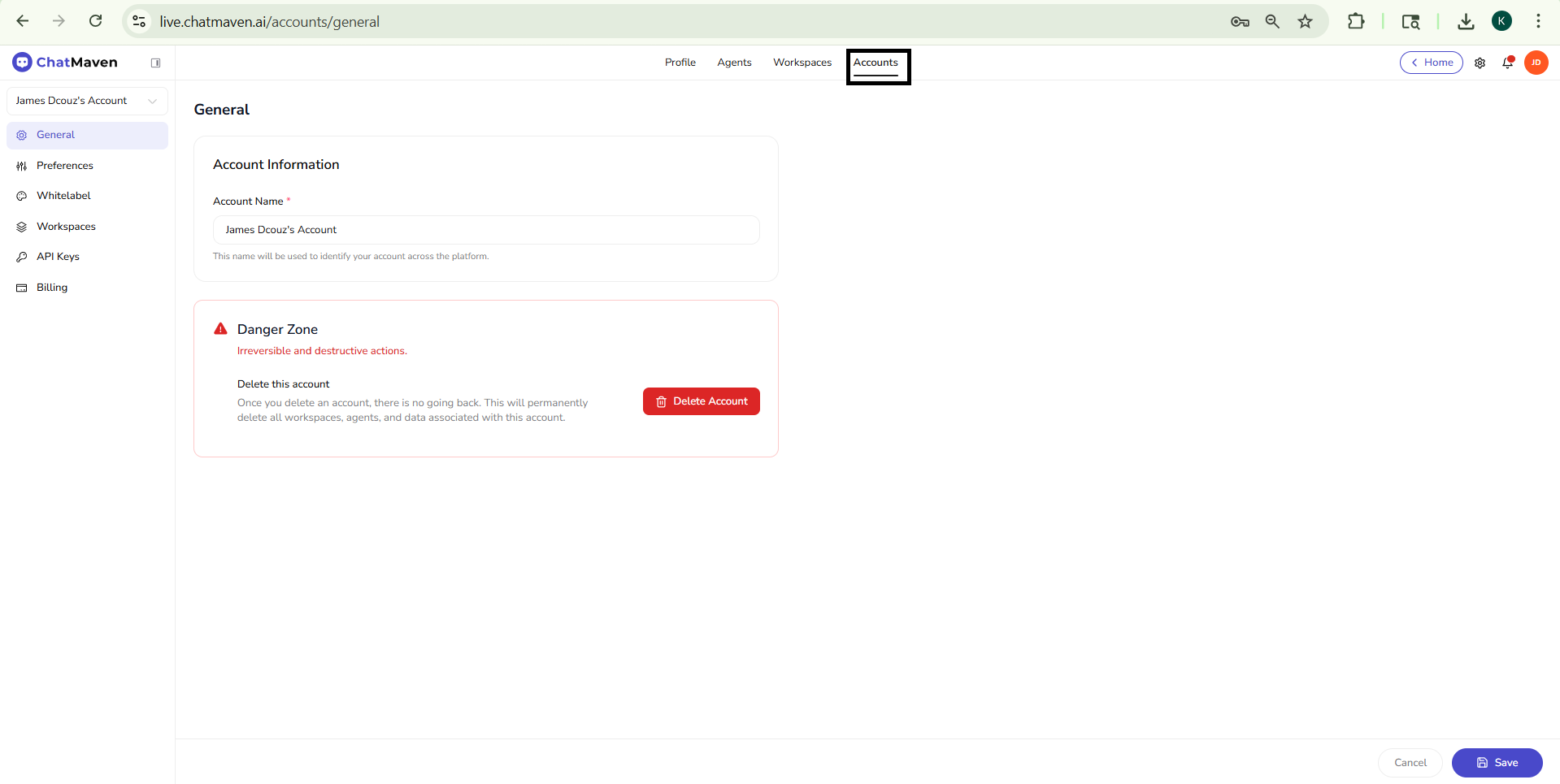
The Accounts area is where you manage account-level settings in ChatMaven: the name that identifies your organization across the product, and high-impact actions such as permanently deleting an account. Workspace-specific work (agents, inbox, and day-to-day operations) still lives under each workspace, but the account ties those workspaces together under one billing and ownership boundary.
This guide focuses on the General page, which is usually the first screen you see under Accounts.
Open Accounts
- Sign in to ChatMaven.
- In the top navigation, click Accounts.
(You may also see Profile, Agents, and Workspaces in the same bar, along with shortcuts such as Home, Settings, Notifications, and your profile menu.)
The Accounts section opens with a left sidebar and a main content area.
Layout
Account selector (sidebar)
At the top of the sidebar, use the account dropdown to switch between accounts if your login has access to more than one (for example, James Dcouz Account). The pages below always apply to the account currently selected in that dropdown.
Settings menu (sidebar)
Under the selector, ChatMaven lists account settings categories. When you first land on Accounts, General is typically selected. Preferences covers session timeouts and presets. Whitelabel covers company name, logo URL, and primary color. Workspaces is the account-level workspace list, search, and create entry point. API Keys covers creating and managing API keys. Billing covers plans, add-ons, usage, payment method, and invoice history.
General: Account Information
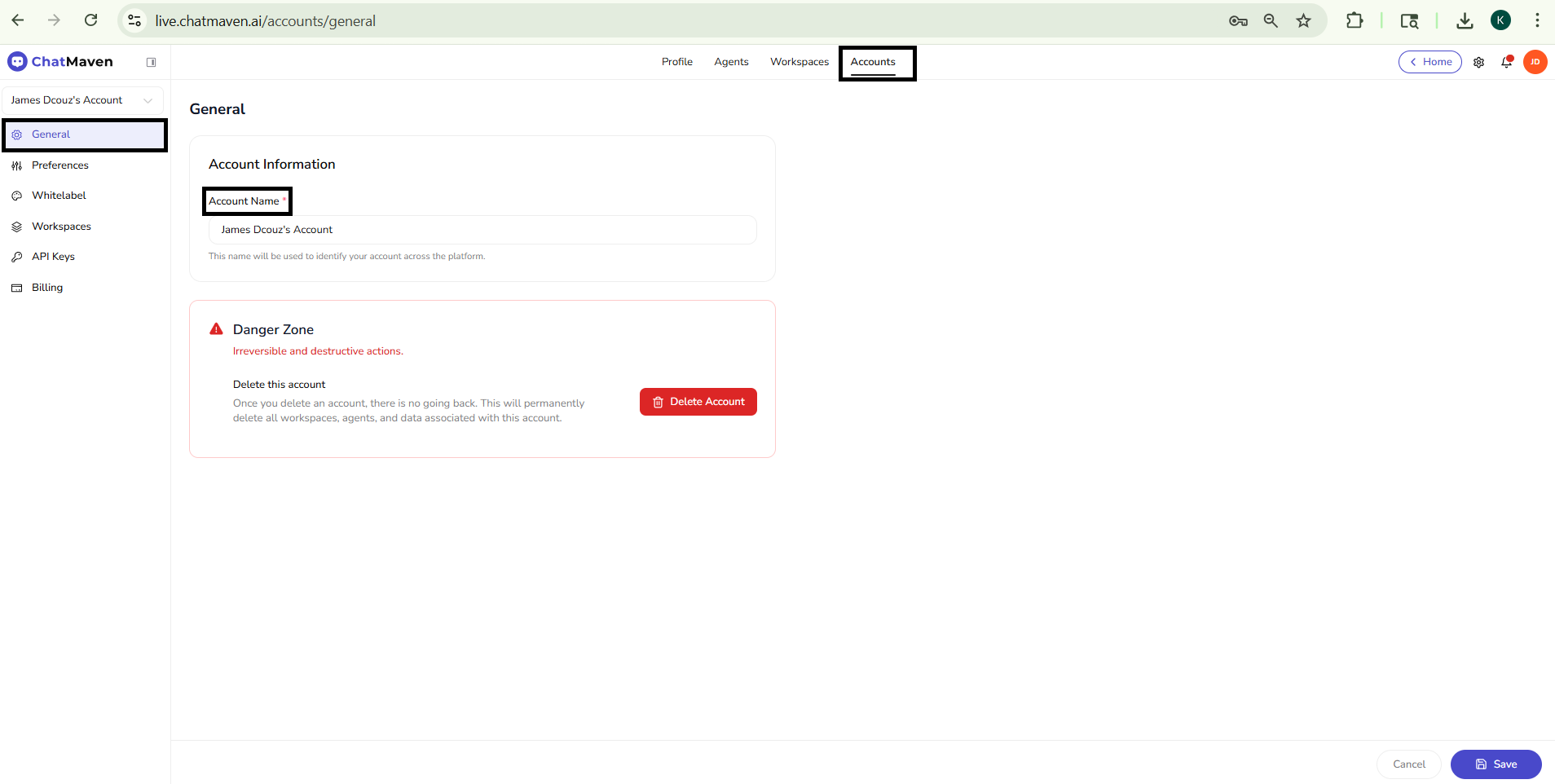
On General, the Account Information card lets you set how your account is labeled everywhere in the platform.
| Field | Description |
|---|---|
| Account Name (required) | The display name for this account. Helper text explains that this name is used to identify your account across the platform. |
After you change the name:
- Click Save (with the floppy-disk icon) in the footer to apply changes.
- Click Cancel if you want to discard edits and leave the page without saving.
Until you save, your changes are not persisted.
Danger Zone
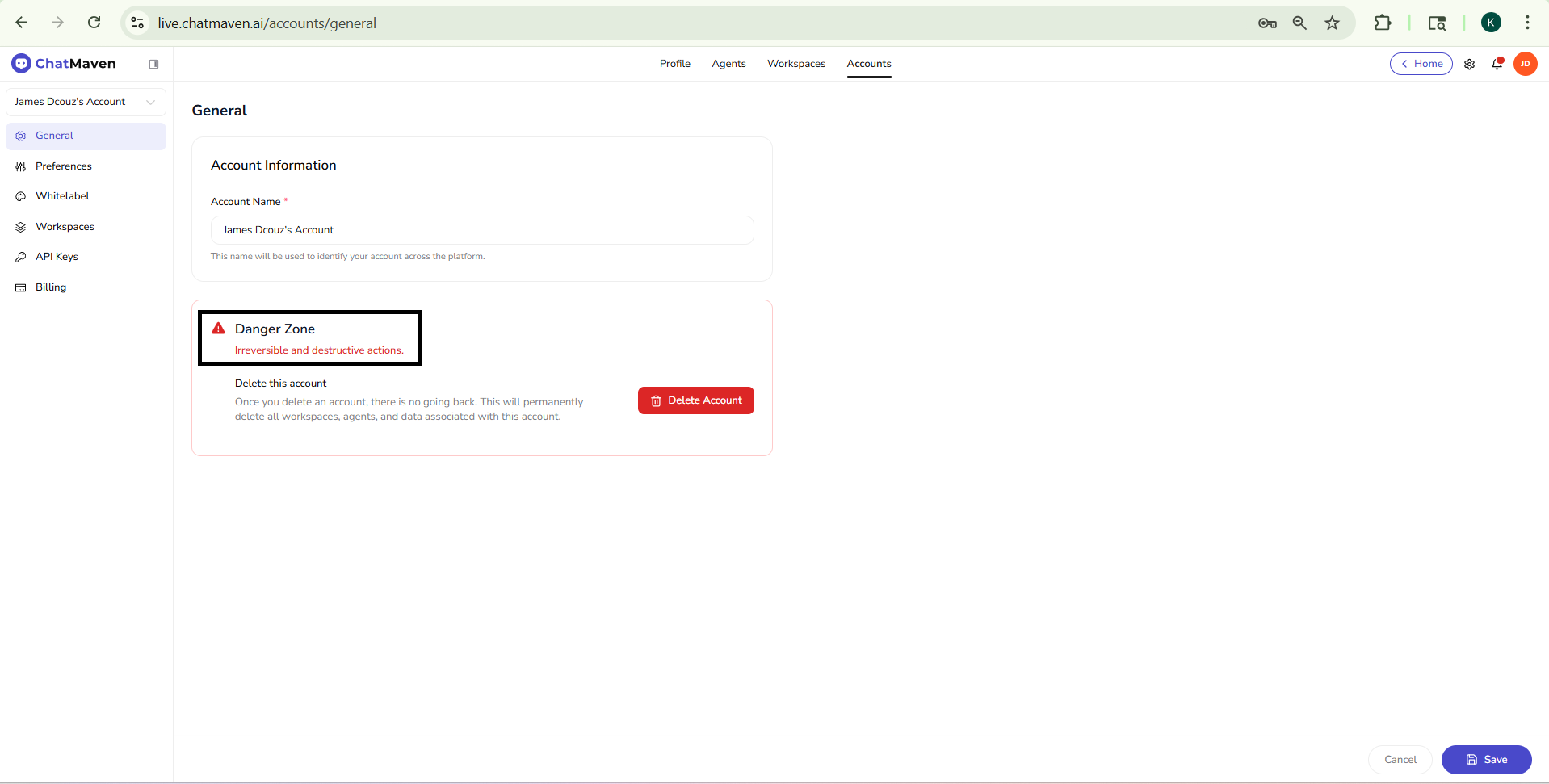
The Danger Zone card is separated visually (often with red accents) because the actions there cannot be undone.
Delete this account
- Delete Account removes the entire account: all workspaces, agents, and data tied to that account are permanently deleted.
- There is no way to restore the account or its data after deletion.
Only use this if you are certain you no longer need the account and have exported anything you must keep. If you are unsure, contact your administrator or ChatMaven support before proceeding.
Next steps
- Account preferences — Session length, idle sign-out, and quick presets.
- Whitelabel — Company name, logo URL, and primary brand color.
- Workspaces under Accounts — Plan summary, search, table, and Create Workspace.
- API Keys — Search, permissions filter, table, and Create API Key.
- Billing — Plans, Summary, Add-Ons, Usage, payment method, and billing history.
For day-to-day product use inside a workspace, continue with:
FAQ and troubleshooting
I do not see Accounts in the top navigation.
Your role may be limited to agent-only features, or your tenant hides account management. Ask an owner to confirm your role or invite you with admin access.
Which account am I changing?
Use the account selector in the sidebar before editing Preferences, Billing, or Workspaces—settings apply to the selected account only.
What is the danger zone?
It contains destructive actions such as closing the account. Only owners should use it, and only after exporting data you need.