WhatsApp Integration
Watch the integration video
Watch the video below for a Walkthrough of WhatsApp integration in ChatMaven. You can also follow the written steps in this guide.
Open the WhatsApp integration video on Google Drive in a new tab if the player above does not load.
Connect ChatMaven to WhatsApp Business Platform so your team can receive and respond to WhatsApp messages from one shared inbox. This guide covers the setup requirements, how to connect your number, and the most common WhatsApp questions for support and operations teams.
WhatsApp integration is best for businesses that want to manage customer conversations at scale with a verified business profile, shared team access, and automation-ready messaging.
What you need
- A ChatMaven account
- A Meta Business Portfolio
- A phone number you want to use for WhatsApp Business Platform
- Access to WhatsApp Business Platform / Cloud API setup in Meta
If you already use the WhatsApp Business App on your number, confirm whether your country and setup support coexistence before connecting the same number to the API.
What this integration lets you do
- Receive customer WhatsApp messages inside ChatMaven
- Reply from a shared team inbox instead of a single mobile device
- Centralize conversations alongside your other supported channels
- Use a business-ready WhatsApp setup instead of relying only on the mobile app
How to connect WhatsApp to ChatMaven
Step 1: Prepare your WhatsApp Business setup in Meta
Before connecting ChatMaven, make sure you have:
- A Meta Business Portfolio
- A business phone number for WhatsApp
- The required business details ready for verification if Meta requests them
If you are creating a new WhatsApp Business Platform account, Meta may ask you to set up your business profile name, category, and display name during onboarding.
Step 2: Open the WhatsApp integration in ChatMaven
In ChatMaven, go to Settings → Agents → Integrations
Find WhatsApp API and click Configure → Setup → Connect.
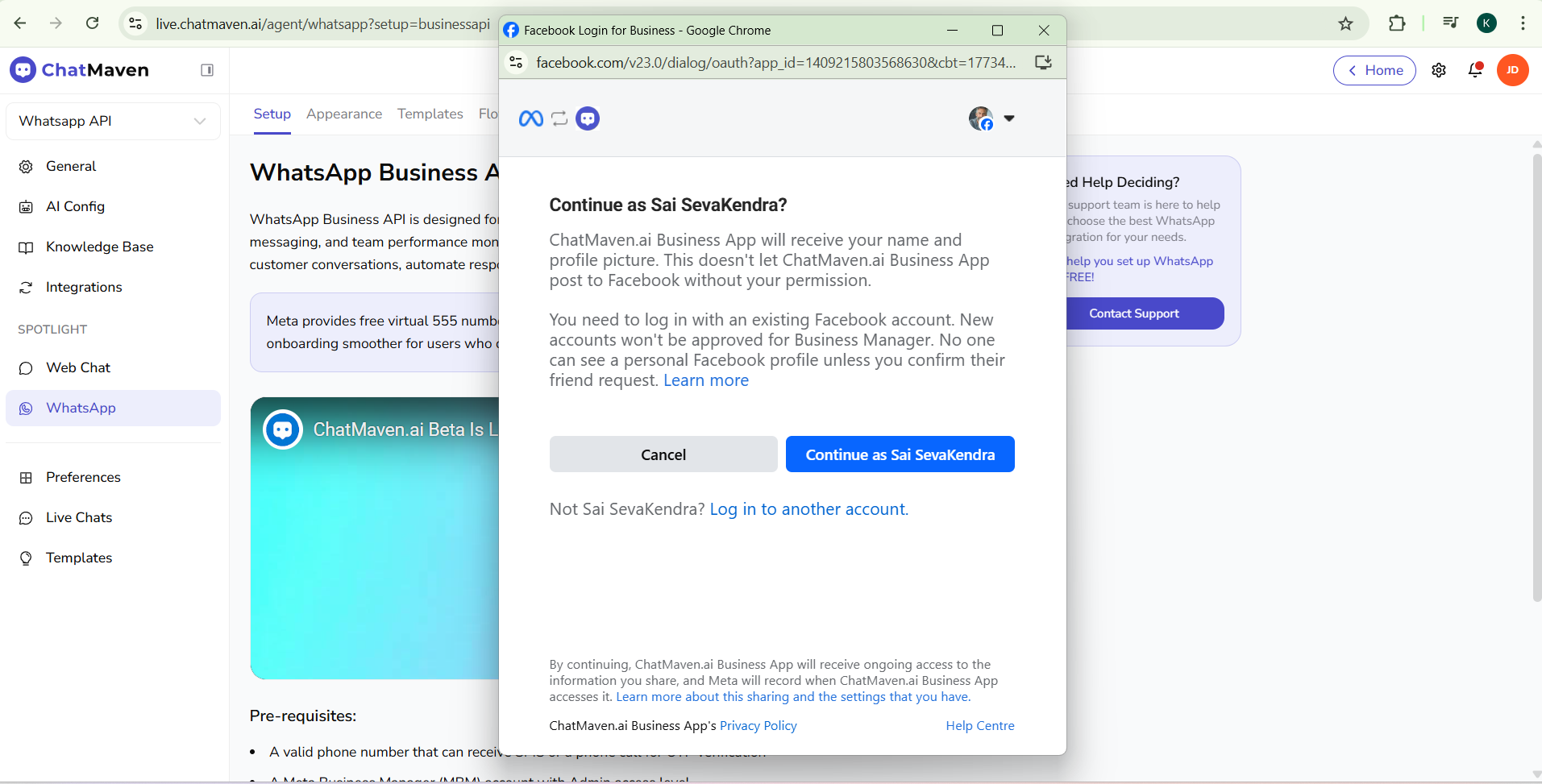
Step 3: Sign in with Facebook / Meta
When prompted, sign in with the Facebook account that has access to the Meta Business Portfolio you want to use for WhatsApp.
Carefully review the permissions screen and continue with the account that owns or manages the correct business assets.
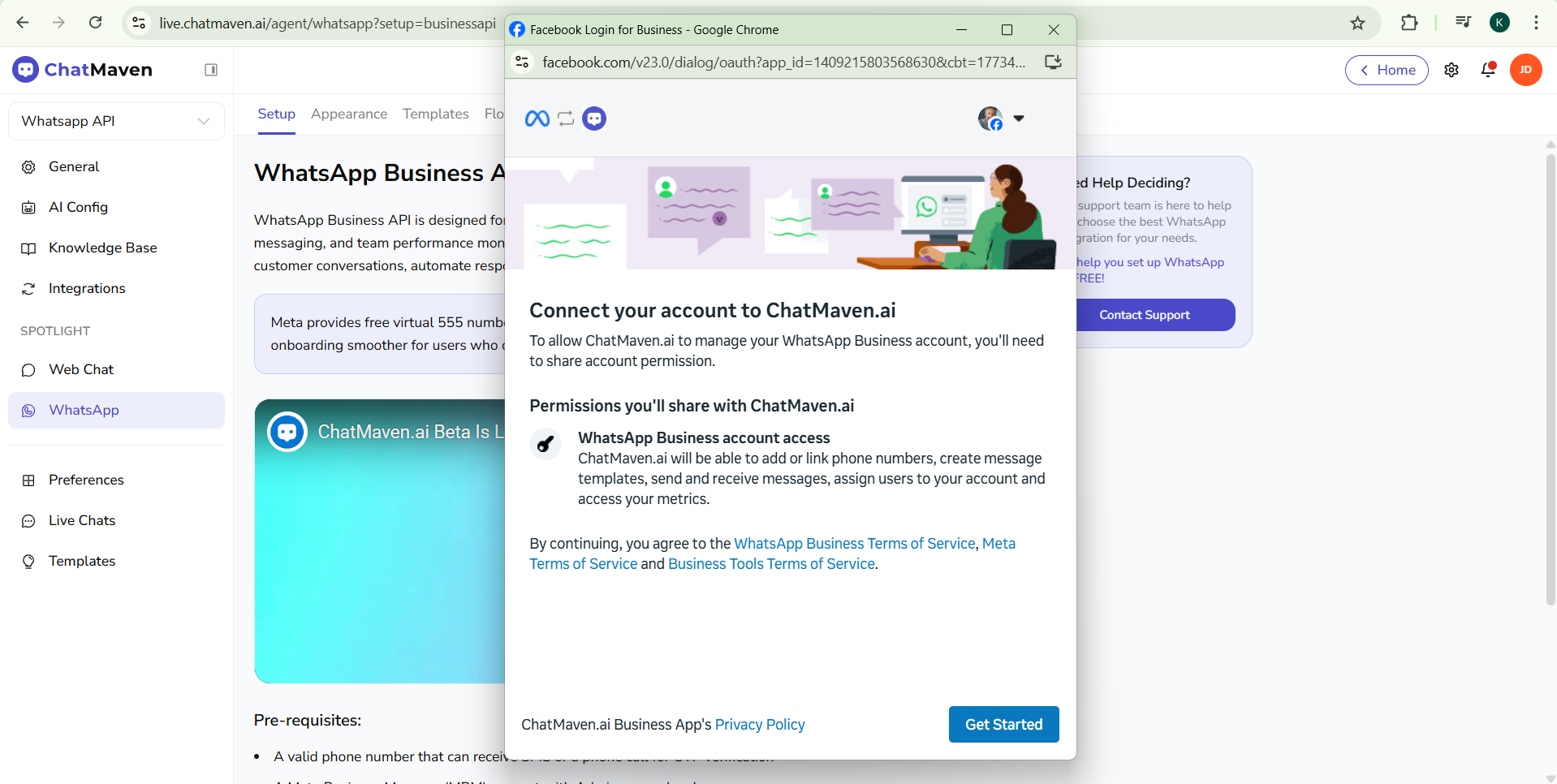
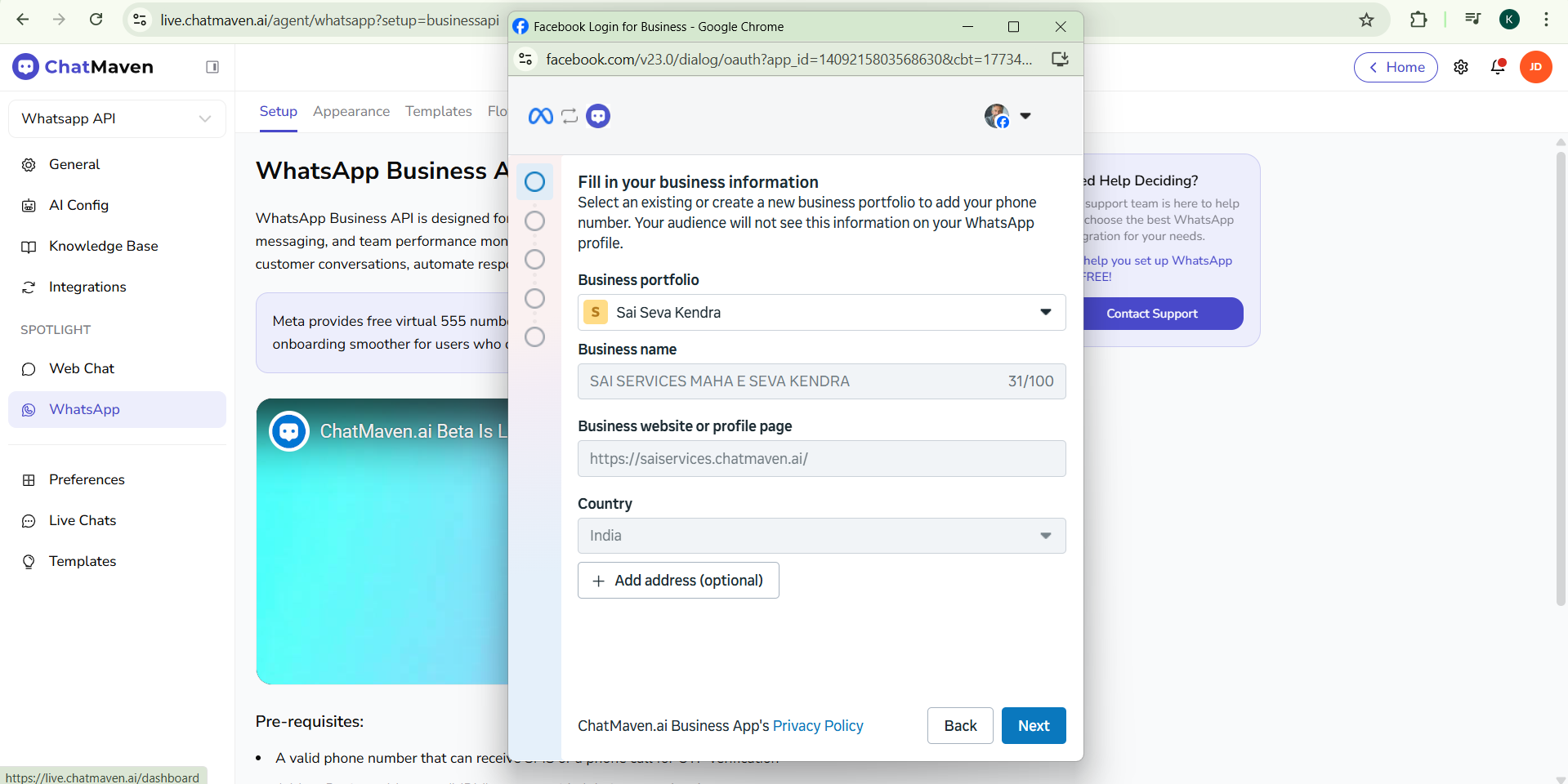
Step 4: Create or connect your WhatsApp Business Platform API account
During the setup flow, choose whether to:
- Create a new WhatsApp Business Platform API account, or
- Connect an existing one
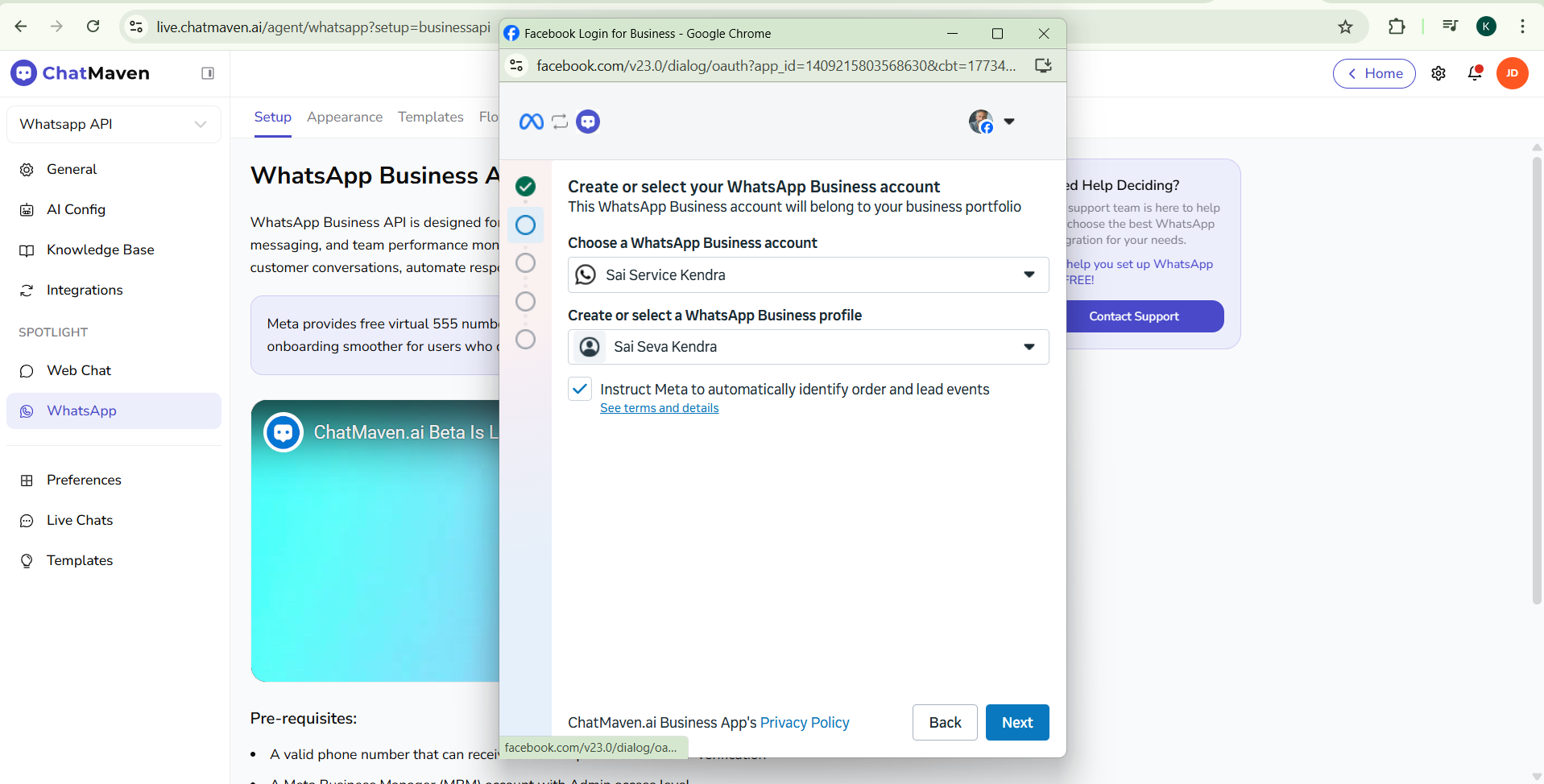
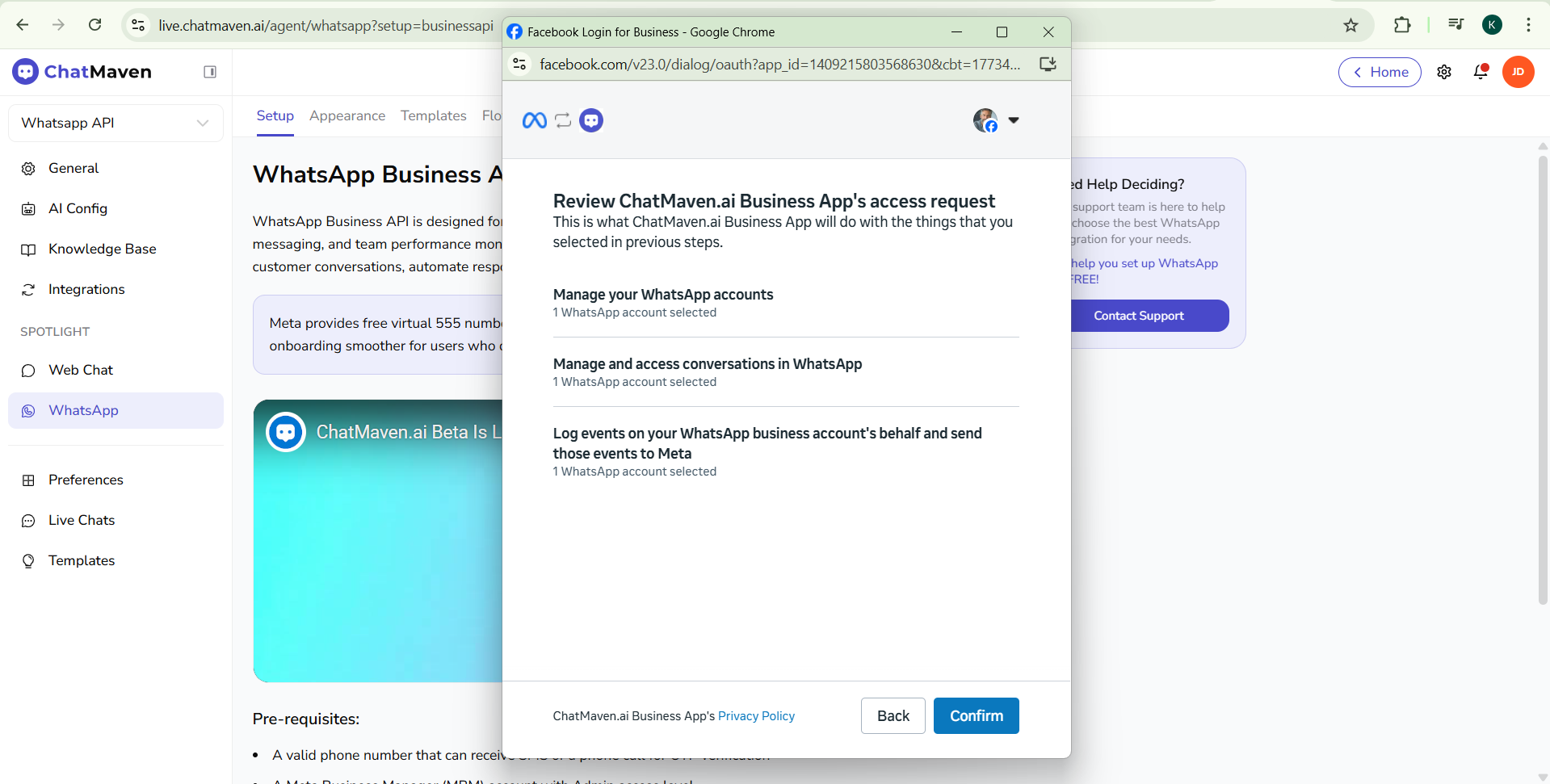
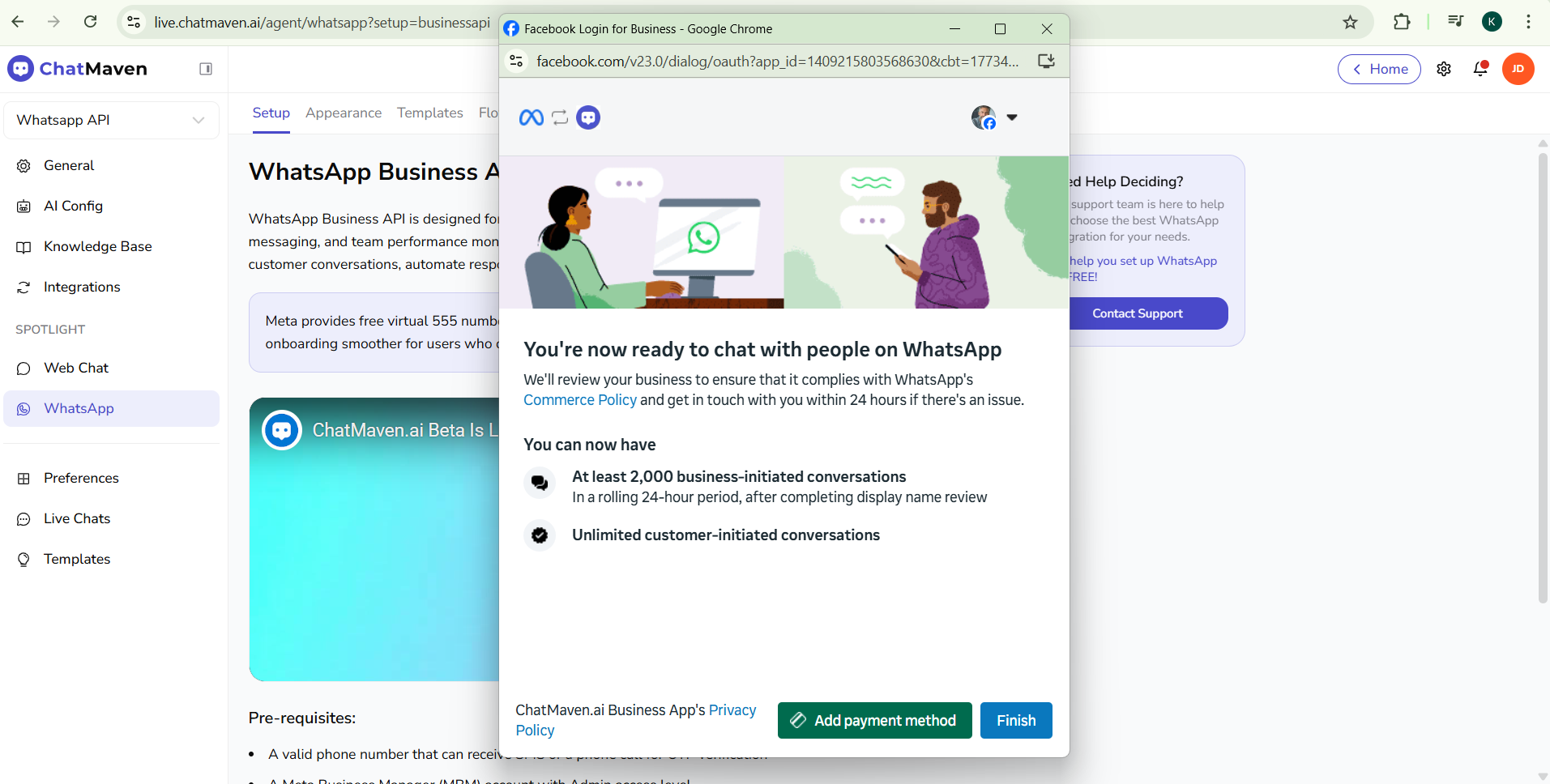
You may also be asked to choose an existing business portfolio, create a WhatsApp Business Account, and add or select the phone number you want to connect.
Step 5: Verify your phone number
Meta will usually send a verification code by SMS or phone call.
Enter the code to confirm ownership of the number. Once verification is complete, the number can be connected to ChatMaven.
Step 6: Finish the connection in ChatMaven
After the Meta onboarding flow is complete, return to ChatMaven and confirm the WhatsApp channel or integration has been added successfully.
Once connected, send a test message to your WhatsApp number and confirm the conversation appears in your ChatMaven inbox.
Recommended next steps
After connecting WhatsApp, it is a good idea to:
- Confirm your business display name appears correctly
- Add a short internal channel name in ChatMaven so your team can identify it easily
- Send a test inbound message from a real device
- Test a reply from ChatMaven to confirm message delivery
- Manage approved templates from the Templates tab: WhatsApp — Templates. To design and submit new templates to Meta, use Creating message templates.
- Read Getting Ready for Inbound Conversations to handle conversation windows, templates, and entry points
- Customize WhatsApp Appearance (logo, greeting, button text, position) for your website or app
- Deploy the chat widget, button, or QR code on your site and other touchpoints
- See Getting Ready for Promotional Messaging to send broadcasts and marketing messages within WhatsApp rules
Important WhatsApp notes
Shared inbox vs mobile app
The WhatsApp Business Platform is different from the standard WhatsApp Business App. The API setup is designed for team access, integrations, and operational workflows rather than single-device usage.
24-hour customer service window
When a customer messages you, WhatsApp generally allows free-form replies during the active customer service window. If you want to message the customer later, you may need an approved message template depending on the use case and current WhatsApp policy.
Pricing
WhatsApp Business Platform charges are controlled by Meta and may vary by region, message type, and current pricing model. Review the latest WhatsApp pricing and policy details in Meta’s documentation before launching at scale.
Existing WhatsApp Business App number
Some businesses may be able to keep the same number and use WhatsApp Business App and API together through coexistence, but this depends on current Meta support, region, and account eligibility. Check the latest Meta guidance before migrating an active number.
FAQ and troubleshooting
Why is my WhatsApp number not verifying?
Common reasons include:
- The number is entered in the wrong format
- The number is already tied to another WhatsApp setup
- SMS or voice delivery is blocked by the carrier
- The wrong business account was selected during onboarding
Double-check the phone number, retry the verification method, and confirm you are connecting the correct Meta Business Portfolio.
Why are inbound messages not appearing in ChatMaven?
Check the following:
- The WhatsApp setup completed successfully in Meta
- The correct number is connected in ChatMaven
- You are sending the test message to the connected number
- The channel was saved successfully after onboarding
If the connection appears complete but no messages arrive, reconnect the integration and test again with a fresh message from a separate device.
Why can't I send a message to a customer after some time has passed?
WhatsApp applies messaging rules outside the customer service window. In many cases, you must use an approved message template to restart the conversation.
Can multiple agents reply to the same WhatsApp number?
Yes. That is one of the main benefits of connecting WhatsApp through a platform like ChatMaven instead of handling everything from a single phone.
Do I need a Meta Business account?
Yes. WhatsApp Business Platform setup is managed through Meta business infrastructure, so you should expect to use a Meta Business Portfolio as part of onboarding. For higher messaging limits, number migration, or an Official Business Account, you may need to complete Meta Business Verification.