Workspaces (Accounts)
Under Accounts, the Workspaces page is the account-level directory of every workspace tied to the selected account. From here you can see usage against your plan, search the list, create workspaces, and open row actions to edit or delete.
In the hosted product, open this screen at https://live.chatmaven.ai/accounts/workspaces (URL path /accounts/workspaces).
Open Workspaces
- Sign in to ChatMaven.
- In the top navigation, click Accounts (alongside Profile, Agents, and Workspaces). You may also use Home, Settings, Notifications, and your profile menu from the top bar.
- In the Accounts left sidebar, click Workspaces (shown with a workspace-style icon; the row is highlighted when this page is active).
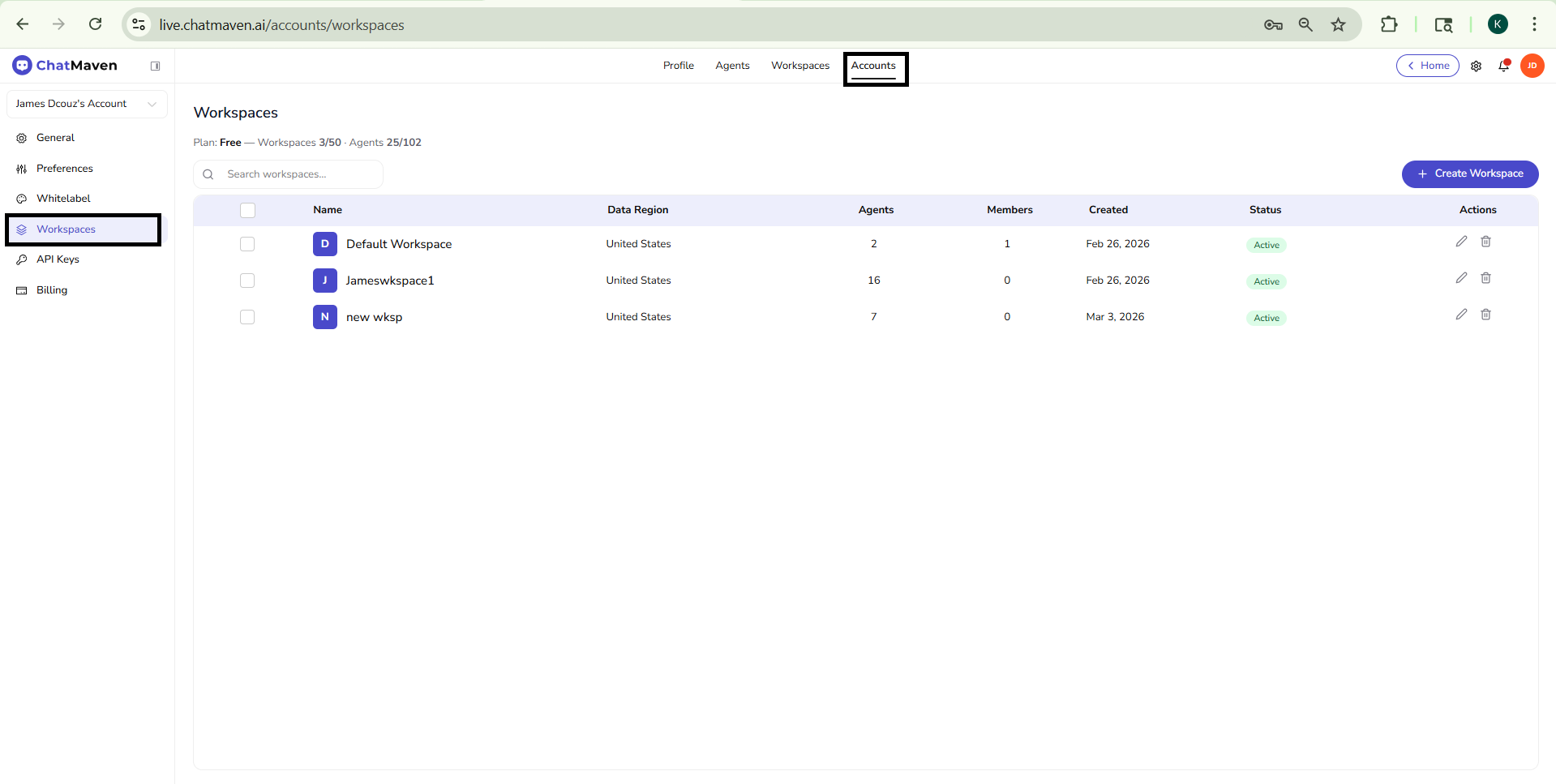
Confirm the account dropdown at the top of the sidebar shows the account whose workspaces you want to manage. The table and plan line always reflect that account.
What you see on the page
Title and plan summary
The main heading is Workspaces. Directly under it, a compact plan line summarizes your subscription and how much of the included capacity you are using—for example, workspace count versus the plan limit and agent count versus the plan limit (wording and numbers match your live account).
Search and create
- Search workspaces — A field with a search icon filters the table by name (and any other fields the product matches) as you type.
- + Create Workspace — Primary action (purple in the default theme) on the toolbar. It opens the flow to add a new workspace with a name and Data Region (region is chosen at creation and stays fixed afterward).
Workspaces table
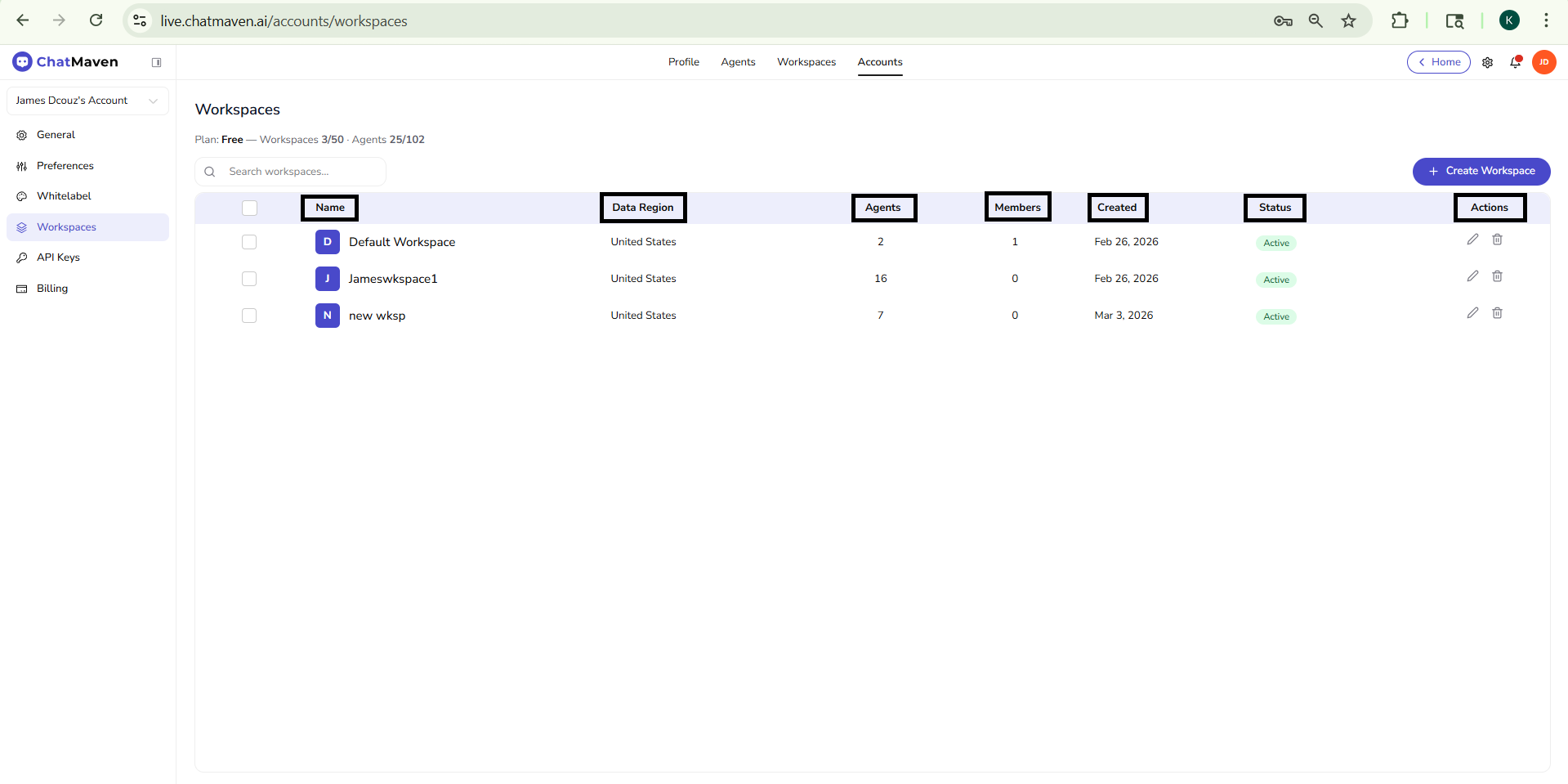
The table lists one row per workspace. Typical columns:
| Column | Description |
|---|---|
| Checkbox | Used when the product supports selecting multiple rows for bulk actions (if shown). |
| Name | Workspace display name, often with a colored tile using the first letter as a quick visual. |
| Data Region | Where that workspace’s data is hosted (set at creation). |
| Agents | Number of agents in that workspace. |
| Members | Number of people in that workspace. |
| Created | Date the workspace was added. |
| Status | Operational state—for example an Active badge when the workspace is in normal use. |
| Actions | Shortcuts such as edit (pencil) to open workspace settings, and delete (trash) to start removal (confirm in the product before anything is destroyed). |
If Accounts or Workspaces in the account sidebar is missing, your role or account may not expose workspace administration. Contact an owner on the account or ChatMaven support if you need access.
Detailed steps
For step-by-step flows with screenshots (create drawer, edit from the list, delete, and switching between workspaces), use the full guide:
FAQ and troubleshooting
I hit my workspace limit.
Upgrade the plan or archive unused workspaces if your workflow allows. Owners can see limits on this screen and in Billing.
Who can create or delete workspaces?
Typically owners and admins. Deletion may be irreversible—export data first.
Users cannot access a workspace.
Check membership and roles for that workspace. Invitations must be accepted, and some features are gated by plan.
See also
- Getting Started with Accounts — General, account selector, and Danger Zone.
- Preferences — Session behavior for the account.
- Whitelabel — Branding for the account.
- API Keys — Programmatic access keys for the account.
- Billing — Plans, usage, and invoices for the account.