Inviting teammates
Invite people to your ChatMaven organization so they can work in the right workspaces and on the right agents, with permissions that match their job.
In the hosted product, this screen lives at https://live.chatmaven.ai/user-profile/members (path /user-profile/members).
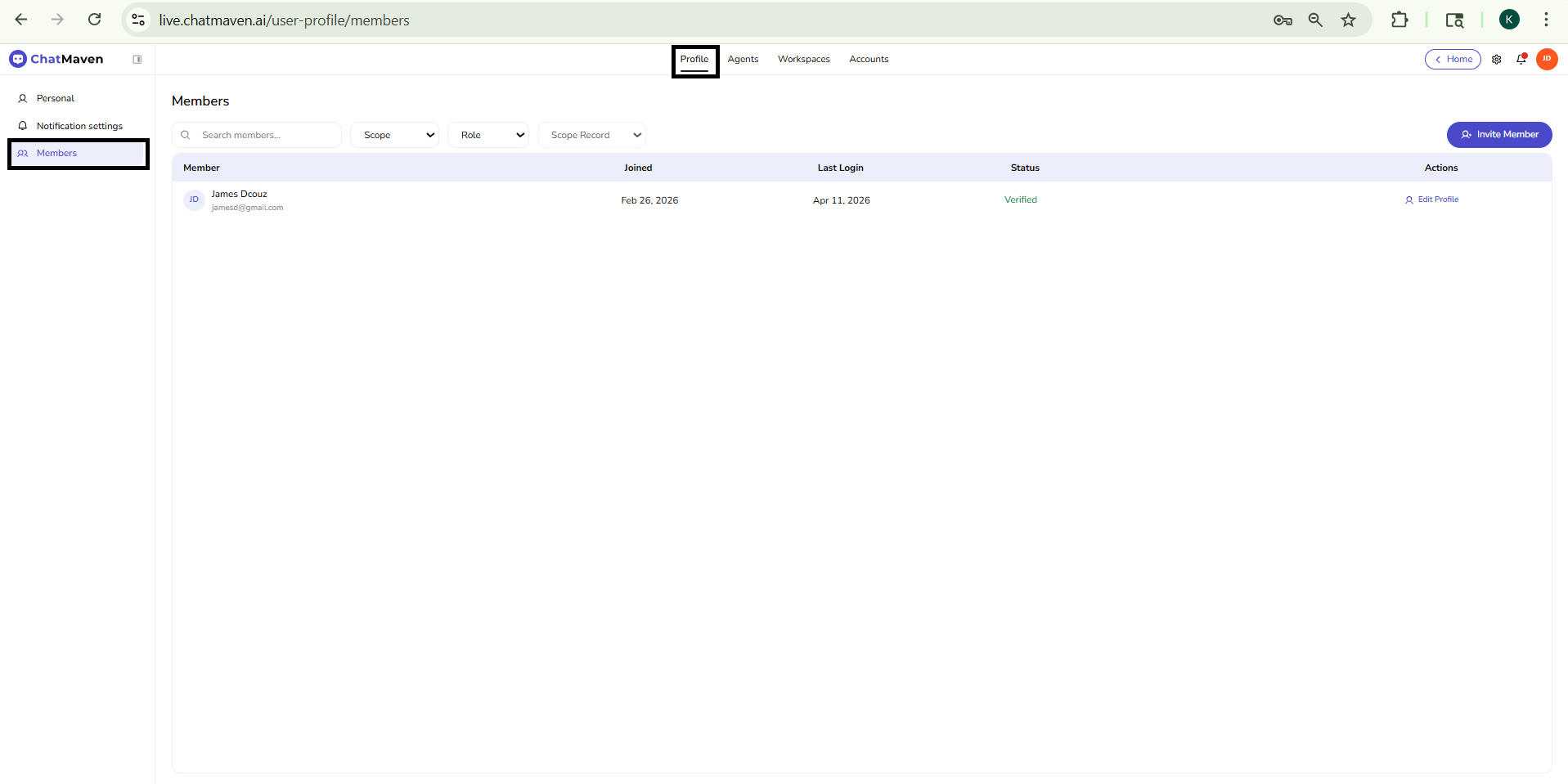
Step 1: Open Members settings
You reach member management from your profile, not from a single workspace screen.
- Sign in to ChatMaven.
- In the top navigation, click Profile (next to Agents, Workspaces, and Accounts).
- In the Profile left sidebar, click Members.
If Members is missing or read-only, your role may not include inviting or managing organization members.
Step 2: Invite a member
-
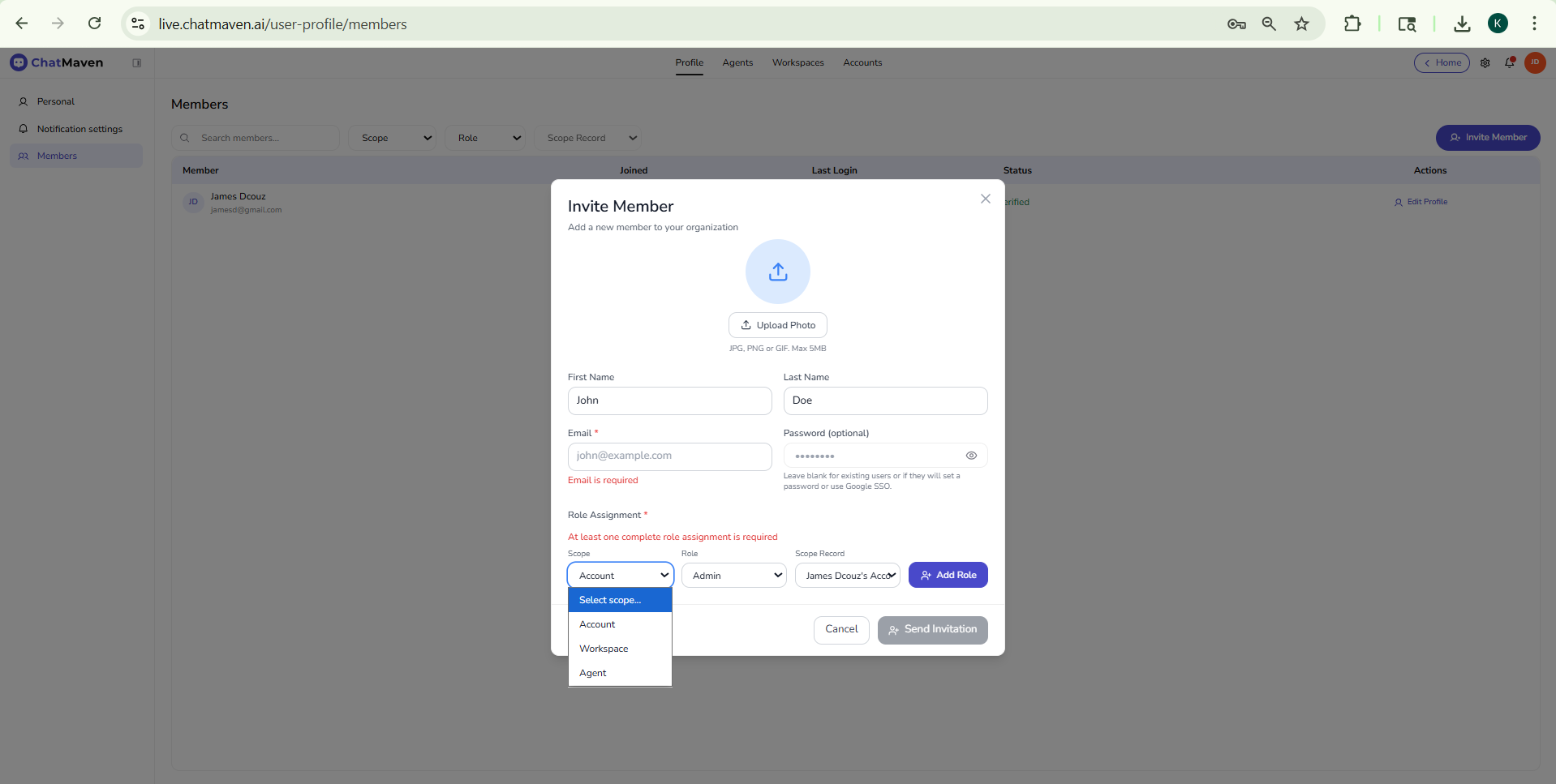
On the Members page, click Invite Member (top right). The Invite Member modal opens (“Add a new member to your organization”). Use X to close without saving.
-
Optional profile photo — Use the circle and Upload Photo for JPG, PNG, or GIF, up to 5 MB.
-
Name and email
Field Notes First Name / Last Name Text (for example John / Doe). Email Required. Invitation is sent here. Without it, you see Email is required. Password (optional) Leave blank if they already have an account, will set a password after accepting, or use Google SSO. Otherwise you can set an initial password; use the eye icon to show or hide it. -
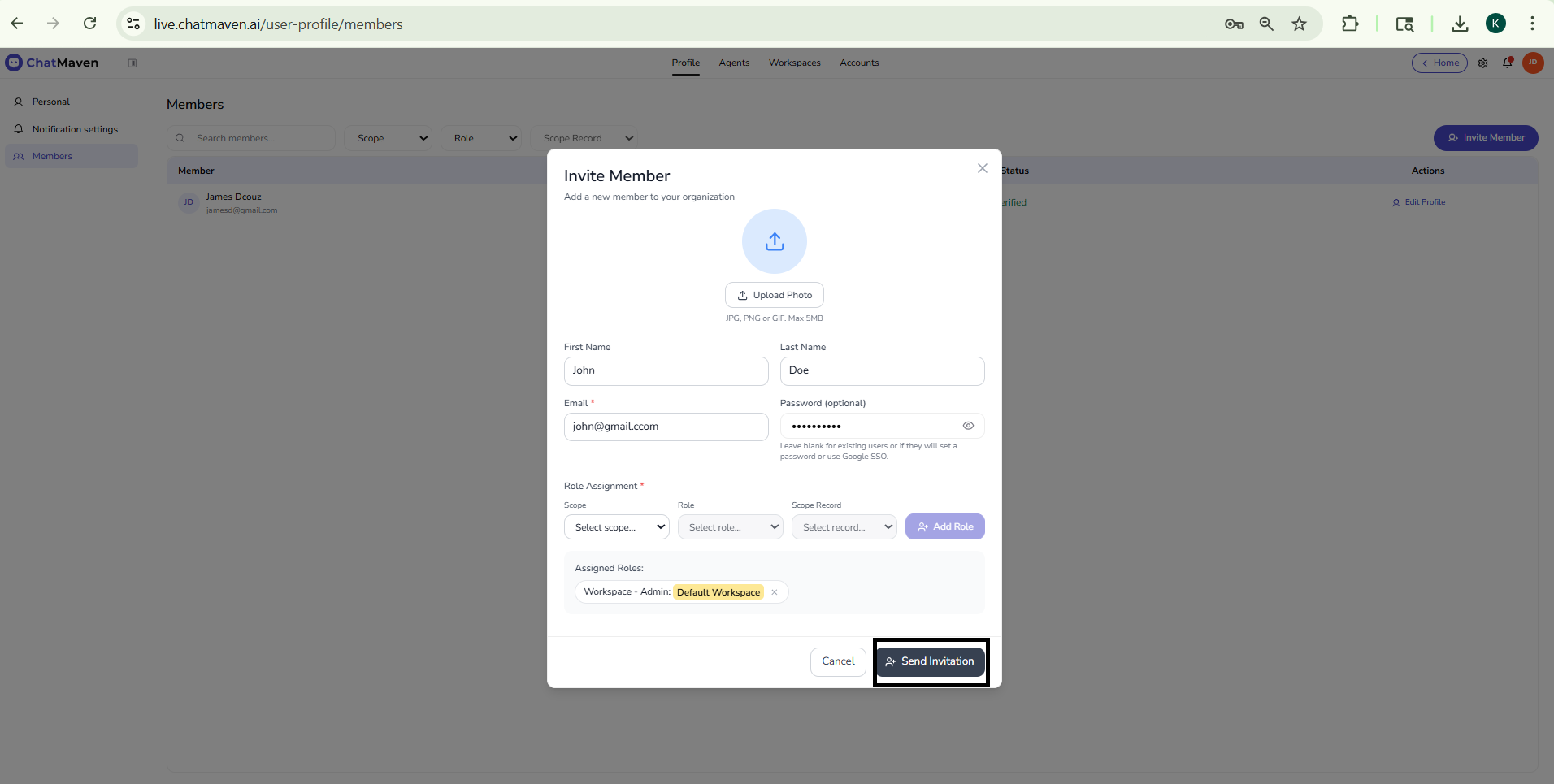
Role assignment (required) — You need at least one complete row: Scope, Role, and Scope record. Until all required fields are valid, you may see At least one complete role assignment is required and Send Invitation stays disabled.
For each row:
- Scope — Where the role applies (Account, Workspace, Agent, or whatever your build lists).
- Role — Permission level for that scope (for example admin vs member; labels depend on your organization).
- Scope record — The specific account, workspace, or agent that row applies to.
Use + Add Role when someone needs more than one place (for example two workspaces).
- Click Send Invitation when the form is valid. Cancel closes without inviting.
Roles and access: Invites are where you define who can do what and where. For how roles appear on your own profile, see Personal information. Account-level workspace lists are under Workspaces.
An email invitation is sent to the address you entered. If they are new to ChatMaven, they complete registration from the invite.
Step 3: Find members and adjust access after they join
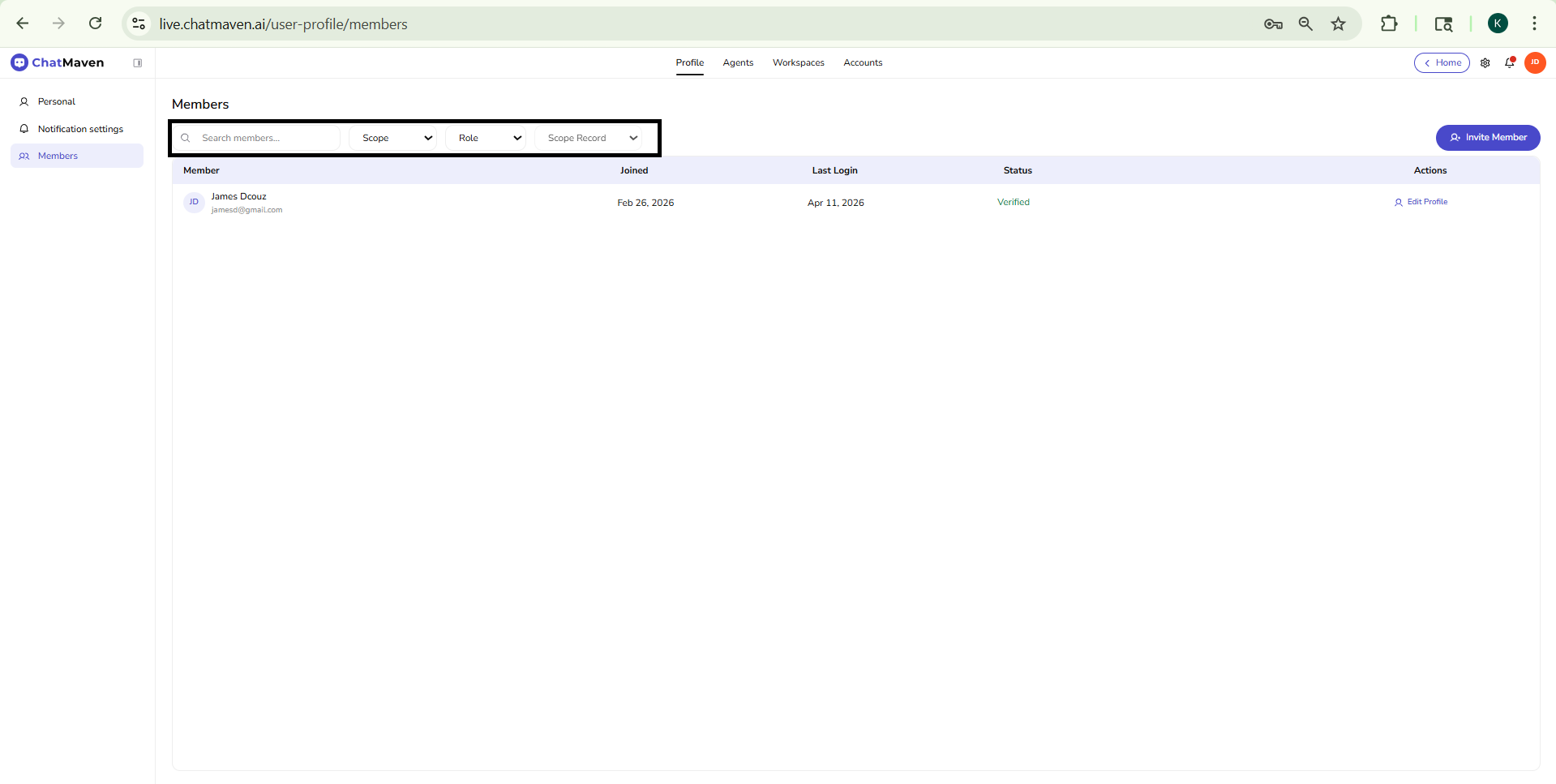
When invitations are accepted, people appear in the Members table. Use the toolbar to work with a growing team:
- Search members… — Filter as you type (names, emails, and other fields the product indexes).
- Scope, Role, Scope record — Dropdowns to narrow the table by context, permission level, or a specific record (options match the live UI).
Each row usually shows Member (name, email, avatar), Joined, Last login, Status (for example Verified), and Actions (such as Edit Profile) depending on your permissions.
Use Edit Profile (or equivalent) when you need to change how someone is set up after they have joined. Day-to-day inbox assignment is covered in Inbox.
Members under Profile is about who is on the account and their roles. The Accounts → Workspaces list shows workspaces and counts; see Workspaces for creating and managing workspaces.
FAQ and troubleshooting
I cannot invite a new user.
You may need owner or admin rights, or the seat limit was reached. Check Billing for licensed seats.
Invitation email never arrived.
Resend, check spam, and confirm the address is correct. Corporate gateways may delay—ask IT to allowlist ChatMaven.
Why can’t I edit another member’s role?
Only certain roles can change permissions. Ask an owner to adjust roles under account or workspace settings.
Send Invitation stays disabled.
Enter a valid email, then complete Scope, Role, and Scope record for at least one row (use + Add Role if you need more than one assignment). The button stays inactive until those required fields pass validation.
See also
- User Profile — Personal information — Your own name, password, and assigned roles (read-only summary there).
- Notification settings — How you receive alerts about activity involving you.
- Getting Started with Accounts — Account-level settings and ownership.