API Keys (Accounts)
Under Accounts, the API Keys page is where you create and manage API keys for the selected account. Keys are used to authenticate programmatic access to ChatMaven (for example, integrations and custom scripts). From this screen you can search and filter keys, create new keys, copy a masked preview, and edit or revoke keys.
In the hosted product, open this screen at https://live.chatmaven.ai/accounts/api-keys (URL path /accounts/api-keys).
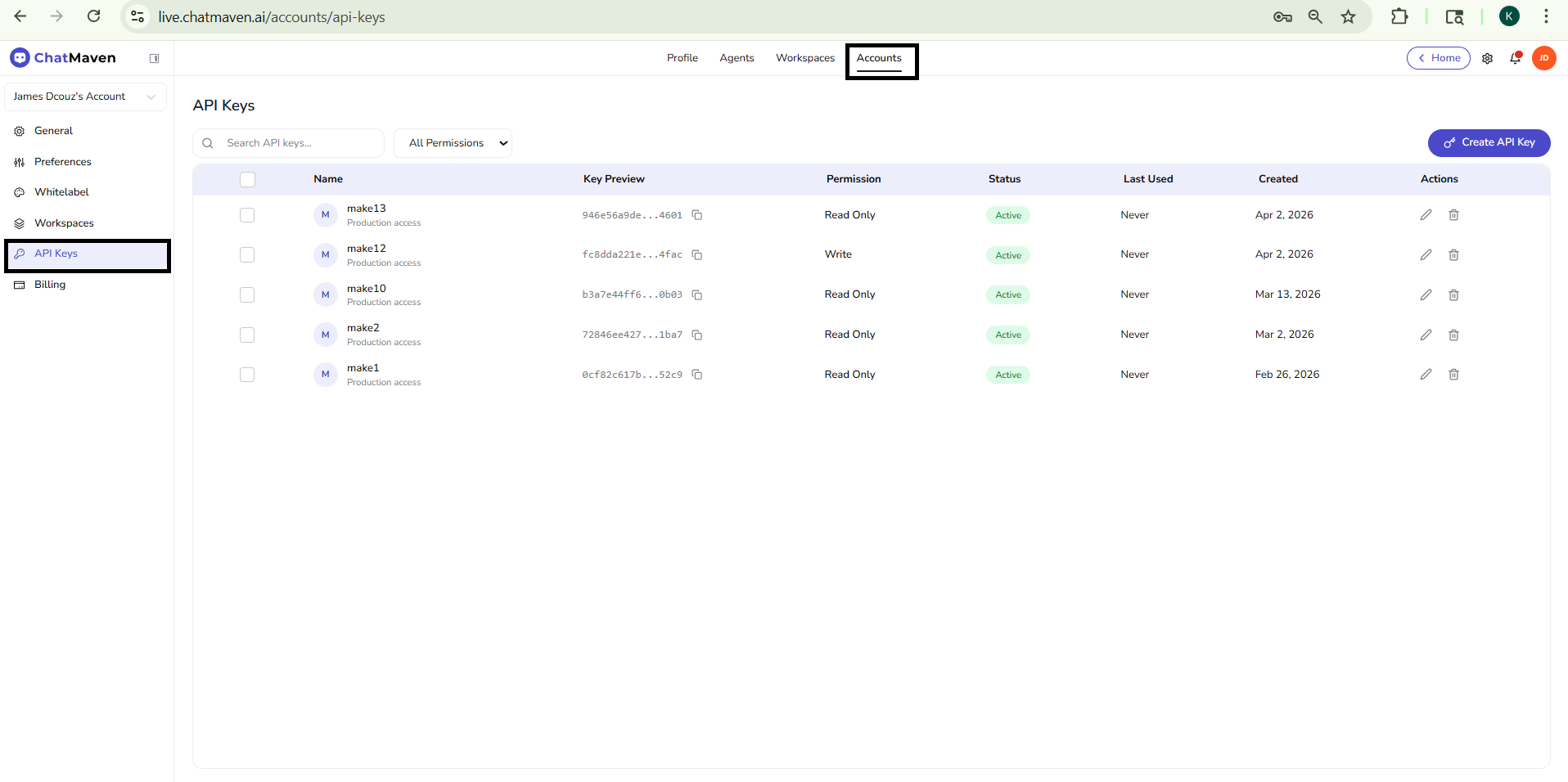
Open API Keys
- Sign in to ChatMaven.
- In the top navigation, click Accounts (alongside Profile, Agents, and Workspaces). You may also use Home, Settings, Notifications, and your profile menu from the top bar.
- In the Accounts left sidebar, click API Keys (the row is highlighted when this page is active).
Confirm the account dropdown at the top of the sidebar shows the account whose keys you want to manage. The list always reflects that account.
What you see on the page
Title and toolbar
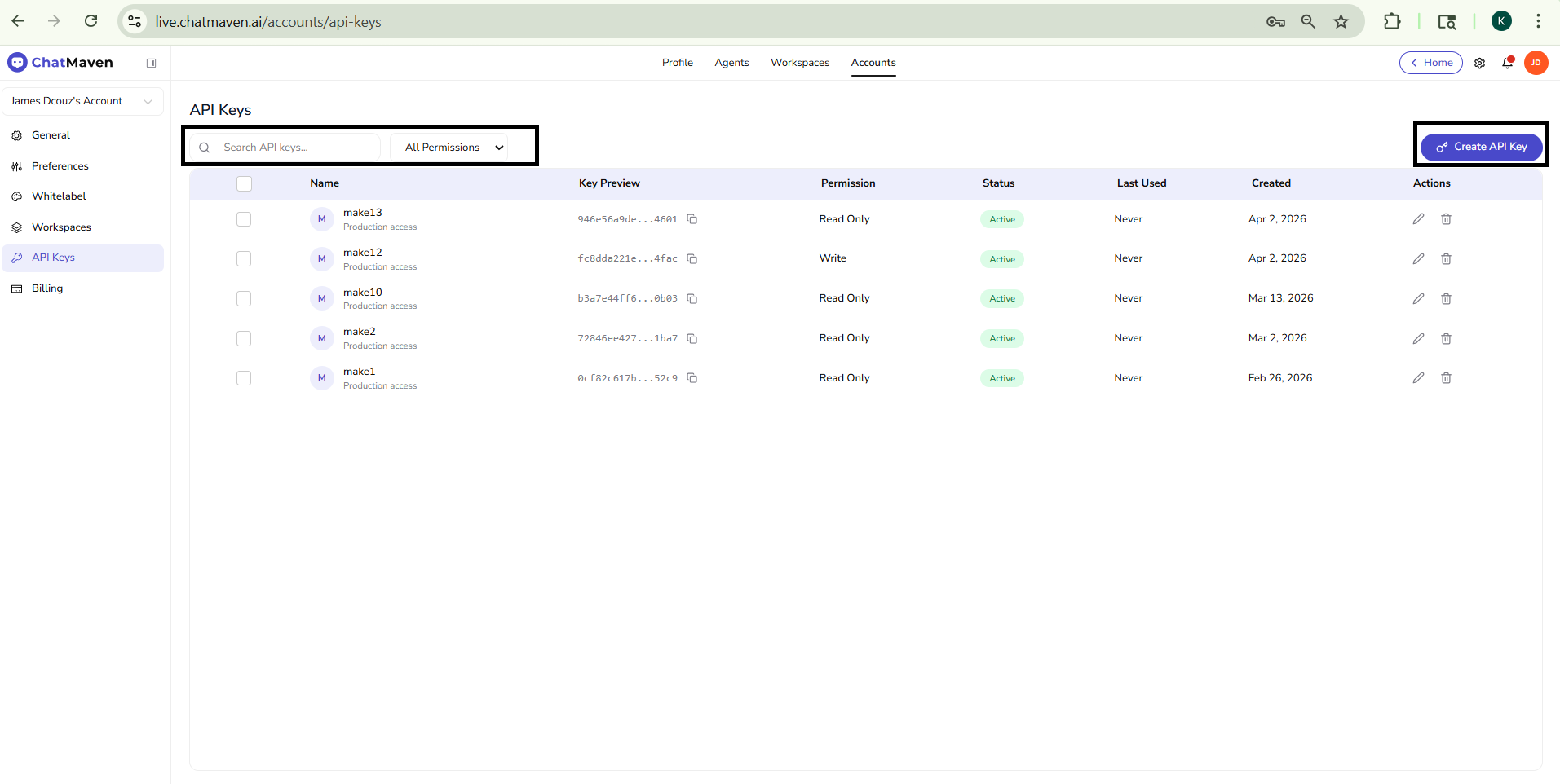
The main heading is API Keys. Below it, the toolbar includes:
- Search API keys… — A search field with a magnifying-glass icon; it filters the table as you type.
- All Permissions — A dropdown to narrow the list by permission level (for example, show only keys with a specific access type). Options match what your product build exposes.
- + Create API Key — Primary action (blue in the default theme) on the right. It starts the flow to add a new key; you will set a name, permission level, and any other fields the product requires. Copy and store the full secret when it is shown once—after that, only a masked preview is available in the list.
API keys table
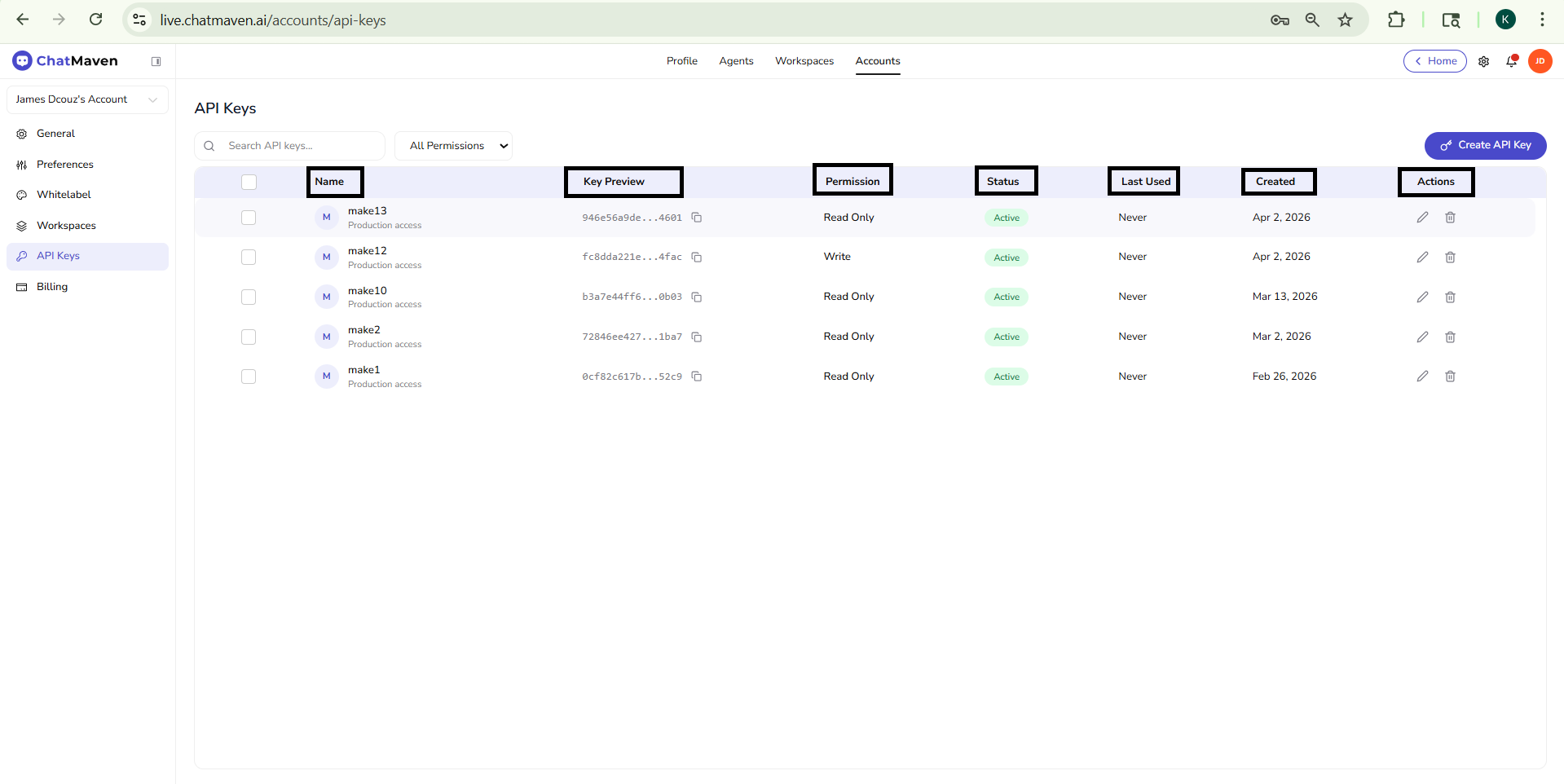
The table lists one row per key. Typical columns:
| Column | Description |
|---|---|
| Checkbox | Select rows when the product supports bulk actions from the list (if shown). |
| Name | The label you gave the key, often with a small circular tile (for example, an initial). A secondary line may describe scope or environment (such as Production access). |
| Key preview | A masked fragment of the secret (start and end characters with ellipsis in the middle), plus a control to copy the preview to the clipboard. This is not the full key—use the value shown only at creation time for authentication. |
| Permission | What the key may do—for example Read Only (read operations) or Write (including changes). Exact labels match your account and product version. |
| Status | Whether the key is usable—for example an Active badge when the key is valid. |
| Last Used | When the key was last used for an API call, or Never if it has not been used yet. |
| Created | Date the key was created (for example Apr 2, 2026). |
| Actions | Edit (pencil) to change metadata or permissions where allowed, and Delete (trash) to revoke and remove the key (confirm in the product before removal). |
Treat API keys like passwords. Do not commit them to source control or share them in chat or email. Rotate or delete a key if it may have been exposed.
If Accounts or API Keys in the account sidebar is missing, your role or account may not expose API key administration. Contact an owner on the account or ChatMaven support if you need access.
FAQ and troubleshooting
I created a key but requests still fail.
Copy the full key once—many products show it only at creation. Check for trailing spaces, wrong header name, and that you are targeting the correct environment (production vs staging).
Who can create or revoke keys?
Usually owners and admins; other roles may be read-only. If API keys is missing, your role or plan may not include API access.
How often should I rotate keys?
Rotate after staff changes, suspected leaks, or on a regular schedule your security policy defines. Always update integrations before revoking the old key.
See also
- Getting Started with Accounts — General, account selector, and Danger Zone.
- Workspaces (Accounts) — Account-level workspace list and creation.
- API reference — How to call the API once you have a key.
- Billing — Plans, add-ons, and subscription management for the account.