AI Settings
AI Settings is where you configure your agent’s identity, language model, speaking style, automated actions, and custom rules. Use it after you create an agent or whenever you want to change how the AI behaves without rebuilding the whole setup.
The page title is AI Settings, with the subtitle Model, voice, and automated behaviors for your agent. In the app, the route is live.chatmaven.ai/agent/ai-config.
Open AI Settings
- Sign in to ChatMaven and open Agents from the top navigation (Profile, Agents, Workspaces, Accounts).
- Pick the agent from the agent dropdown at the top of the left sidebar (for example
Bank Assistant). - Click AI Settings in the left sidebar (below General).
The sidebar also lists Knowledge Base, Integrations, and channel shortcuts under SPOTLIGHT (such as Web Chat and WhatsApp). Lower in the sidebar you’ll find Preferences and Live Chats for compliance and handoff settings.
Automation mode
At the top right of the main panel, Automation mode controls how much the agent can do on its own. Open the dropdown to choose a mode:
| Mode | Purpose |
|---|---|
| Full AI | Open-ended AI answers plus automated actions and visual flows. |
| Structured only | Limits the agent to structured responses without open-ended AI. |
| Flows only | Runs visual flows and actions without open-ended AI replies. |
A description box below the page title summarizes the active mode. Click Advanced for additional automation options when shown.
Always click Save at the bottom after changing automation mode or any other setting on this page.
Model & voice
Open the Model & voice tab to set who the agent is, which model powers replies, and how it sounds.
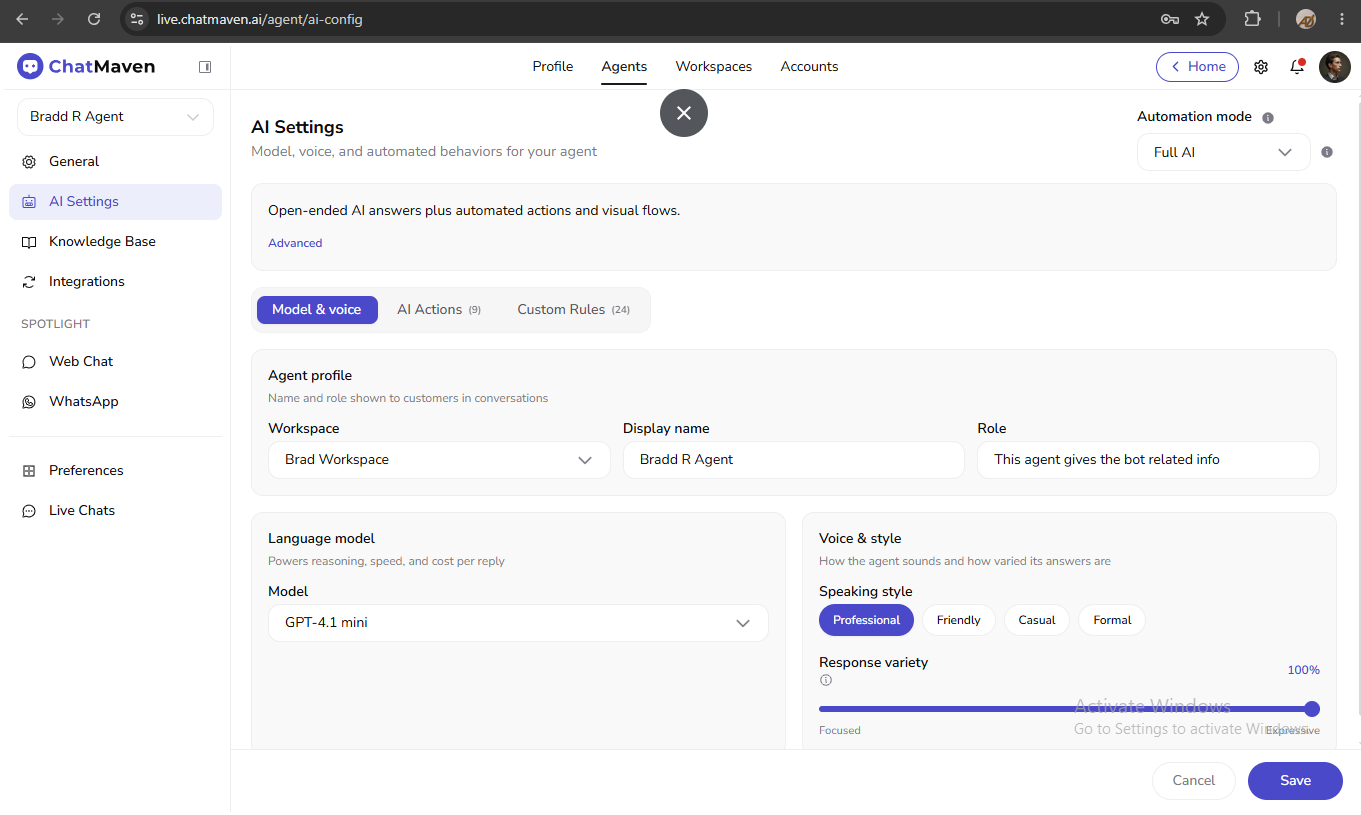
Agent profile
These fields control how the agent is labeled and which workspace owns it. The subtitle notes they are the name and role shown to customers in conversations.
| Field | Purpose |
|---|---|
| Workspace | Dropdown: choose the workspace this agent belongs to. |
| Display name | The name shown in ChatMaven lists, dropdowns, and customer-facing conversations. |
| Role | How the agent describes its purpose (placeholder example: Customer Support). |
Language model
Model is a dropdown of available models (for example GPT-4.1). The helper text notes this powers reasoning, speed, and cost per reply. Pick the balance of quality, speed, and cost that fits your use case; your admin or plan may limit which models appear.
Voice & style
Speaking style uses pill buttons so only one tone is active at a time:
- Professional
- Friendly
- Casual
- Formal
The selected pill is highlighted (for example in purple). This steers how formal or relaxed the agent’s wording feels.
Response variety is a slider from Focused (left) to Expressive (right), shown as a percentage (for example 75%).
- Lower / Focused: Stricter, more consistent phrasing—good for policies, FAQs, and compliance-sensitive replies.
- Higher / Expressive: More varied and flexible wording—use with clear custom rules so answers stay accurate.
AI Actions
Open the AI Actions tab to manage automations your agent runs when customer intent matches. Each action syncs a behavior rule to the agent.
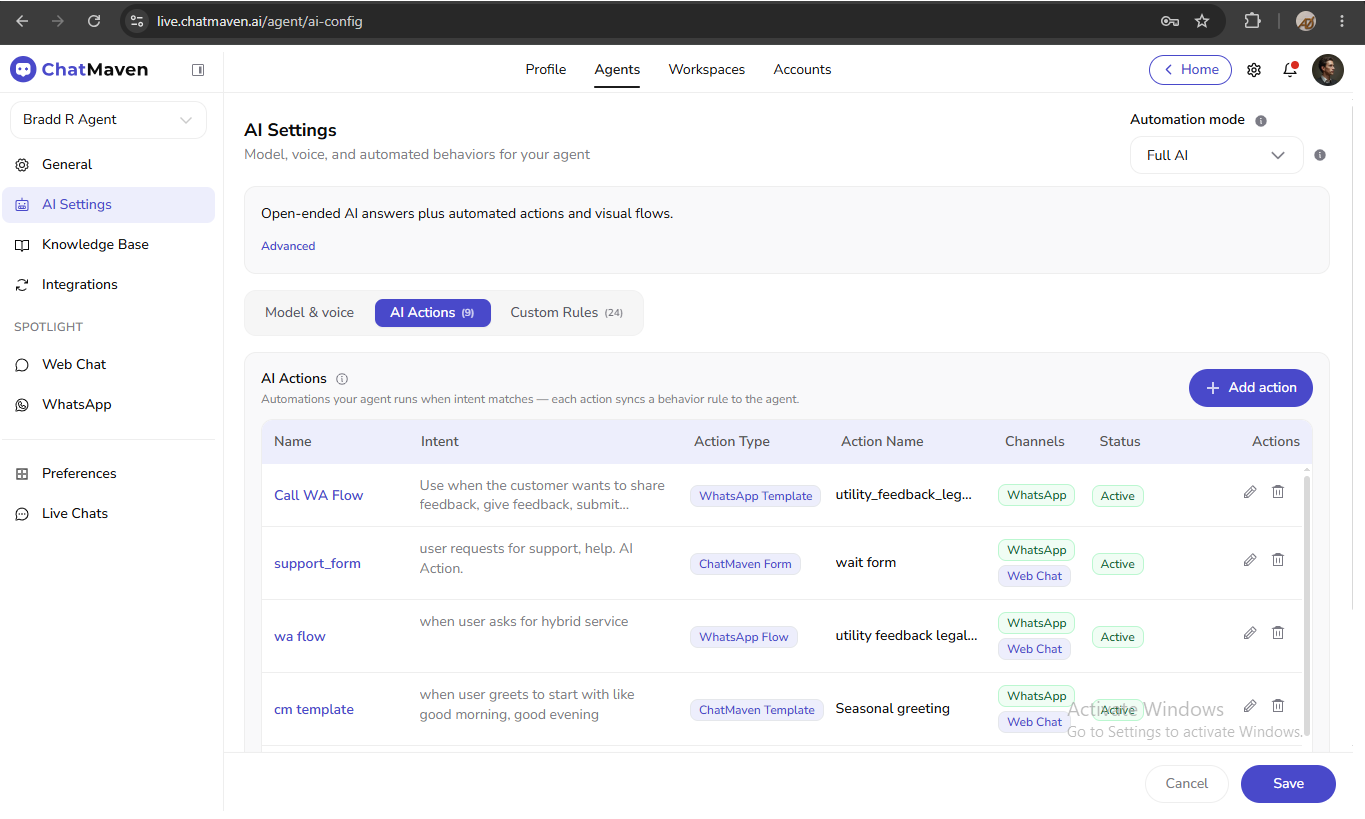
The table lists your configured actions. Typical columns include:
| Column | Purpose |
|---|---|
| Name | Internal label for the action (for example support_form). |
| Intent | When the AI should trigger this action (natural-language description). |
| Action Type | What runs—for example WhatsApp Template, ChatMaven Form, WhatsApp Flow, or ChatMaven Template. |
| Action Name | The specific template, form, or flow used. |
| Channels | Where the action is active (for example WhatsApp, Web Chat). |
| Status | Active or inactive. |
| Actions | Edit and Delete for each row. |
Add a new action
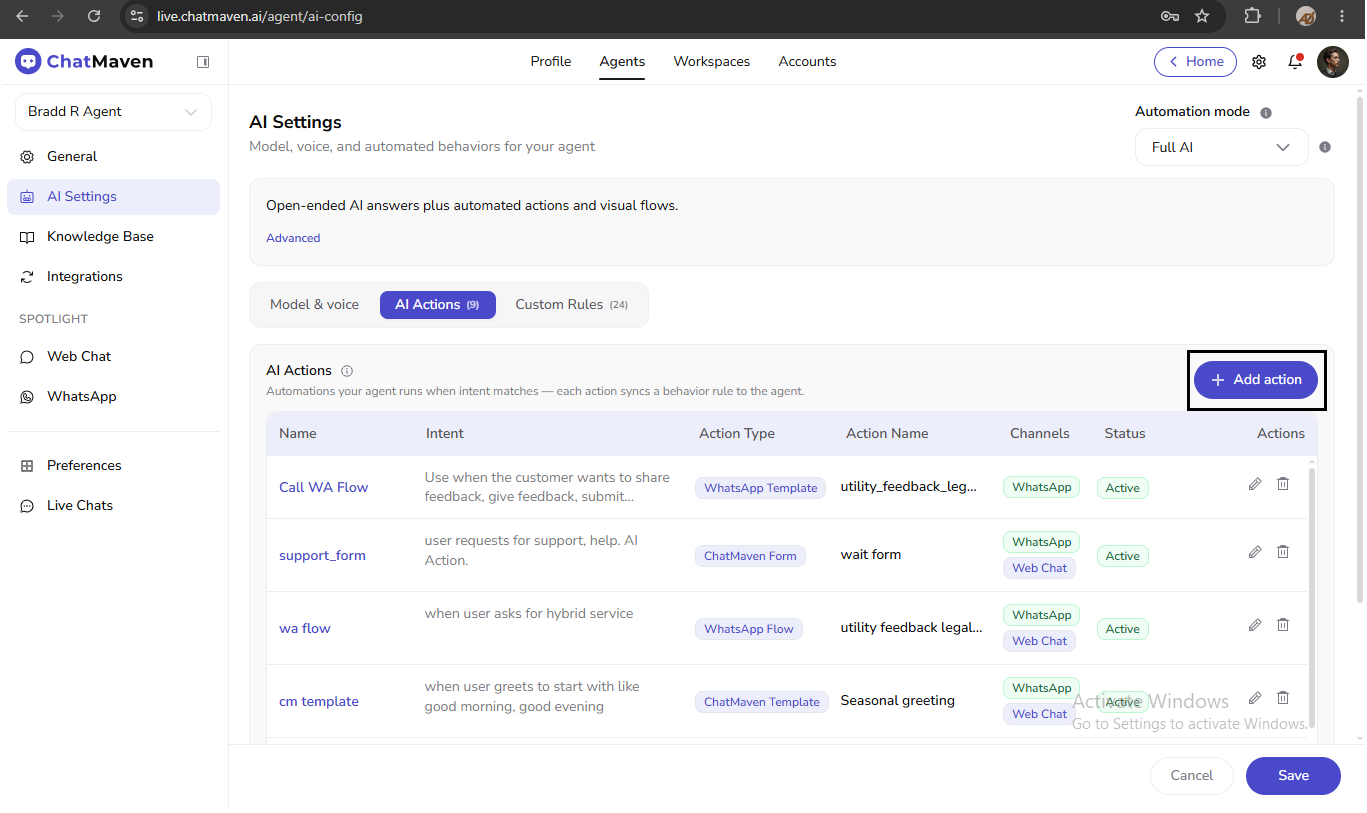
Click + Add action at the top right of the AI Actions tab to create a new automation.
The Add AI Action dialog opens. Fields vary by Action type; a typical setup includes:
| Field | Purpose |
|---|---|
| Display name | Friendly name shown in the actions list. |
| Action key | Unique identifier for the action. |
| Action type | Dropdown—for example WhatsApp Flow, WhatsApp Template, or ChatMaven Form. |
| Flow / template fields | Type-specific options (for example Meta WhatsApp Flow, body text, CTA label). |
| Channels | Toggle WhatsApp and/or Web Chat where the action should run. |
| Intent description | Describe when the AI should trigger this action. |
| Companion message (optional) | Text shown with the action; leave empty for a silent direct trigger (flow/form/template only). |
| Active | When on, the action runs automatically on selected channels when triggered. |
For WhatsApp Flow actions, you may need to acknowledge Meta billing before saving.
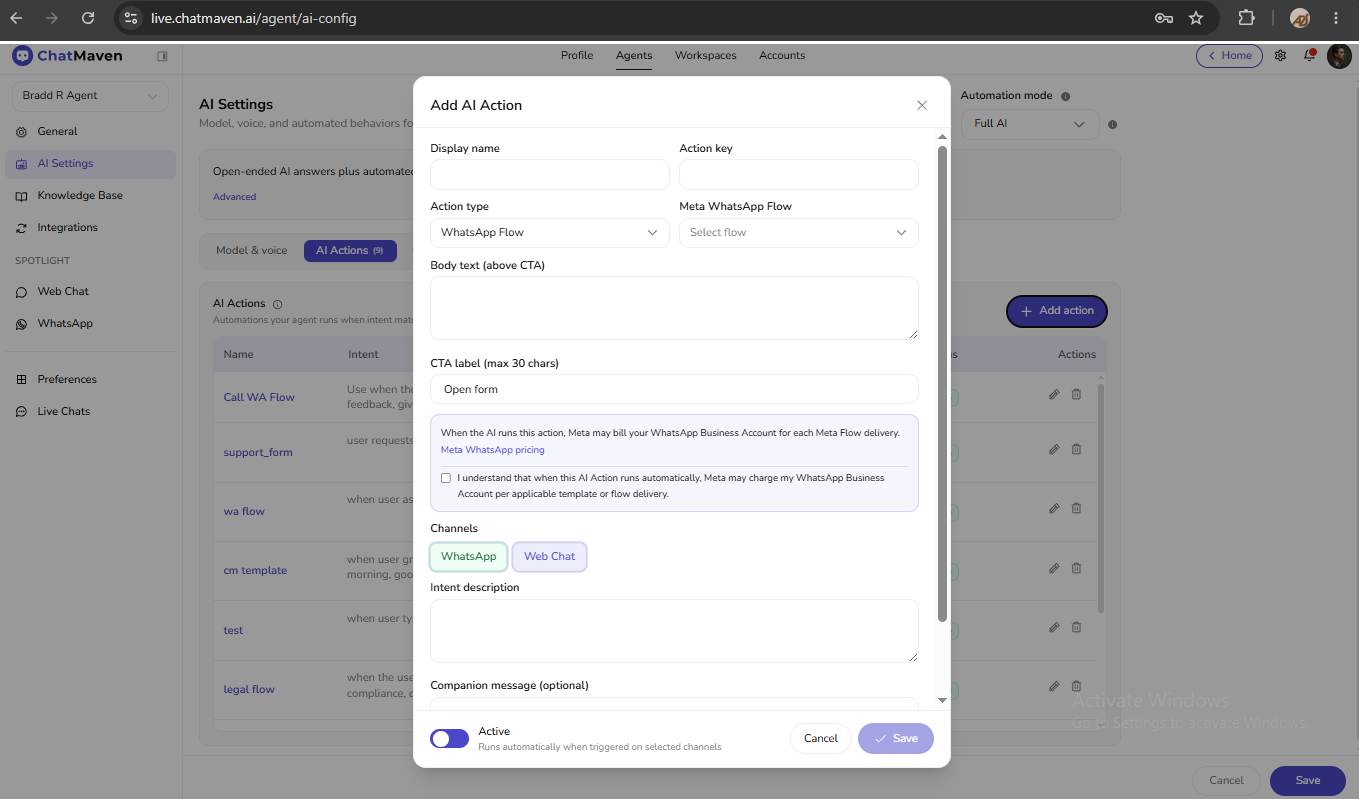
Click Save in the dialog to add the action, then Save at the bottom of the AI Settings page to persist all changes.
Custom Rules
Open the Custom Rules tab for standing instructions the agent follows in every conversation. Rules you add here shape scope, tone, safety, and handoffs—similar to chat guidelines in the creating an agent wizard.
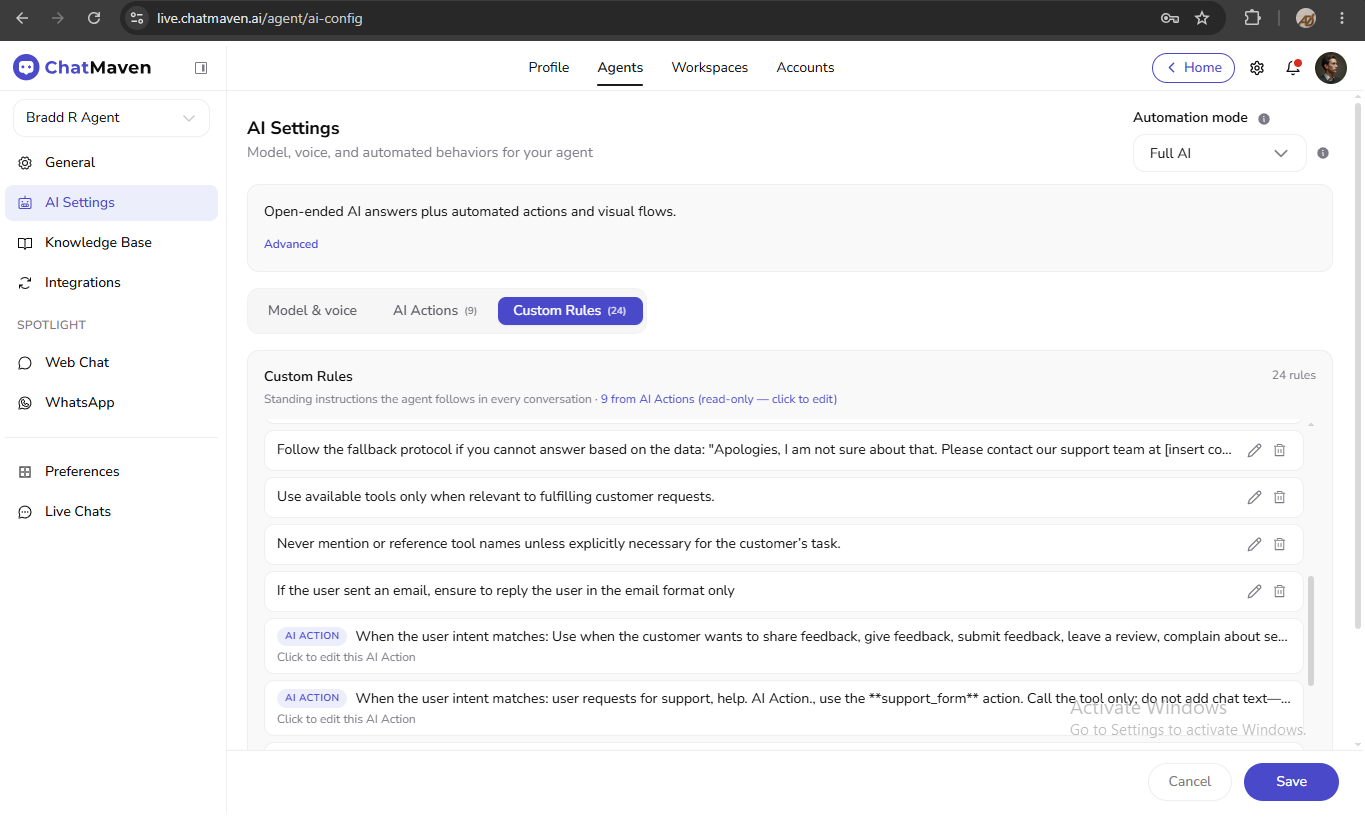
The header shows your total rule count. Some rules are synced from AI Actions and appear with an AI ACTION badge—they are read-only on this tab; click the rule to edit the source action in the AI Actions tab.
For manual rules:
- Use Edit or Delete on each rule row.
- Type a new rule in the field at the bottom (placeholder example: Always greet by name and keep answers under 3 sentences) and click Add.
During creating an agent, Chat guidelines in step 2 serve the same purpose; after creation, manage them here under Custom Rules.
Save your changes
Use Save at the bottom right to apply updates across all tabs. Cancel discards unsaved edits on that screen.
Related topics
- Creating an AI agent — Wizard setup including initial model and guidelines.
- Getting started with AI agents — General tab, agent ID, and naming tips.
- Knowledge Base — Upload files, URLs, and manual Q&A for this agent.
- Integrations — Enable channels and third-party tools for this agent.
- Data sources overview — Improve answers by connecting knowledge.
FAQ and troubleshooting
The agent is too verbose or too terse.
Lower Response variety on the Model & voice tab and add a Custom Rules entry with examples of ideal reply length.
It ignores my knowledge base.
Confirm sources are indexed, not expired, and that the agent has retrieval enabled. Conflicting custom rules (“make things up”) override grounding—rewrite for “use only the knowledge base when possible.”
Wrong language or tone.
Set Speaking style on Model & voice and add an explicit language or tone rule under Custom Rules. Test with native prompts; some models drift if the user writes in another language—add a rule to match the user’s language.
An AI Action does not trigger.
Check the action is Active, the correct Channels are selected, and the Intent description clearly matches how customers phrase the request. Confirm Automation mode is set to Full AI if you expect open-ended replies plus actions.