AI Copilot in the Inbox
AI Copilot is ChatMaven's assistant for the open conversation. It lives in the right sidebar on Inbox, on the AI Copilot tab (next to Contact and History). Use it to draft a reply, summarize the thread, or ask your bot's knowledge base a focused question without leaving Inbox.
Before you rely on it in production, make sure the agent you are working with has appropriate data sources and configuration (see Data Sources and your chatbot settings). Better grounding generally produces more useful suggestions.
Where to find it
- Open Inbox and select a conversation.
- In the right-hand column, open the AI Copilot tab.
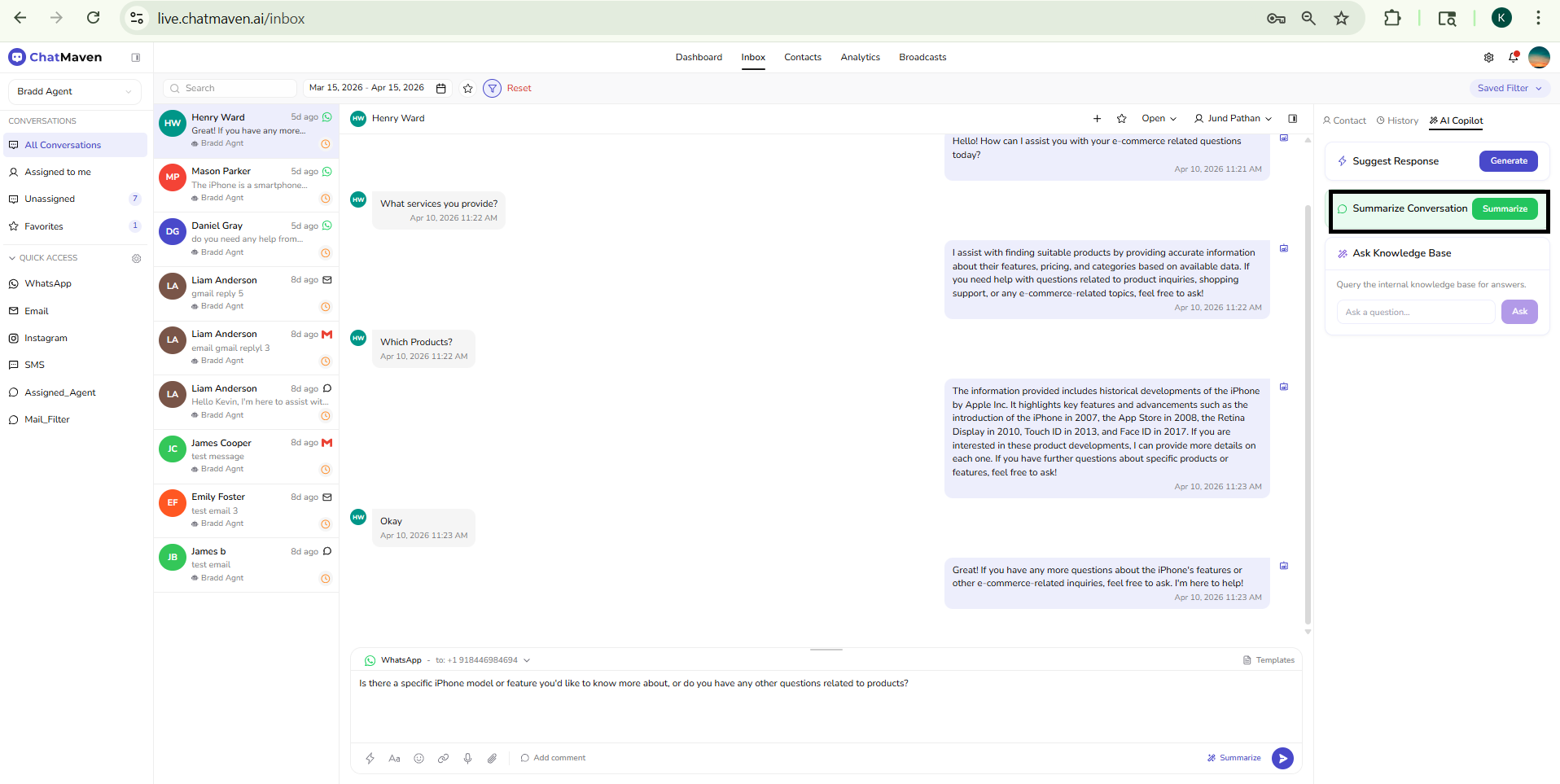
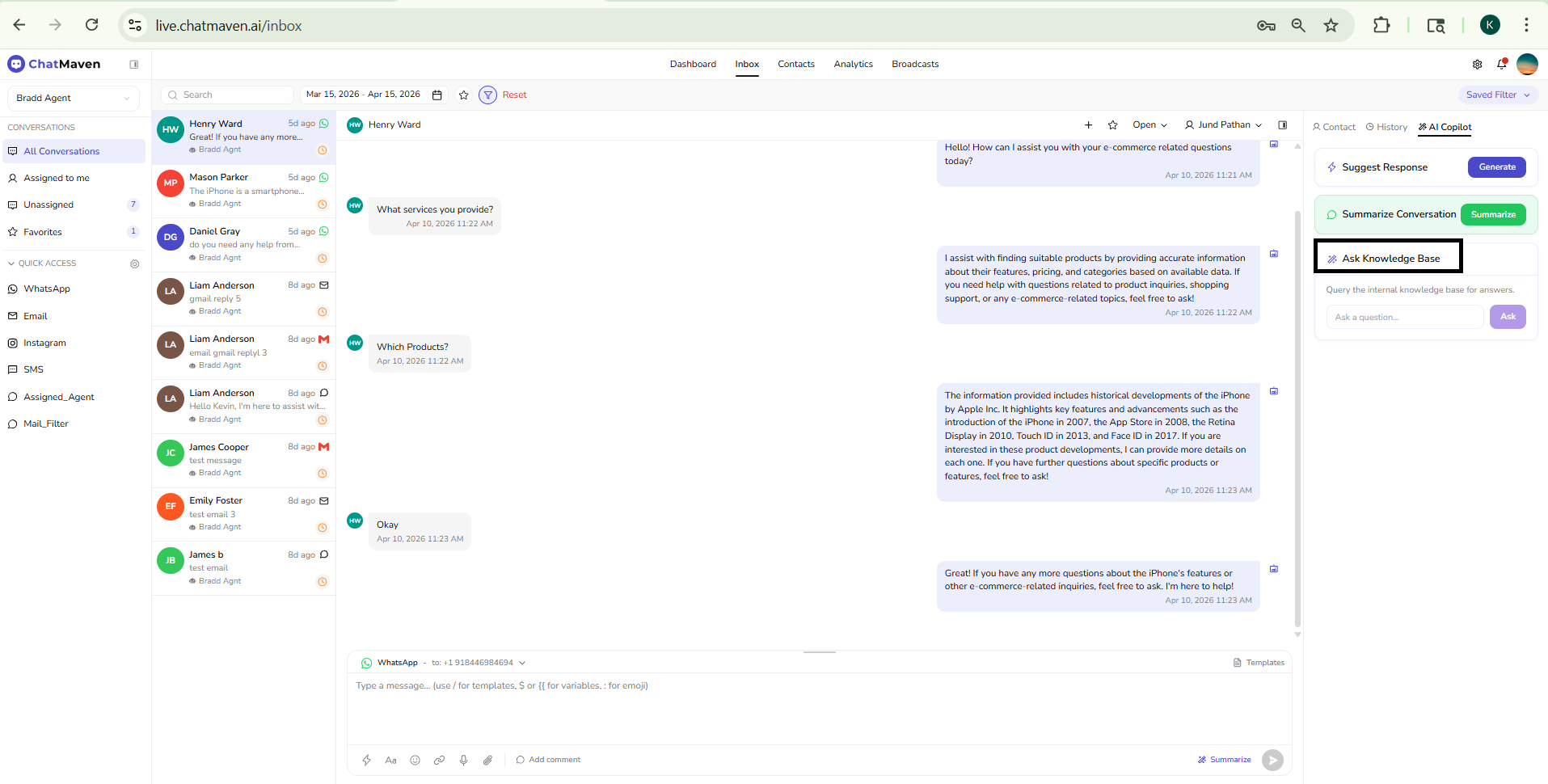
- You will see three stacked cards: Suggest Response, Summarize Conversation, and Ask Knowledge Base.
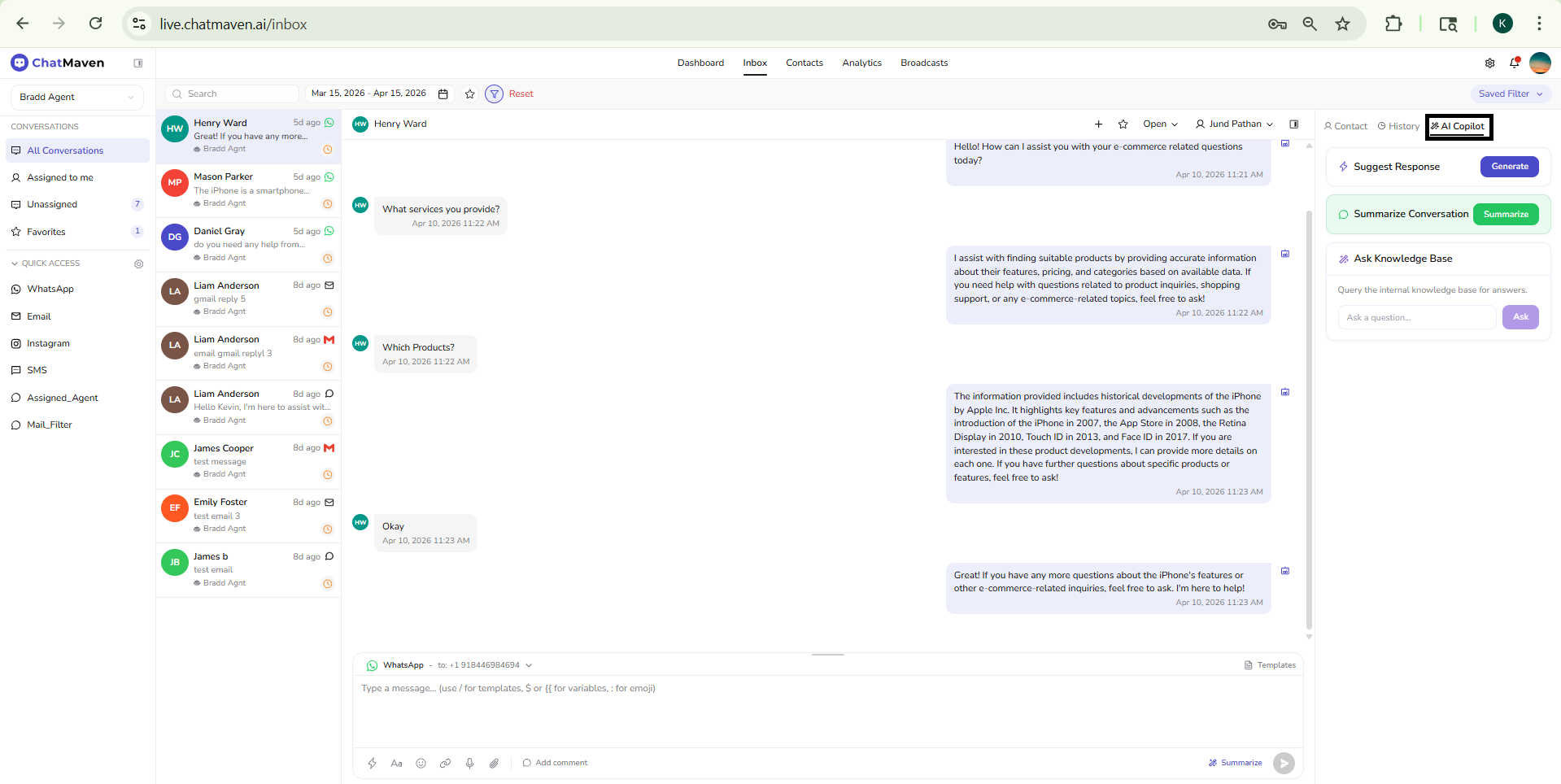
You can also use Summarize on the message composer toolbar for a shortcut while you type. If the conversation has nothing to summarize yet, that control may stay disabled.
Suggest Response
This card drafts text you can send to the contact. It sends the current session's messages to the suggestion service when you run it.
Usage
Use Suggest Response when you want a fast first draft and then customize it before sending.
- Reply faster to common questions while keeping a human review step.
- Get unstuck when you know the intent but need clean wording.
Generate a reply
- In Inbox, click the AI Copilot tab on the right sidebar.
- In Suggest Response, click Generate.
- Wait for the draft response to be generated from the current conversation.
- Review and edit the suggested text before sending it to the contact.
- Use it as a starting point, not as an auto-send action.
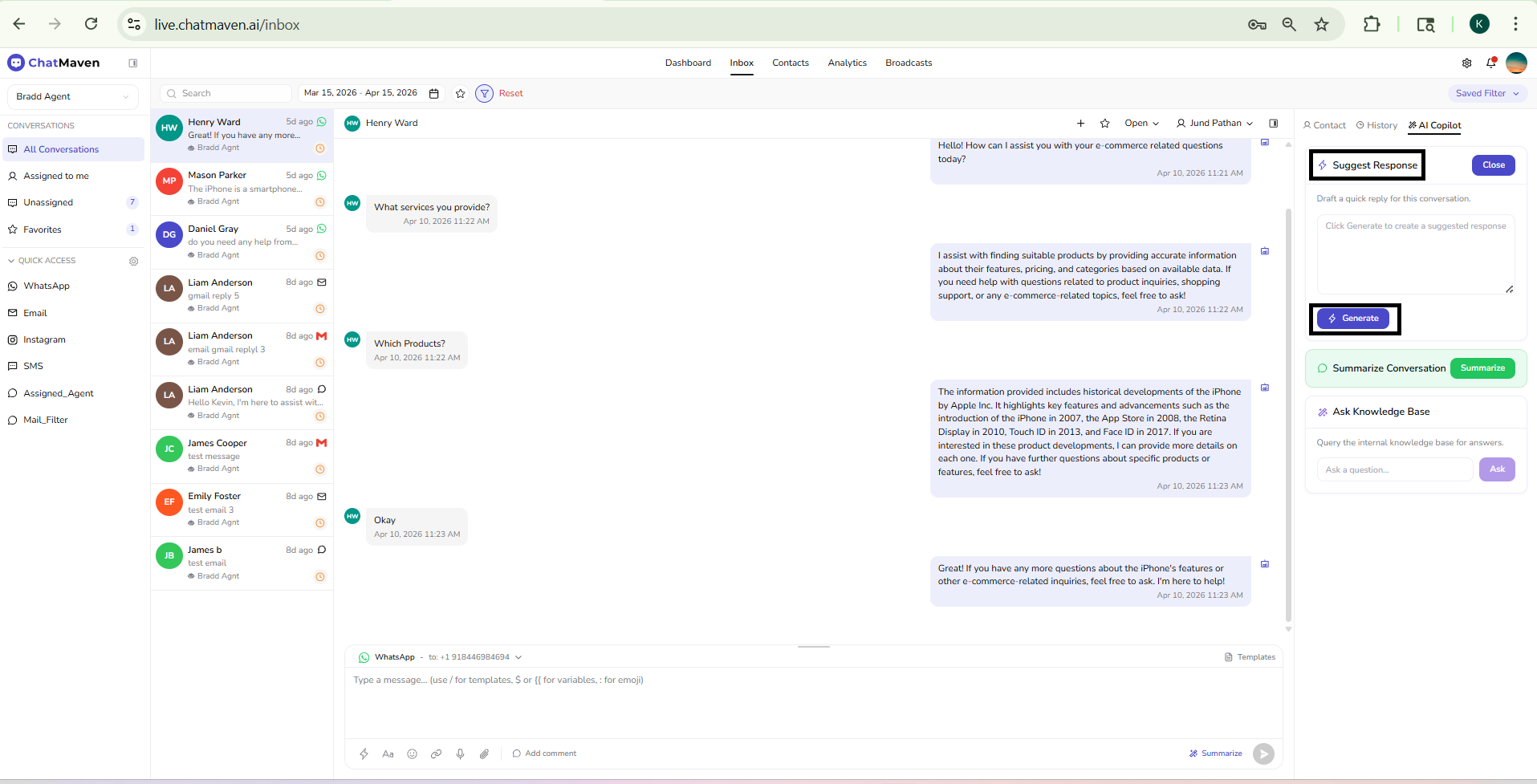
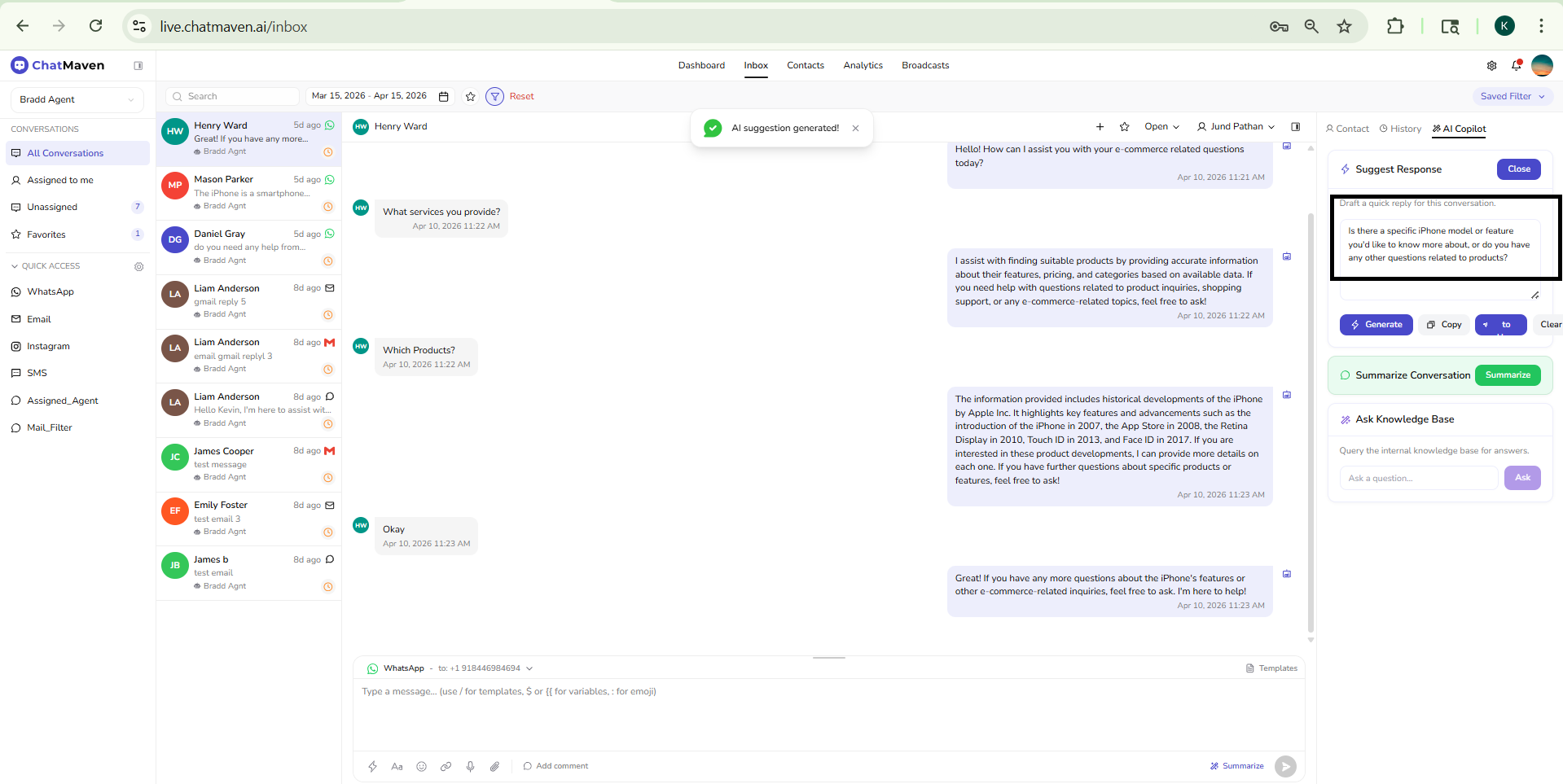
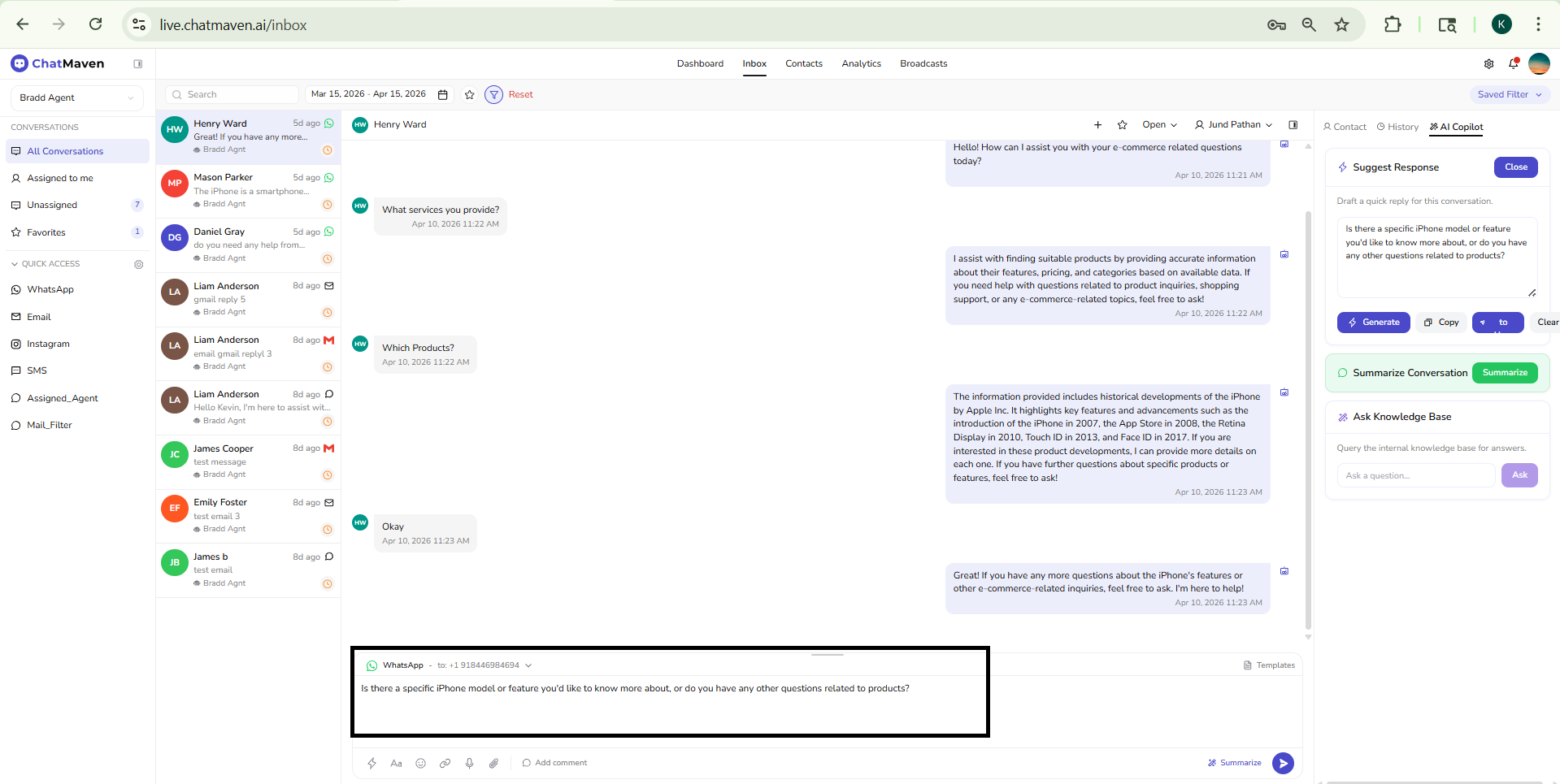
If nothing happens, confirm the thread has at least one message, a conversation is selected, and an agent is associated with the session (use the agent dropdown in the left column).
Summarize Conversation
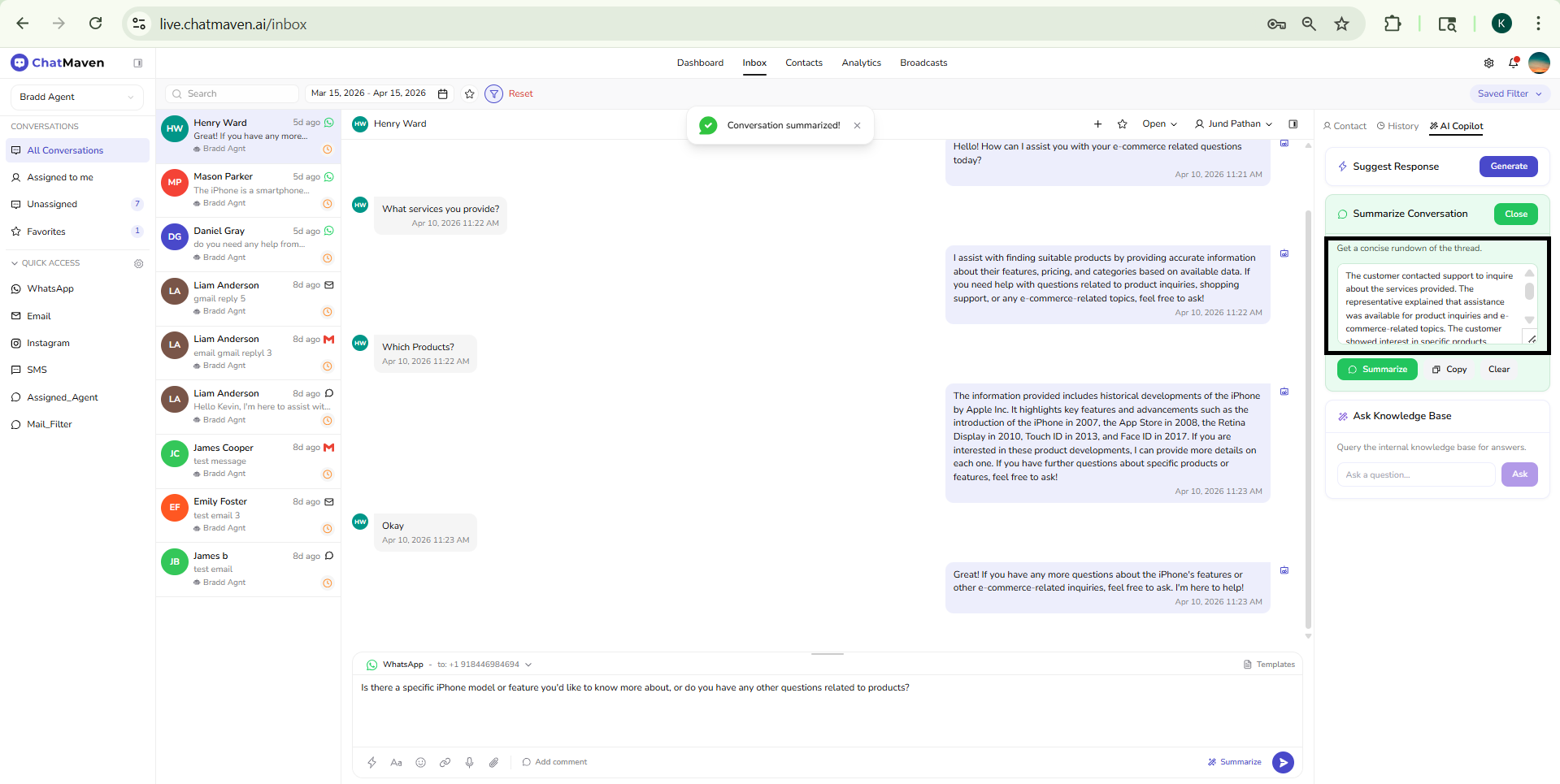
This card produces a short summary of the current conversation.
Usage
Use Summarize Conversation when you need context quickly without reading the full thread.
- Prepare for agent handoff between teammates or shifts.
- Catch up on long or older conversations in seconds.
- Build a quick internal understanding before drafting a reply.
Generate a summary
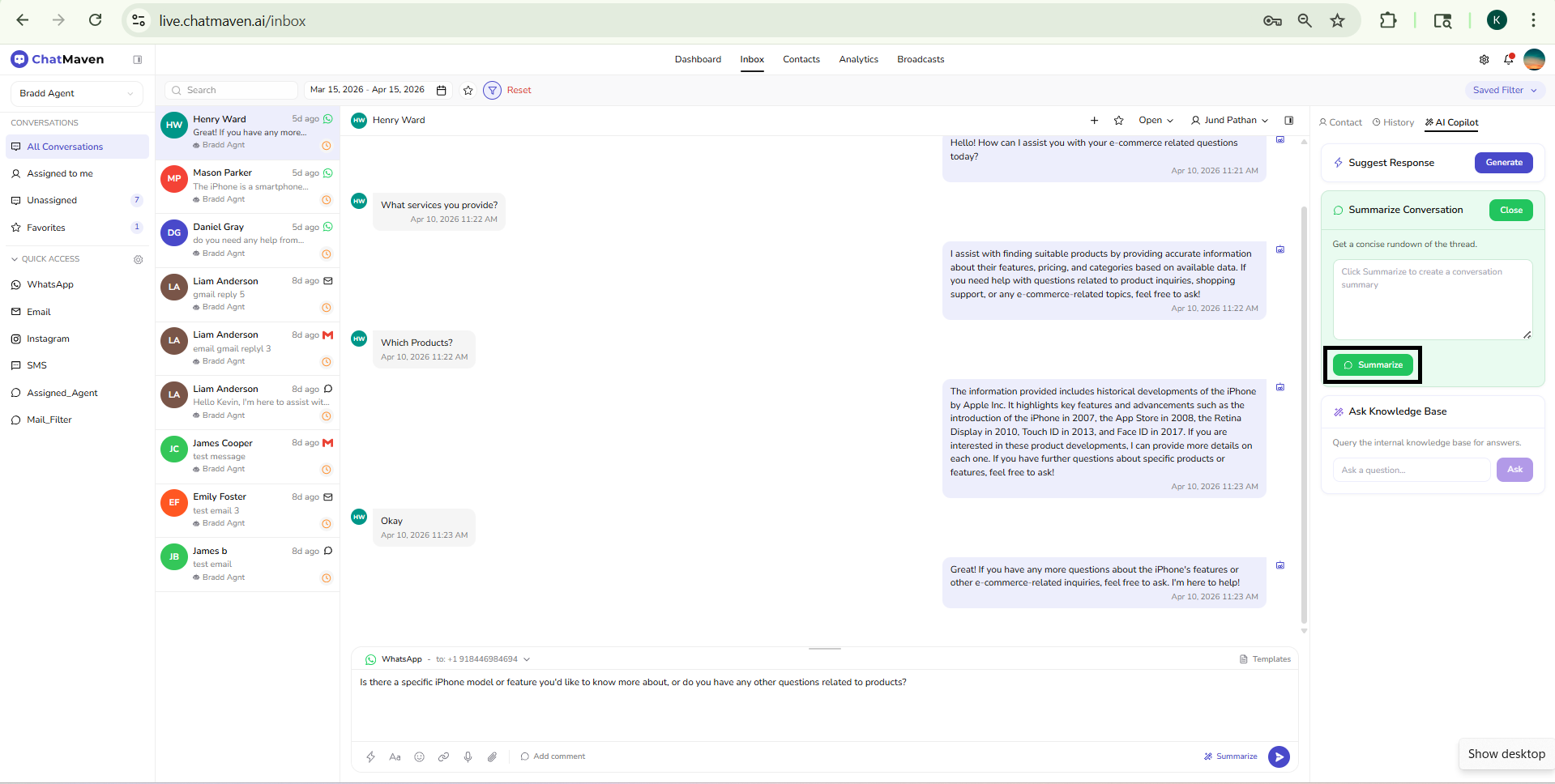
- Click Summarize on the Summarize Conversation card.
- Wait while AI creates a short overview of the thread.
- Use the summary for quick handoff, context refresh, or reply planning.
The composer's Summarize button follows the same idea for quick access while composing.
Ask Knowledge Base
Ask Knowledge Base sends a plain-language question against the same internal knowledge your team loads for the agent. Answers are grounded in content you add under the agent’s Knowledge Base when it is marked for internal use—not from a separate “public only” path.
Set up knowledge so Ask Knowledge Base works
Ask Knowledge Base in Inbox uses material you add through the agent Knowledge Base tab, using the Internal KB only flow:
- Open Agents in the top navigation and select the same agent tied to the conversation (match the agent selector in the Inbox side panel).
- Open Knowledge Base beside General, AI Settings, and Integrations (see Knowledge Base for the full screen).
- Switch to the Internal KB only tab (or area) and add your files (or other supported sources your build exposes there).
- Wait until sources finish processing (Completed in the Knowledge Sources table, where applicable).
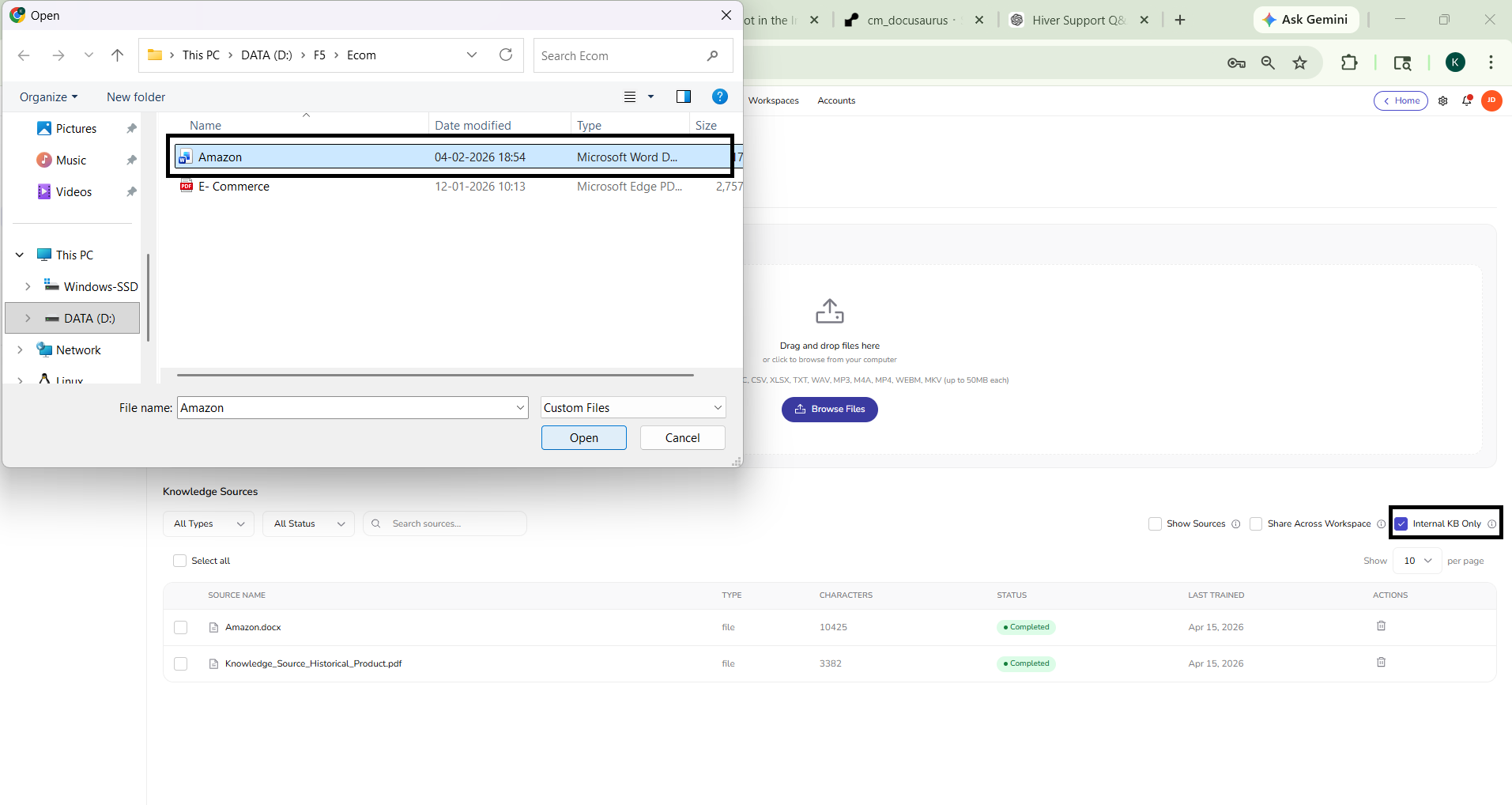
After internal-only knowledge is in place for that agent, Ask Knowledge Base on the AI Copilot tab can retrieve answers from it. If that tab is empty or answers are thin, confirm content was added under Internal KB only for the correct agent.
Usage
Use Ask Knowledge Base when you need factual answers from that internal knowledge.
- Confirm policy, pricing, or process details before replying.
- Pull product facts for accurate customer responses.
- Ask short, specific questions to get more reliable answers.
Steps: ask a question and get a generated answer
Follow these steps in Inbox after your Internal KB only files are added and processed (see above):
-
Open Inbox and select a conversation for the same agent whose internal knowledge you configured.
-
In the right sidebar, open the AI Copilot tab.
-
Find the Ask Knowledge Base card and click in the field labeled Ask a question....
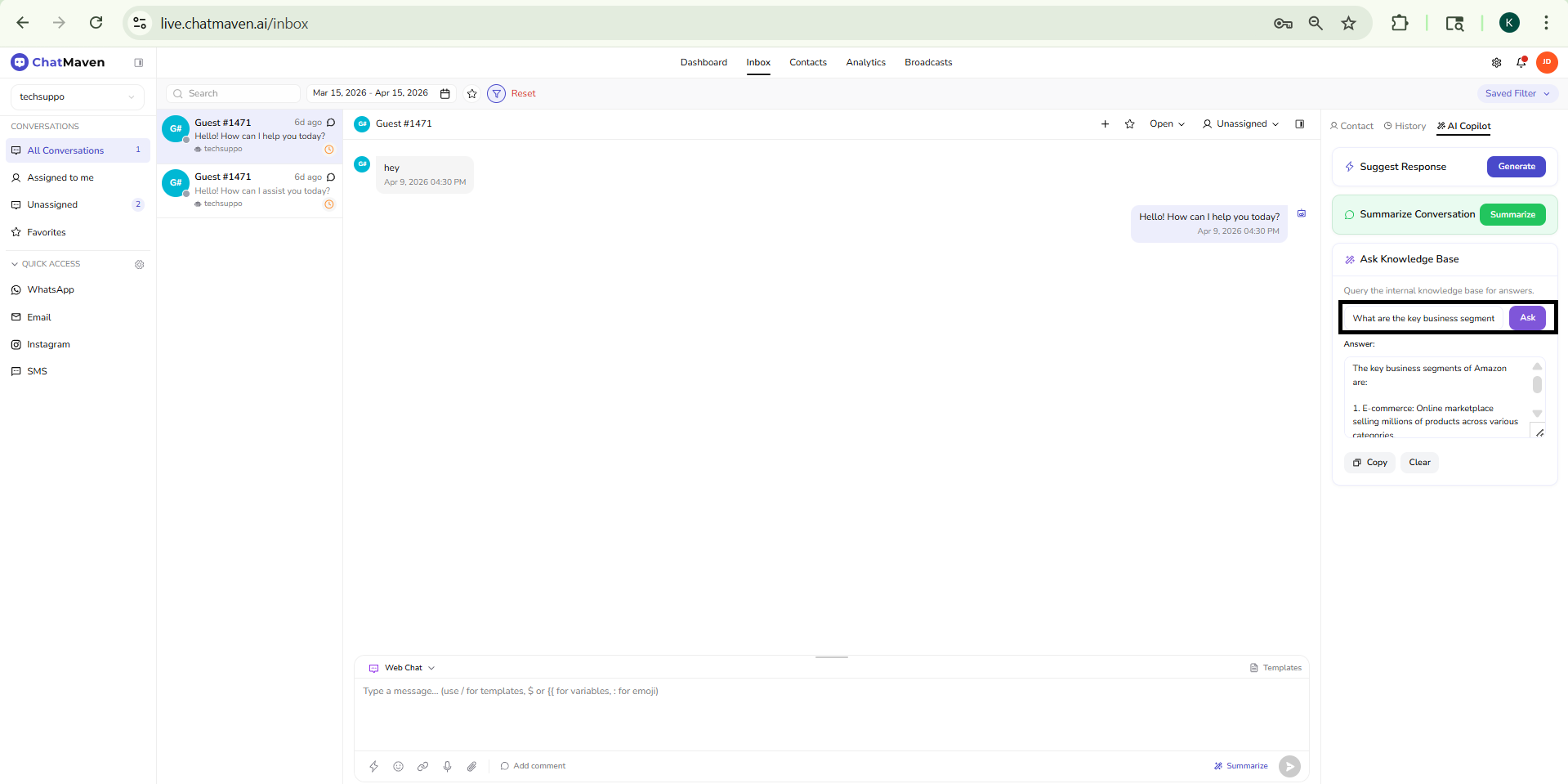
- Type a question that relates to the topics and facts in the files you uploaded under Internal KB only (for example a procedure from a PDF, a rate from a policy doc, or a product detail from your internal sheet). More specific questions usually produce clearer answers than very vague ones.
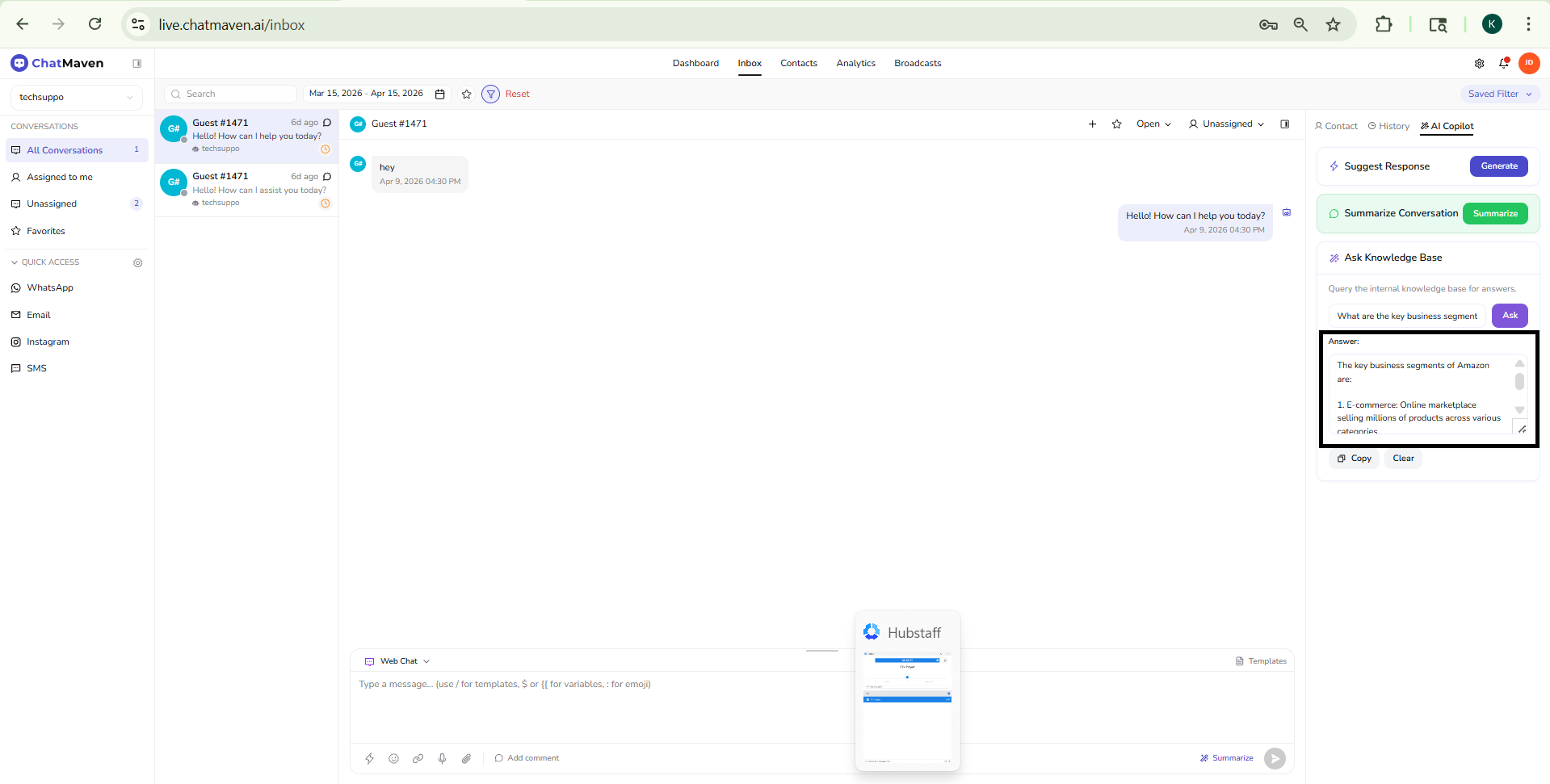
- Click Ask. The button stays disabled until there is text in the field; you can also press Enter to submit.
- ChatMaven searches the indexed internal knowledge from those sources and generates a reply. The result appears under Answer on the same card—it is not sent to the customer automatically.
- Review the Answer. If you want to use it in your reply, click Copy and paste into the message composer, then edit tone or context as needed before Send.
Keep questions specific; very broad prompts may return less actionable text.
FAQ and troubleshooting
Are AI Copilot replies sent automatically?
No. Suggest Response only creates draft text. Sending still requires your action in the composer. Nothing is posted to the customer until you confirm.
Why is Generate, Summarize, or Ask unavailable?
Common cases:
- No conversation selected, or the session has no messages (you may see errors like "No messages found in this conversation").
- No agent resolved for the session—pick the correct agent(s) in the inbox agent selector at the top of the side panel.
- Ask is disabled until you type a question in the field.
- The feature is unavailable in your environment (you may see a toast such as "AI Copilot feature not available").
Ask Knowledge Base has no useful answers
Confirm the agent in Inbox matches the one you configured. Under Agents → Knowledge Base, open the Internal KB only tab, add or fix sources (for example files), and wait until they are Completed. Ask Knowledge Base reads that internal knowledge; content added only elsewhere may not apply. See Knowledge Base.
Does AI Copilot work in every language?
Output language and quality depend on your agent configuration, training data, and backend model behavior. ChatMaven does not lock you to a single language in the UI; still, verify tone and accuracy for each locale you support.
Is this the same as the lightning icon in the composer?
The composer toolbar includes several icon buttons (for example a lightning control and a separate Summarize label). AI Copilot is the full right-hand panel that combines Suggest Response, Summarize Conversation, and Ask Knowledge Base in one place.
The magic wand next to the composer opens AI Enhance, which rewrites text you have already typed (tone, grammar, simplify, translate)—not the same as generating a full suggestion from the thread.
Next steps
- AI Enhance in the Inbox
- Getting Started with Inbox
- Managing Conversations
- Knowledge Base (agent) — Internal KB only, files, and sources for Ask Knowledge Base.
- Data Sources Overview