Live Chat Configuration
Live Chats defines when your AI agent hands off the conversation to a human teammate and what visitors see during that transition. Use it to balance automation with human support—for example after several unanswered questions or when a customer asks to speak to someone.
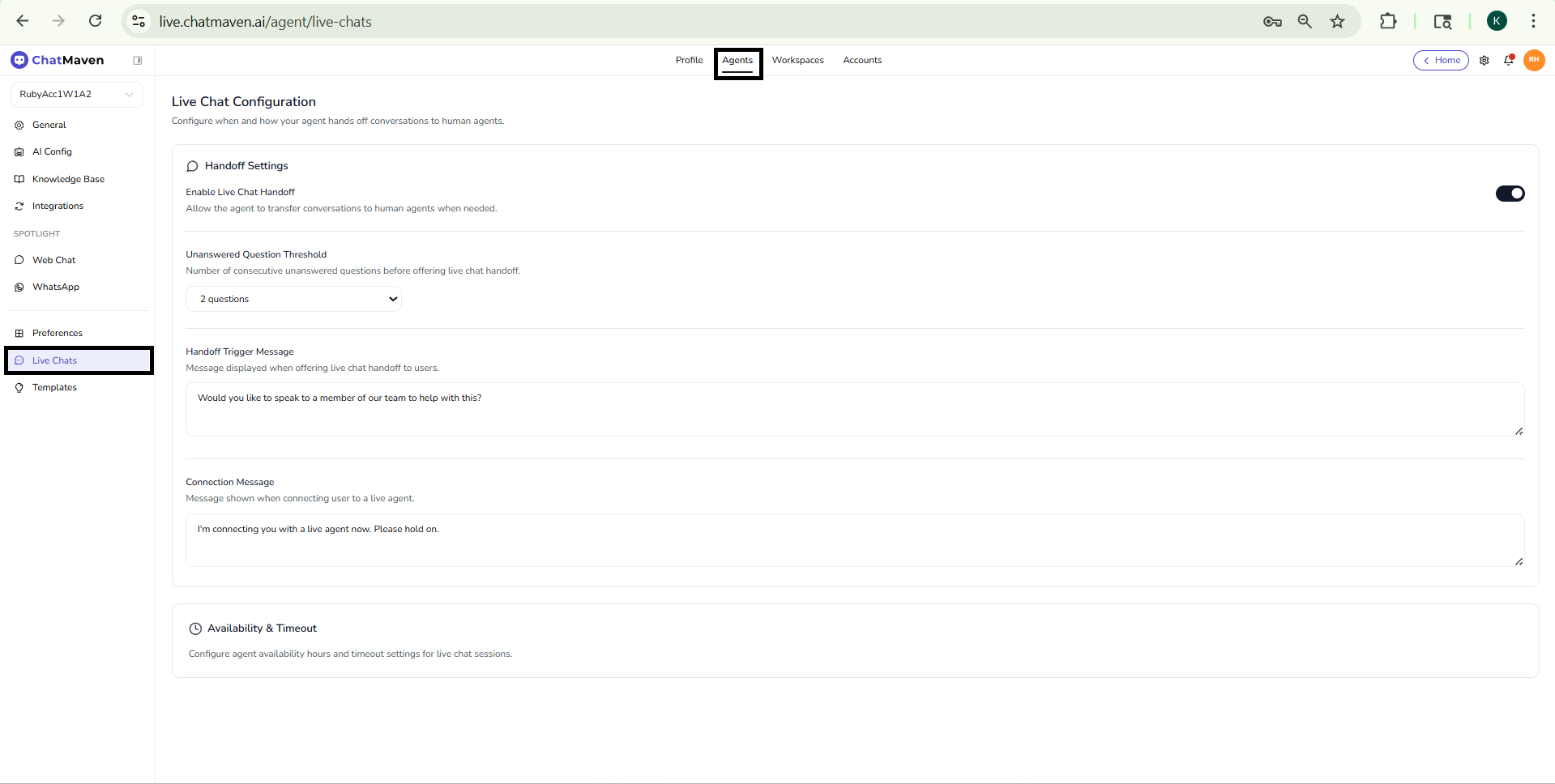
In the app, the page title is Live Chat Configuration, with the subtitle Configure when and how your agent hands off conversations to human agents.
Sign in to ChatMaven, open Agents, select your agent, then click Live Chats in the left sidebar (below Preferences in the same lower group). The in-app path is live.chatmaven.ai/agent/live-chats when you are signed in with that agent selected.
Open Live Chats
- Open Agents from the top navigation.
- Pick the agent from the sidebar dropdown.
- Click Live Chats.
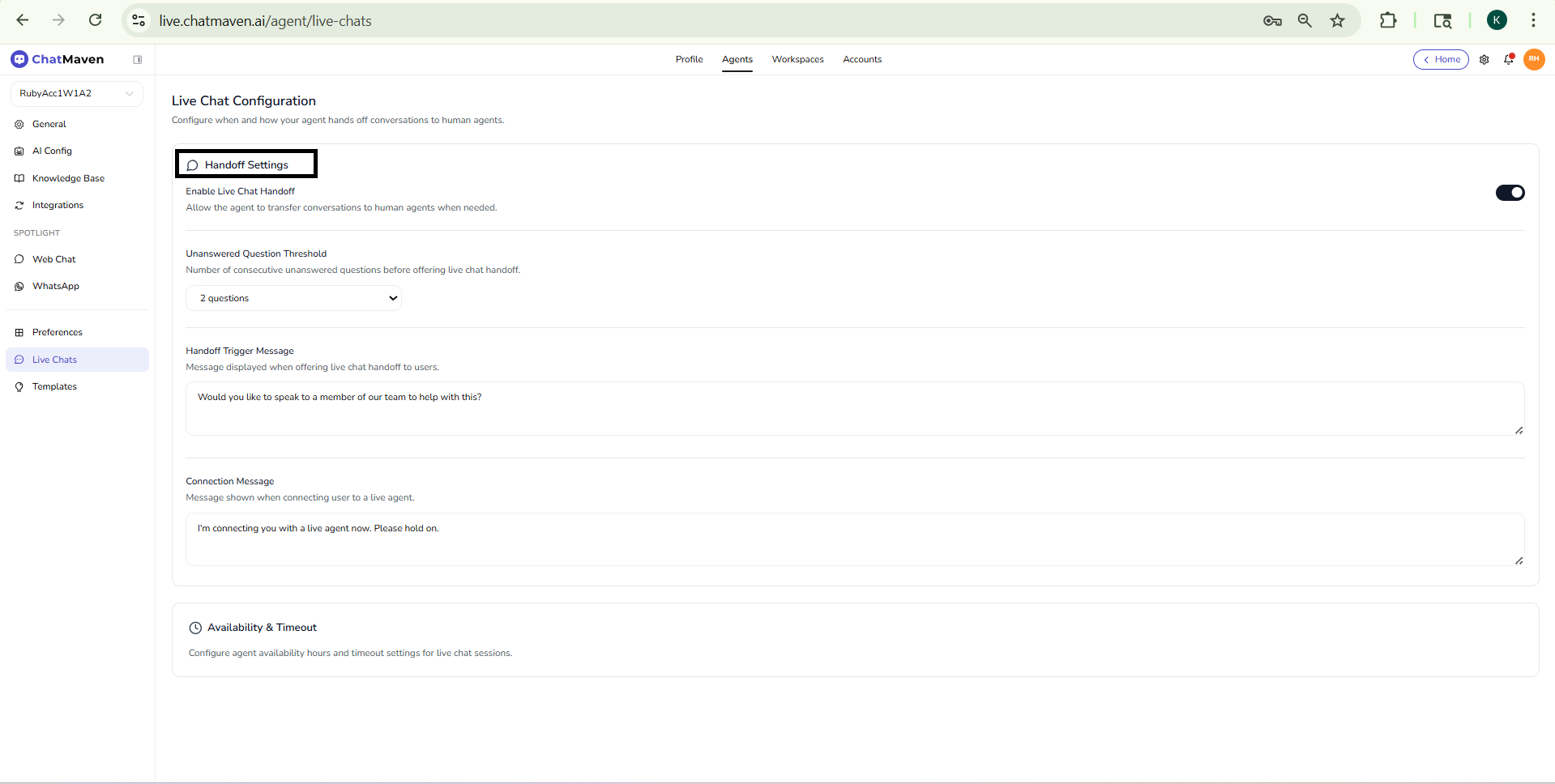
Handoff Settings
These options control whether handoff is available and what the visitor sees when the bot escalates.
| Control | Purpose |
|---|---|
| Enable Live Chat Handoff | Master switch: when on, the agent can offer or trigger a transfer to a live human according to your rules. |
| Unanswered Question Threshold | How many consecutive unanswered (or unresolved) user questions should occur before handoff is suggested or triggered—for example 2 questions. Adjust to match how strict you want automation to be before involving a person. |
| Handoff Trigger Message | The message the bot shows when it is about to offer or start handoff—for example Would you like to speak to a member of our team to help with this? |
| Connection Message | What the visitor sees while they are being connected—for example I'm connecting you with a live agent now. Please hold on. |
Tune the copy so it matches your brand voice and sets clear expectations.
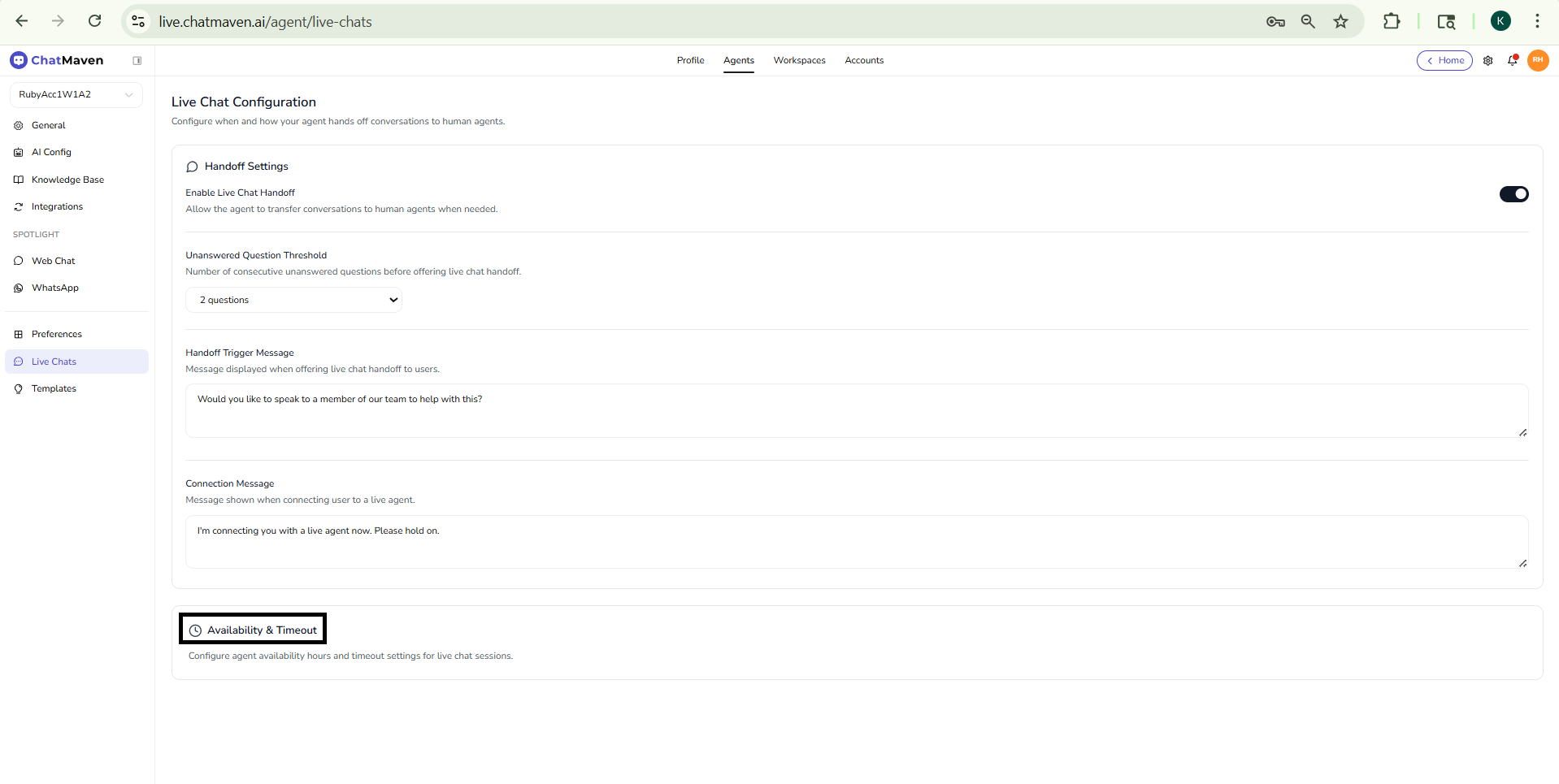
Availability & Timeout
The Availability & Timeout section covers agent availability hours and timeout behavior for live chat sessions (for example how long to wait before closing or re-routing a session).
Configure these values so human coverage aligns with your staffing and so visitors are not left waiting indefinitely when no agent is online.
Related pages
- Preferences — Knowledge base visibility and AI terms of use.
- Web Chat (Agents) — Widget and visitor-facing chat experience.
- Inbox — Getting started — Where your team handles conversations after handoff (if your workspace uses Inbox for human replies).
FAQ and troubleshooting
I do not get notified for live handoff.
Check Profile → Notification settings and in-app availability. Ensure the conversation is assigned to you or your team’s queue.
The AI keeps answering when I took over.
Confirm handoff or assignment state in the thread; some flows need you to disable AI for that conversation explicitly.
Can multiple agents join one live chat?
Depends on product rules; usually one primary assignee owns the thread. Transfer or invite flows may be available—see managing conversations.