Contact Details
Use the contact editor to change profile data, manage tags, record internal notes, and review custom fields, form answers, and past chats for one person. The layout is a full-screen overlay; it is the same screen whether you start from Contacts or Inbox—only the breadcrumb prefix (Contacts vs Inbox) changes.
The following sections describe ChatMaven’s editor: opening it from Contacts or Inbox, editing profile fields, deleting a contact, tags, notes, custom fields, forms, and conversation history.
Open the editor (getting here)
From Contacts
-
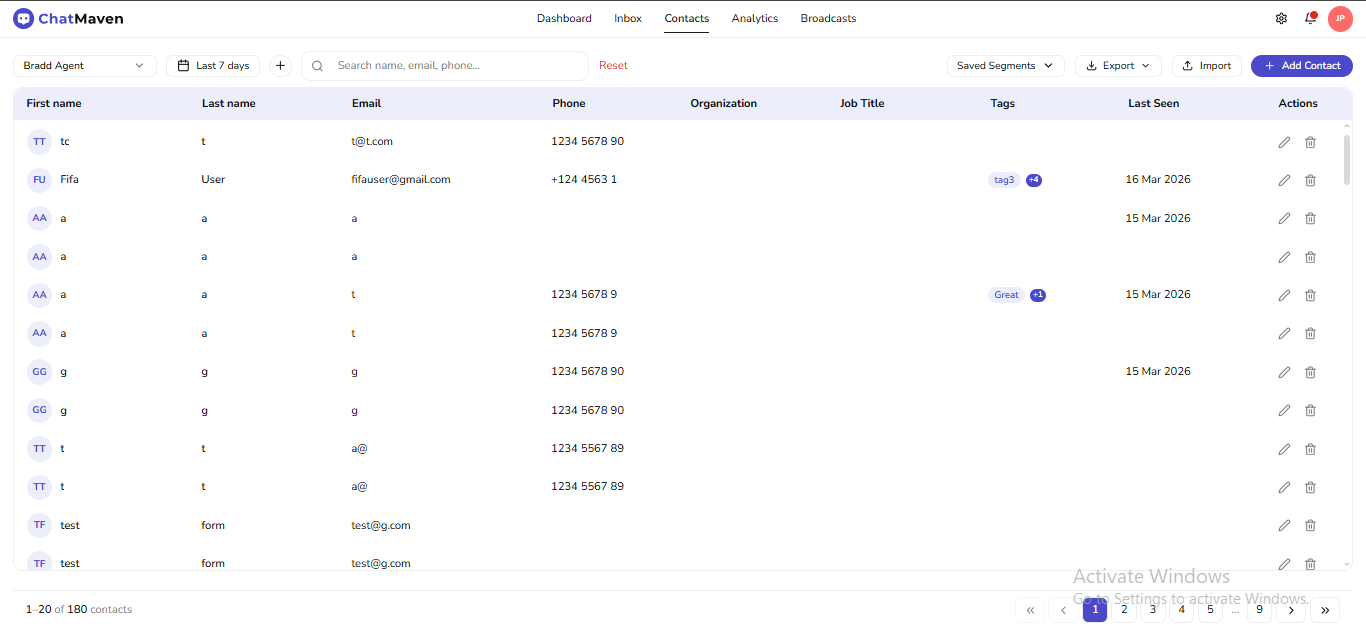
Open Contacts.
-
In the Actions column, choose the pencil (edit) icon for the row you want.
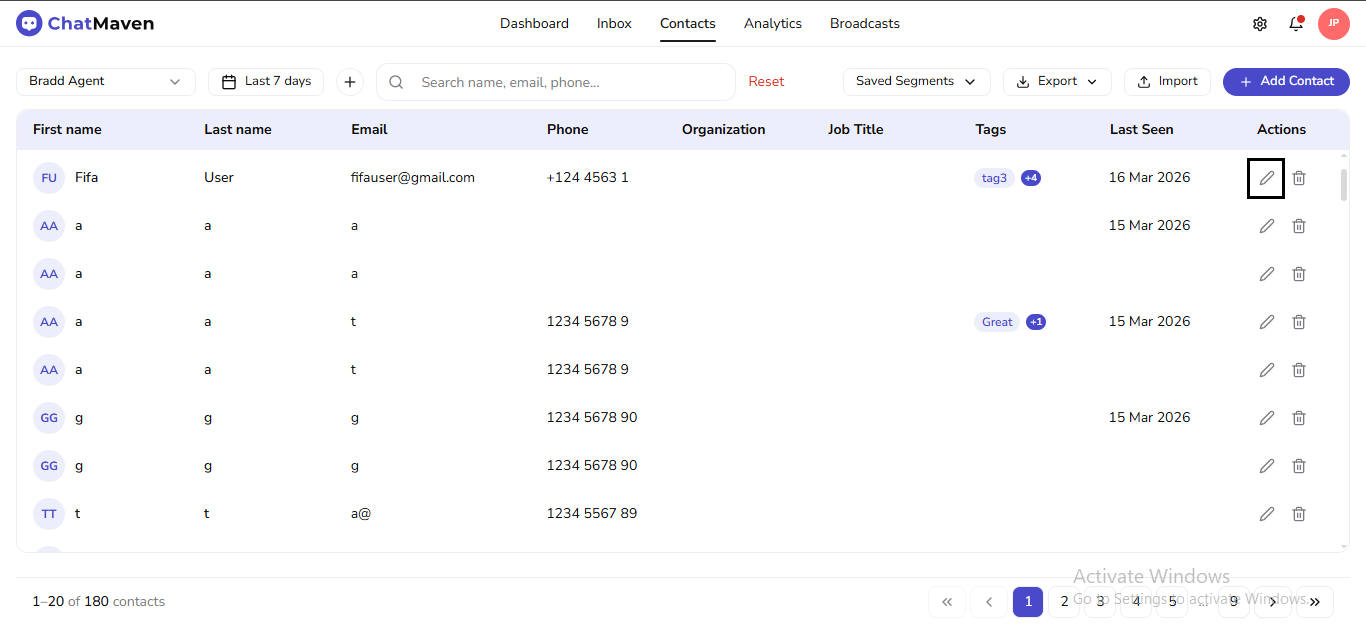
The overlay appears over the table. The path shows Contacts and the contact’s name.
From Inbox
-
Open Inbox and select a conversation.
-
In the right Contact panel, use View full profile or the edit (pencil) control on the contact header when it is shown.
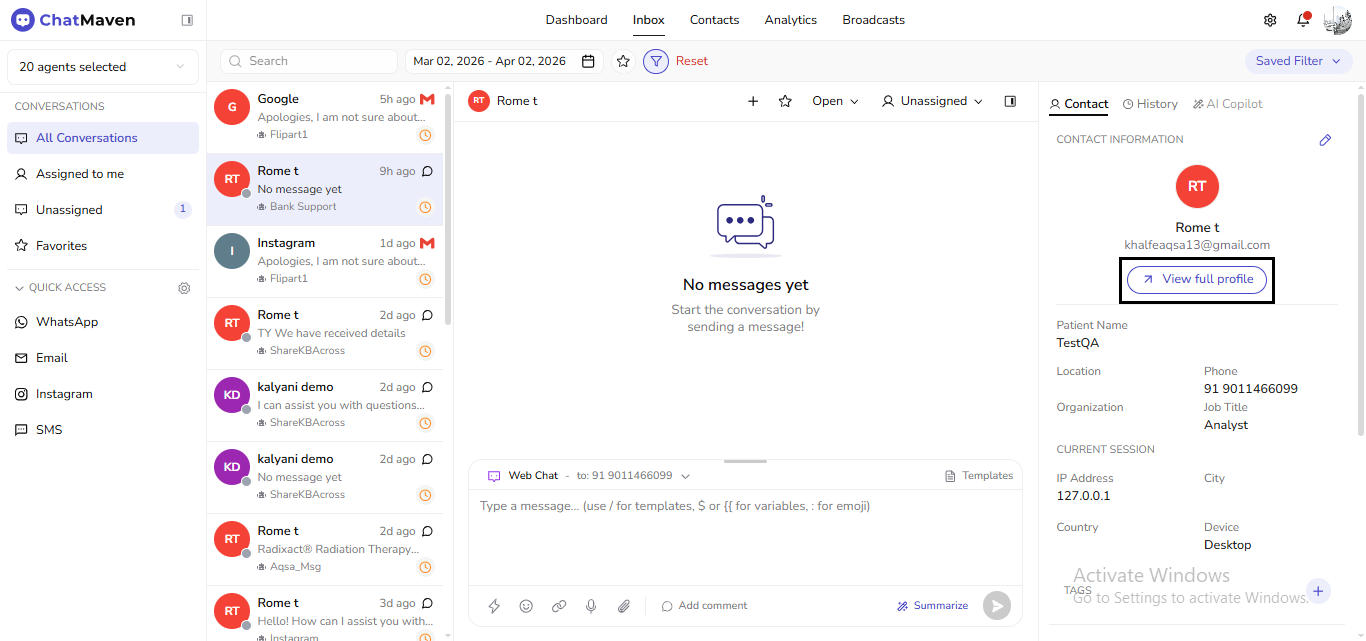
You land in the same editor as on Contacts, with Inbox in the path instead of Contacts.
Before you open the full editor (Inbox only)
The Contact tab still shows a short summary (avatar, name, email, a few fields, session hints, tags). That strip is for quick context while chatting; the full editor is where you change most fields and use Notes, Custom Fields, Forms, and Conversations. The Inbox screenshot above shows that compact panel before you open the full profile. See Getting Started with Inbox for the rest of the Inbox layout.
Edit a contact
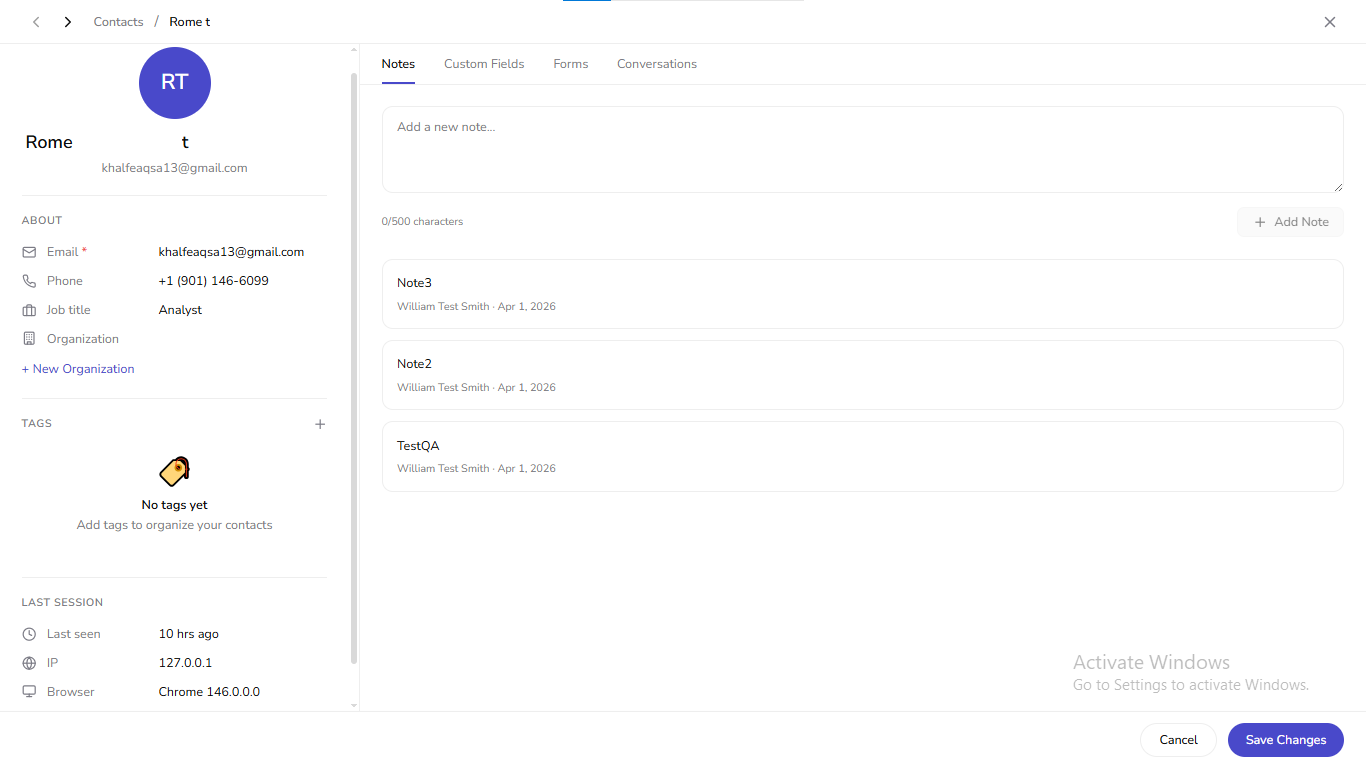
Name and header
- The avatar (or initials) and display name appear at the top of the left column.
- First name and Last name are edited in their own fields (placeholders First name / Last name).
- The primary email is shown under the name when the record has one.
ABOUT block
Under ABOUT, update core fields such as:
- Email (required when marked with an asterisk in the UI)
- Phone
- Job title
- Organization — use + New Organization when you need to create or link an organization record.
Finish structural changes with Save Changes at the bottom. Cancel backs out pending edits according to the current screen behavior.
Move between contacts without closing
Use Previous contact and Next contact in the header to walk the list you came from (buttons disable when there is no adjacent record in that context).
Delete a contact
Removal is not hidden inside the profile overlay on the current Contacts screen. To delete:
-
Stay on (or return to) Contacts.
-
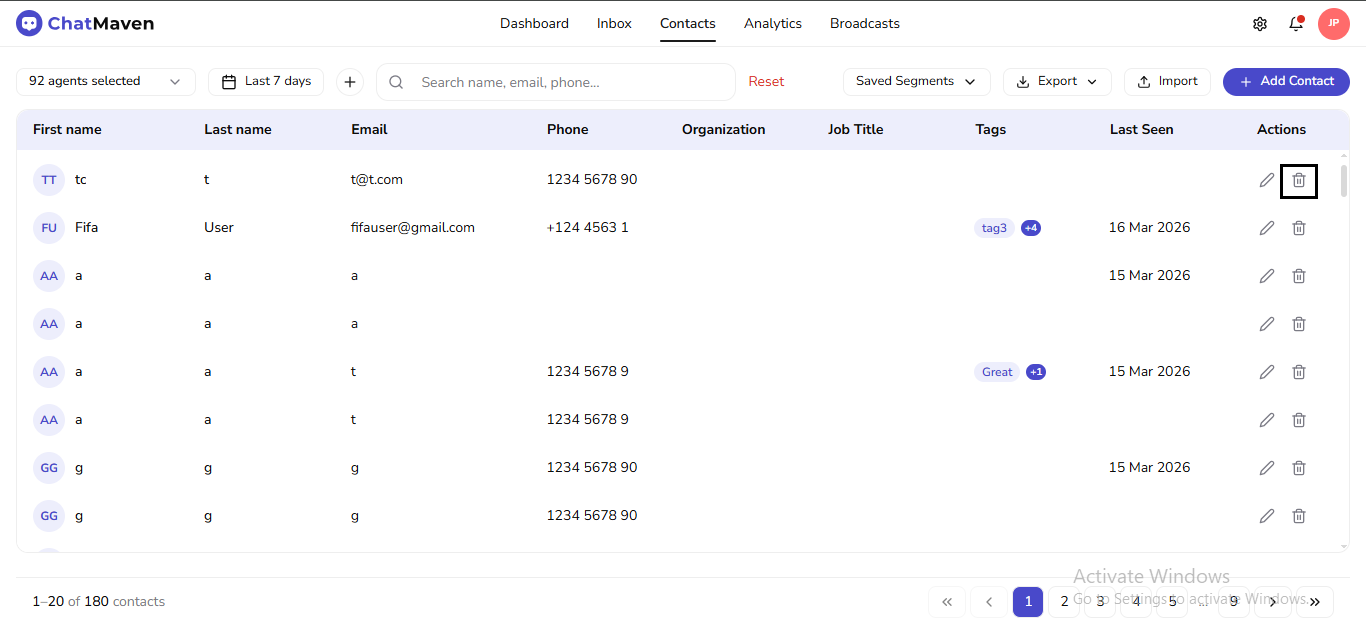
In the same row Actions column, use the trash (delete) icon.
-
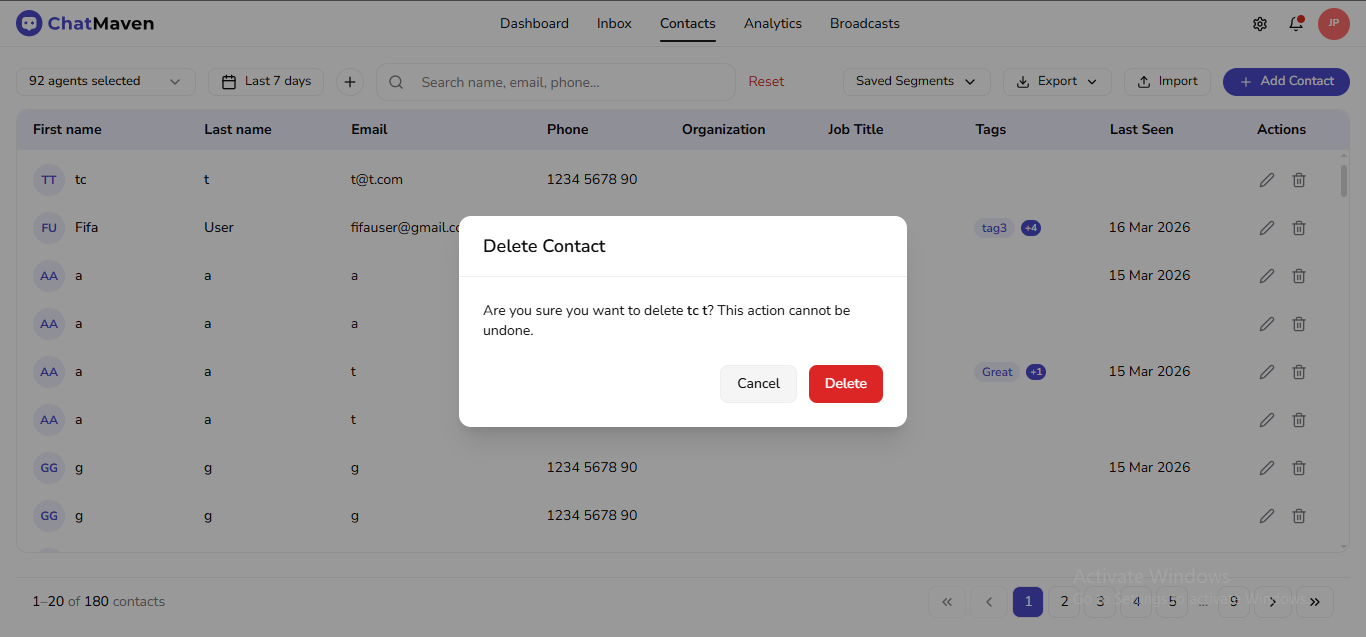
Complete any confirmation dialog the app shows (Cancel keeps the contact; Delete confirms).
For the Edit and Delete icons side by side in the grid, see Contacts Overview — Row Actions.
Deleting is destructive: the person may disappear from segments and lists, and related history may be removed depending on your workspace rules. Prefer tags or notes first if you only need to pause outreach.
Tags
Tags appear in the TAGS block on the left.
- Add: use the + control to pick or create labels. Tags also drive Segments when used in filter rules.
- Remove: each assigned tag exposes a Remove tag action (verified on live) so you can detach a label without opening a separate screen.
Empty state copy in the product is along the lines of: No tags yet / Add tags to organize your contacts. The TAGS section in the editor screenshot above shows that layout.
Notes tab
Switch to the Notes tab on the right.
- Composer placeholder: Add a new note…
- Each note is limited to 500 characters (the UI shows a running count).
- Add Note stays disabled until there is text to submit.
- Saved notes list author and date. Existing entries expose Edit note and Delete note for housekeeping.
The screenshot under Edit a contact was captured with Notes selected: you can see the composer (0/500 characters), + Add Note, and the saved notes list.
Notes are internal—they are not sent as chat messages to the contact. Use them for handoffs, QA findings, or follow-up reminders.
Custom Fields tab
Open Custom Fields to view or edit extra fields your workspace defines elsewhere.
When nothing is configured, the live app shows an empty state titled Custom Fields with copy equivalent to:
- No custom fields
- Add custom fields in Workspace Settings to capture and edit data for contacts here.
After admins add definitions in settings, the inputs appear here for each contact.
Forms tab
The Forms tab is labeled in the UI as Form submissions (section title). It lists structured submissions tied to this person.
If the contact has not submitted anything yet, you should see No form submissions yet.
Conversations tab
Conversations lists chat history for this contact across the threads ChatMaven associates with them.
When there is no history, the live empty state reads like:
- No conversations yet
- Conversation history will appear here when this contact has chatted.
Use this tab to scan past threads without leaving the editor; you can still jump to Inbox for live replies.
LAST SESSION
The LAST SESSION block on the left summarizes recent technical or contextual data (for example IP, device type, or geography when the product fills those values). It supports troubleshooting and is read-oriented compared with ABOUT. It appears in the left column of the editor view shown above.
Close, save, and cancel
- Close (X) dismisses the overlay.
- Save Changes applies edits to profile-related fields (and any behavior the app ties to that button).
- Cancel discards in-progress edits where applicable.
Use Add Note to post each note entry. For ABOUT and other profile fields, rely on Save Changes so edits are not left behind when you close the overlay. The footer buttons are visible in the same screenshot.
Quick testing ideas
Verified on live ChatMaven Contacts (April 2026 session): tabs and empty states match the strings above; Remove tag, Edit note, and Delete note appear in the accessibility tree when those elements exist.
Suggested checks for your own QA:
- Contacts → edit opens the overlay; Close returns to the grid.
- Inbox → View full profile opens the same overlay with Inbox in the path.
- Change Job title (or phone), Save Changes, reopen the contact, and confirm the value stuck.
- Add a short Note under 500 characters; confirm Add Note enables with text and the entry appears in the list.
- Add a tag, then use Remove tag and confirm the grid’s Tags column updates back on Contacts.
- Open Custom Fields, Forms, and Conversations on contacts with and without data to see real lists vs empty states.
How this compares to some other “contact details” guides
Other documentation sets often dedicate long sections to per-channel connection cards, merge duplicates, block/unblock, or bulk delete from the same drawer. In ChatMaven, delete is initiated from the Contacts table row; channel activity is usually visible through Inbox and the Conversations tab; merge or block may exist in other menus or releases—confirm in your live workspace before documenting them as part of this overlay.
Best practices
- Keep email and phone accurate so automations and imports dedupe correctly.
- Use a small, consistent tag vocabulary for predictable Segments.
- Prefer notes for internal narrative; avoid storing secrets you would not put in a CRM.
Next Steps
FAQ and troubleshooting
Fields I expect are empty.
Data arrives from integrations and forms; if a channel does not send email or phone, map properties from your CRM or ask the user in-chat.
Duplicate contacts merged incorrectly.
Review merge rules and identifiers (phone, email). Split or fix records using supported tools or support.
Can I delete personal data for GDPR?
Use the product’s privacy or data subject tools where available, or contact support with the contact ID and jurisdiction details.