Knowledge Base
Knowledge Base is where you add and manage every data source that your AI agent uses to answer questions. The page explains itself as: Manage all data sources that power your AI agent's responses.
Where you can add knowledge
You can add (or start adding) knowledge in two ways:
First — When you first create the agent
- Use the creating an AI agent wizard. After Templates and AI Config, step 3 is Knowledge Base.
- Add files, URLs, or manual content there as part of setup, then continue to Integrations to finish.
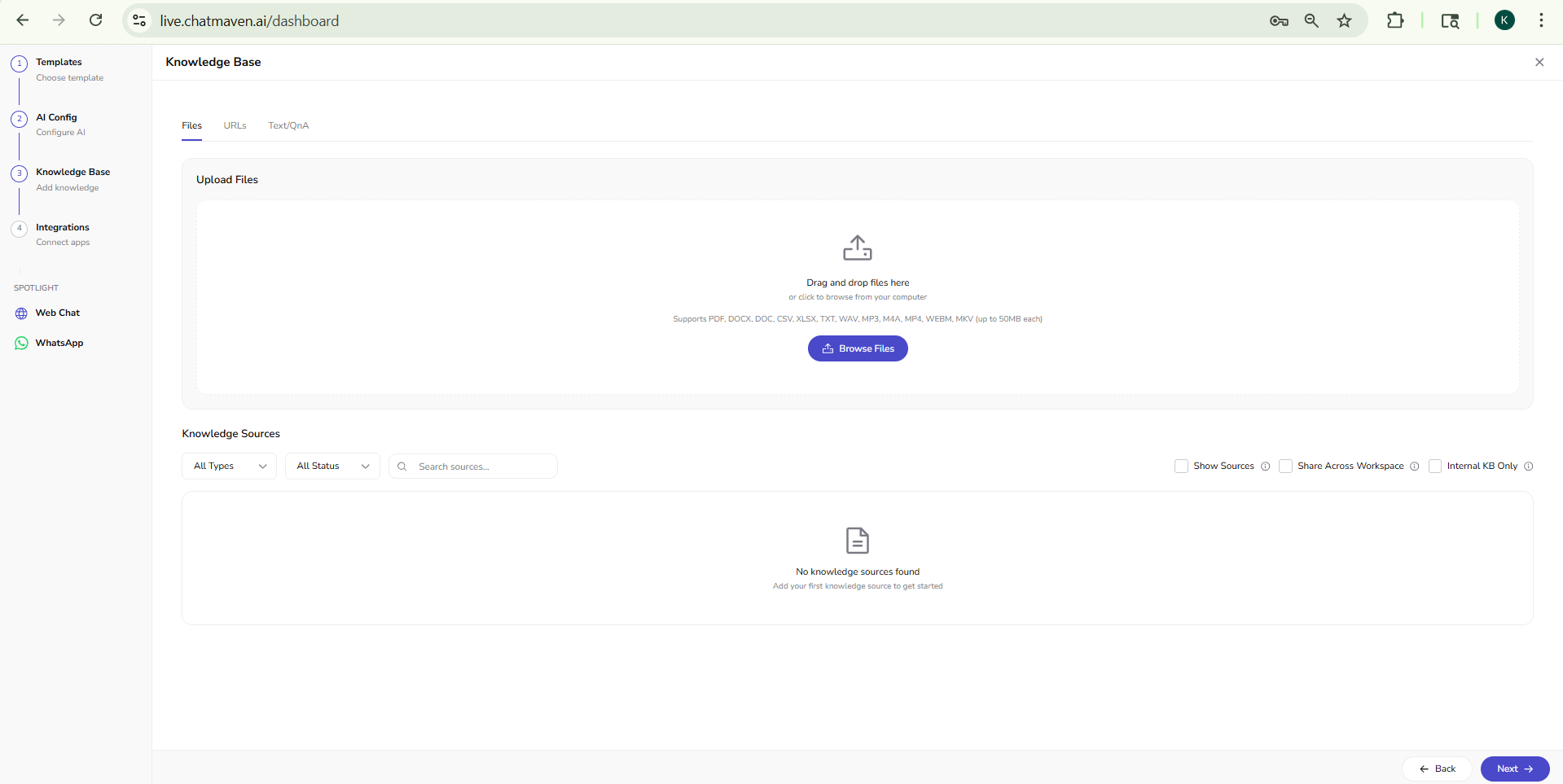
Second — From Agents → Knowledge Base
- Open Agents in the top navigation, choose the agent in the agent dropdown at the top of the left sidebar, then click Knowledge Base (beside General, AI Settings, and Integrations).
- The in-app route matches live.chatmaven.ai/agent/knowledge-base when you are signed in and that agent is selected.
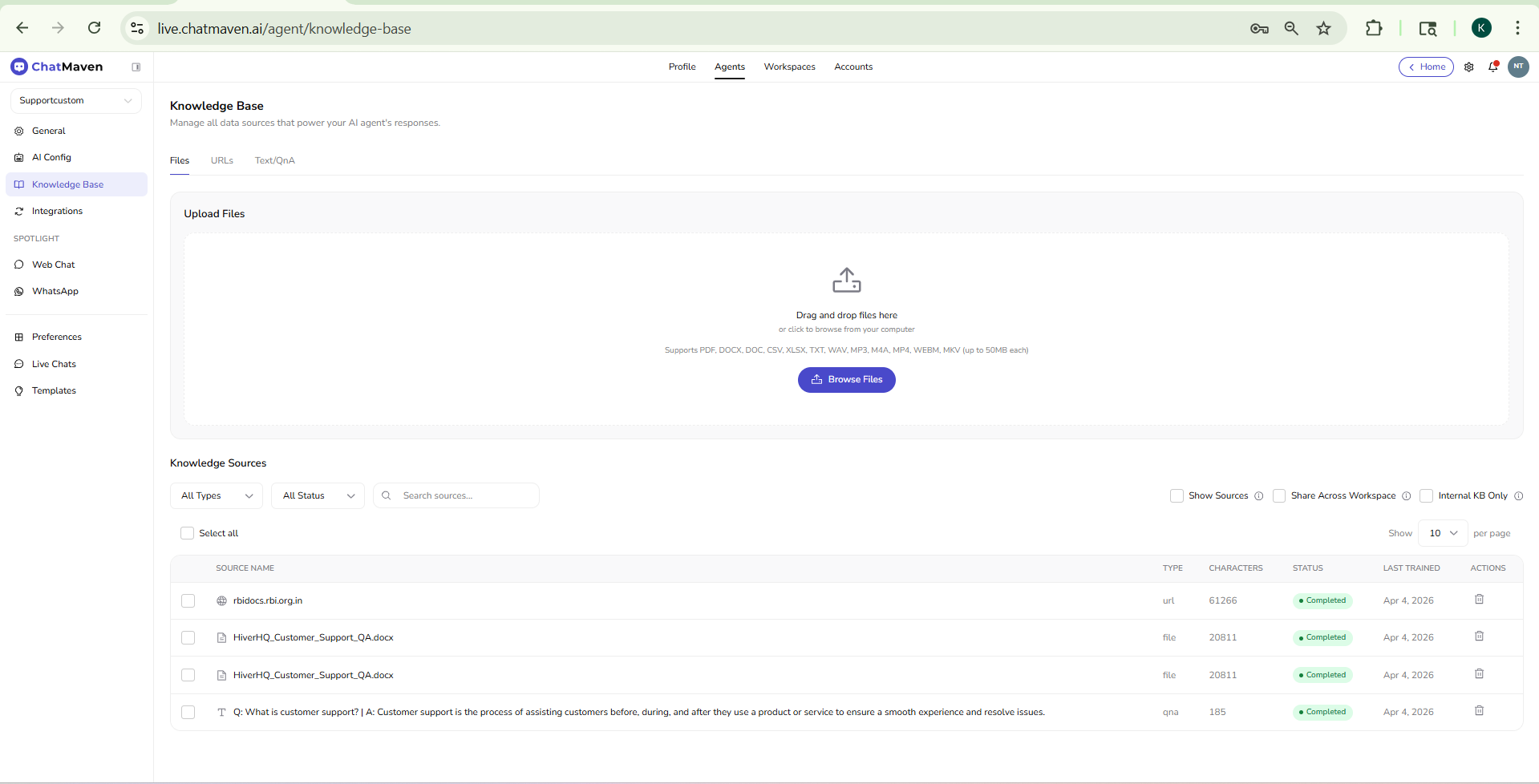
On the Knowledge Base screen, the main area has three tabs: Files, URLs, and Text/QnA. Below them, Knowledge Sources lists everything for that agent, with filters, search, and actions.
Files tab
Use Files to upload documents and media from your computer.
- Drag and drop files onto the dashed area, or click Browse Files to pick files from your device.
- Supported formats include: PDF, DOCX, DOC, CSV, XLSX, TXT, WAV, MP3, M4A, MP4, WEBM, MKV.
- Each file can be up to 50 MB.
After upload, the source appears in the Knowledge Sources table while it is processed and after training completes.
URLs tab
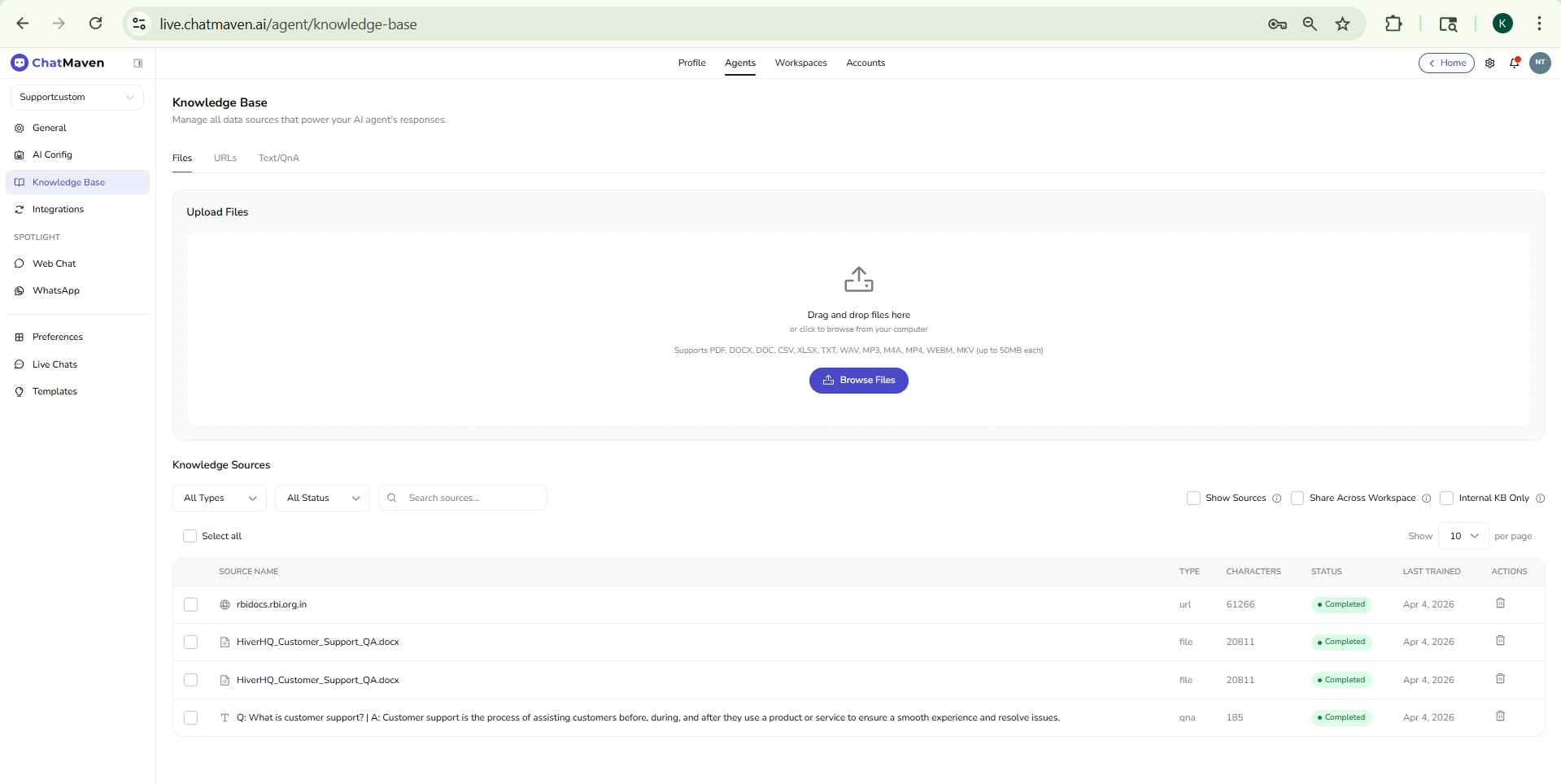
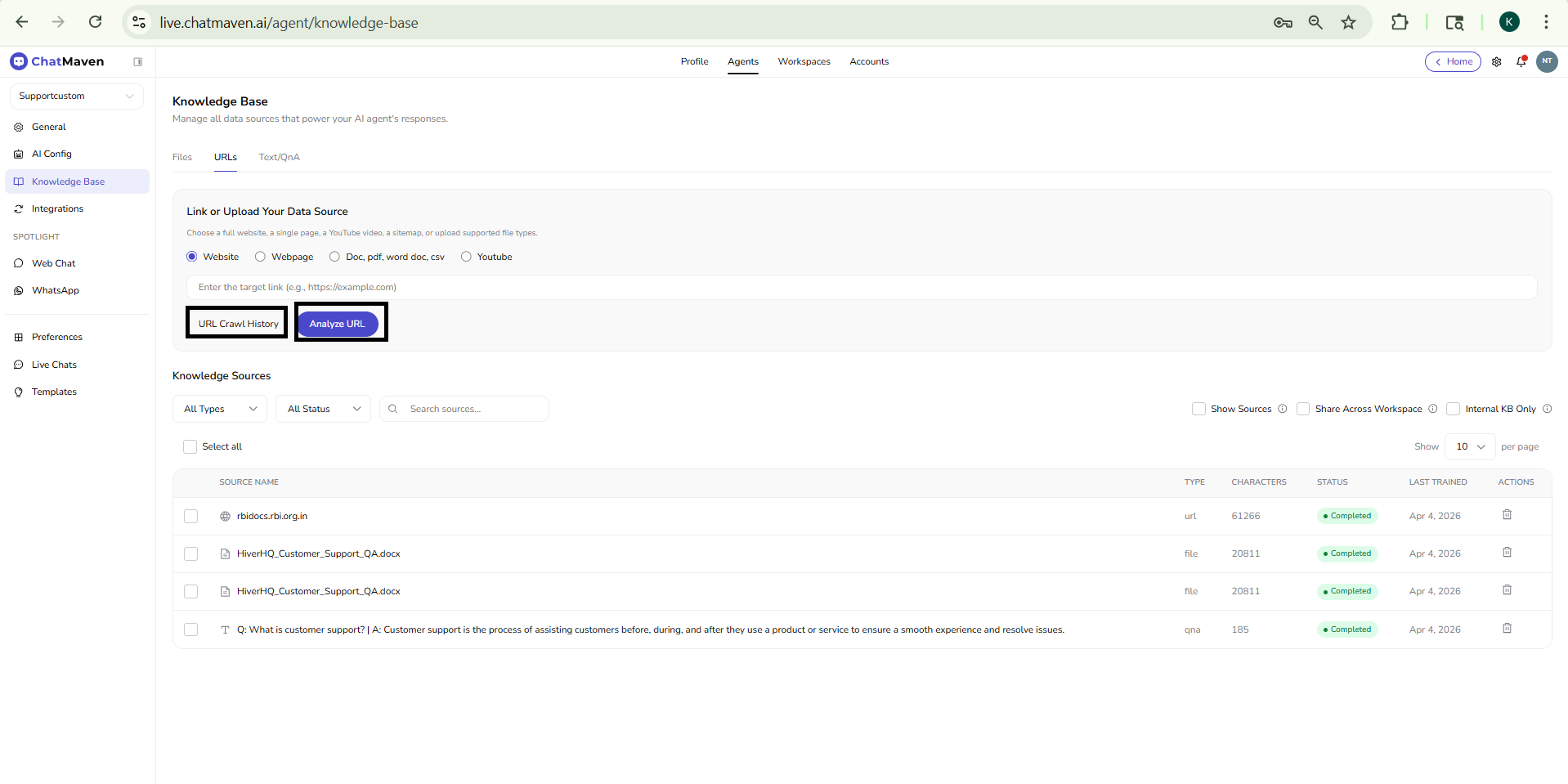
Use URLs to ingest content from the web: a full site, a single page, a YouTube video, a sitemap, or a direct link to a hosted document.
The card is titled Link or Upload Your Data Source, with short help text: Choose a full website, a single page, a YouTube video, a sitemap, or upload supported file types.
Source type
Pick one option (radio buttons):
| Option | Typical use |
|---|---|
| Website | Crawl or summarize a whole site or major section. |
| Webpage | A single page URL. |
| Doc, pdf, word doc, csv | A direct link to a file hosted at a URL. |
| Youtube | A YouTube video as a knowledge source. |
Actions
- Enter the link in the field (placeholder example: Enter the target link (e.g., https://example.com)).
- Analyze URL — Primary action to start processing that URL for your knowledge base.
- URL Crawl History — Opens history related to URL crawling (useful to review past runs).
Text/QnA tab
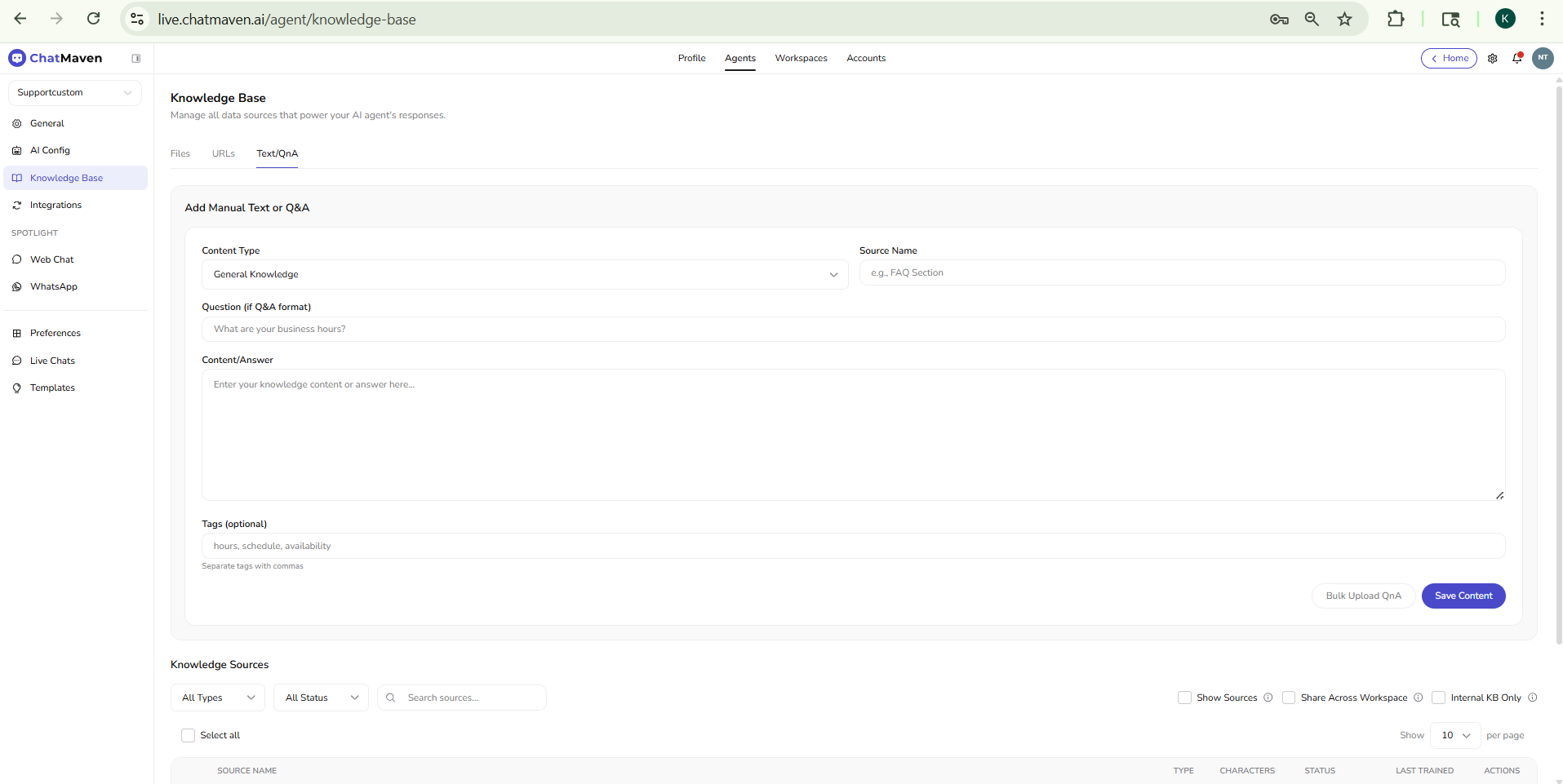
Use Text/QnA to type knowledge manually instead of uploading or crawling.
The section title is Add Manual Text or Q&A. Fields include:
| Field | Purpose |
|---|---|
| Content Type | Dropdown (for example General Knowledge) to categorize the entry. |
| Source Name | Label for this chunk of knowledge (placeholder example: FAQ Section). |
| Question (if Q&A format) | Optional question when you are adding Q&A pairs (placeholder example: What are your business hours?). |
| Content/Answer | Main text: either free-form knowledge or the answer to the question above. |
| Tags (optional) | Comma-separated tags (placeholder example: hours, schedule, availability) to help organize content. |
Buttons:
- Bulk Upload QnA — Upload many Q&A entries at once (for example from a spreadsheet), when your workspace supports it.
- Save Content — Saves the manual entry to the knowledge base.
Knowledge Sources list
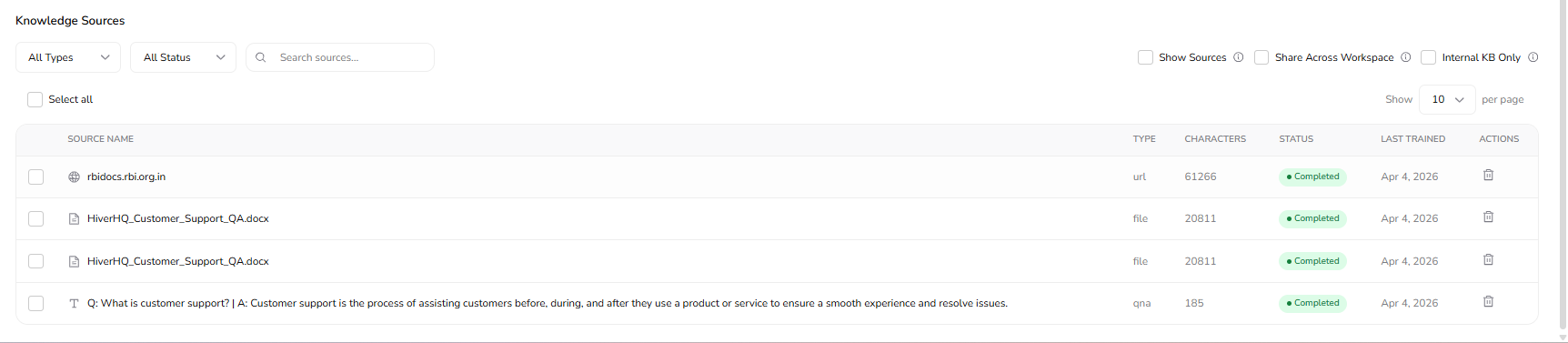
Under the tabs, Knowledge Sources is the table of everything attached to this agent.
Filters and search
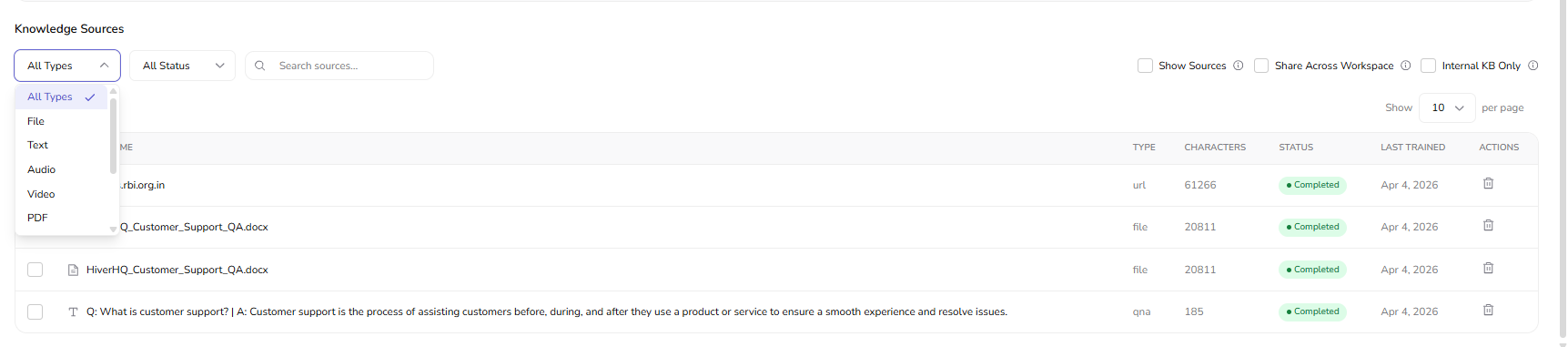
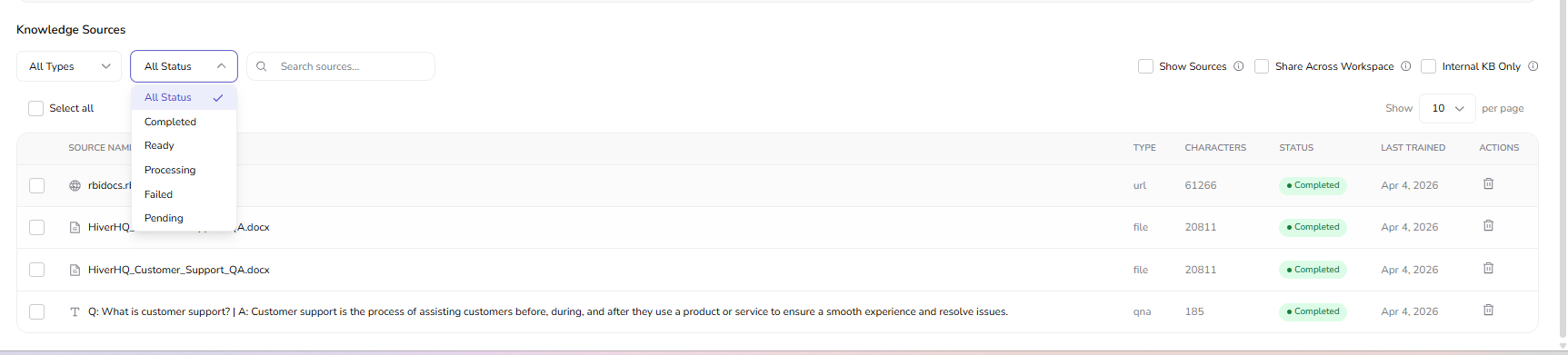
- All Types — Filter by source kind (for example URL, file, video, Q&A).
- All Status — Filter by processing state (for example completed vs. failed).
- Search sources… — Text search across source names.
- Show [N] per page — Page size for the table.
Workspace options (checkboxes)
These may appear with info tooltips next to them:
- Show Sources — Controls whether source details are surfaced in relevant product behavior (see in-product help for your plan).
- Share Across Workspace — When enabled, sharing semantics apply at workspace level as configured in the product.
- Internal KB Only — Restricts use of this knowledge to internal scenarios when your product supports it.
Use the header Select all checkbox or row checkboxes when you need bulk actions your UI exposes.
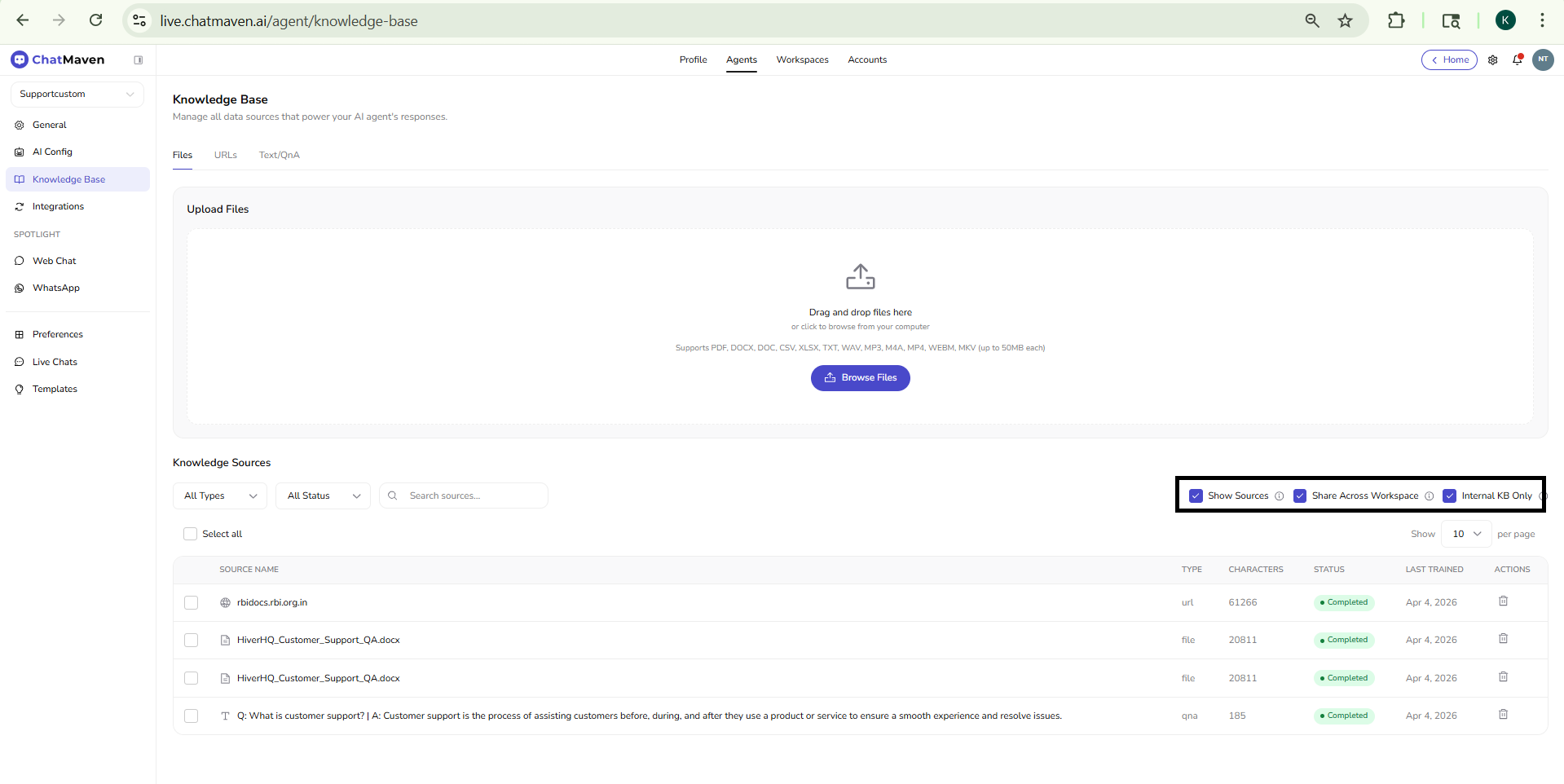
Table columns
| Column | Meaning |
|---|---|
| SOURCE NAME | Name or URL; an icon indicates type (globe for URLs, document for files, filmstrip for video, text icon for Q&A). |
| TYPE | Values such as url, file, video, or qna. |
| CHARACTERS | Approximate size of extracted or stored text for that source. |
| STATUS | Completed (green) when training succeeded; Failed (red) when something went wrong—retry or fix the source and train again as needed. |
| LAST TRAINED | Date the source was last processed. |
| ACTIONS | Delete (trash icon) removes that source from the knowledge base. |
Pagination at the bottom shows ranges such as 1–10 of 24 sources with first, previous, page numbers, next, and last controls.

Tips
- Large or complex files sometimes show Failed in STATUS; try a smaller export, split the document, or use a different format if failures persist.
- URLs should be the exact page or asset you want indexed; use Webpage vs. Website according to whether you need one page or broader crawling.
- For conceptual choices (files vs. website vs. API), see Data sources overview.
Related topics
- Creating an AI agent — Knowledge Base step in the setup wizard.
- AI Settings — Model, voice, and custom rules that work with your knowledge.
- Integrations — Connect channels and tools after knowledge is in place.
- Data sources overview — Deeper comparison of file, website, and API approaches.
FAQ and troubleshooting
Upload succeeded but the agent still doesn’t “know” the file.
Wait for indexing to finish, check for parse errors on the source, and ask questions that appear verbatim or paraphrased in the document. Very large files may chunk slowly.
Conflicting answers from two sources.
Remove or deprecate outdated docs, or reorder priority if the product supports it. Add explicit instructions to prefer the newest policy document.
Can I use only Q&A without files?
Yes—Q&A pairs are useful for FAQs and policies. Combine with crawled site content for breadth.