Getting Started with Workspaces
A workspace is a container in ChatMaven for agents, flows, templates, forms, tags, and custom fields. Everything in the left sidebar under the top-tab Workspaces applies to the workspace you have selected—not to your whole account at once.
Getting here
- Sign in to ChatMaven (for example live.chatmaven.ai).
- Open the top navigation and choose Workspaces.
You land in workspace settings for the active workspace. The default screen is General at live.chatmaven.ai/workspaces/general.
Sibling routes under /workspaces/ include agents, flows, templates, forms, tags, and custom-fields.
Workspace sidebar
At the top of the sidebar, the workspace dropdown shows which workspace you are editing. Below it:
| Item | Purpose |
|---|---|
| General | Workspace name, read-only Data Region, and Danger Zone (delete). Covered in General settings below. |
| Agents | Agents in this workspace. See Agents in this workspace. |
| Flows | Automation flows. See Flows overview, Trigger, and Steps. |
| Templates | Message templates. See Templates. |
| Forms | Workspace forms. See Forms. |
| Tags | Workspace tags. See Tags. |
| Custom Fields | Custom Contact Fields (keys for flows). See Custom fields. |
Account workspace directory
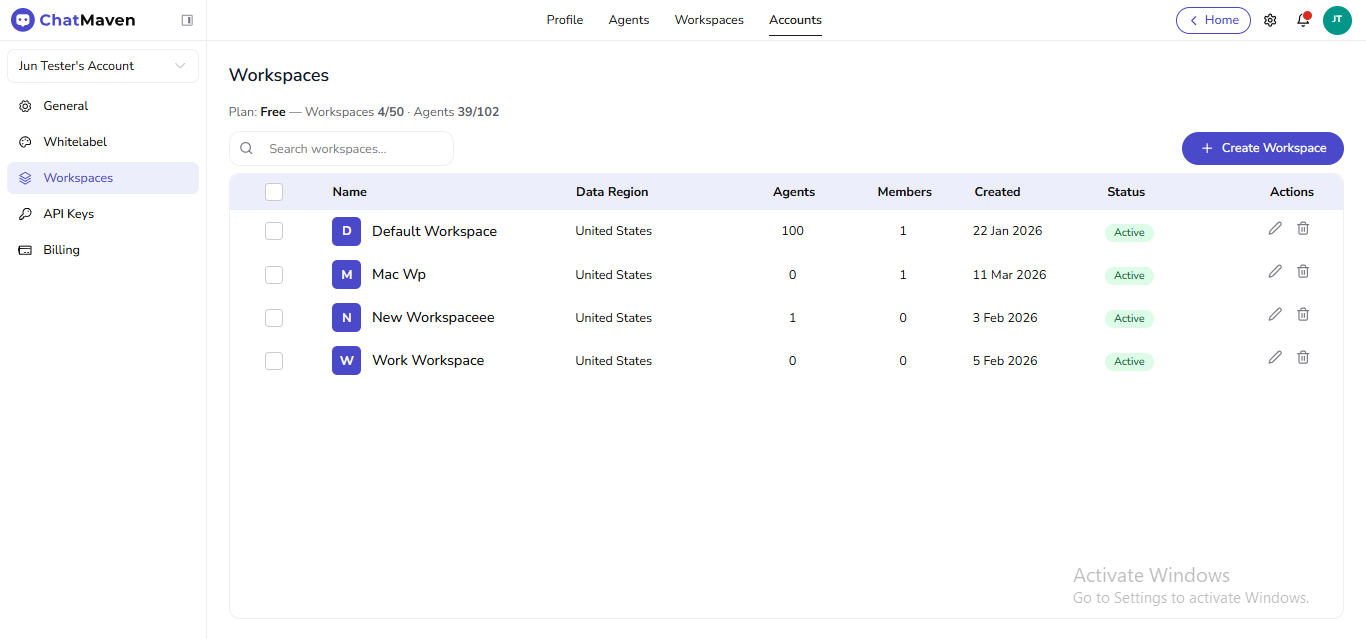
The Accounts → Workspaces screen lists every workspace on the account, shows plan usage, and hosts Create Workspace. Live URL: live.chatmaven.ai/accounts/workspaces.
Open the directory
- Top bar: Accounts.
- Left rail: Workspaces (typically after General, Preferences, and Whitelabel).
Plan line
Below the title, ChatMaven shows your plan and usage (workspaces and agents versus limits). Check this before adding workspaces or scaling agents.
Search
Use Search workspaces… to filter the table when you have many rows.
Table columns
| Column | Meaning |
|---|---|
| Name | Workspace label; the colored tile uses the first letter as a quick visual. |
| Data Region | Hosting region; set at creation only. |
| Agents | Count of agents in that workspace. |
| Members | Count of members. |
| Created | When the workspace was added. |
| Status | For example Active. |
| Actions | Pencil opens workspace settings on General. Trash starts deletion (see Creating a workspace). |
If Accounts or Workspaces is missing, your account may not expose administration for that sign-in.
General settings (workspace name and region)
General is the default page when you open top-tab Workspaces. Live URL: live.chatmaven.ai/workspaces/general.
Open General
- Top navigation: Workspaces.
- Left sidebar: General.
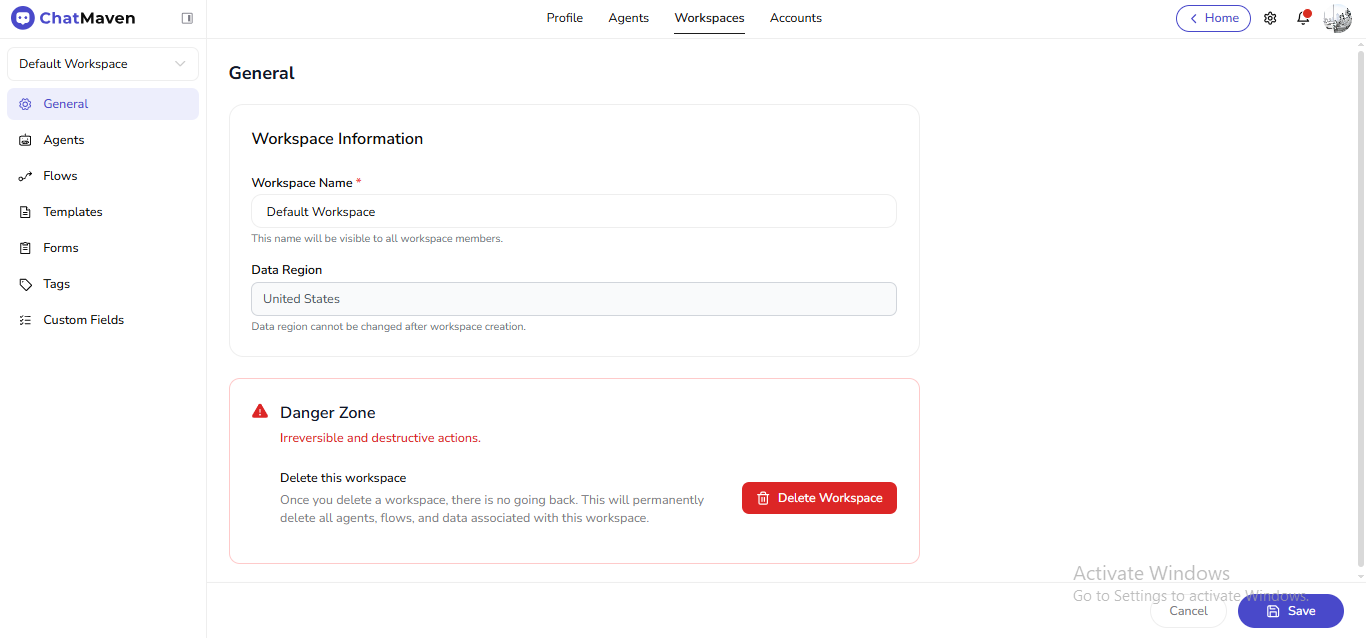
You can also open the same screen from Accounts → Workspaces with the row pencil; ChatMaven opens workspace settings with General selected (same as the image above).
Workspace name
- Edit Workspace Name (required in the UI) under Workspace Information. Placeholder: Enter workspace name.
- Helper text explains that members will see this name.
- Use Save or Cancel at the bottom.
Data region
Data Region is read-only after creation—the UI states it cannot be changed. Choose the correct region when you create a workspace.
Danger Zone
Deleting the workspace from General is covered in Creating a workspace (same page as create, rename, delete, and switch).
First-time checklist
- Confirm the workspace in the sidebar dropdown before editing shared resources.
- Set a clear workspace name on General.
- Add agents from Workspaces → Agents or top Agents for the full wizard.
- Pick a data region only when creating a workspace—it is permanent.
Next steps
- Creating a workspace — Create, rename, delete, and switch workspaces.
- Agents in this workspace
- Flows · Templates · Forms · Tags · Custom fields
- Getting Started with AI Agents