User Profile — Personal information
The User Profile area is where you manage your own identity in ChatMaven: name, contact details, timezone, password, and how you appear to others. It is separate from Accounts (organization-level billing, workspaces, and API keys), which applies to the whole account.
In the hosted product, the Personal screen under Profile is typically available at https://live.chatmaven.ai/user-profile/personal-info (path /user-profile/personal-info).
Getting to your profile
You can perform profile-related actions from two places: a profile menu for quick actions and a Personal page for full settings (avatar, name, password, timezone, and similar).
Profile menu (quick actions)
Use the profile control in the app chrome (for example your photo or avatar in the top bar or sidebar, depending on layout). That menu typically shows a short summary (name, email) and shortcuts such as sign out or links toward notification preferences.
Use it when you only need a quick action without opening the full Personal page.
Personal settings page (full editor)
For detailed fields—name, email, password, timezone, avatar, and similar—open the full Personal screen:
- Sign in to ChatMaven.
- In the top navigation, click "Profile" (alongside "Agents", "Workspaces", and "Accounts"). You may also use "Home", "Settings", "Notifications", or your profile menu from the top bar.
- In the Profile left sidebar, click "Personal" (highlighted when this page is active).
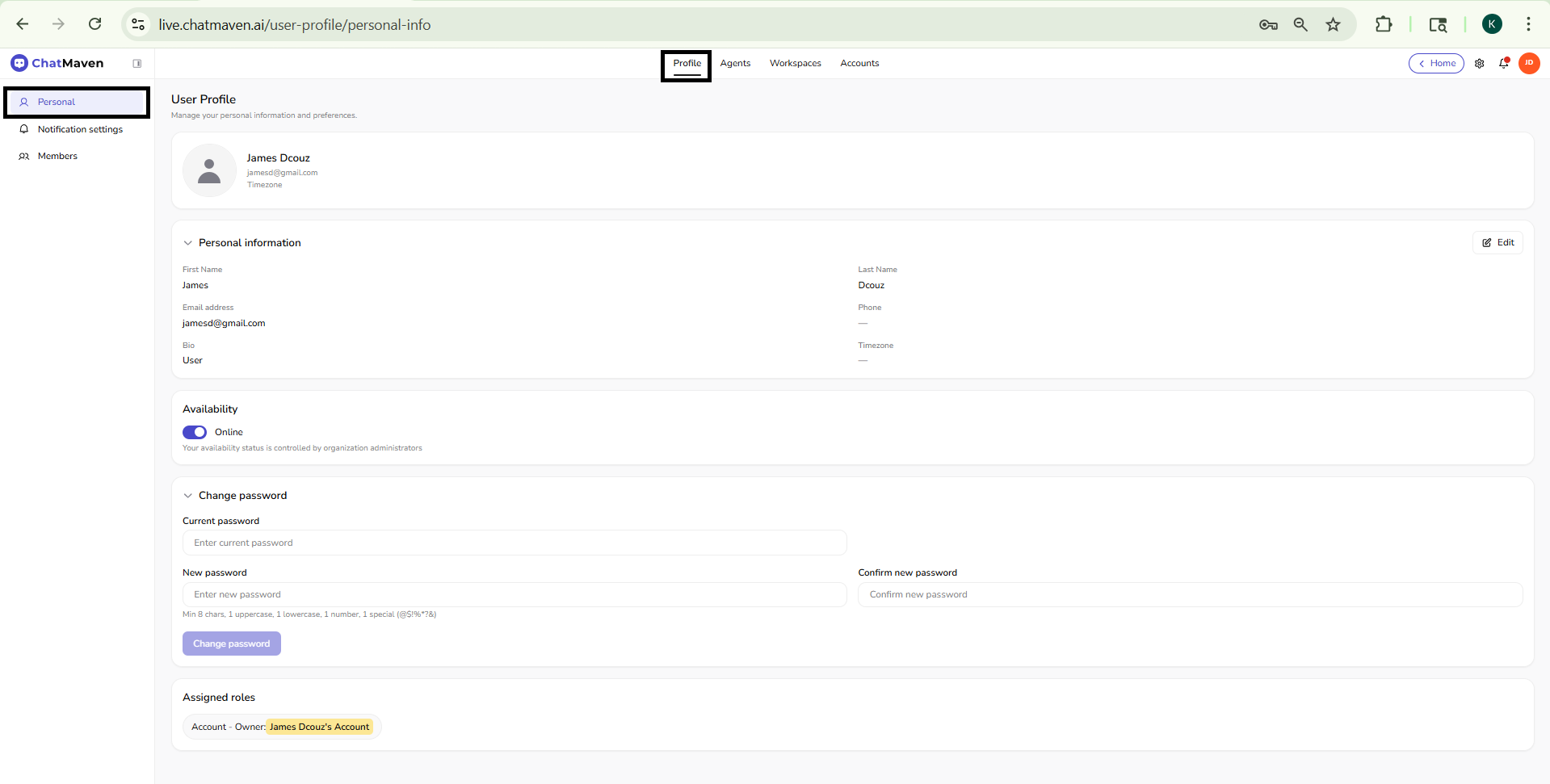
The sidebar also lists Notification settings and Members for other profile-related tasks; the sections below focus on Personal.
What you see on the page
Page title
The main heading is User Profile, with short helper text such as managing your personal information and preferences.
Header card and profile photo
At the top of the content, a compact header usually shows:
- Your profile photo (or a placeholder).
- Display name and email address.
- Timezone (or a placeholder when not set).
To change your photo, use the control on the avatar (for example, click the image). Upload or choose a file as the product prompts you, adjust or crop if an editor appears, then confirm with the action shown (such as “Save” or “Set as avatar”). The image is typically visible to teammates; remove or replace it using the same area if your build offers a delete or reset option.
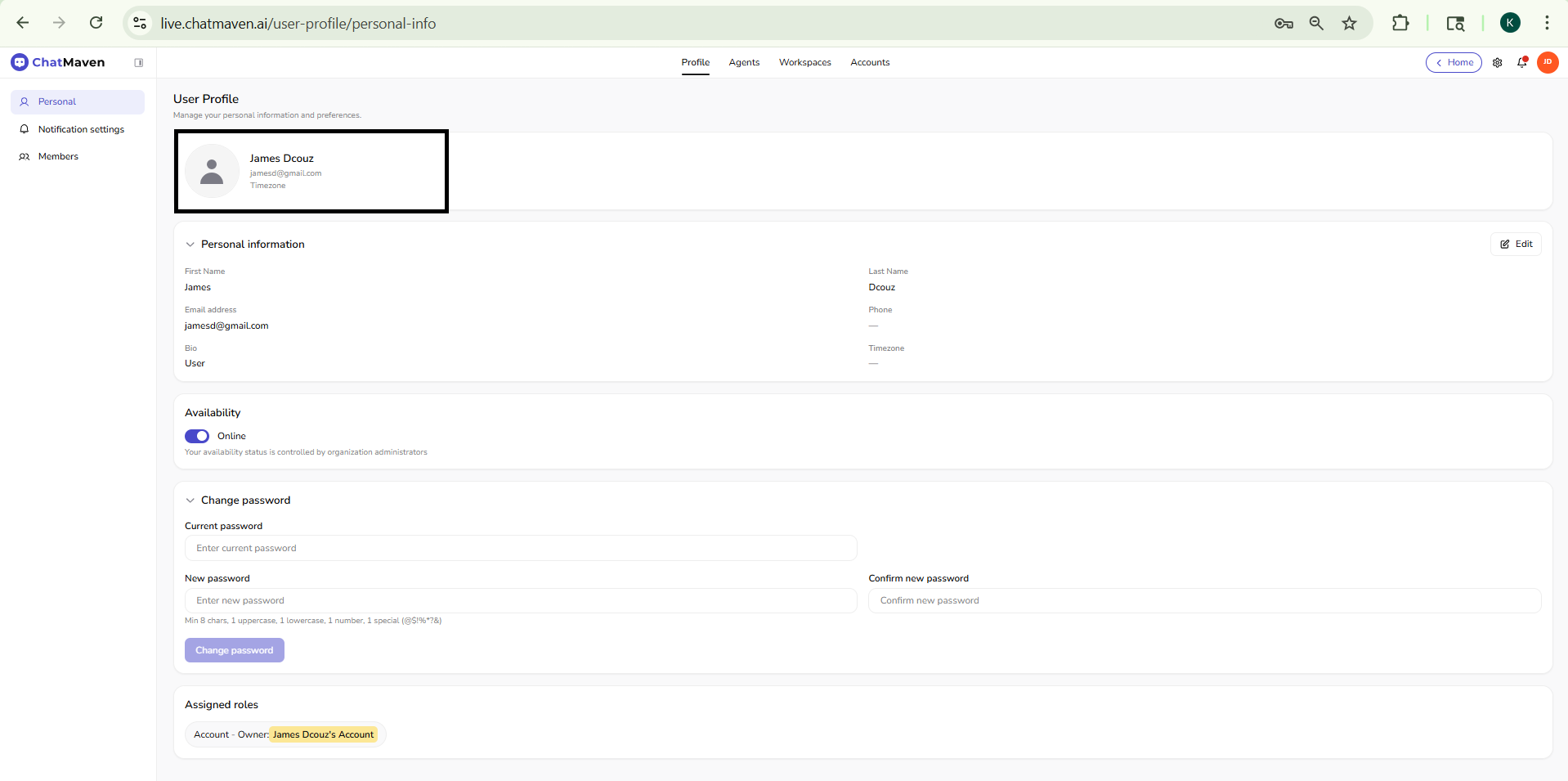
This header mirrors the key fields from Personal information below for quick scanning.
Personal information
The Personal information section lists your editable fields. Use Edit (top right of the section) to switch into edit mode, change values, and save—exact save/cancel behavior follows the controls shown in the product.
Typical fields:
| Field | Description |
|---|---|
| First name | Your given name. Shown to teammates (and sometimes contacts) where the product displays your identity—use an appropriate professional name. |
| Last name | Your family name. |
| Email address | Login and notification email; changing it may require verification depending on your setup. |
| Phone | Optional contact number. |
| Bio | Short description or role line visible where the product uses it. |
| Timezone | Used for scheduling and time display; pick the zone that matches where you work. |
| Language | If your deployment shows a Language control, select your preferred UI language from the dropdown. Available locales depend on the product version. |
Some fields may be read-only if your organization manages them through another system.
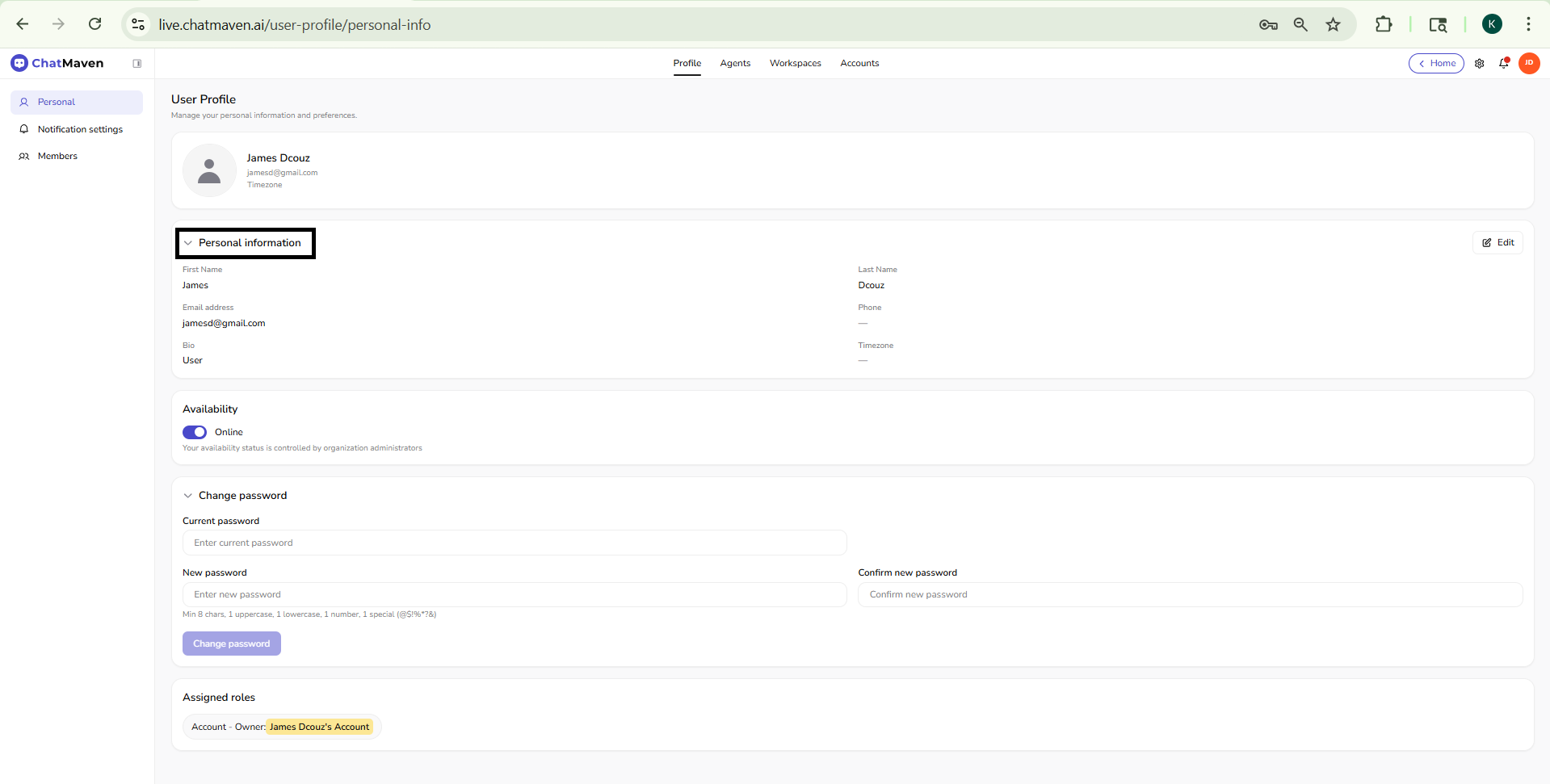
Activity status (availability)
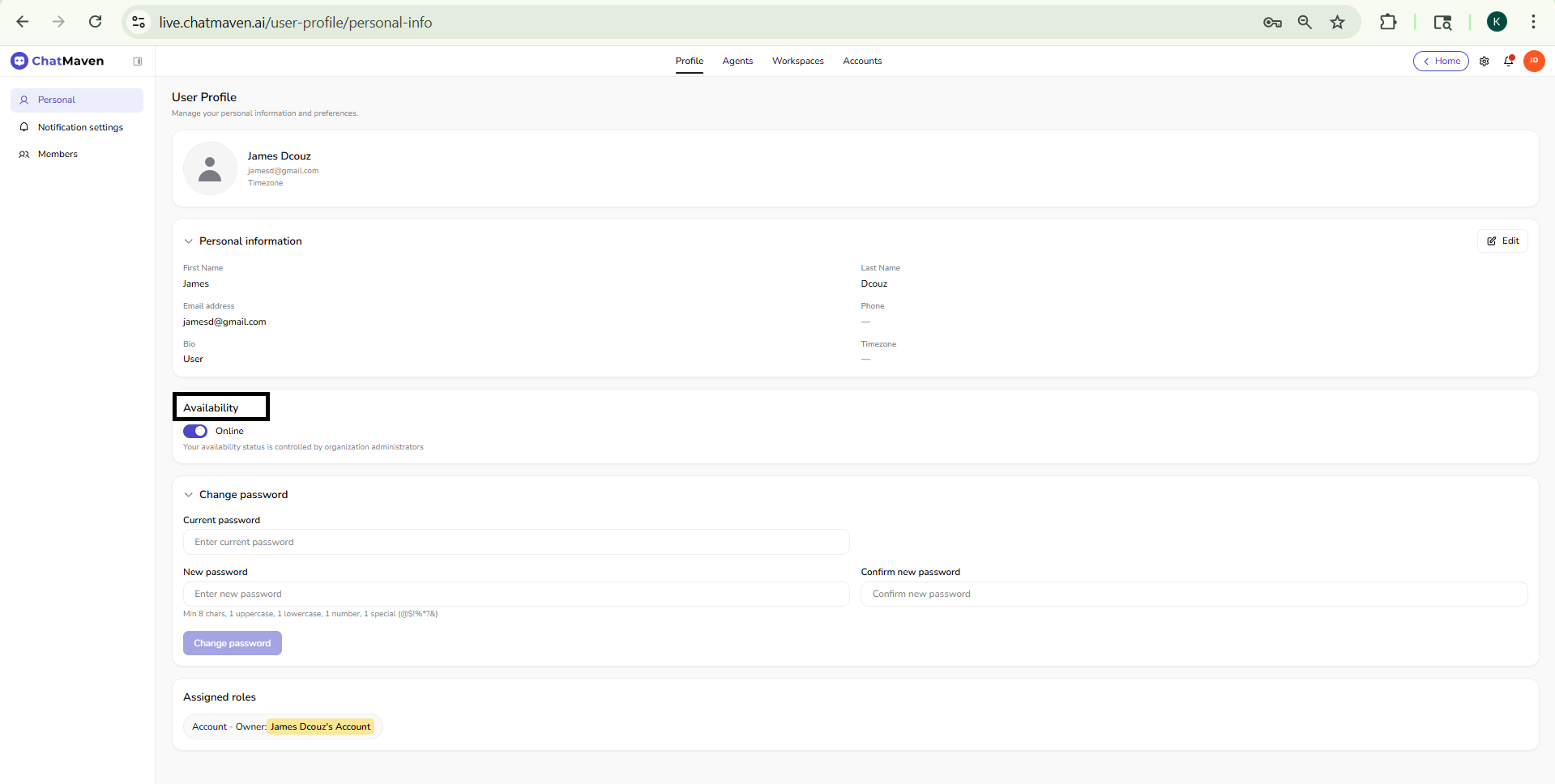
Many products call this activity status or presence. In ChatMaven, the Availability area includes an Online toggle that reflects whether you are marked as available (for example, for routing or presence in the product).
Helper text in the app explains that availability may still be constrained by organization administrators—admins can define rules that override or limit what the toggle does.
Notifications (where to configure them)
Fine-grained choices for sound, desktop, mobile, and email notifications live on Notification settings under Profile—not on the Personal screen itself. Open that page when you need to change how often or for which conversations you are alerted.
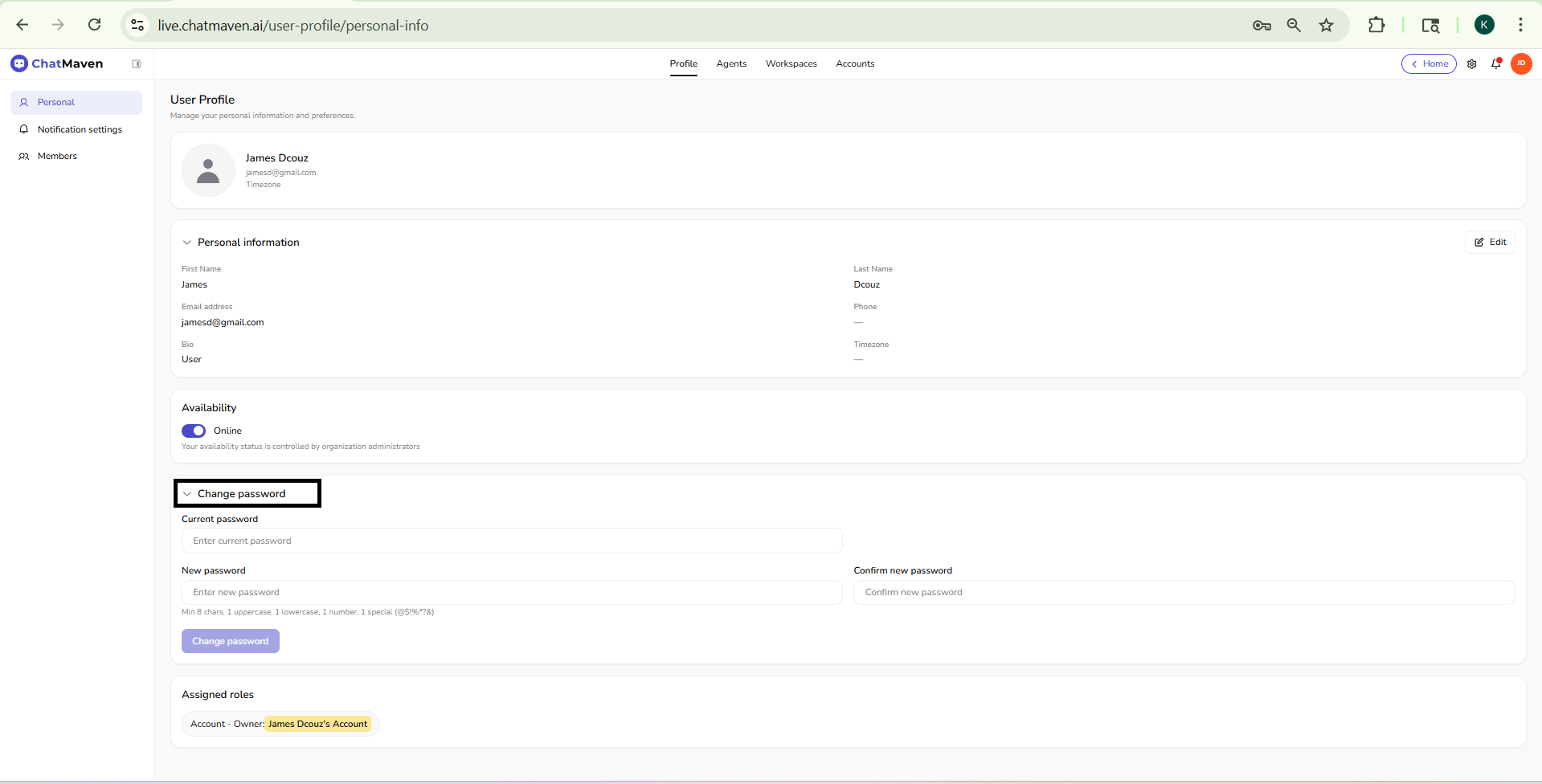
Change password
The Change password section is collapsible on the Personal profile page (a chevron next to the title shows you can expand or collapse it). Expand it when you want to set a new login password.
The form is laid out as follows:
- Current password — One full-width field. Enter your existing password (placeholder text in the product is along the lines of Enter current password).
- New password and Confirm new password — These two fields sit side by side on one row (each uses about half the width of the section). Use the same new password in both boxes (confirm placeholder is along the lines of Confirm new password).
Under New password, the product shows password rules in small helper text. In the current UI that text is:
Min 8 chars, 1 uppercase, 1 lowercase, 1 number, 1 special (@$!%*?&)
If your entry does not meet those rules, rely on inline validation in the app before submitting.
- Click the Change password button (bottom of the section) to apply the update. Choose a strong password and store it safely; if the button stays disabled or you see an error, check that all three fields are filled and that the new password satisfies the rules above.
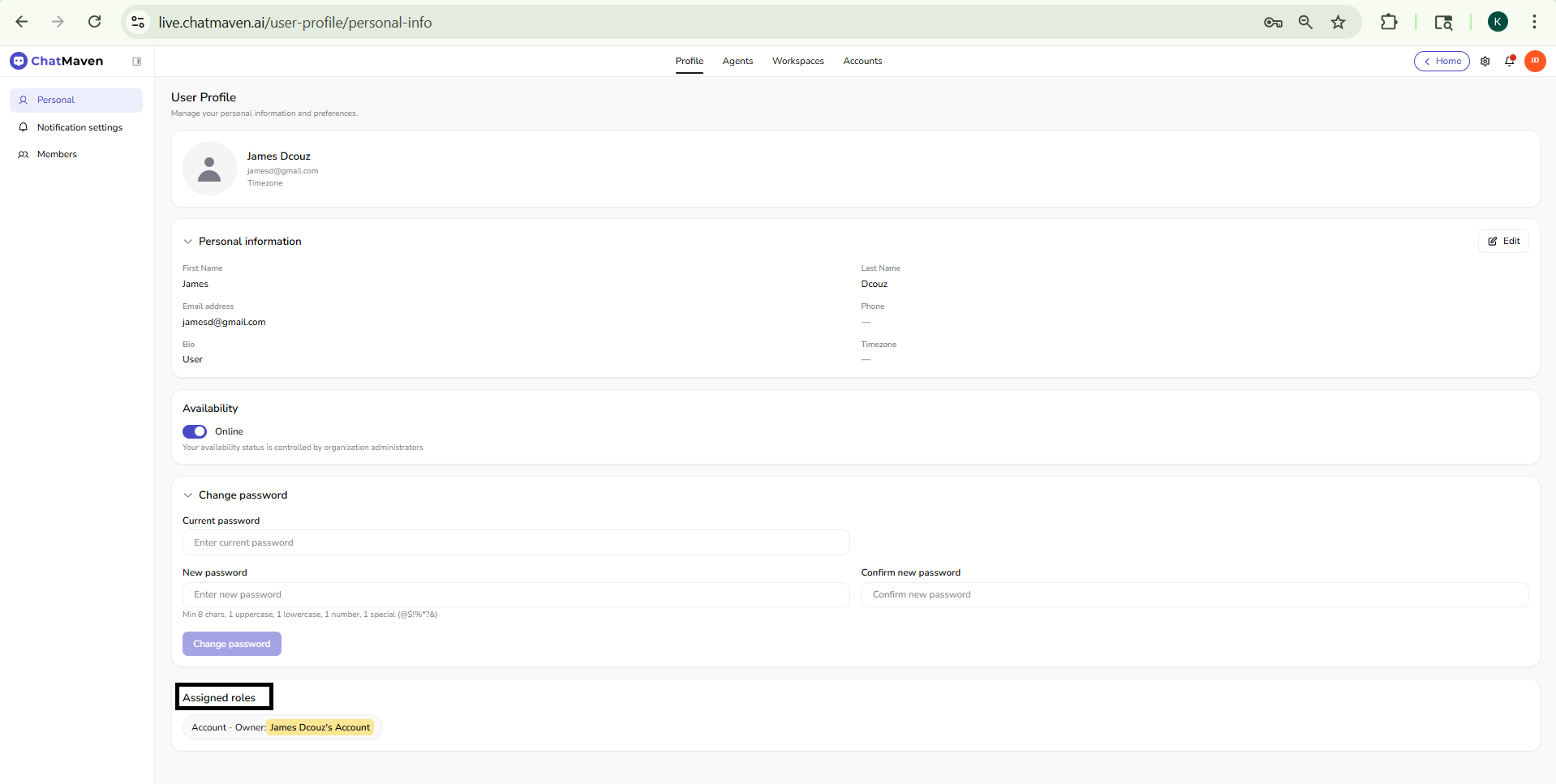
Assigned roles
Assigned roles list the roles your user has, scoped to accounts or workspaces—for example Account — Owner on a named account. This section is informational: it helps you see why you can access certain areas. Changing roles is done by an administrator elsewhere in the product, not on this screen.
- Profile → your user identity, password, notification entry points, and membership-related items in the Profile sidebar.
- Accounts (top nav) → settings for the selected account (general, preferences, whitelabel, workspaces, API keys, billing). Billing for the organization is account-level; it is not the same as the Personal profile fields.
FAQ and troubleshooting
I cannot change my name or avatar.
Some tenants lock identity fields via SSO. If the fields are read-only, update them in your IdP or contact an admin.
Password reset or change fails.
Ensure the displayed complexity rules are met and that the old password is correct. Use a password manager to avoid typos.
Roles look wrong in Assigned roles.
Roles are managed by admins; this screen is for informational purposes only. Request a role change through your owner or internal process.
See also
- Notification settings — Sounds, desktop, mobile, and email alerts.
- Members — Invite users, search, filter, and manage member actions.
- Getting Started with ChatMaven — An overview and guidance on what to do next in the docs.
- Getting Started with Accounts — Account-level settings and the danger zone.
- Preferences (Accounts) — Session behavior for the account (not the same as personal profile fields).