Notification settings (Profile)
Under Profile, Notification settings control how ChatMaven alerts you about messages, calls, and mentions across channels: sound in the browser, desktop push, mobile push, and email. Choices are per user—they apply to your login, not the whole account.
In the hosted product, open this screen at https://live.chatmaven.ai/user-profile/notifications (path /user-profile/notifications).
Open notification settings
- Sign in to ChatMaven.
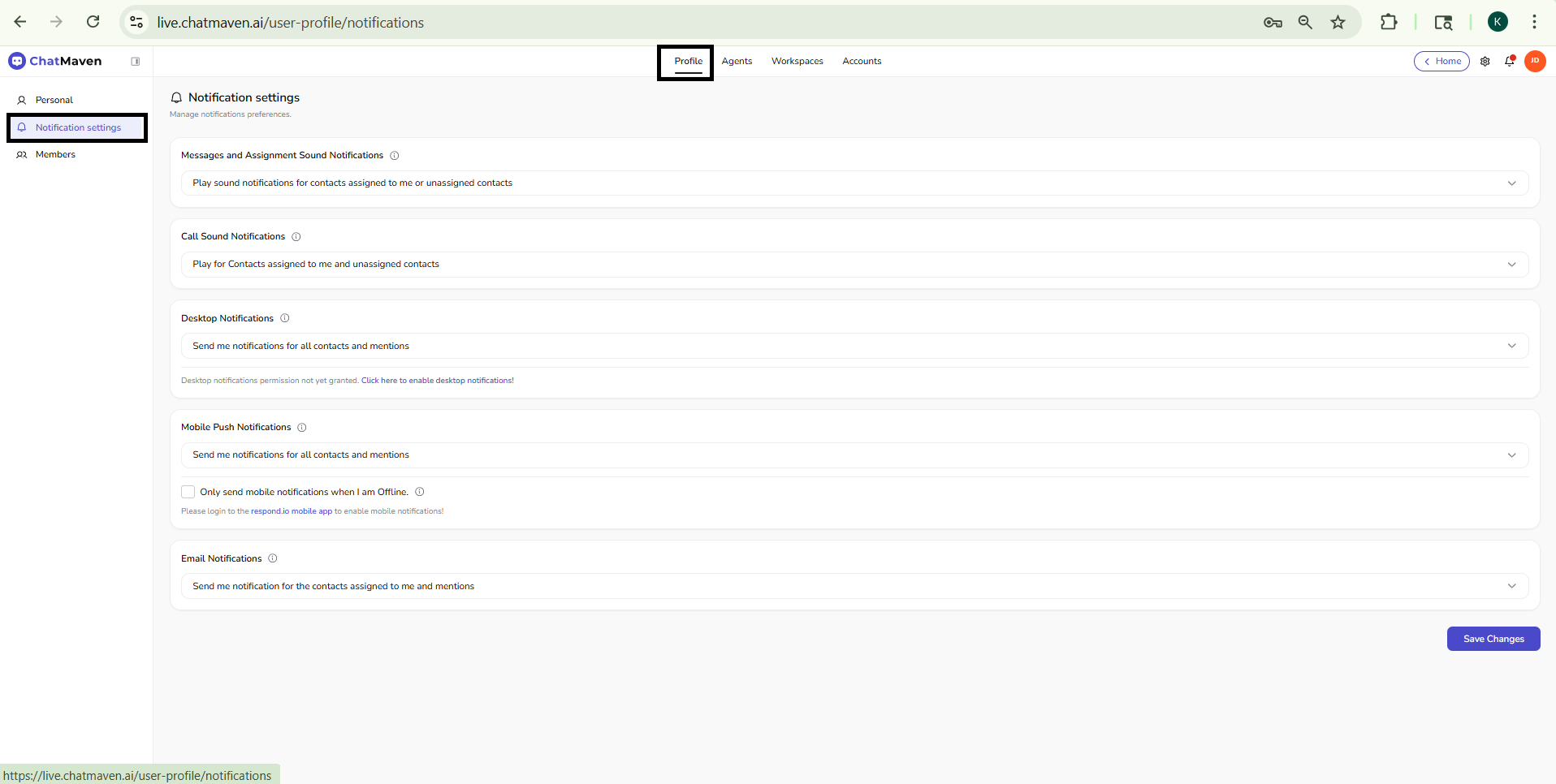
- In the top navigation, click Profile (alongside Agents, Workspaces, and Accounts).
- In the Profile left sidebar, click Notification settings (highlighted when this page is active).
What you see on the page
The main heading is Notification settings, with short helper text such as managing notification preferences. Options are grouped into sections (cards), each with a dropdown to choose who or what triggers that channel. Change any dropdown or checkbox, then use Save Changes at the bottom of the page when you are finished—unsaved edits may not apply until you save.
The sound dropdowns use wording about playing sounds; desktop, mobile, and email dropdowns use wording about sending notifications. Option labels in the product may use minor wording differences (for example singular notification in one line); pick the line that matches what you see in the UI.
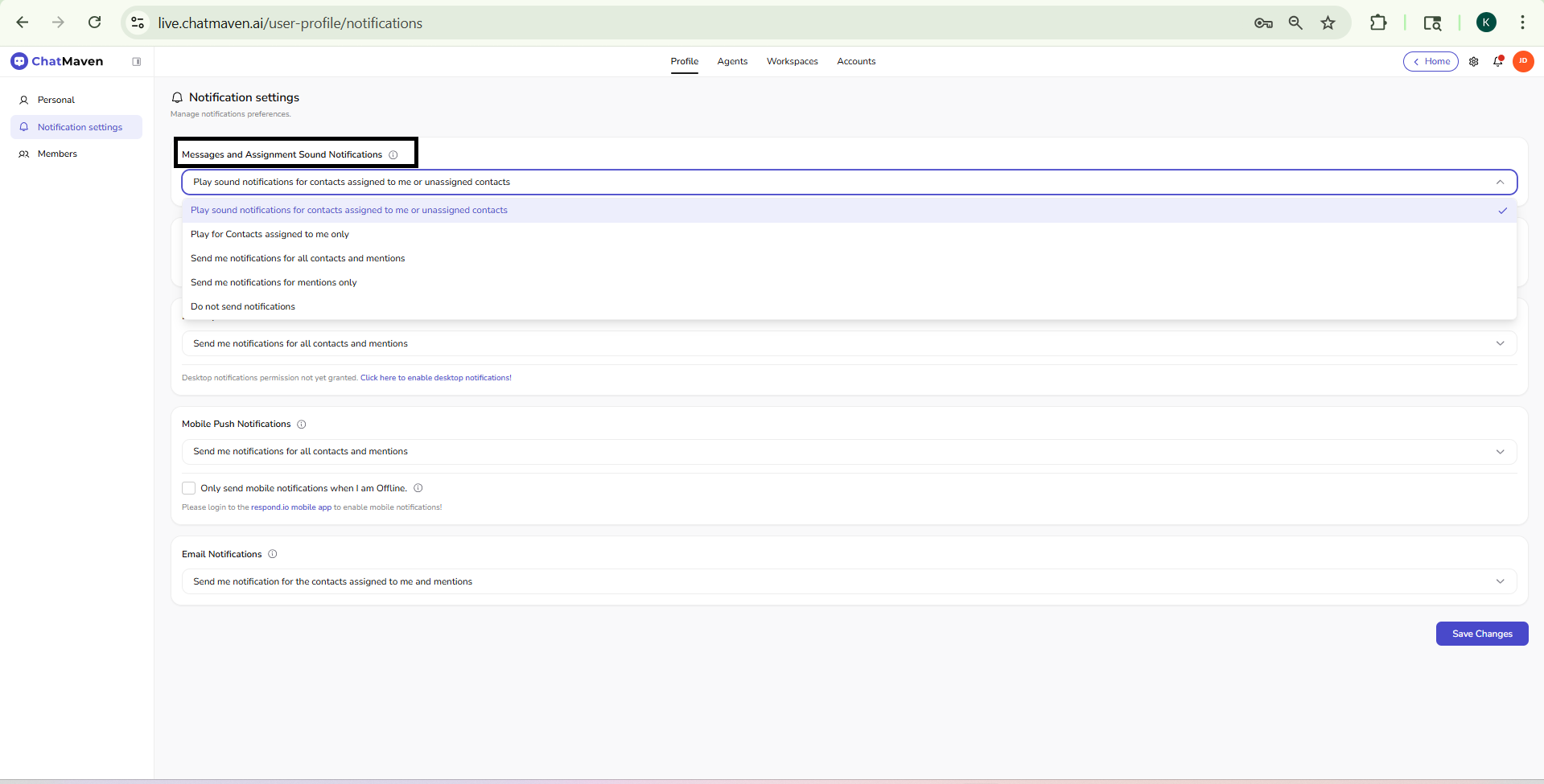
Messages and assignment sound notifications
Controls audio when new message or assignment activity occurs. Open the dropdown and choose one of:
- Play sound notifications for contacts assigned to me or unassigned contacts — Hear sounds for your own assignments and for conversations that are not yet assigned to someone.
- Play for Contacts assigned to me only — Sounds only when the activity applies to contacts assigned to you.
- Send me notifications for all contacts and mentions — Broadest sound coverage for this control (all contacts and mentions).
- Send me notifications for mentions only — Sounds when you are mentioned, not for every message by scope.
- Do not send notifications — No sounds for this category.
Pick the scope that matches how your team triages conversations.
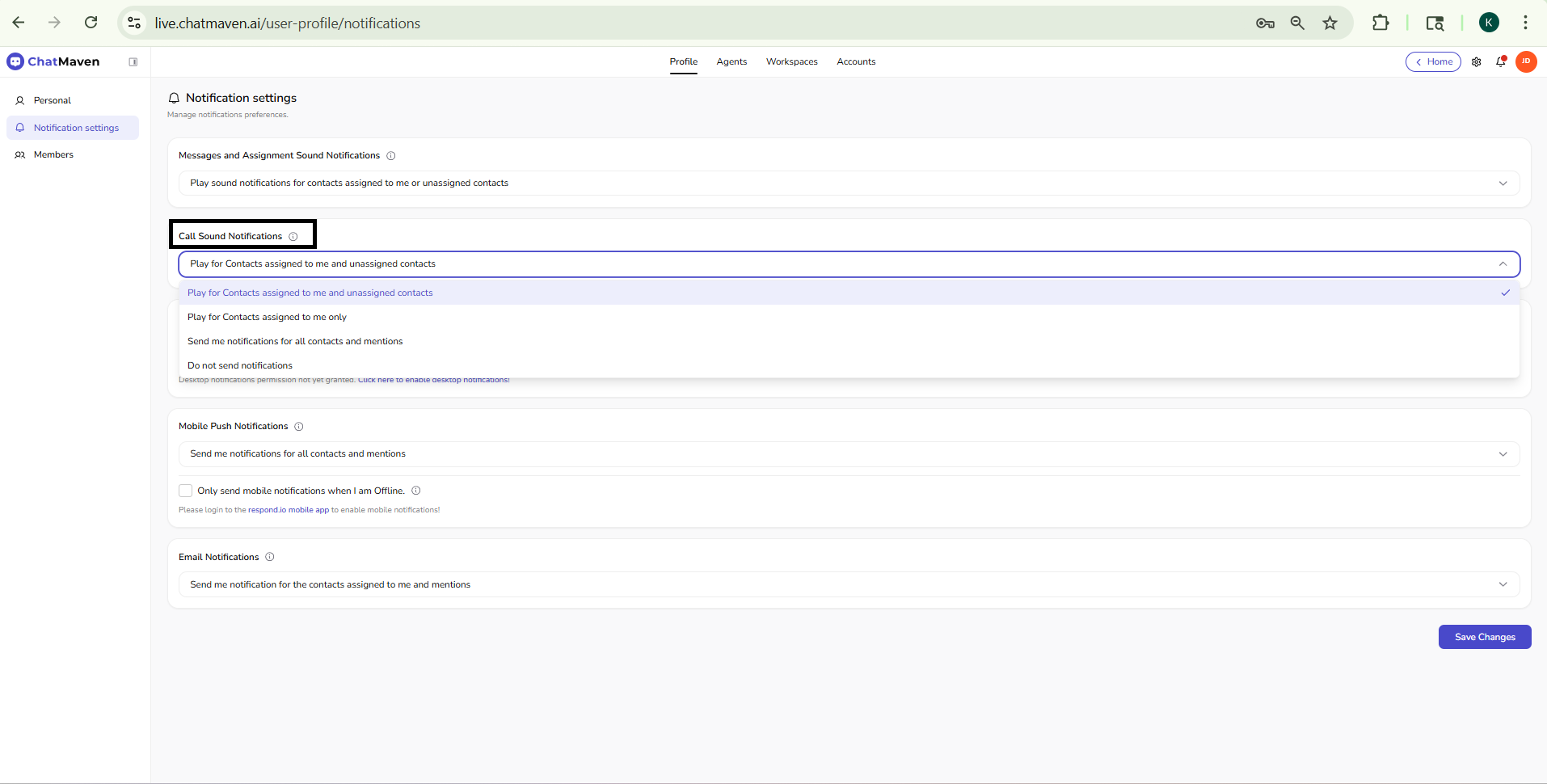
Call sound notifications
Controls audio for incoming calls. The dropdown uses a shorter set of options than message sounds (no separate “mentions only” line in the usual layout). Typical choices are:
- Play for Contacts assigned to me and unassigned contacts
- Play for Contacts assigned to me only
- Send me notifications for all contacts and mentions
- Do not send notifications
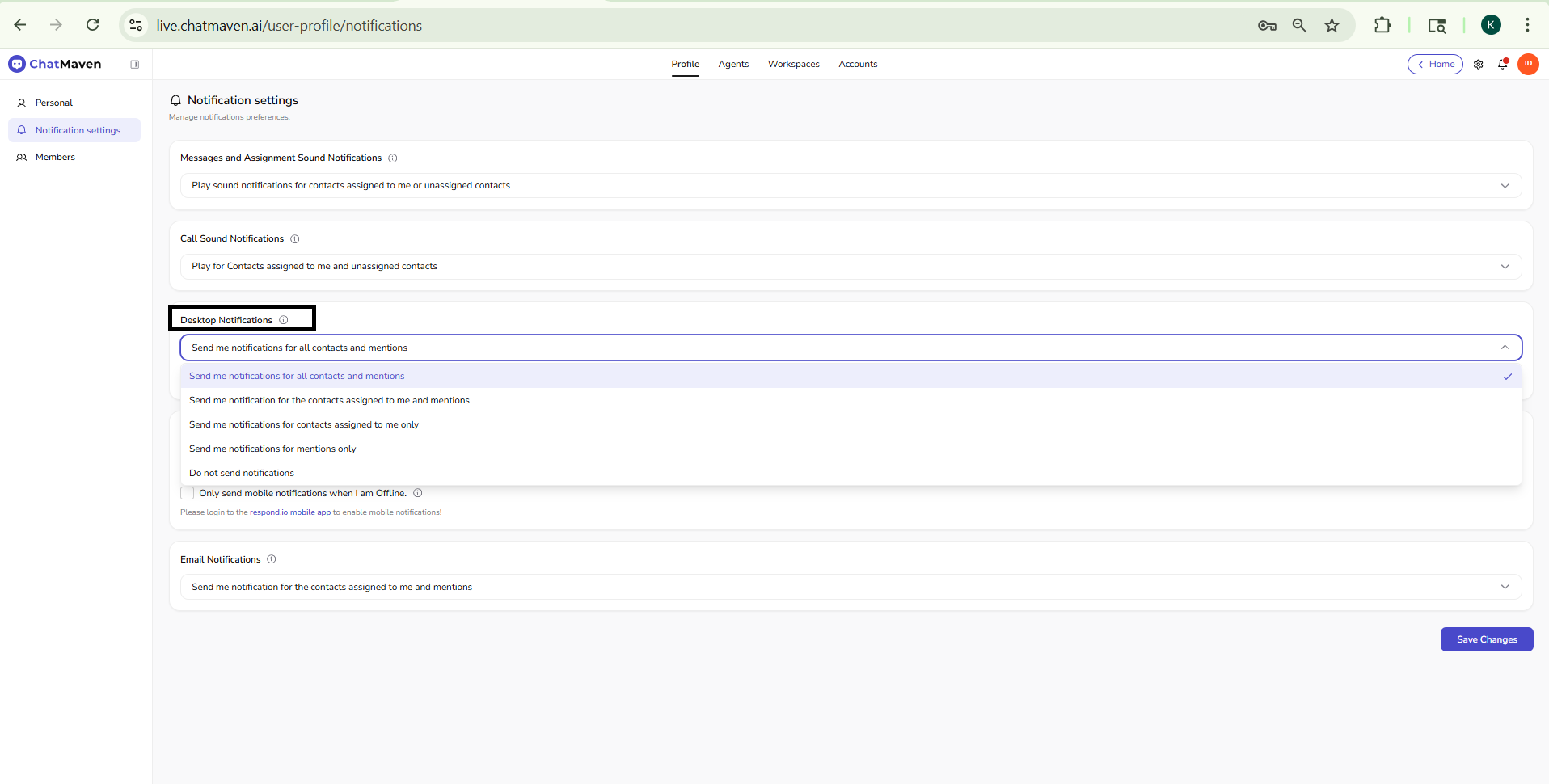
Desktop notifications
Controls browser desktop notifications (system-style banners while ChatMaven is open or in the background, depending on the browser). The dropdown lists five scopes:
- Send me notifications for all contacts and mentions
- Send me notification for the contacts assigned to me and mentions (wording may appear with singular notification in the product)
- Send me notifications for contacts assigned to me only
- Send me notifications for mentions only
- Do not send notifications
If the browser has not granted permission yet, the page shows helper text and a link to enable desktop notifications. Follow the prompt and allow notifications in the browser when asked.
Mobile push notifications
Controls push notifications to the mobile app when your organization uses it. The dropdown uses the same five options as Desktop notifications (all contacts and mentions, assigned and mentions, assigned only, mentions only, or none).
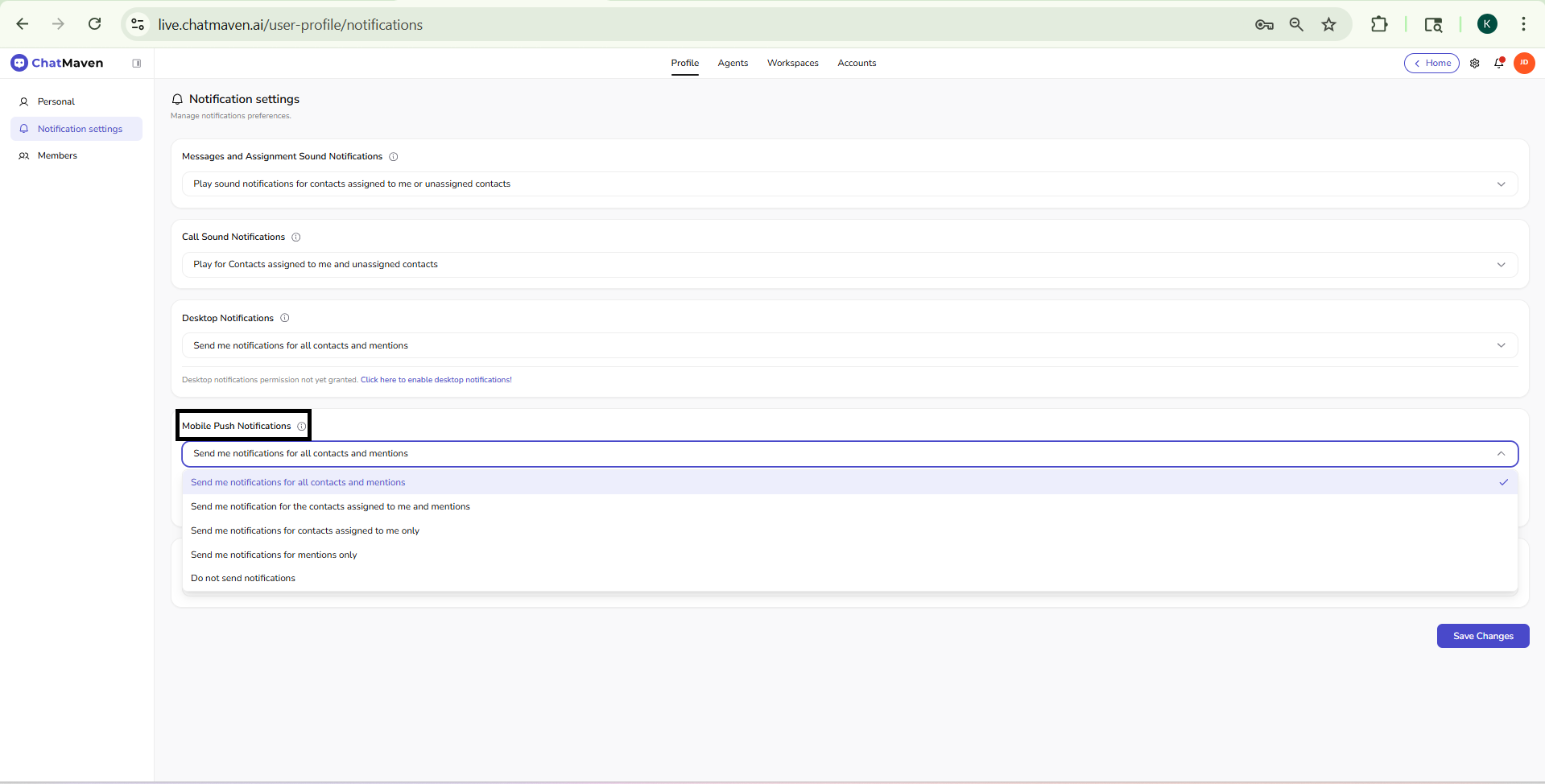
Additional controls:
- Only send mobile notifications when I am Offline — When checked, mobile pushes are limited to times you are not marked online in the product.
Until you sign in on the mobile app, you may see helper text that mobile notifications require logging in on the app first (for example the ChatMaven mobile app, depending on your deployment).
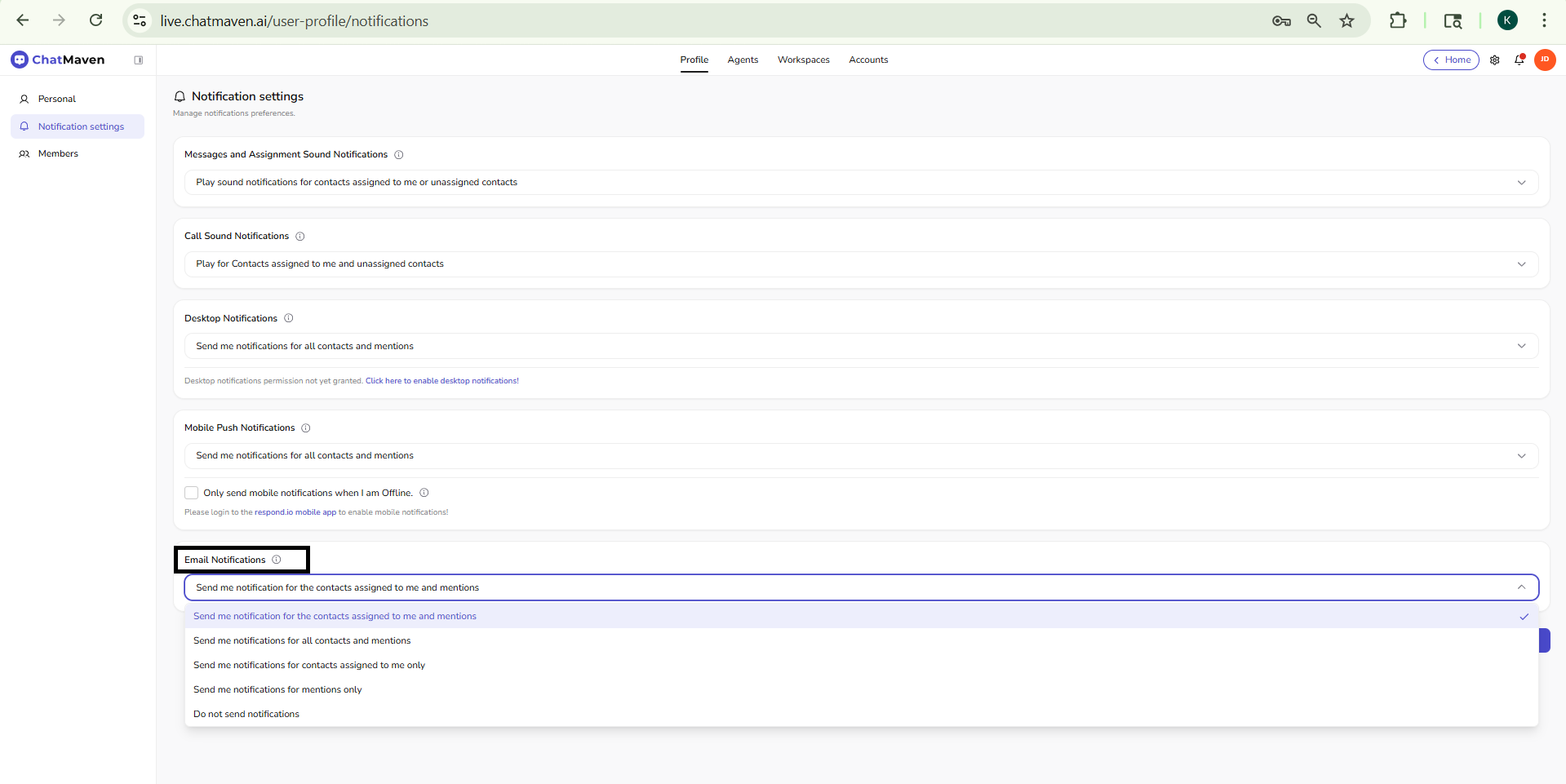
Email notifications
Controls which events trigger email. The dropdown uses the same five-type pattern as desktop and mobile, with wording aligned to email:
- Send me notification for the contacts assigned to me and mentions (often the default label uses singular notification)
- Send me notifications for all contacts and mentions
- Send me notifications for contacts assigned to me only
- Send me notifications for mentions only
- Do not send notifications
Save your changes
After updating any section, click Save Changes (primary button, often purple in the default theme). If you navigate away without saving, your changes may be discarded.
Notification settings under Profile are your preferences. They are separate from Accounts settings (for example session timeouts under Preferences), which apply at the account level.
FAQ and troubleshooting
Desktop notifications never appear.
Allow them in the browser site settings and complete the enable desktop notifications link on this page if shown. Some browsers block prompts until you interact with the page.
I get emails but no mobile push.
Sign in to the mobile app first, verify offline-only is not filtering everything while you stay online, and check OS-level notification permissions.
Changes did not apply.
Click Save Changes before leaving. Profile notifications are per user— they do not replace Accounts session preferences.
See also
- User Profile — Personal information — Name, password, availability, and roles.
- Members — Team list, invite, and filters.
- Getting Started with Inbox — Where messages and assignments appear in the product.