Make
Connect ChatMaven to Make and unlock the possibilities through thousands of integrations.
You can integrate your lead and contact information from the ChatMaven platform to thousands of CRMs, email providers, CMS, analytics tools, ads, and more. Let's have a quick look at this integration.
Getting Started
In order to get started with the ChatMaven – Make integration, you will need the following:
- A Make account
- A ChatMaven account
For most scenarios (same as Zaps in Zapier), you'll need to use a contact identifier, such as email or phone number from your leads. If you don't have this information in ChatMaven, you may not be able to complete some scenarios.
Creating Scenarios
There are two ways you can create scenarios:
-
Create a scenario from a template: Log in to ChatMaven > go to the Settings module > click Integrations > click Edit next to the Make option > select a template from the list. Templates are predefined scenarios that you can expand and customize to connect ChatMaven to popular CRM and e-commerce platforms.
-
Create a scenario from scratch: Follow the steps below. Our integration with Make requires the use of 3 module types: Triggers, Actions and Searches. A major difference between Make and Zapier is that the Actions module in Make can also be used at the beginning of a scenario, and a scenario can have an unlimited number of Actions or Searches modules. Learn more about the modules here.
Step-by-Step Instructions (Create from Scratch)
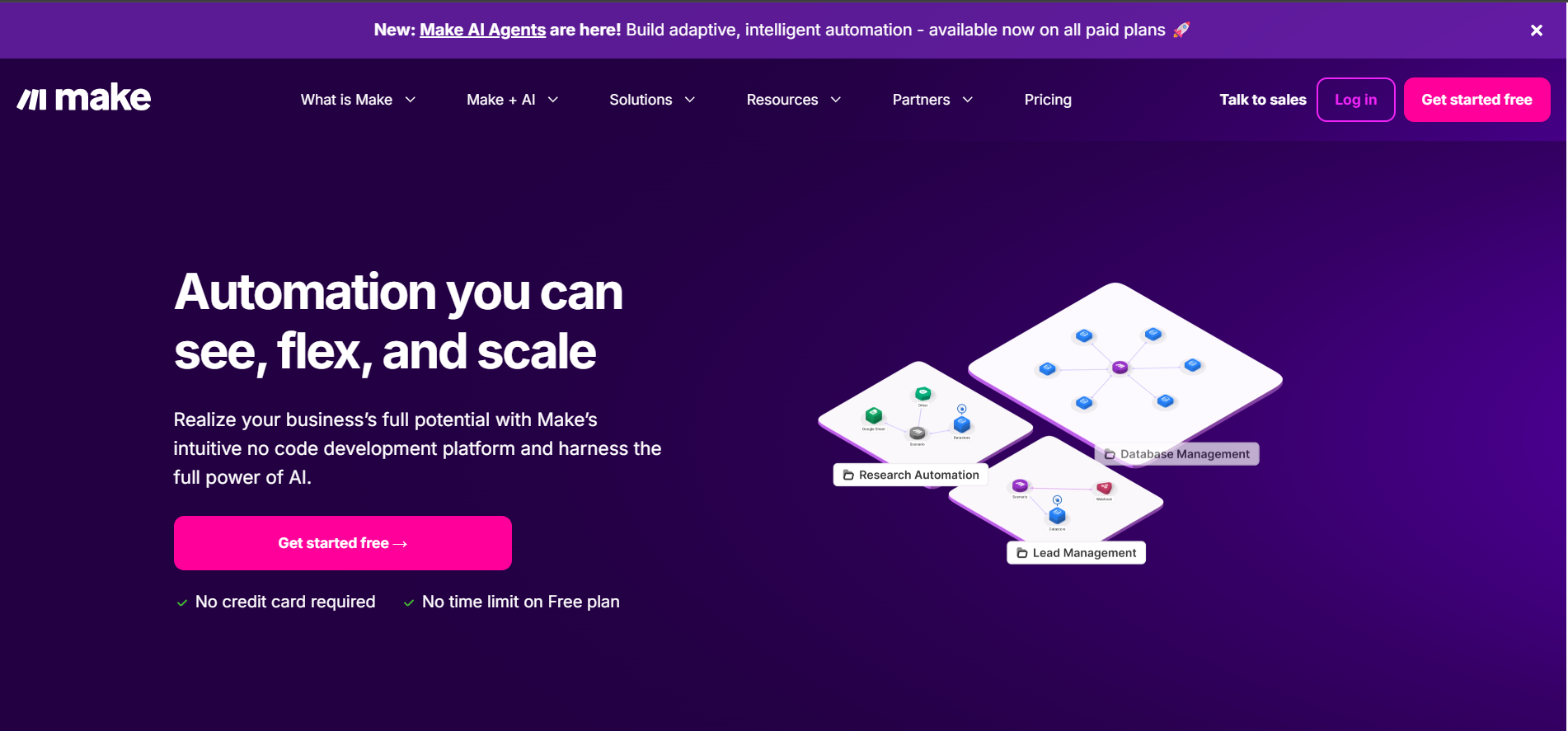
Step 1: Log in to your Make.com account.
Step 2: Click this link to add ChatMaven to Make: 👉 Install ChatMaven App
Step 3: Click Install.
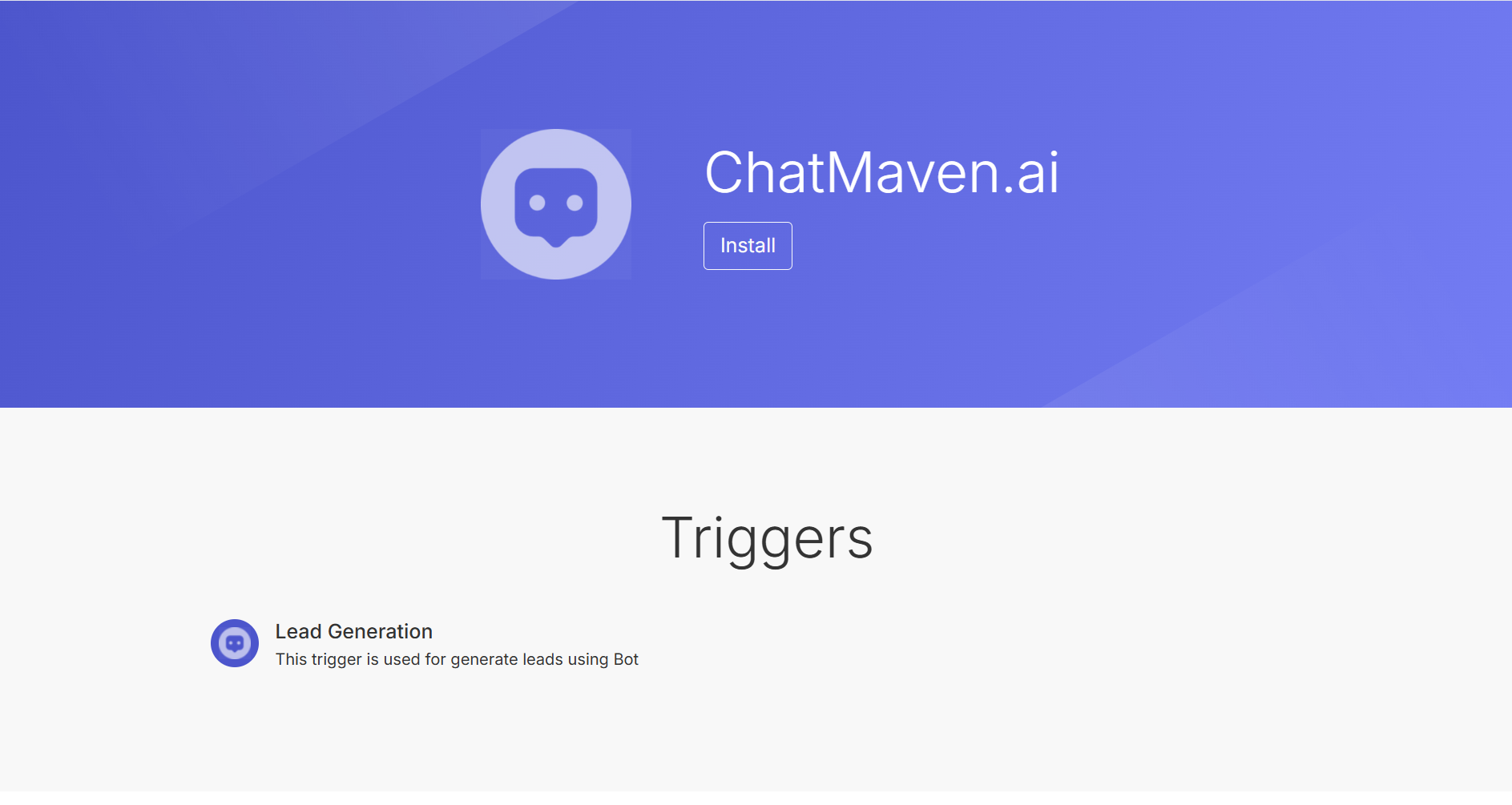
Step 4: You can use the integration in two ways:
- Trigger – Send leads from ChatMaven to another platform.
- Action – Send a message to ChatMaven and let the bot forward the information to another platform.
Step 4
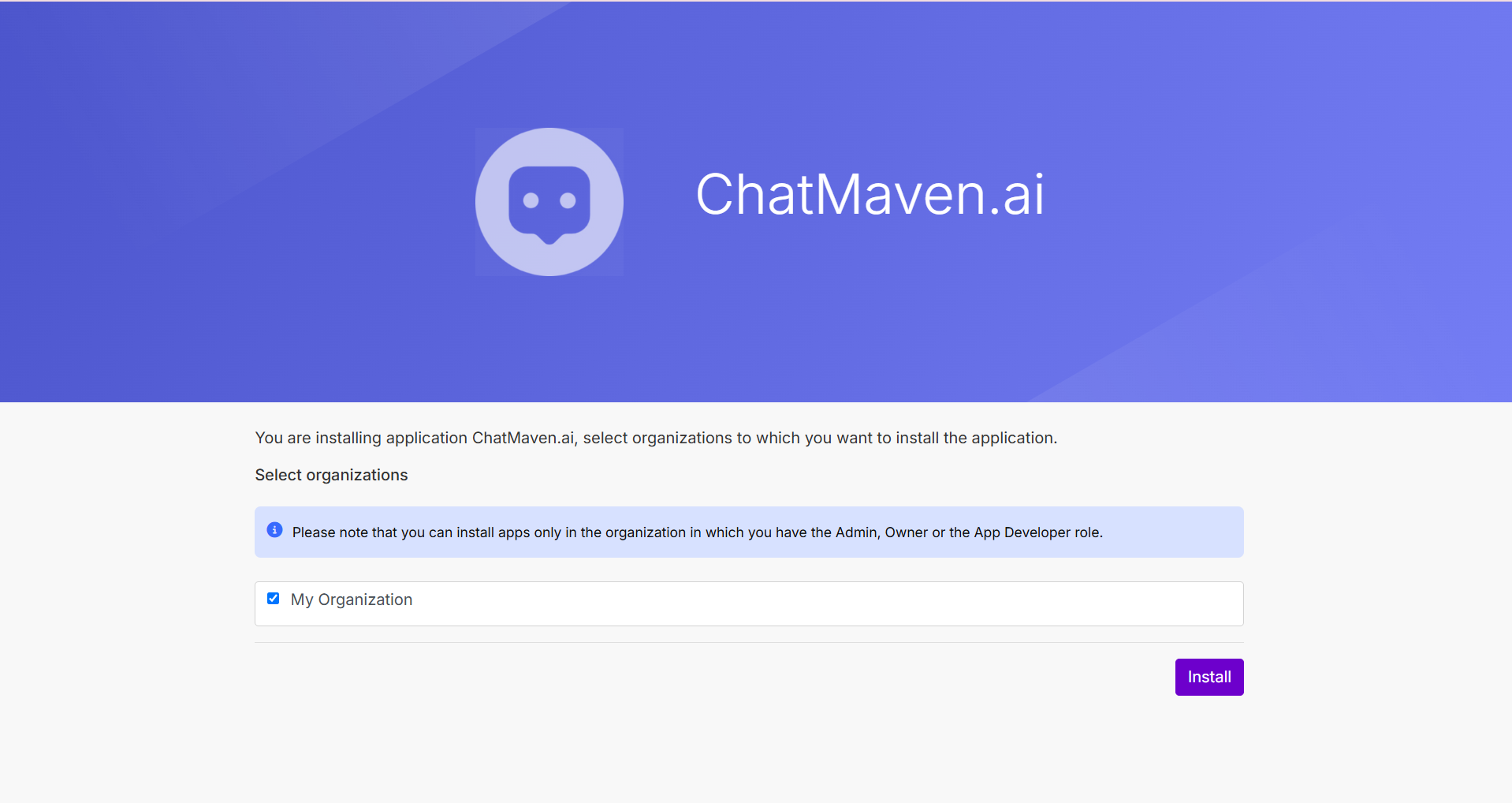
Step 5: After clicking "Install," 👉 choose 'My Organization' and then click Install again.
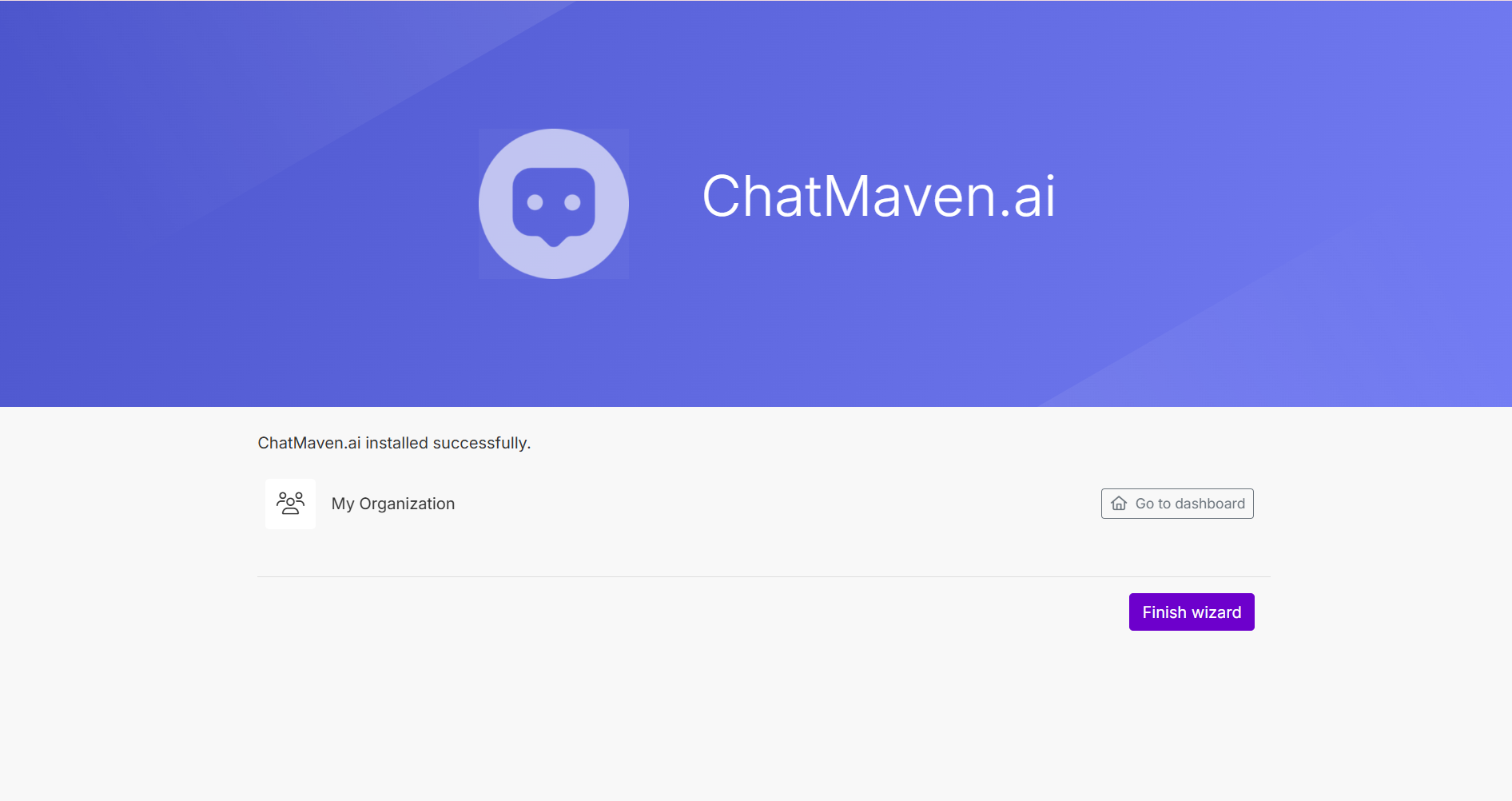
Step 6: Click Finish Wizard to complete the setup.
Create an Automation
Step 7: Go to Scenarios in Make.com.
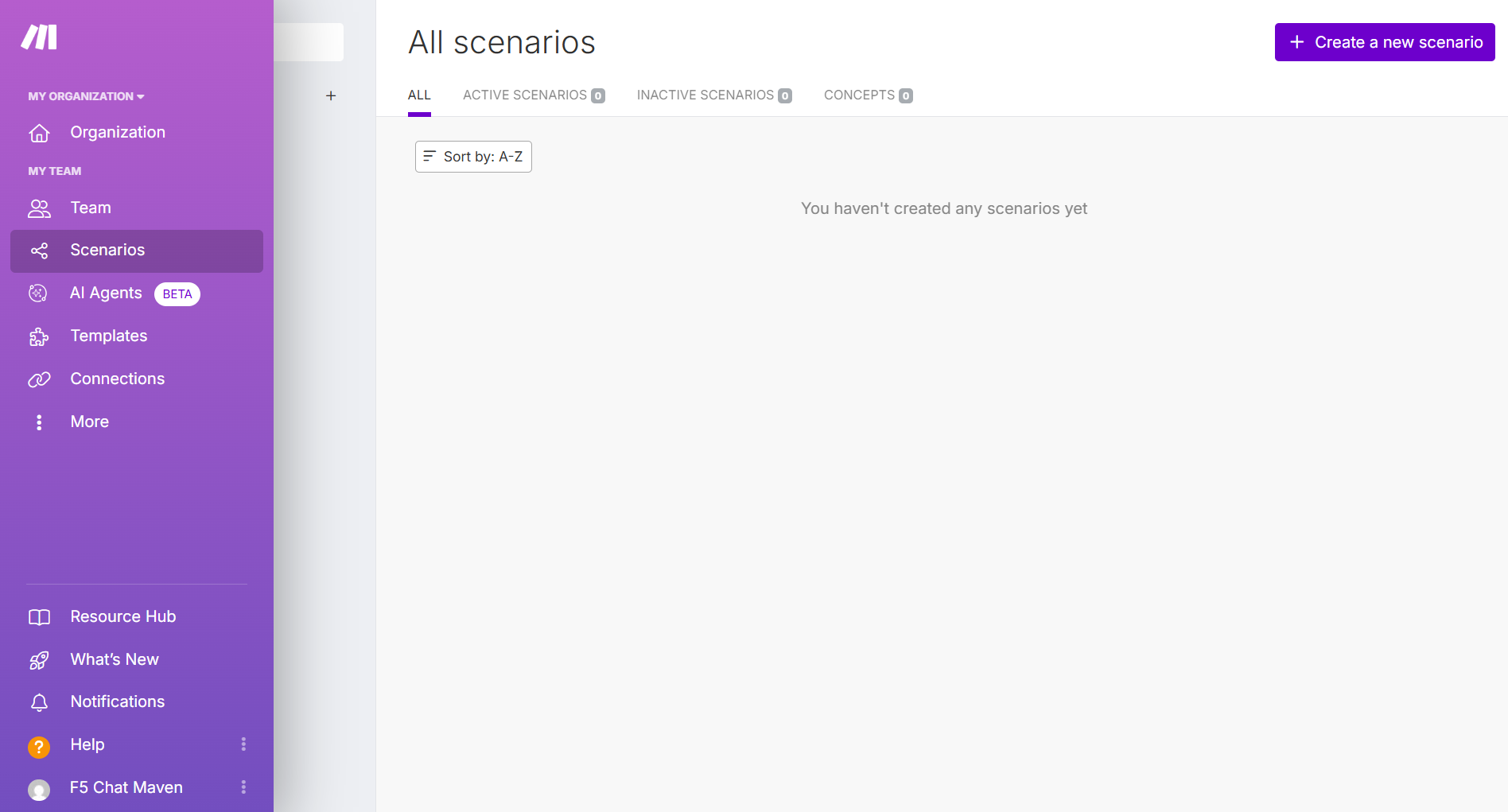
Step 8: Click 'Create a new scenario.'
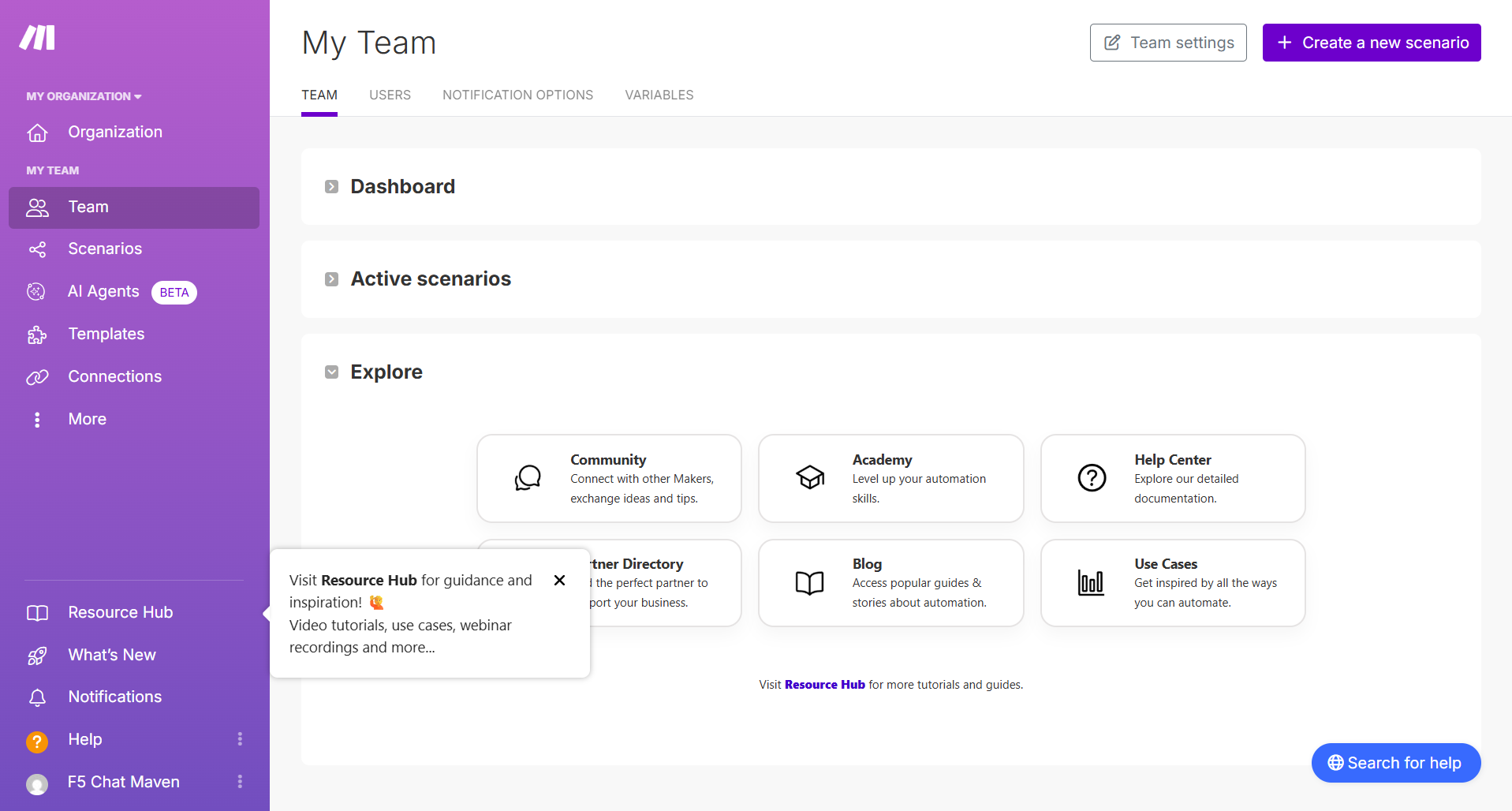
Step 9: In the search bar, type 'ChatMaven' and select the app.
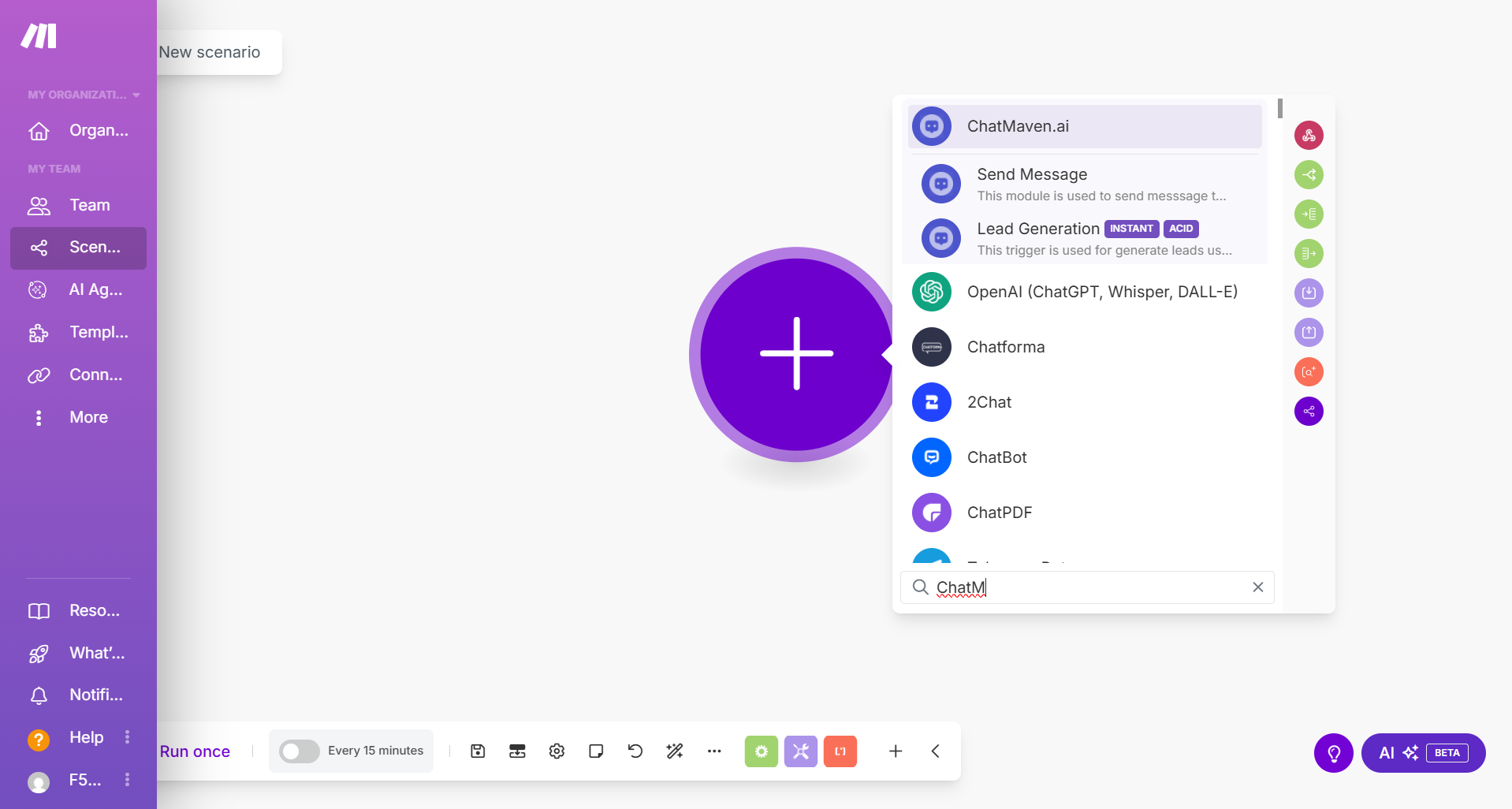
Step 10: Choose the 'Lead Generated' trigger.
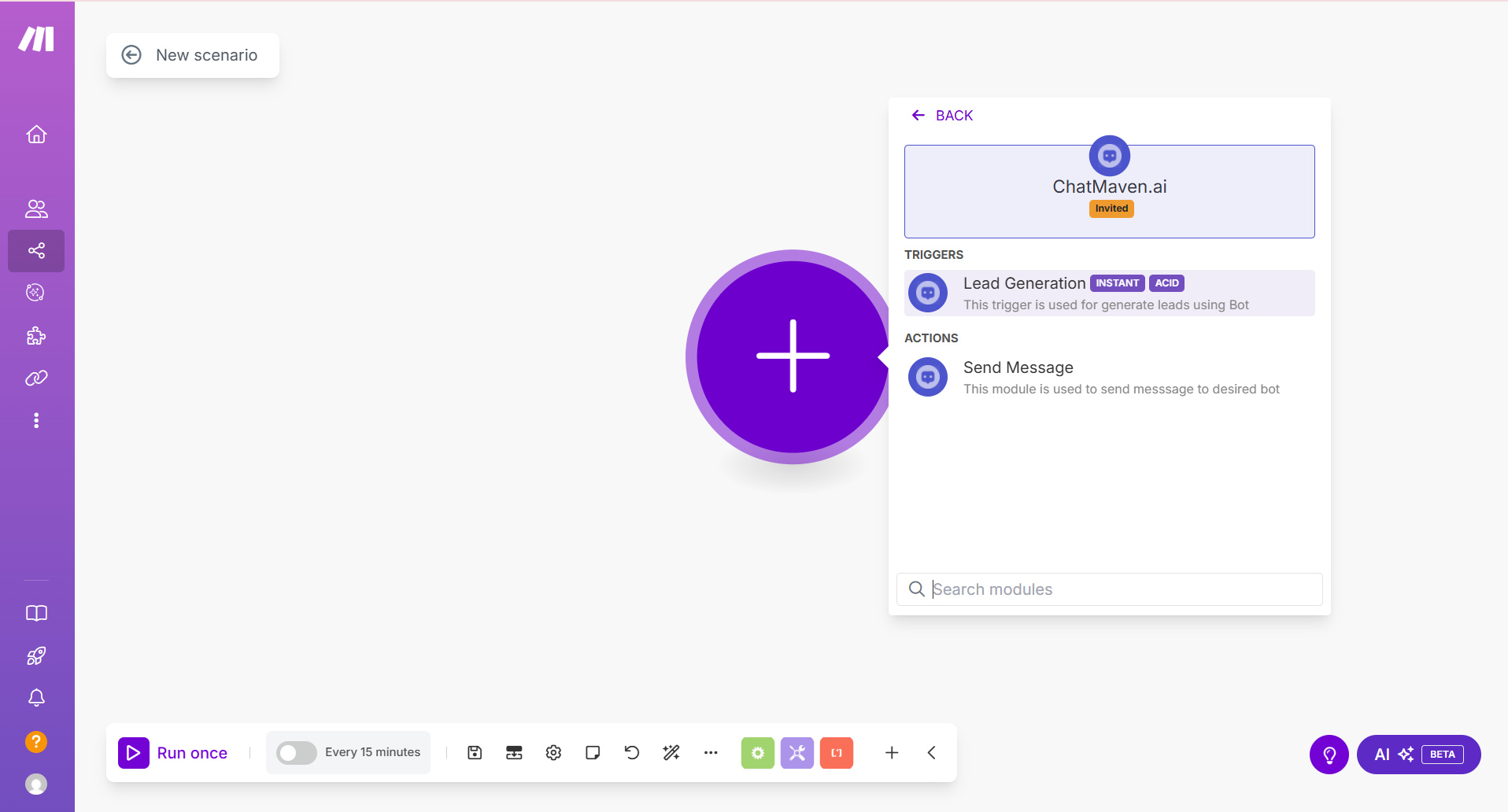
Step 11: Click the ChatMaven module, then click 'Create a webhook.'
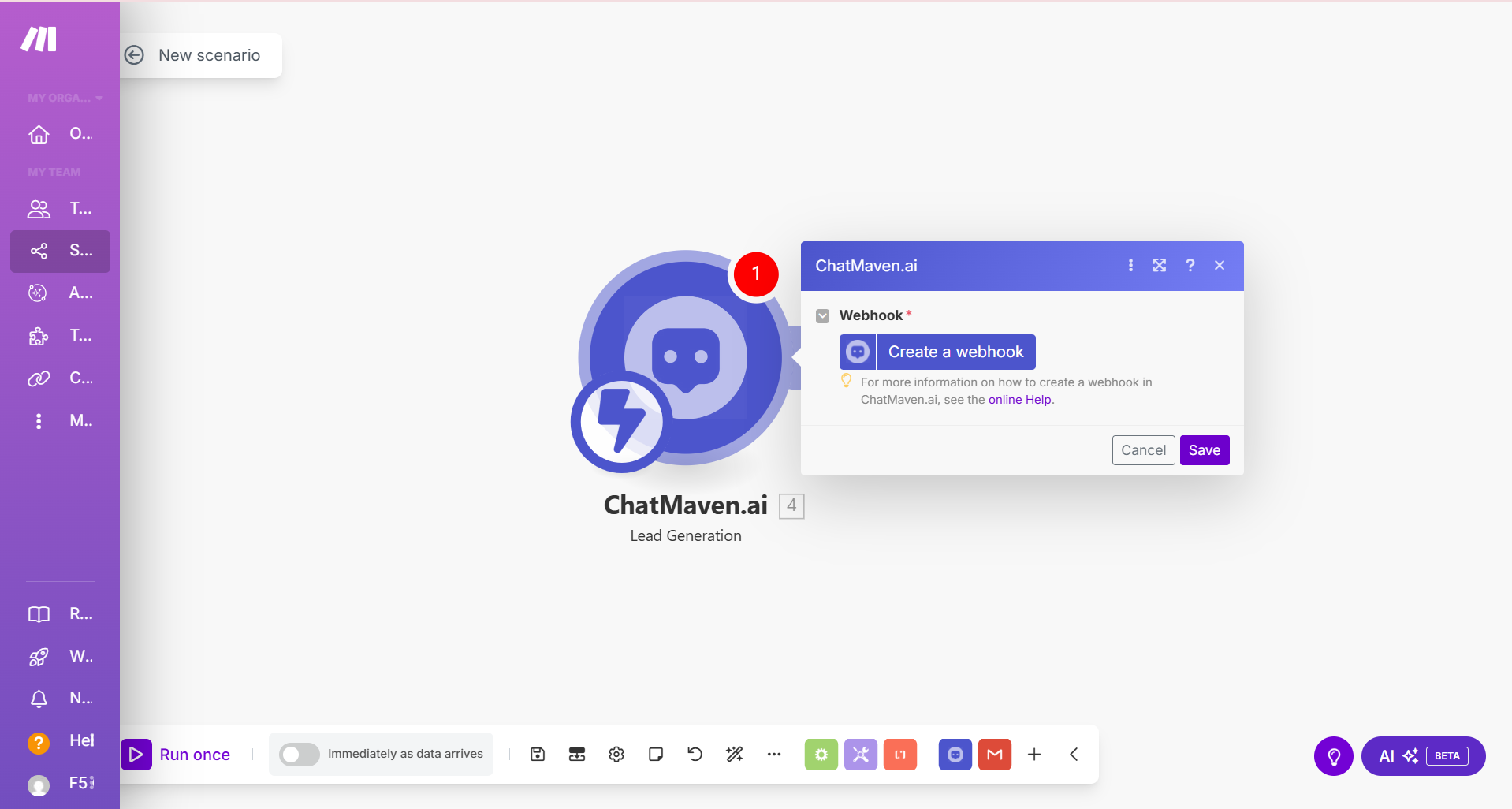
Step 12: Click 'Create a connection.'
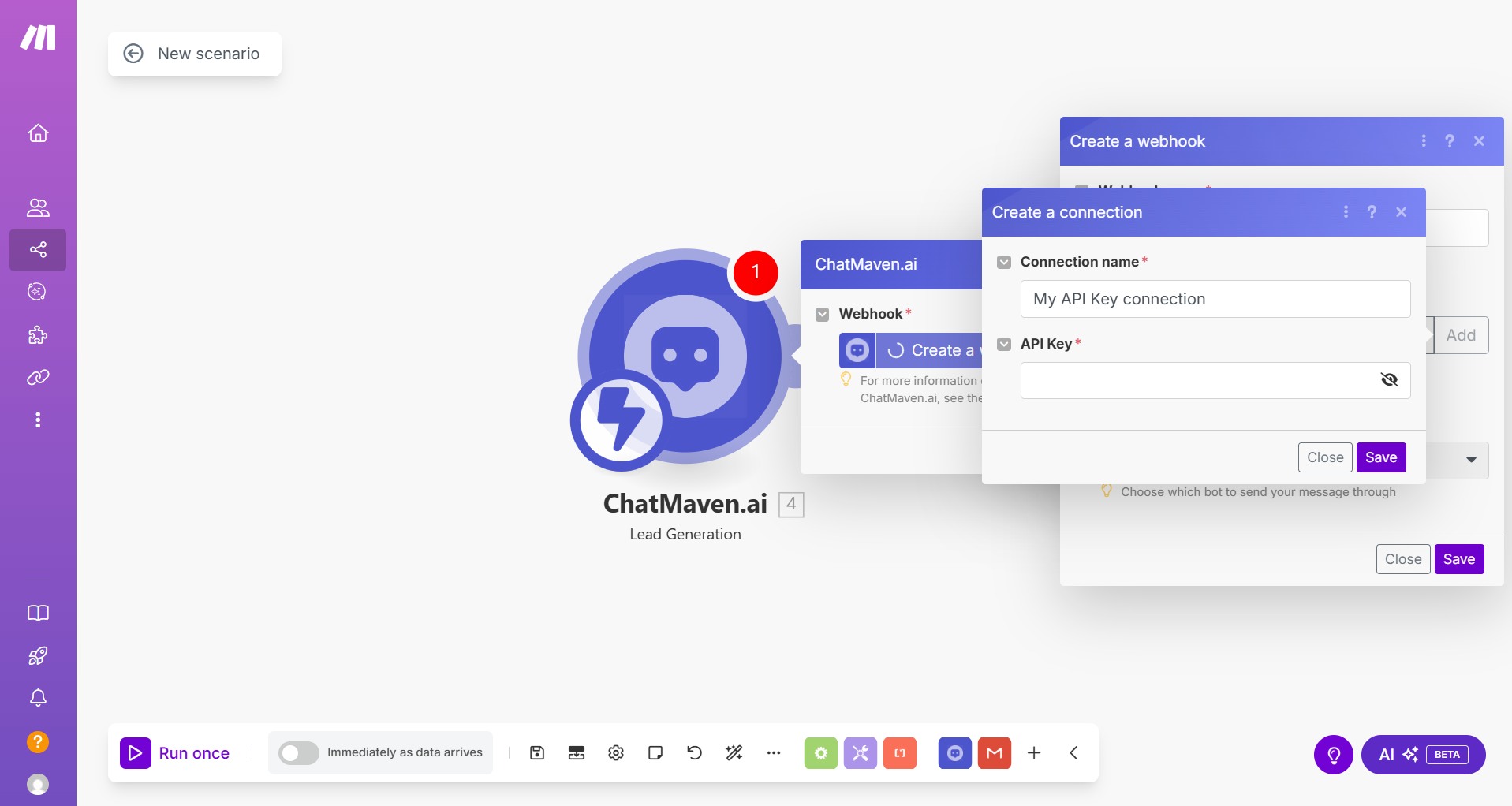
Step 13: Go to your ChatMaven Account section, copy the API key, and paste it in the popup.
Step 14: Click Save.
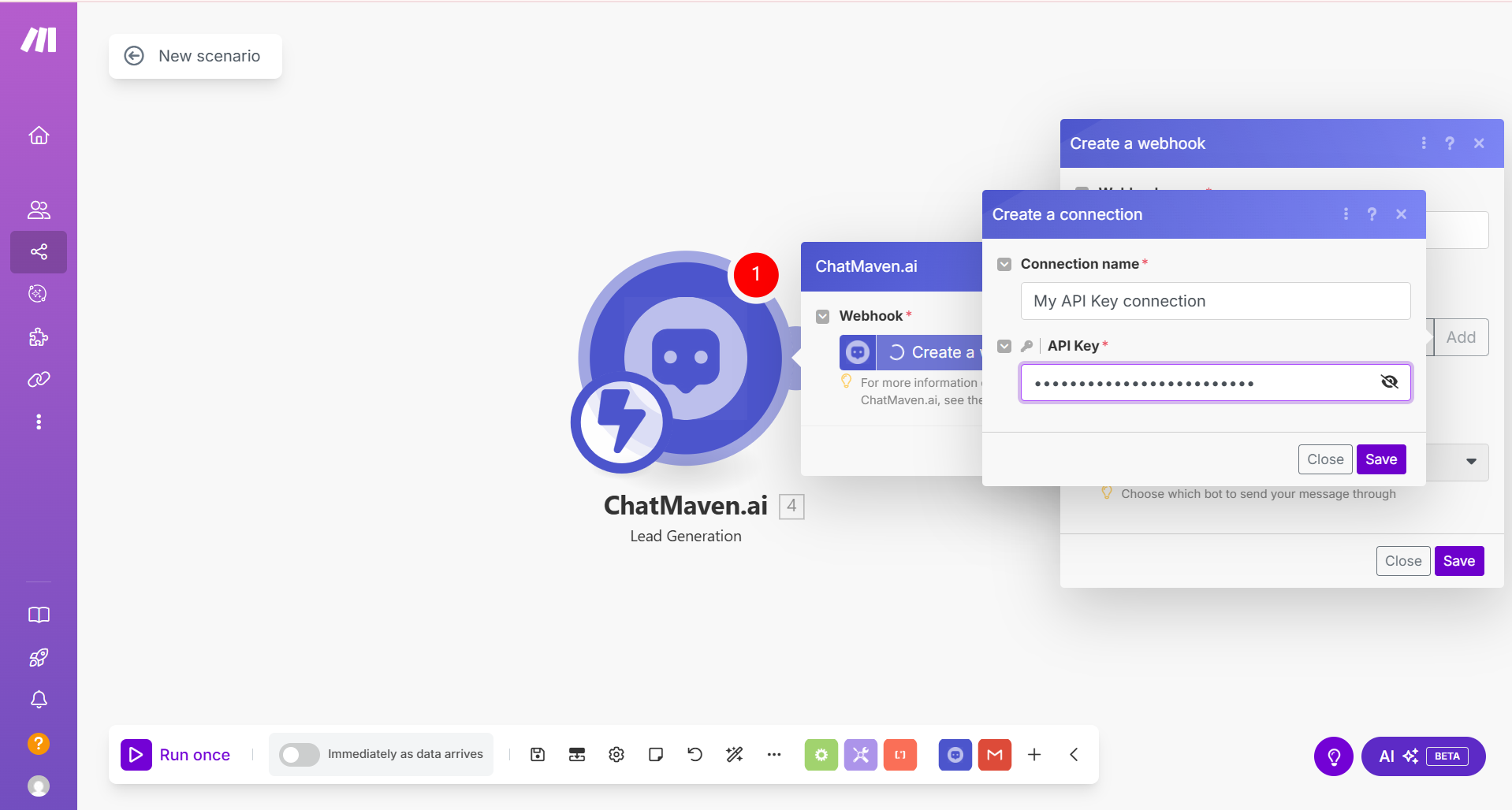
Step 15: Select the Bot ID from the dropdown list.
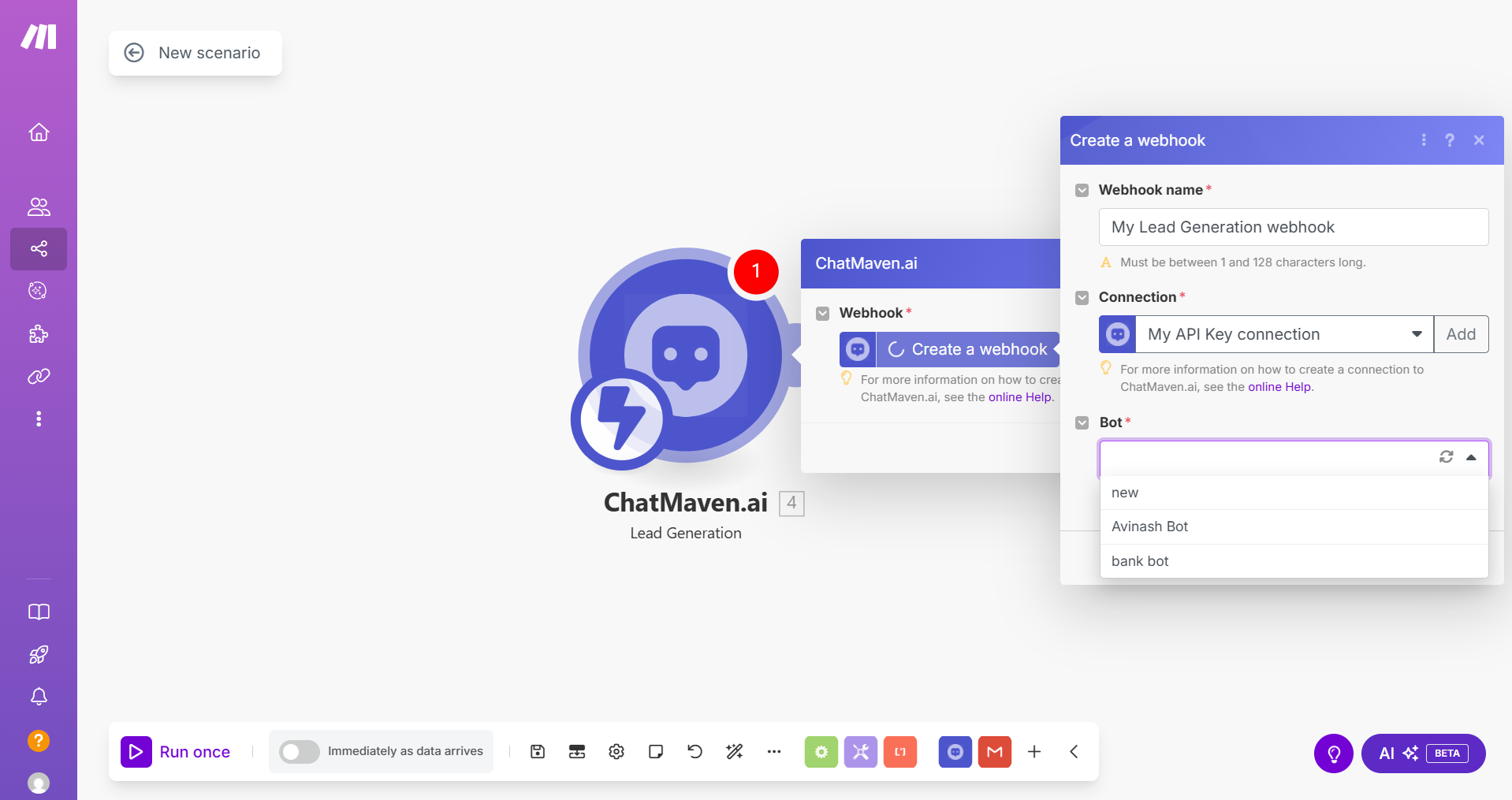
Step 16: Click Save, then OK.
Send Data to Google Sheets (Example)
Step 17: Add another module and search for the app you want to send lead data to — e.g., Google Sheets.
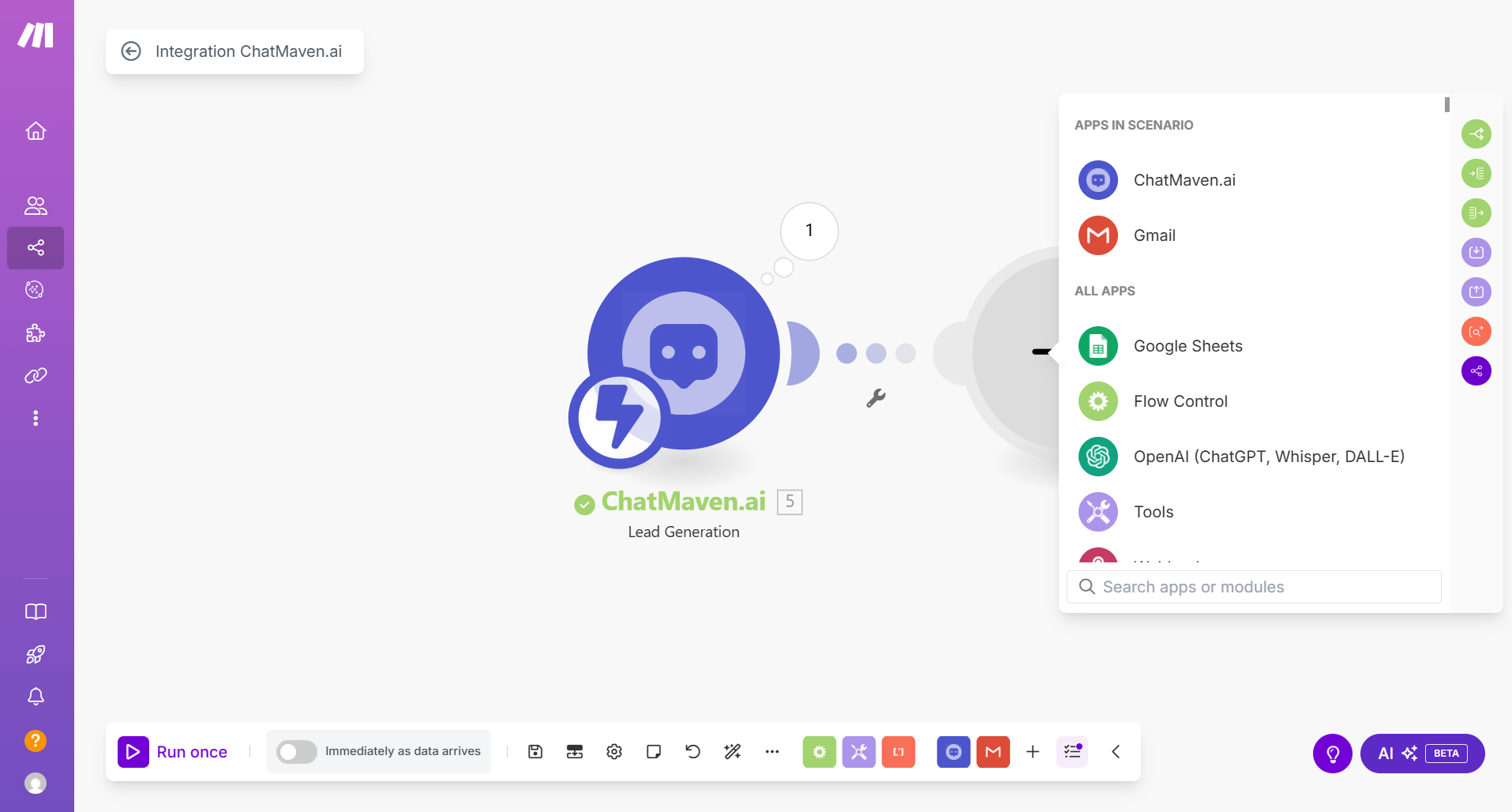
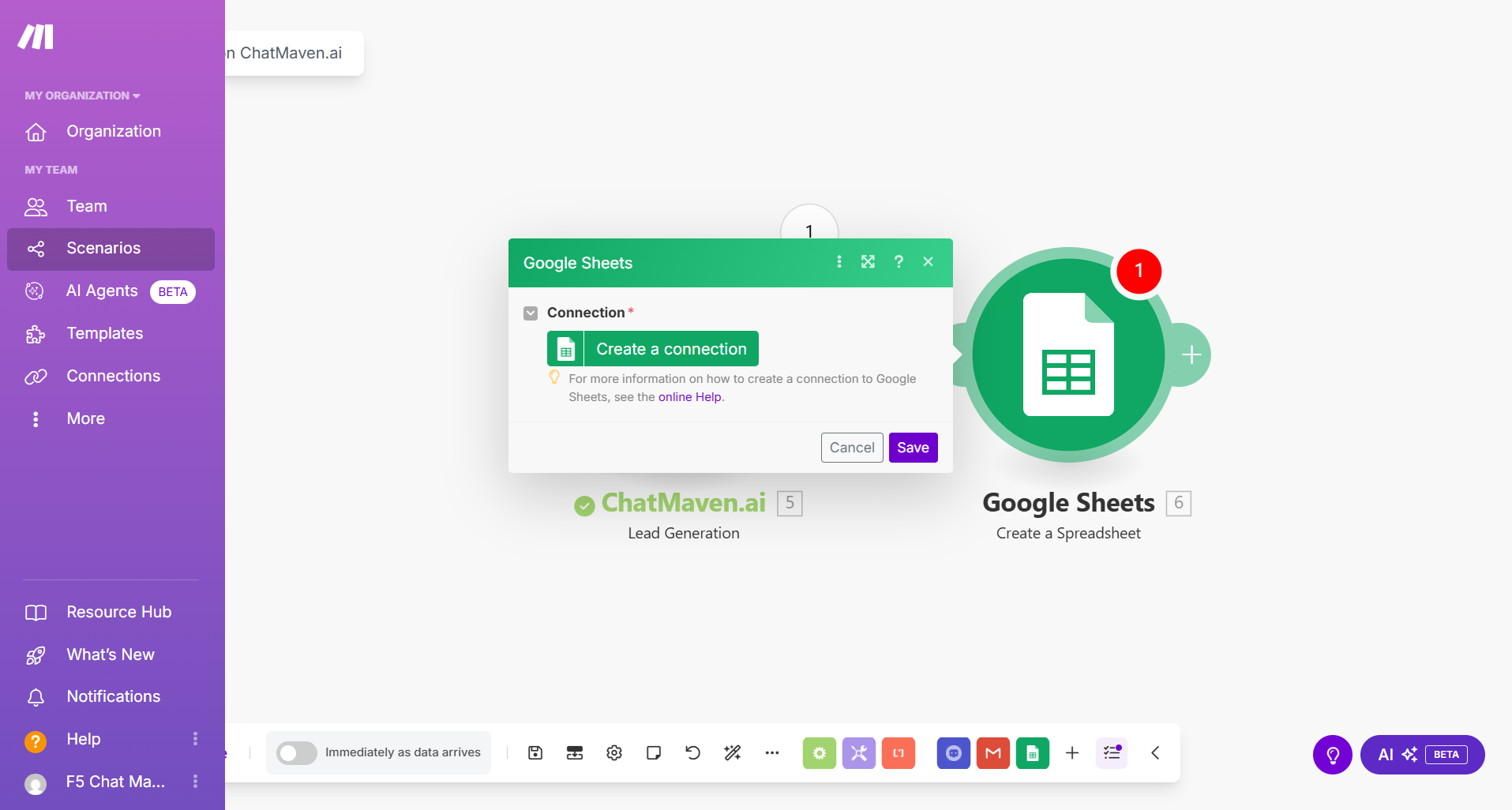
Step 18: Select Create a Connection.
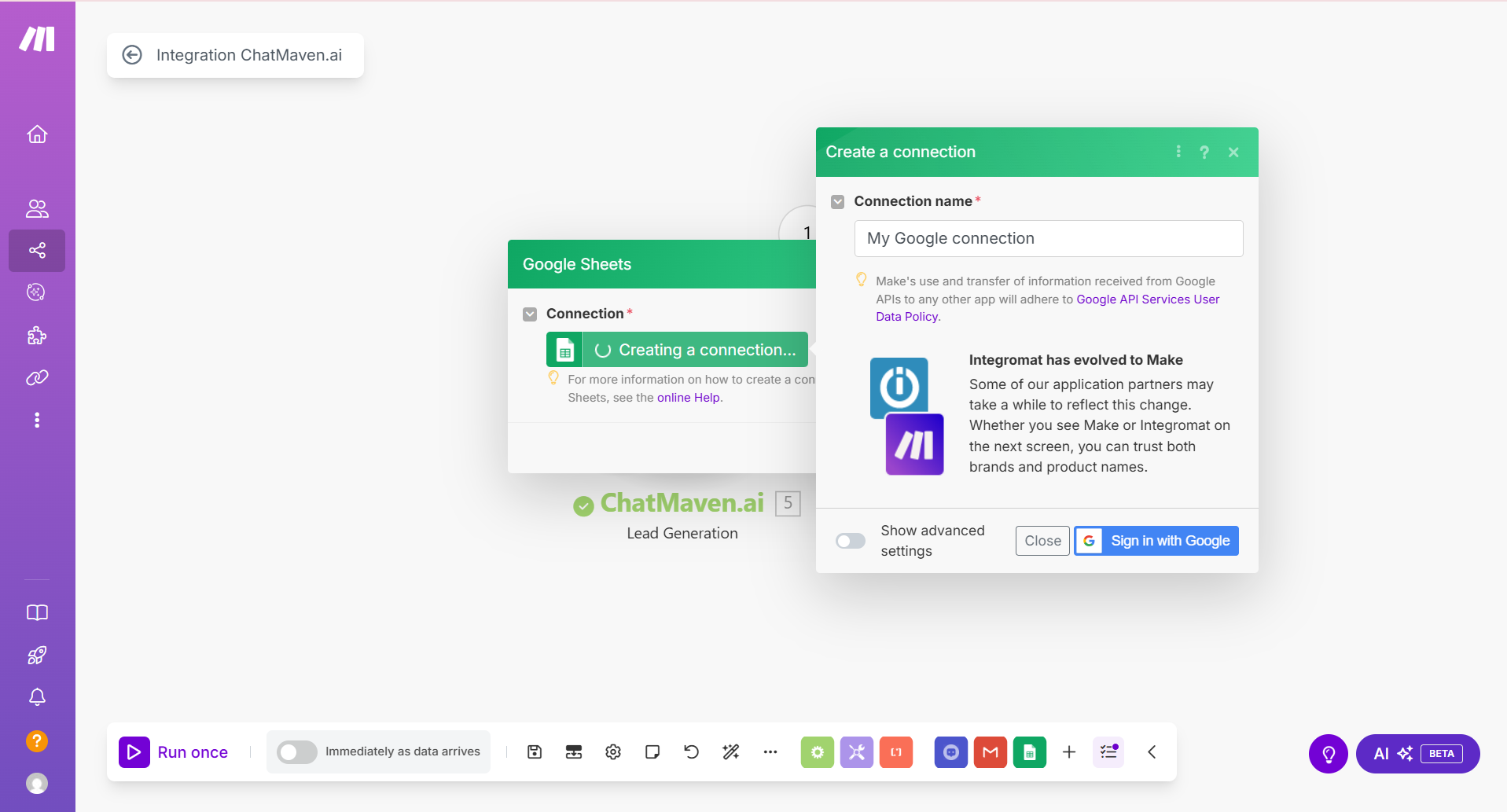
Step 19: If your Google account isn't connected yet, click Sign in with Google. If it is already connected, skip this step.
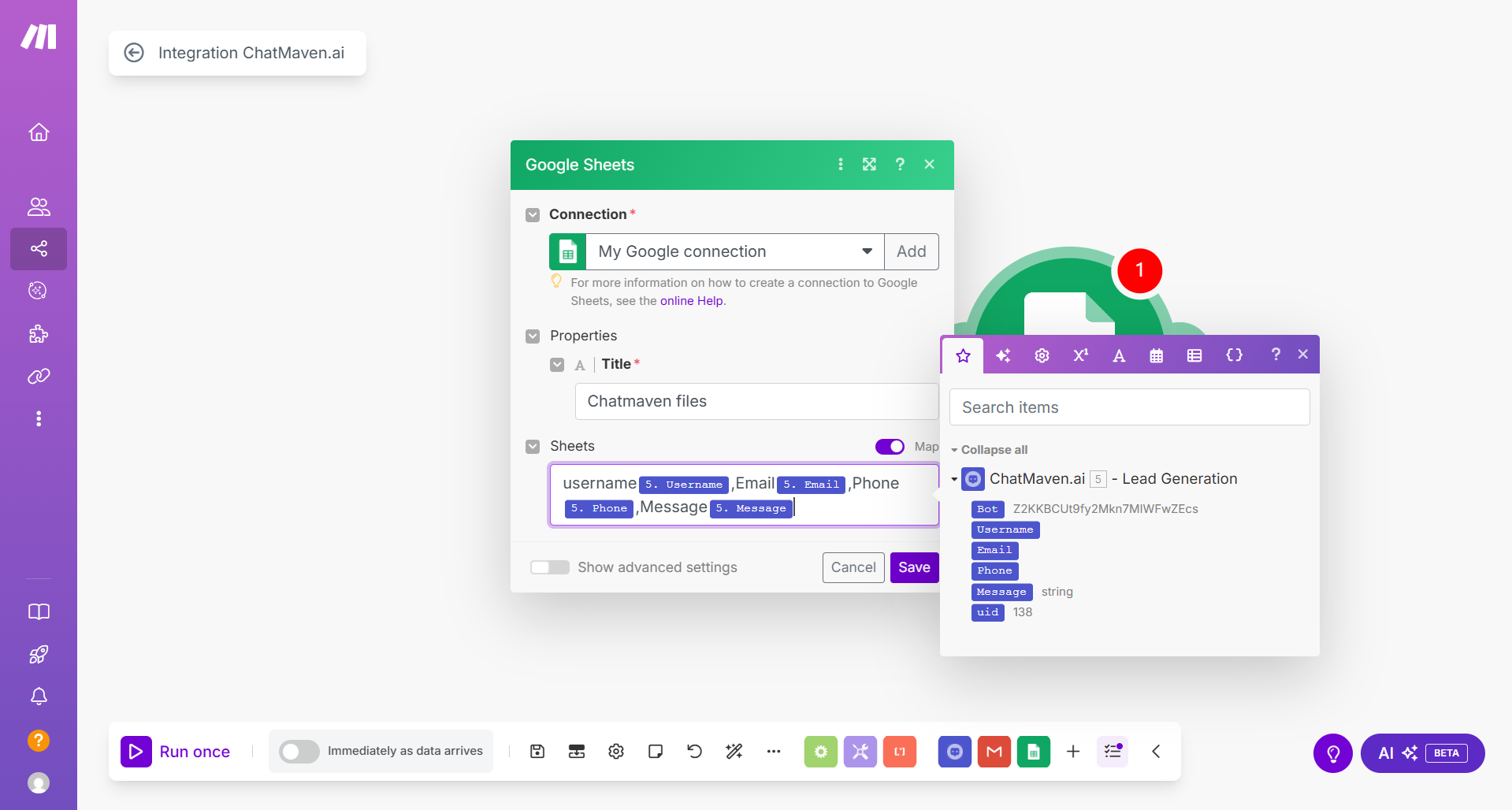
Step 20: Once connected, enter the sheet title and choose the columns where the data should go.
Step 21: Click OK to save everything.
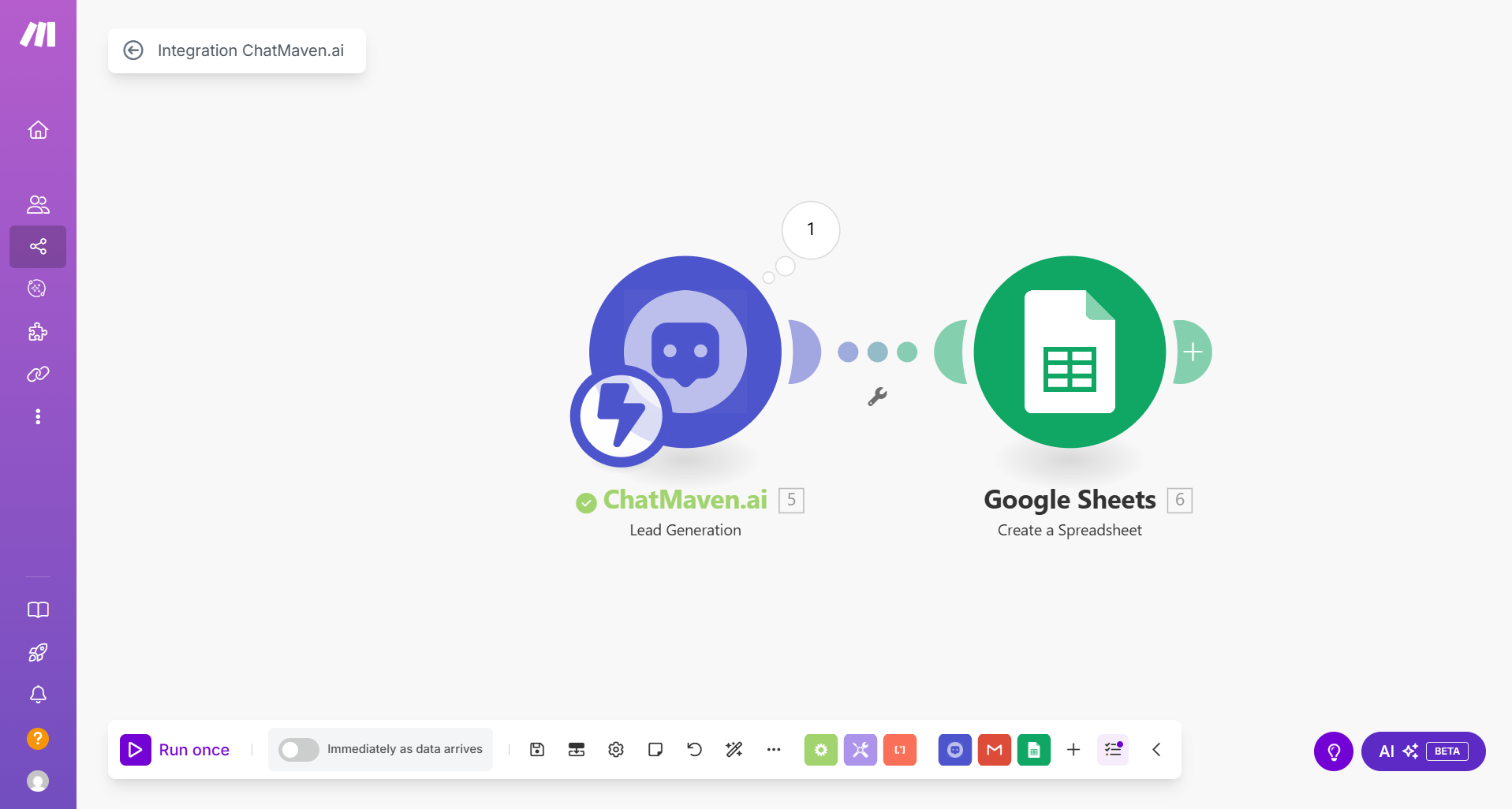
Connect ChatMaven to Make (Reference)
When connecting the ChatMaven app in Make for the first time, you are required to add an API Key. You do this in the scenario when you click the ChatMaven module and Create a connection (Steps 12–16 above). Copy your API Key from your ChatMaven Account section (or Settings > Integrations), paste it in the API Token field in Make, then click Save. Select your Bot ID from the dropdown and save.
You will only need to do this for your first scenario with ChatMaven. For all the following scenarios, you can simply choose your connected account from the drop-down menu. If you create a new team or workspace, you may need to connect your account again when setting up a scenario.
Handling Failed Message Delivery
When integrating ChatMaven with Make, one common issue you might face is the failed delivery of messages or lead data due to connection errors, invalid API keys, or other errors.
Setting Up Error Handling:
- Notification and Logging: Optionally, include a step to log these incidents or notify team members through your preferred channel, enabling visibility and manual intervention if required.
- Automated Retry Mechanism: Implement a mechanism within Make to retry failed actions automatically. This can be set up by adding conditional logic in the scenario where, if an action fails, it triggers a retry after a specified delay.
- Error Feedback to Make: Adjust your scenario to ensure that any error received from the integration is passed back to Make. This enables the automation platform to receive accurate feedback about the delivery status.
- Capture Delivery Failures: Use the relevant Get or Check modules in your Make scenario to verify that data was successfully sent. This step will help identify failures due to errors such as invalid credentials or rate limits.
Best Practices:
- Documentation and Support: Ensure that your team members are aware of these mechanisms and understand how to troubleshoot and adjust scenarios as needed.
- Regular Monitoring: Set up regular checks or alerts for the status of your integrations and the performance of your automation scenarios.
- API Key Security: Keep your API keys secure and regenerate them if you suspect they have been exposed.
FAQ and Troubleshooting
Why can't I connect my account to the ChatMaven module (HTTP Status → 401 error)?
Your API Token is invalid or not correct. Make sure your API Token is correct or regenerate it from your ChatMaven Account (or Settings > Integrations).
What happens if a trigger fails to run?
When a trigger fails, we will wait a certain amount of time before we attempt a retry. The waiting time will gradually increase between retries.
We will attempt a total of 3 retries on a failed trigger, with a waiting time of 30 seconds before the first retry, 60 seconds before the second retry, and 90 seconds before the third retry. After the 3rd retry, the trigger will not be invoked to Make.
What should I do if my Bot ID is not showing in the dropdown?
Ensure that you have at least one bot created in ChatMaven and that your API key has access to that workspace. If you have created a new team or workspace, connect your account again in the Make connection settings.
Troubleshooting checklist
If you encounter any issues:
- Verify your API key is correct and has not expired.
- Check that your Bot ID is properly selected in the ChatMaven module.
- Ensure permissions are properly set for the action app (e.g. Google Sheets).
- Review Make.com scenario logs for error messages.
Need Help?
If you need assistance with your Make.com integration:
- Contact ChatMaven Support
- Visit our Community Forum
- Check Make.com's Documentation
For more advanced configurations, see: